Contact roles, merging and duplicates
Give contacts roles that decide who gets invoices, quotes, reports, outage notices and approval requests, find possible duplicate customers and contacts, and merge or move them safely.
Contact roles say what each person at a customer is for, possible duplicates are pointed out as they are typed and gathered in one list, and merges move everything across in one go.
Contact roles
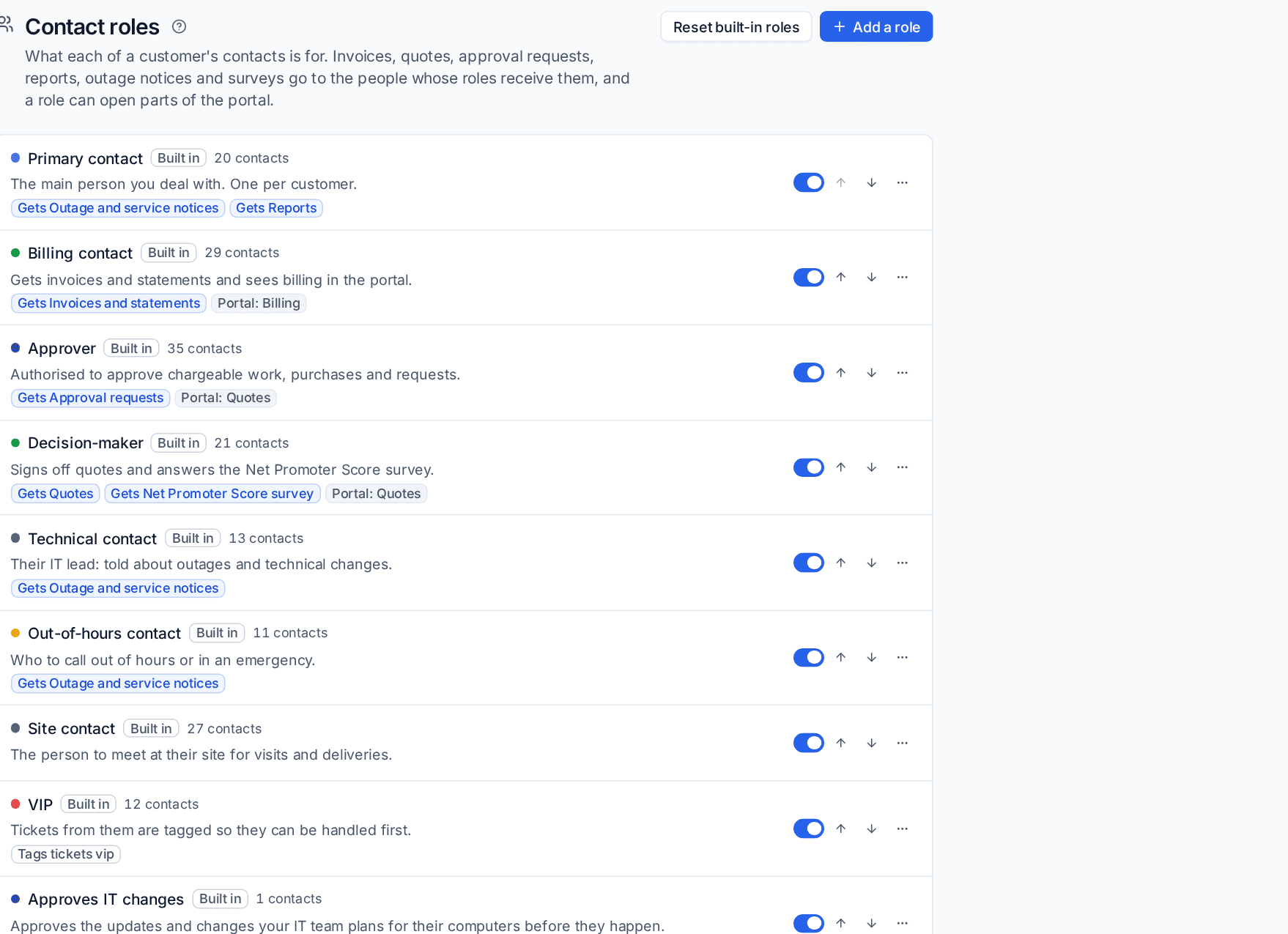
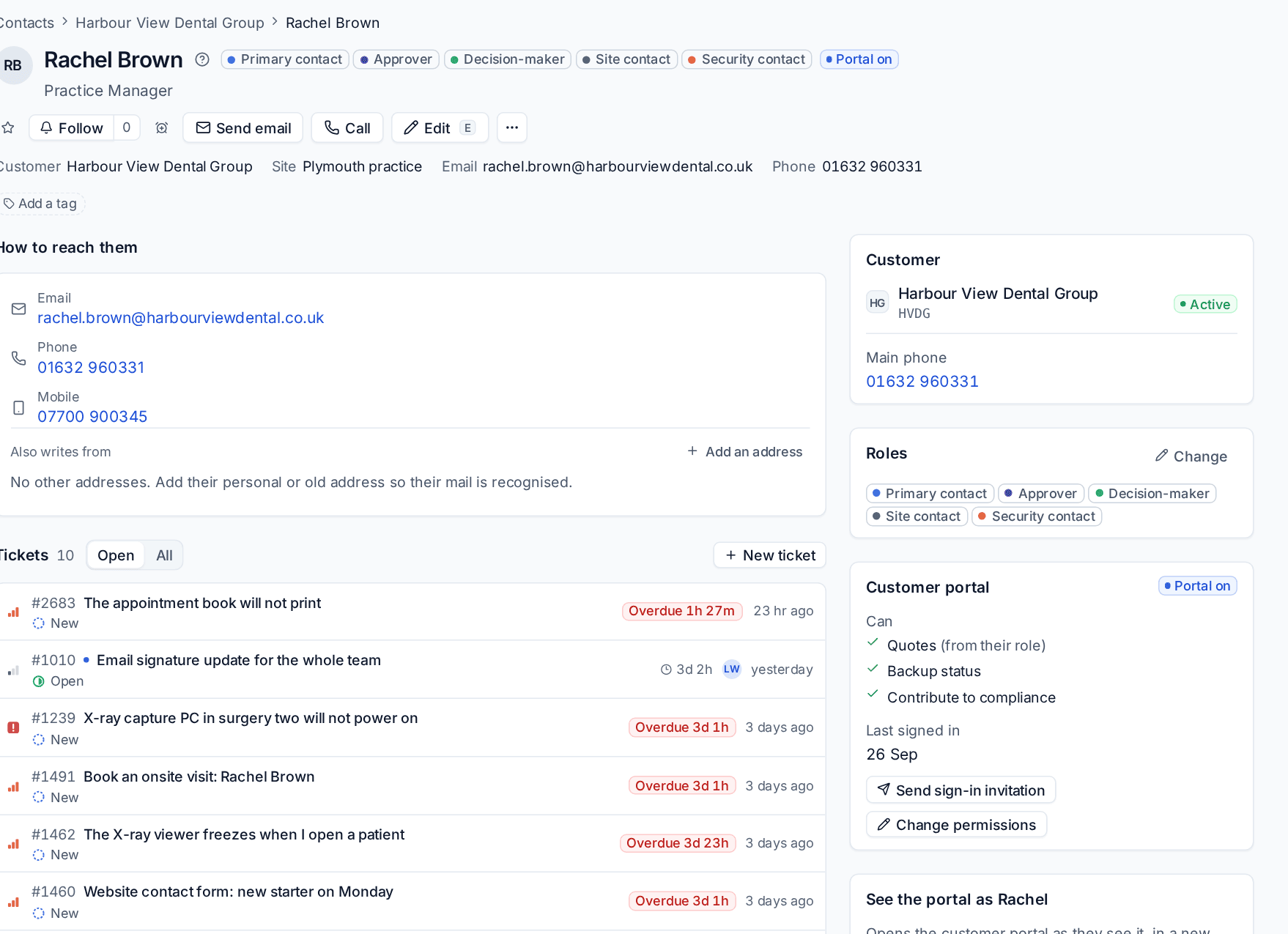
A role says what a person at a customer is for. A contact can have any number of roles, and a contact with none is simply a standard user. Roles show as badges on the contact page, their hover card, the ticket's requester panel and the customer's overview, and the Contacts list has a Roles column and filter.
Roles do real work. Instead of each part of Tenvara keeping its own list of who to email, they all ask the roles:
| Role | What it means |
|---|---|
| Primary contact | The main person you deal with, one per customer. Gets outage and service notices and reports |
| Billing contact | Gets invoices and statements, and sees billing in the portal |
| Approver | Authorised to approve chargeable work, purchases and requests. Gets approval requests |
| Decision-maker | Signs off quotes and answers the Net Promoter Score survey |
| Technical contact | Their IT lead, told about outages and technical changes |
| Out-of-hours contact | Who to call out of hours or in an emergency |
| Site contact | The person to meet at their site for visits and deliveries |
| VIP | Tickets from them are tagged so they can be handled first |
Others are built in too, such as Security contact, and you can add your own.
So invoices go to the billing contacts, a quote sent without a named contact goes to the decision-makers, approval requests go to the approvers (see Approvals), a visit with nobody named falls back to the site contact, and outage notices go to everyone whose role receives them. Choosing a person by hand always wins over the roles.
On a ticket, a requester who is not an approver shows Not an authoriser with the names to Ask before chargeable work, so nobody books paid work on the word of someone who cannot approve it.
Set up the roles
Settings > Contact roles lists every role in order with how many contacts have it, what its people receive, the portal permissions it gives and any ticket tag.
- Press Add a role, or open a role to change it.
- Give it a name and colour.
- Choose what its people are sent: invoices and statements, quotes, approval requests, reports, outage and service notices, surveys.
- Choose any portal permissions it gives, such as billing, quotes or reports. These are added to whatever the contact has of their own.
- Optionally choose a ticket tag. Every new ticket from someone with the role gets it, so SLA policies, views and rules can use it (the built-in VIP role tags tickets
vip). - Save.
Built-in roles can be renamed, recoloured, given other duties or switched off. A role that is off counts for nobody, but its members are kept for when you turn it back on. Reset built-in roles puts the built-in ones back as they came. Your own roles can be deleted.
Give a contact roles
Tick the roles on the contact's form (Site contact appears once a site is chosen), or use the quick change on the contact page. Every change is recorded on the contact's activity.
Possible duplicates
While typing
The customer, contact and lead forms check as you type, and warn without blocking: "Possible duplicate: Harbour View Dental Group (HVDG)", with Open it and Create anyway (or Save anyway when editing).
- Two customers look alike when their names are similar (or the same once "Ltd", "Limited", "The" and the like are left out), or they share a company number, VAT number, website or email domain. Free mail domains never count.
- Two contacts look alike when an email address (their main one or an extra one) is already used anywhere, or the same name and phone are at the same customer.
- A new lead is checked against your customers and other leads.
The Possible duplicates list
Customers > Possible duplicates and Contacts > Possible duplicates list the pairs that look alike, with the reasons, such as Same name and Same website, and How alike they are.
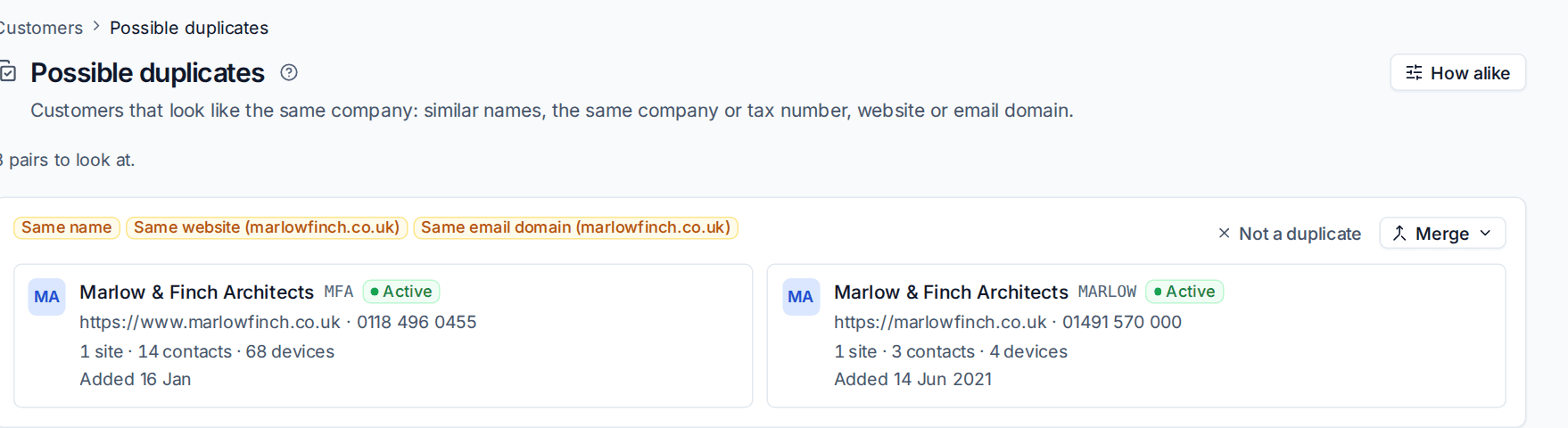
For each pair:
- Merge opens the merge with either one kept.
- Not a duplicate removes the pair. Tenvara remembers, so it does not come back.
Merging customers
Merging moves everything that belongs to one customer onto another: sites, contacts, devices, tickets, time, contracts, quotes, invoices, projects, documentation, credentials, alerts, backups, Microsoft 365 tenants, licences and chats.
- Open the customer you want to get rid of.
- In More actions, choose Merge into another customer... (or press Merge on the possible duplicates list).
- Choose the customer to keep under Merge into.
- Check What moves across, with a count of each kind.
- Under Where they differ: keep which?, choose the value to keep for each field that differs, such as the phone number. Email domains from both are kept.
- Press Merge into the customer you keep.
The merged customer is deleted. Its old name and code stay searchable with Cmd+K.
Warning: A merge cannot be undone. Tenvara refuses it, with the reason, when both customers have a contract in force for the same dates, when their invoices are in different currencies, or when it would put a group of companies two levels deep.
Merging contacts
- Open the contact to get rid of and choose Merge with another contact... in More actions. Or, on the Contacts list, select exactly two people at the same customer and use the bulk action.
- Choose the contact to keep.
- Pick which value to keep for each field that differs.
- Press Merge.
Their tickets, messages, chats, quote acceptances, survey answers, approvals, portal sign-ins, project and documentation links, visits, billing entries and roles move to the contact you keep. The address that is not kept as the main one becomes an extra email address, so their mail is still recognised.
You can only merge two contacts at the same customer. If the same person is at two customers, move one first.
Moving a contact to another customer
People change jobs, and sometimes a contact was added to the wrong customer.
- On the contact, choose Move to another customer... in More actions.
- Choose the New customer and, if you like, the Site there.
- Choose what happens to Their open tickets: Stay with the old customer (someone else there can be the contact on them) or Move with them.
- Press Move.
Closed tickets always stay with the old customer, showing the person as "now at" the new one. Their portal sign-ins, the primary flag, billing entries and site contact duties at the old customer are cleared, and both customers' activity records the move.
Tip: Rather than adding the same person twice, give a contact who writes from more than one address their extra addresses under Also writes from on their page. Mail, portal sign-in and chat recognise any of them.
See also Portal permissions and people.
Was this page helpful?
Thanks for the feedback.