Sign-in, profiles and notifications
How contacts sign in to the portal (emailed link or code, Microsoft, password and two-factor, passkeys), people at several organisations, the profile and what reaches them where.
Contacts never need a password to use the portal, but they can have one, and they can sign in in whichever way suits them. This guide covers the sign-in options you offer, the contact's profile and how notifications reach them.
Signing in
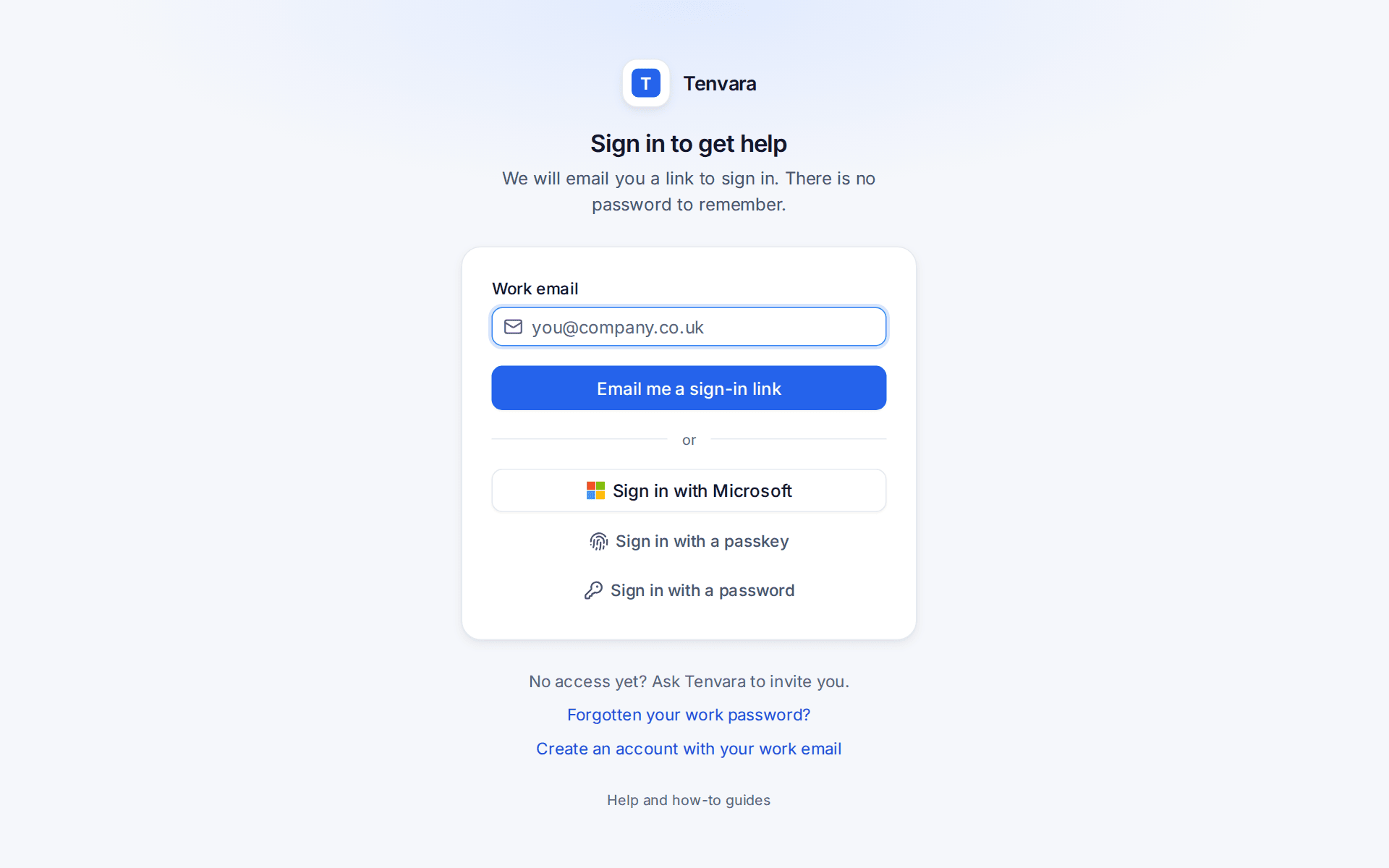
The contact types their Work email, then chooses from what you offer:
- Email me a sign-in link: always available. The email also carries a six digit code, for people who read mail on their phone and sign in on a computer. The code works once, for as long as the link.
- Sign in with Microsoft: for contacts with a work or school Microsoft account. The address is matched to their contact, preferring the customer whose Microsoft 365 tenant they belong to. Nothing is created for an address you do not know.
- Sign in with a passkey: Face ID, Windows Hello, a phone or a security key, with no email or password at all.
- Sign in with a password: when you let that customer's contacts set one, optionally with two-factor from an authenticator app.
Once someone has typed their address, the page can show their own company's picture and text where you set one, without ever saying whether the address has an account. It also remembers the address on that device.
What you set
Settings > Customer portal > Access and sign-in, for every customer or one customer:
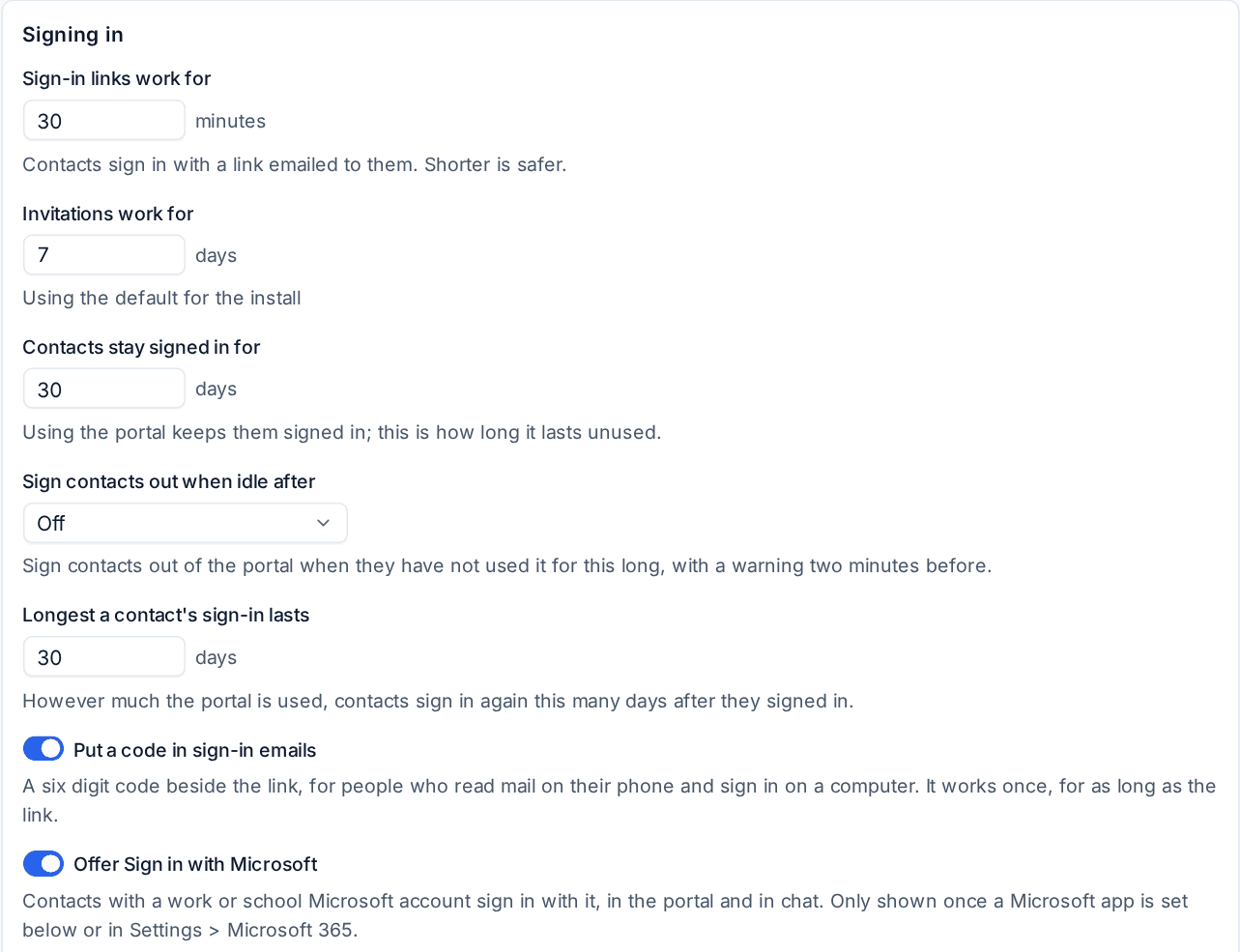
| Setting | What it does |
|---|---|
| Sign-in links work for | How long an emailed link (and its code) lasts. Shorter is safer. |
| Contacts stay signed in for | How long a sign-in lasts unused. |
| Sign contacts out when idle after | Off, or 30 minutes to 12 hours, with a two-minute warning first. |
| Longest a contact's sign-in lasts | However much the portal is used, contacts sign in again after this many days. |
| Put a code in sign-in emails | The six digit code beside the link. |
| Offer Sign in with Microsoft | Shown once a Microsoft app is set under Sign-in apps, or the Microsoft 365 app registration from Settings > Microsoft 365 is used. |
| Contacts must sign in with Microsoft | For a customer on Microsoft 365: addresses in their domains are offered only Microsoft, and no link or password is sent. |
| Portal passwords and Two-factor for portal passwords | Emailed links only or Contacts may set a password; two-factor Off, Contacts may turn it on or Required with a password. |
| Allow passkeys | Contacts can add a passkey in their profile. |
Note: Sign in with Microsoft uses an app registration in your own Microsoft Entra tenant. Register the redirect address shown under Sign-in apps in it, then paste the client id and secret, or leave them empty to use your Microsoft 365 app (it must allow sign-in from any organisation). A customer tenant that blocks user consent needs its administrator to consent once.
Staff can reset a contact's portal password from the contact page: their password and two-factor are removed and they are signed out everywhere.
One person, several organisations
A bookkeeper or a group director can work for more than one of your customers. Link their contacts on the contact page's Also works for card. In the portal they go straight to the organisation they used last, the header shows it with a switcher, and Profile > Organisations has "Ask me every time I sign in". Their name, addresses, language, time zone, email preferences, password and two-factor are shared across their organisations; roles, site and permissions are kept per organisation.
The profile
Profile has five tabs:
- Details: their photo (they can add or remove their own, which your team then sees too), phone, mobile and job title. Name and email are yours to change: they press Ask to change them. Under Language and time zone they can pick their own language, date and number format and time zone, ahead of their organisation's.
- Notifications: what reaches them and where (below).
- Security: Passkeys with Add a passkey, Password and two-factor, and Signed-in devices with Sign out on each and Sign out everywhere else.
- Organisations: for people at several.
- Appearance: light, dark or follow the device.
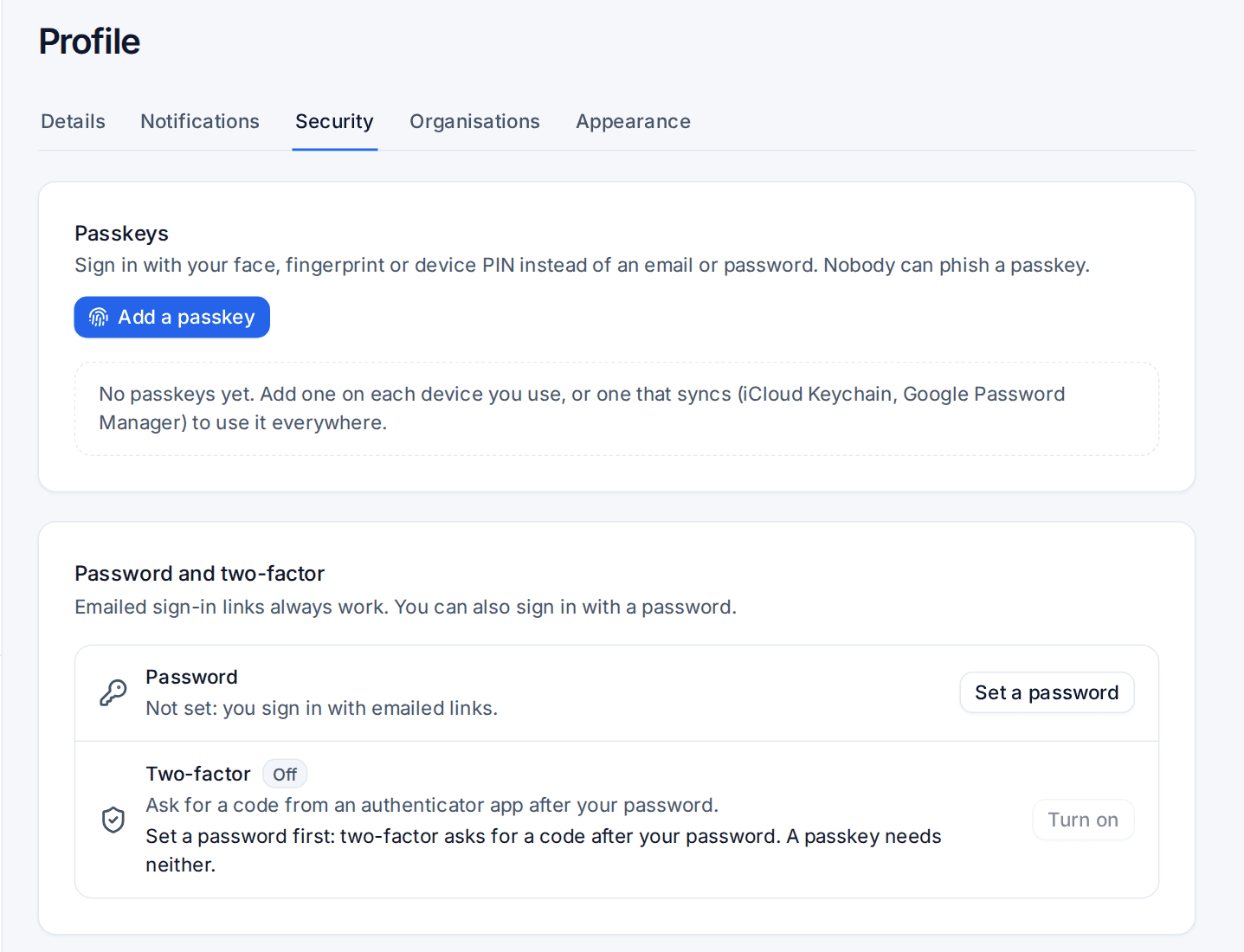
Notifications
Everything that happens for a contact lands in the bell at the top of the portal: replies, ticket updates, approvals, request progress, invoices, reports, project updates, visits, notices and news. Each item links to its page, and opening the page marks it read.
Profile > Notifications is one table of topics by channel: Email, Push (in the browsers they switched it on in) and Teams (when they use your Teams app). Replies, approvals and invoices by email are essential and show Always.
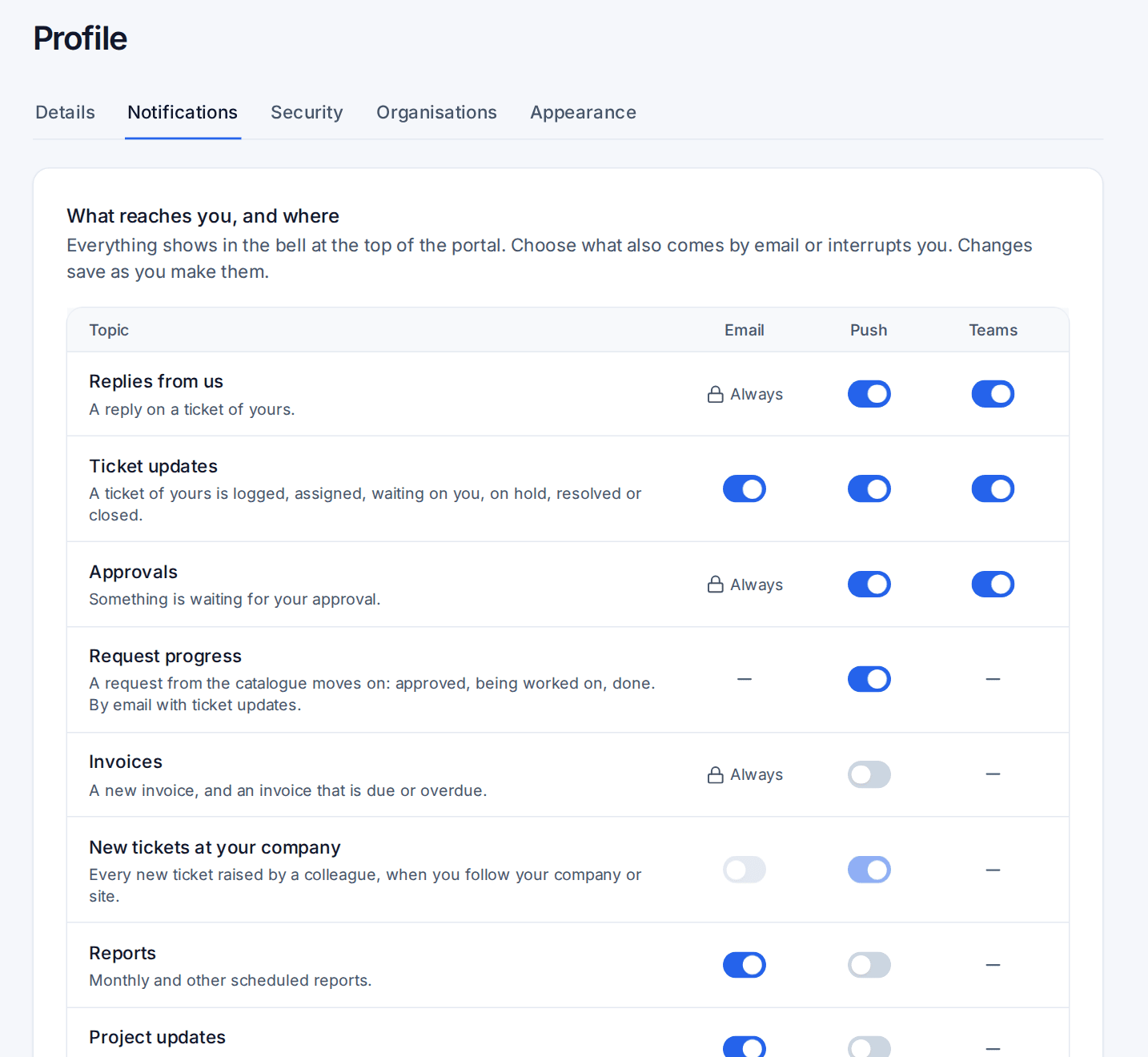
- Follow new tickets: a manager can choose Every new ticket to hear about each ticket a colleague raises at their company or site.
- Daily digest: ticket updates and new tickets at the company in one email a day, at the hour you set, in their own time zone. Replies, approvals and invoices still come straight away.
- Quiet hours: no push notifications between two times. The bell and emails are not affected.
- App and notifications: add the portal to the phone's home screen and switch on push in this browser. The portal never caches ticket content on the device.
Every non-essential email carries a footer with a link to the contact's email preferences and a one-click unsubscribe, which change the same switches. Your team sees a contact's choices, read only, on the contact page.
Settings > Customer portal > Notices and announcements sets whether Managers may follow their company, the hour the Daily digest goes at and how long the bell keeps items.
Was this page helpful?
Thanks for the feedback.