E-invoices, split billing and what invoices show
Send structured e-invoices, invoice a group company's work to its parent, split invoices per contract, site, project or ticket, and choose what each invoice shows.
Most customers are happy with one PDF a month. Some want one invoice for all their companies, an invoice per site, or an e-invoice their accounts software reads by itself. This guide covers those settings, what invoices show, bulk actions, revenue budgets and the finance reports.
Nearly everything here is set per customer on their Billing details (open the customer, go to Contracts and time and press Billing details in the Invoices section), with your default in Settings > Billing > Invoices.
Who invoices are addressed to
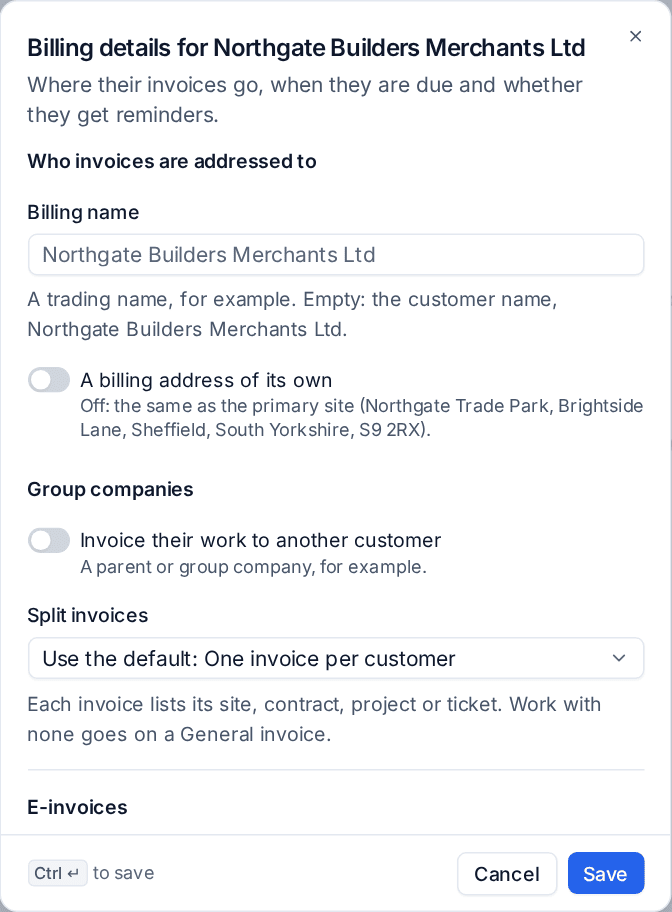
Under Who invoices are addressed to on the Billing details:
- Billing name: a trading name to print instead of the customer's name.
- A billing address of its own: off, invoices use the primary site's address (shown under the switch). On, type the address invoices should go to.
Tax still follows the customer's own country and tax number.
Invoicing a group company's work to its parent
When a parent company pays for its subsidiaries, open the subsidiary's Billing details and, under Group companies, turn on Invoice their work to another customer. Tenvara suggests the parent set on the customer; choose another if needed, and choose how:
- As its own section on the other customer's invoice, with its own subtotal ("Subtotal: Harbour View Orthodontics").
- A separate invoice addressed to the other customer, printed "For:
" under the address.
The parent is the customer billed: reminders, credit control, statements and aged debtors all follow the parent. The parent's billing panel lists Also invoiced here with each company and how it is billed, and the subsidiary's says where its work goes.
There is one level only: a customer others are invoiced to cannot itself be invoiced to someone else. Work in a currency the parent is not invoiced in stays on the subsidiary's own invoice, and the draft says so.
In the portal, the subsidiary's billing contacts see their part of the parent's invoice (their lines and subtotal, marked as billed to the parent), while the parent sees and pays the whole invoice.
Split invoices
By default a customer gets one invoice per currency each month. Split invoices in Settings > Billing > Invoices (under Terms and invoice runs) sets your default, and each customer's Billing details can use the default or its own rule:
| Rule | One invoice per |
|---|---|
| Per customer | customer (the default) |
| Per contract | contract, so each can carry its own purchase order number |
| Per site | site, for customers whose sites pay separately |
| Per project | project |
| Per ticket | ticket |
Each line is labelled with its site, contract, project or ticket, and the invoice shows what it covers ("Site: Harrogate office"). Work with none goes on a General invoice. The run review's Covers column shows each invoice's split.
E-invoices
An issued invoice or credit note can be written as structured XML to the European standard EN 16931, in three formats:
- UBL 2.1;
- XRechnung (UN/CEFACT CII), for German public bodies;
- Factur-X / ZUGFeRD: a PDF/A-3 with the XML inside, so it is both a normal PDF and an e-invoice.
Download one
Every issued invoice and credit note has an E-invoice card with Download XML. On a draft, the card lists what the e-invoice would fail if it were issued now, each with the official rule and a link to where the data is fixed.
Send them to a customer
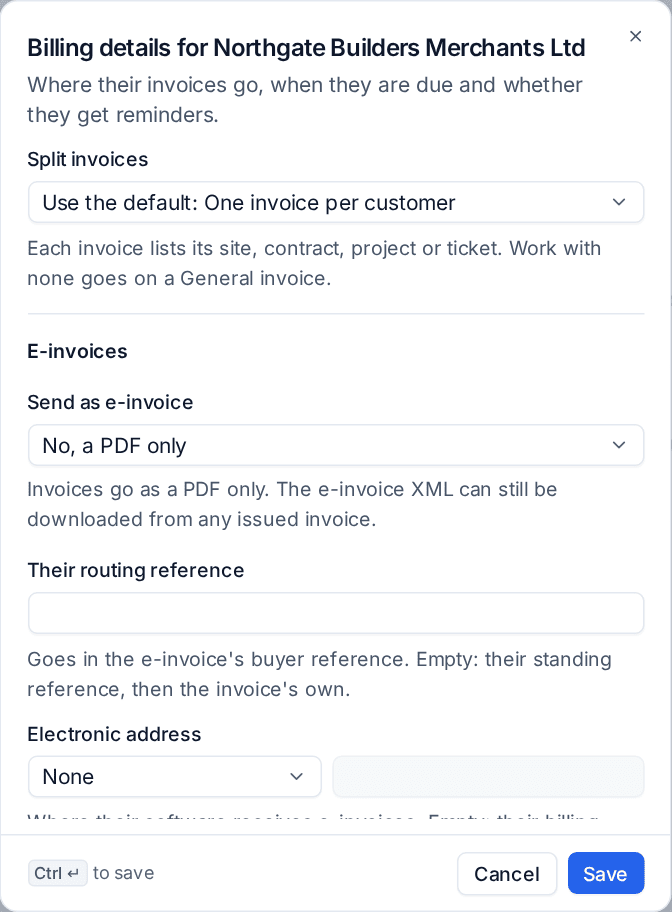
Under E-invoices on the customer's Billing details:
- Choose Send as e-invoice: No, a PDF only, UBL 2.1 XML with the email, XRechnung XML with the email or Factur-X PDF (the XML inside the PDF).
- For XRechnung, turn on A public body if they are one: their routing reference must then be a valid Leitweg-ID.
- Enter Their routing reference if they gave you one. Empty uses their standing purchase order number, then the invoice's own reference.
- Set their Electronic address if their software receives e-invoices somewhere other than their billing email (a Leitweg-ID, a VAT number, a GLN and so on).
- Press Save.
The XML goes with the invoice email (never with reminders) and the customer can download it from the portal. For these customers, issuing checks the format's rules first: an invoice that breaks them is not issued, and the draft and the run review say why before anyone presses Issue.
In Settings > Billing > Invoices:
- Embed the e-invoice in PDFs: Automatic (when your business is in Germany, France or Austria, where buyers expect it), Always or Never. Customers sent Factur-X always get it.
- Check e-invoice rules before issuing every invoice applies the check to everyone, not only customers sent e-invoices.
What invoices show
Settings > Billing > Invoices > What invoices show sets your defaults, and each customer can differ on their Settings tab:
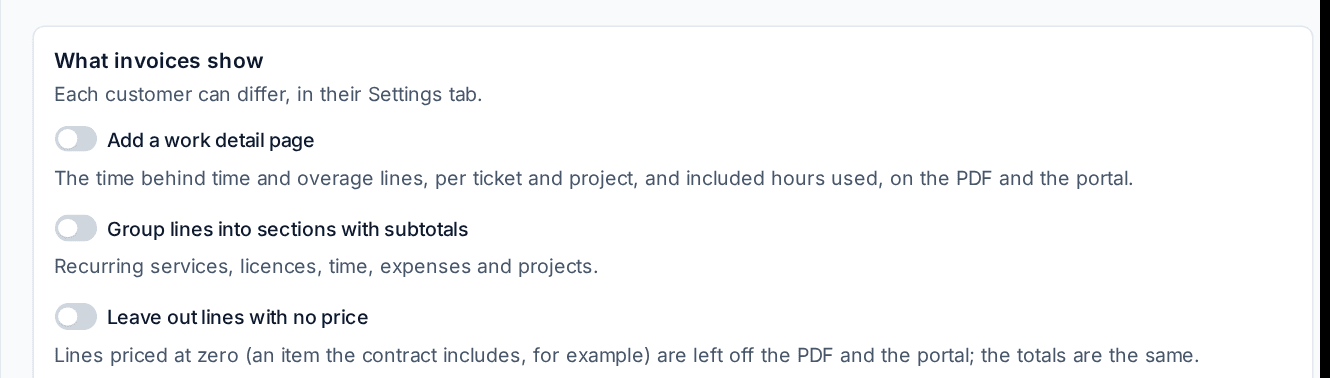
- Add a work detail page: the time behind time and overage lines, per ticket and project, with the note written for the customer and the included hours used, on the PDF and in the portal.
- Group lines into sections with subtotals: recurring services, licences, time, expenses and projects.
- Leave out lines with no price: zero-priced lines are left off; the totals are the same.
Each invoice also has Notes, files and history. Comments there are for your team only. Attached files (a signed job sheet, say) go out with the invoice when you pick them under Files to email with it... in the More actions menu.
Bulk actions on the invoice list
Tick invoices in Invoices and the bar above the list offers what suits them: Approve, Issue, Send, Send reminder, Record payment (each paid in full with the same date and method), posting to your ledger, tags and Export. Several PDFs can be downloaded as one zip.
Revenue budgets
Reports > Budgets (under Finance) holds your financial year's targets.
- Press New budget, name it and choose its first month. Start from empty, a copy of another budget, or last year's actuals grown by a percentage.
- On Edit the budget, fill in each month: revenue per account code, monthly recurring revenue, and costs (staff, licences, fixed, expenses, one-off).
- Against actual compares the budget with issued invoices less credit notes and with your costs, month by month and year to date, with the gross margin.
Export CSV and import let you work on it in a spreadsheet, and the budget marked for Home shows as a card on the owner's dashboard.
Finance reports
The report builder has datasets for Invoices, Invoice lines, Payments, Credit notes, tax on invoices and on payments received, and Aged debtors, with templates such as Tax on invoices by rate for a tax period to check against your VAT return. See The report builder.
Related
Was this page helpful?
Thanks for the feedback.