Policies and where settings come from
See every module's policy for a customer, site, device group or device in one Policies tab, understand which level wins, and compare customers in Settings > Policies.
Each part of Tenvara that changes how devices behave keeps its own policies: monitoring, patching, automation, alert and ticket rules, software, backup, mobile devices, Intune, password rotation, remote access, agent updates, agent protection, administrator elevation, security event collection and printers. The Policies tab brings them together, so you can answer "what applies to this machine, and why?" without opening fifteen editors.
The levels
A policy can be set at five levels. The most specific one that says something wins:
device > device group > site > customer > the Tenvara default
| Level | Reaches | Set on |
|---|---|---|
| Tenvara default | Every device | Settings > Policies and each module's settings |
| Customer | Every device of the customer | The customer's Policies tab |
| Site | Every device at the site | The site's Policies tab |
| Device group | Every device in the group, by hand or by its rules | The group's Policies tab |
| Device | One device | The device's Policies tab |
Sites are a level of their own, between the customer and its device groups. A branch office can have its own maintenance window or remote access rules while keeping everything else from the customer. Moving a device to another site moves it to that site's policies straight away.
How "wins" works in each module
Not every module combines policies the same way, and the Policies tab says which applies on each line:
- One policy wins as a whole: security event collection, password rotation and mobile devices. The most specific level that has a policy decides.
- Settings merge one by one: patching, remote access, backup schedule and retention, and the agent update ring. Each setting comes from the most specific level that sets it, so a site can change only the maintenance window and keep the customer's approval rules. Where several device groups set the same remote access setting, the strictest wins; between patch policies of several groups, the higher priority wins.
- Policies stack: monitoring. Every policy that reaches the device applies, least specific first, and a check or threshold set again further down replaces the one above.
- Everything adds up: software deployments, printers and automation rules. Everything that reaches the device applies. Alert and ticket rules add up too, but the first matching rule decides what happens to an alert.
Some modules do not have every level. Backup, agent updates and mobile devices have no device group level; Intune belongs to the customer's tenant as a whole; agent protection and administrator elevation are set for everyone or per customer. Their lines on a site, group or device say they follow the customer.
The Policies tab
Open a customer, site, device group or device and choose the Policies tab.
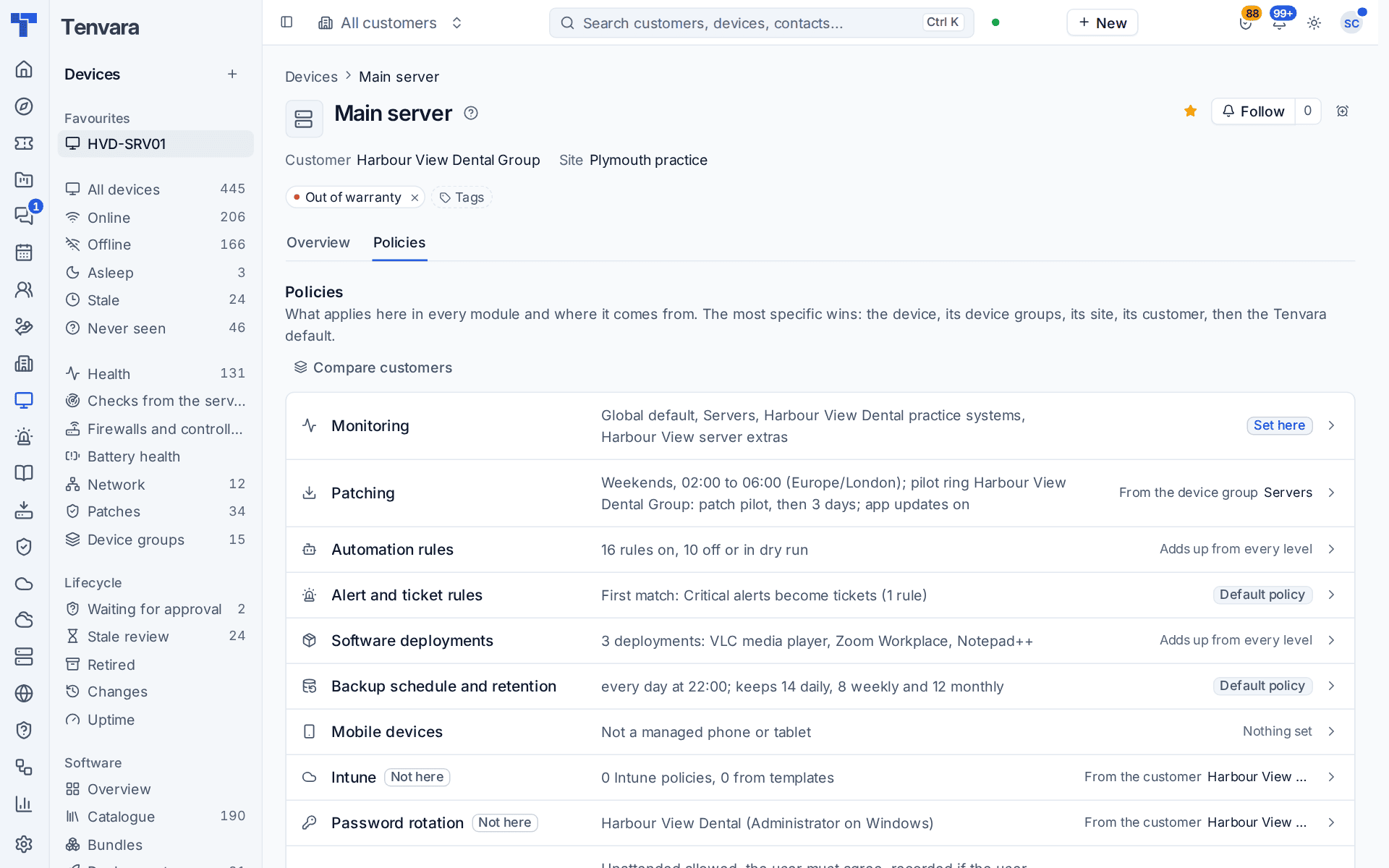
Each line names the module, what applies (for example Weekends, 02:00 to 06:00 for patching), and where it comes from: Set here, From the device group, From the customer, Default policy or Adds up from every level, with a link to the level that set it. Compare customers opens the overview in Settings.
Click a line to open a side sheet showing the levels above it and what you can change:
- For Monitoring and Mobile devices, pick a policy for this level, or take one off.
- For Automation rules and Alert and ticket rules, rules aimed at chosen customers, sites or groups can take this level in or leave it out. Automation changes go through the rule editor, so they keep their history and ask for approval when approval rules say so.
- For everything else, the module's own editor opens at this level: the patch policy editor, the remote access and agent update editors, the backup policy, the deploy dialogs and so on.
On a device, the Monitoring line links to its monitoring setup, which still says where every check and threshold comes from.
Note: You see a module's line if you can view that module, and change it if you can manage it. Staff limited to some customers see only their customers. Every change is in the audit log and on the record's activity.
Settings > Policies
Settings > Policies is the overview for the whole practice: customers down the side, modules across the top, and the policy each customer uses in each module.
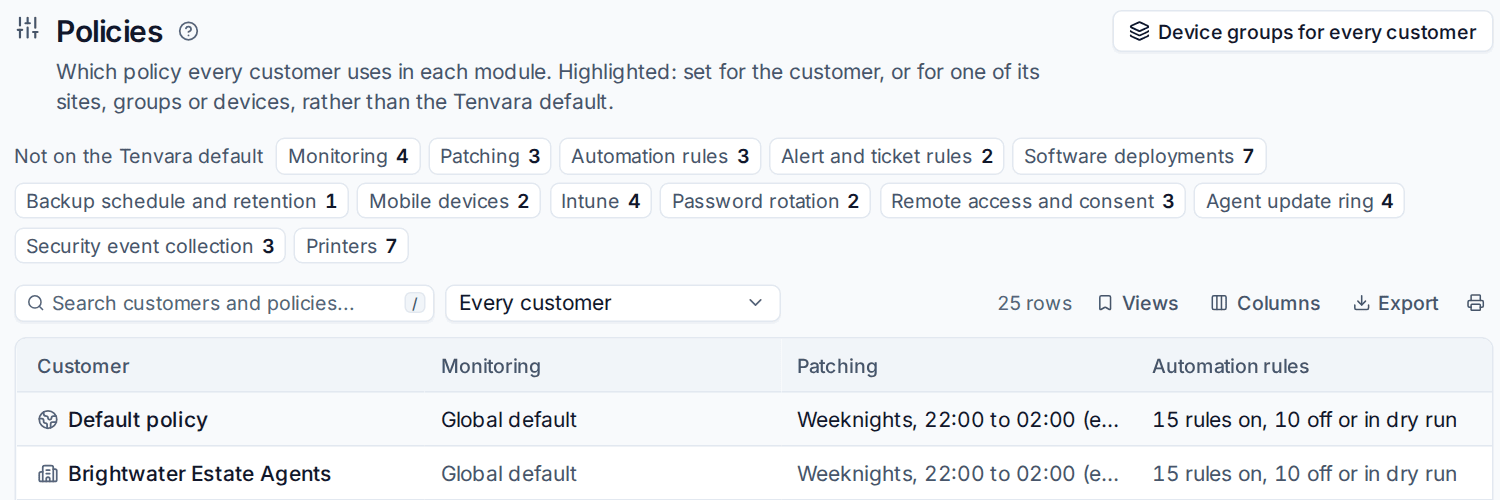
- The counters at the top show, per module, how many customers are Not on the Tenvara default.
- Highlighted cells, marked Own, are set for the customer or one of its sites, groups or devices. A +2 shows that more levels below the customer set something.
- Device groups for every customer lists groups shared by all customers.
- Filter, save views and Export to CSV like any list.
Use it to spot the customer whose patch window someone changed and never put back, or to check a new customer is set up like the rest.
Where to change each module
| Module | Where its editor lives |
|---|---|
| Monitoring | Policies, checks and thresholds |
| Patching | Devices > Patches > Policies, see Patching |
| Remote access and consent | Settings > Remote access, see Remote control |
| Agent update ring | Agent updates and release channels |
| Software | Software deployment |
| Agent protection and elevation | Tamper protection, Admin elevation on request |
Was this page helpful?
Thanks for the feedback.