Saved prompts, feedback and limits
Caps and daily limits per person, thumbs up and down on AI answers, saved questions for Ask AI, AI in the article editor with its secrets check, and knowledge gaps from the chat bot.
This page covers keeping AI spending fair across the team, knowing whether the answers are any good, saved questions, AI in the article editor, and the knowledge gaps the chat bot finds.
Caps and daily limits per person
The caps in Costs and caps cover everything AI does. To stop one person using most of the month's budget, go to Settings > AI > Costs and usage and find Caps per person.
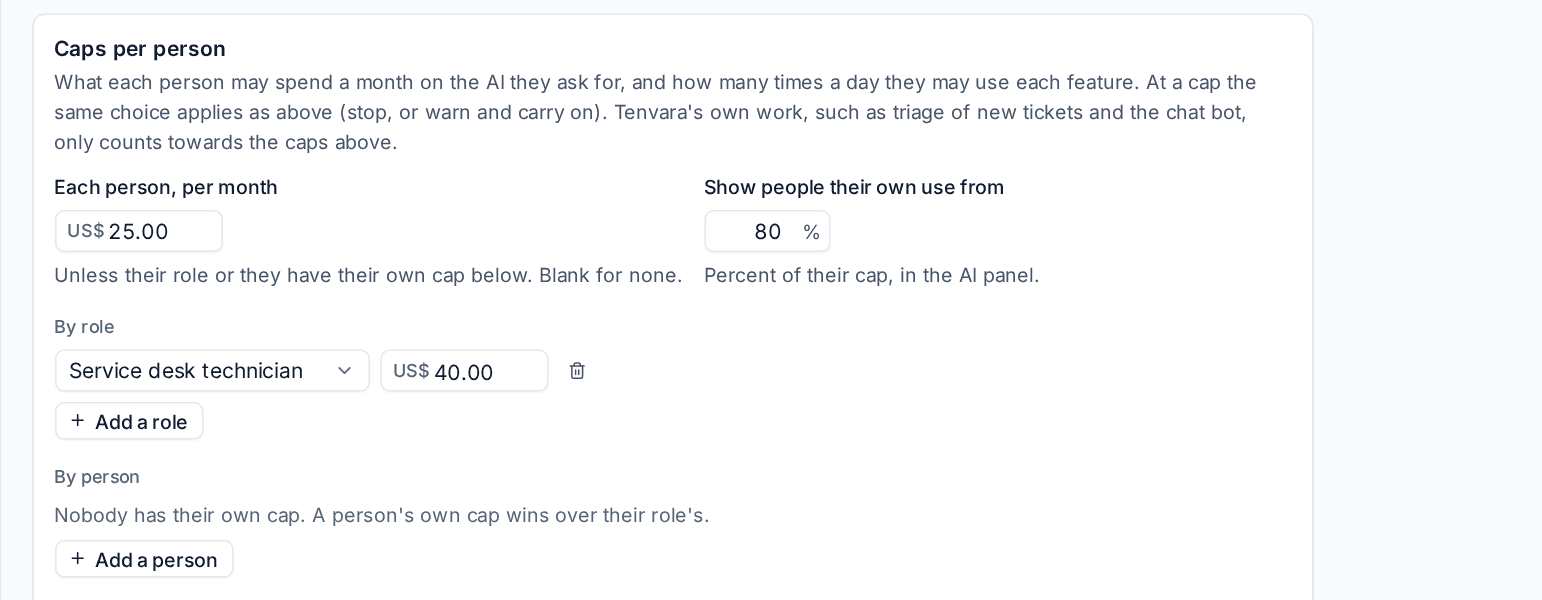
- Each person, per month: what one person may spend a month on the AI they ask for. Leave it blank for no cap.
- By role: press Add a role to give a role its own cap, for example more for service desk technicians.
- By person: press Add a person to give someone their own cap. A person's own cap wins over their role's, which wins over the default. Leave an override blank for no cap, for example for an owner who should never be stopped.
- Daily limit per person: how many times a day each person may use each feature. One question, draft or investigation is one use, however many calls to the model it makes. The day starts again at midnight in each person's own time zone.
- Show people their own use from: once someone has used this share of their monthly cap (80% by default), the AI panels show them a meter, such as "$3.10 of $5.00 used this month", red when it is used up.
- Press Save caps.
At a person's cap or daily limit, the same At a cap choice applies as for the other caps: stop, and say what to do next, or warn and carry on.
Only work a person asks for counts towards their own cap. Tenvara's own work, such as triage of new tickets and the chat bot, has no person and only counts towards the caps for the ticket, the month and the customer.
Feedback on answers
Every AI result has a thumbs up and a thumbs down: triage suggestions, thread summaries, drafts (in the line under the composer while the draft is in it), investigations and Ask AI answers on tickets and devices, chat bot answers in the console, and security explanations.
A thumbs down asks why: Wrong, Incomplete, Unsafe, Wrong tone or something else, with a comment. Pressing the same thumb again takes it back.
Tenvara also notes, with nobody pressing anything:
- whether a triage suggestion was applied, or ignored by the time the ticket was resolved (or after 24 hours, which you can change with Count a triage suggestion as ignored after);
- whether the person who asked for a draft sent it, and how much of it they changed first.
Go to Settings > AI > Activity and look at Feedback and acceptance for the last 7, 30 or 90 days.
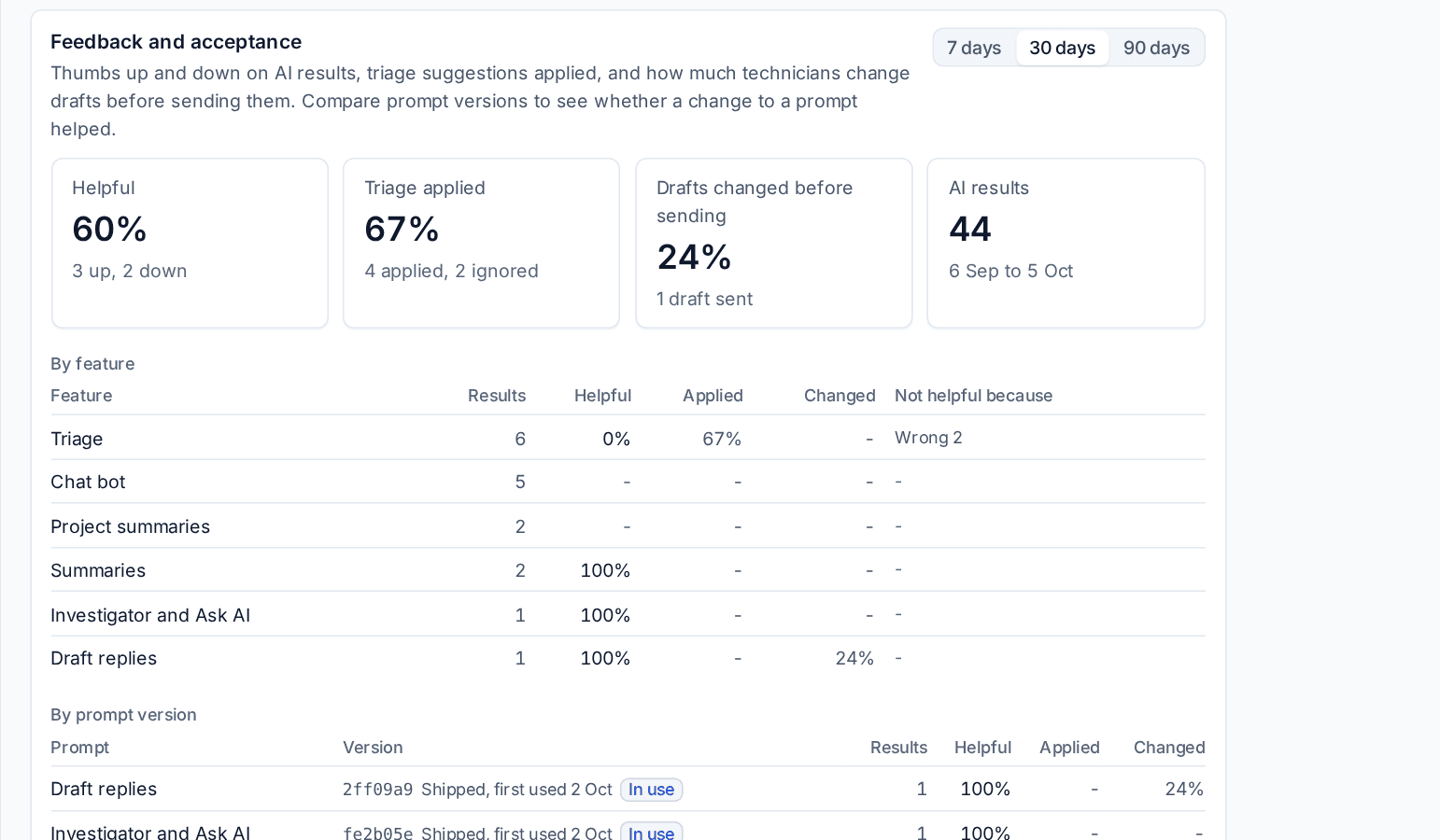
- Helpful, Triage applied, Drafts changed before sending and AI results across the top.
- By feature: results, helpful, applied, changed and why answers were not helpful.
- By prompt version: every time a prompt in Prompts and fixes is edited, the next answers use a new version, so you can see whether your change helped. The version in use is marked In use.
- Latest thumbs down with their comments, each opening its run.
Saved questions for Ask AI
Under every Ask box (Ask AI on a ticket, a device, a detection and an incident), saved questions show as chips, most used first. Pressing one fills the box with the question, with the ticket, device, customer, detection or incident already filled in.
- When you type a new question you want again, press Save this question and give it a short label.
- My questions edits or deletes your own.
Administrators keep the shared questions everyone sees in Settings > AI > Prompts and fixes under Saved questions for Ask AI: add, edit (the label, the words and which Ask boxes offer it) and delete. Eight ship with Tenvara, such as why is this slow, what changed this week and what should we tell the customer.
AI in the article editor
The knowledge base and customer documentation editors have an AI button beside Cancel and Save. It works on the selection, or the whole article when nothing is selected:
- Tidy up and fix spelling: spelling, grammar and punctuation in the writer's English, keeping the meaning and formatting.
- Make it a numbered procedure: one action per step.
- Shorten: about half the length, keeping every step, value and warning.
- Write a summary for the portal: two or three plain sentences for a customer, put at the top of the article.
- Check for secrets: passwords, PINs, Wi-Fi keys, API keys and tokens, private keys, recovery codes and licence keys pasted into the text.
Every answer is a suggestion shown as a difference against what is there now. Nothing changes until you press Accept, and the article is not saved until you press Save.
The secrets check lists each secret it found with the words around it (the secret masked). On a customer's article, Move into the vault opens a new credential with the secret filled in, and replaces it in the text with a link to the credential, so readers open it with their own vault access. Take it out replaces it with "[removed]". A quick check runs on your own server first, so obvious secrets are found even when AI is off. See Knowledge base articles.
The editor's AI is the Docs editor feature in Settings > AI, counts against every cap, and is off for customers opted out of AI.
Knowledge gaps from the chat bot
Go to Chat > Knowledge gaps to see what people asked the chat bot that it handed over, was unsure about, could not answer or found no article for, grouped by topic, most asked first.
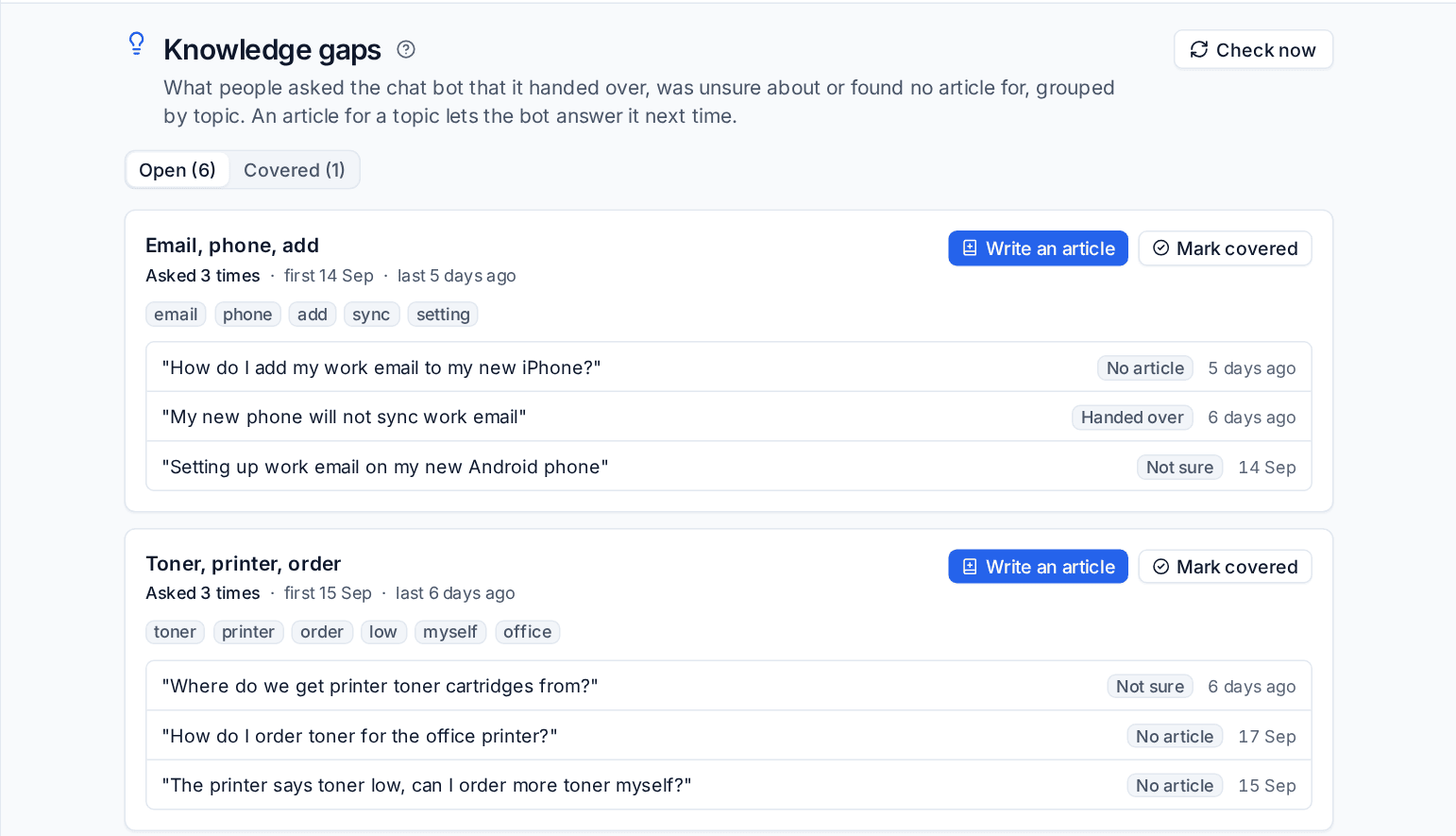
Each topic shows how often and when it was asked, its keywords, and example questions with why the bot fell short (No article, Not sure, Handed over, Rated down) and a link to the chat.
- Write an article opens a new knowledge base article with the topic as its title and the questions people asked as a start. Once it is published, the bot can answer them.
- Mark covered moves the topic to Covered. If people ask about it again, it opens again by itself.
- Check now collects the latest chats at once; otherwise it runs every hour.
Every Monday, the knowledge base owners get an email of last week's open topics while the chat bot is answering chats. Choose the owners in Settings > Chat > Chat bot under Knowledge gaps. See The chat bot.
Was this page helpful?
Thanks for the feedback.