The desktop viewer
Install the desktop viewer on Windows or Linux, open remote sessions in a window of their own with the whole keyboard, and set which server it trusts.
The desktop viewer is a small app for your technicians' own computers that opens remote sessions in a window of their own, next to the browser viewer. Its big advantage is the keyboard: while a viewer window has the focus, the Windows key, Alt+Tab, Alt+Esc, Ctrl+Esc and Alt+F4 go to the device instead of your own computer. It can also open one window per screen of the device, which suits a technician with two monitors working on a two-monitor desk.
It runs on Windows and Linux. Everything else about a session is the same as in the browser: the same checks, consent, recording and session policy apply. See Remote control.
Installing it
An administrator finds the downloads in Settings > Remote access > Desktop viewer. The packages arrive from the release feed with the agent.
- Windows: Download for Windows (zip), then run
install.cmd, or run the PowerShell command shown. The zip holds the signed MSI and a transform that sets your brand's name and this server. For Intune or Group Policy, install the MSI withmsiexec /iandTRANSFORMSset to the.mstfile from the zip. - Linux: download the archive, unpack it and run
install.sh, which registers the viewer's links for your account.
The page shows the server address the viewer connects to (The viewer connects only to) and the Link scheme the web app opens it with, tenvara-remote by default. Change the scheme only if another product on your technicians' computers already uses it; the Windows download registers whatever is set here, so install it again after a change.
Note: The viewer holds no password. Each session starts from a link that works once, for a minute, and access ends when the technician's own access ends. A viewer installed from your download only talks to your server, so a link in a phishing email gets nowhere.
Opening a session
- Open the device.
- Click the arrow beside Remote in.
- Choose Open in desktop app, or Desktop app, a window per screen to get one window for each of the device's screens.
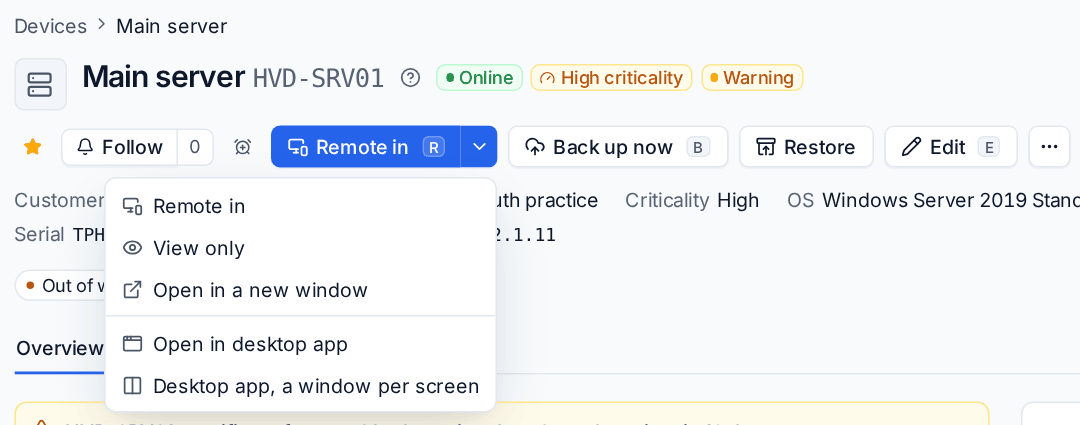
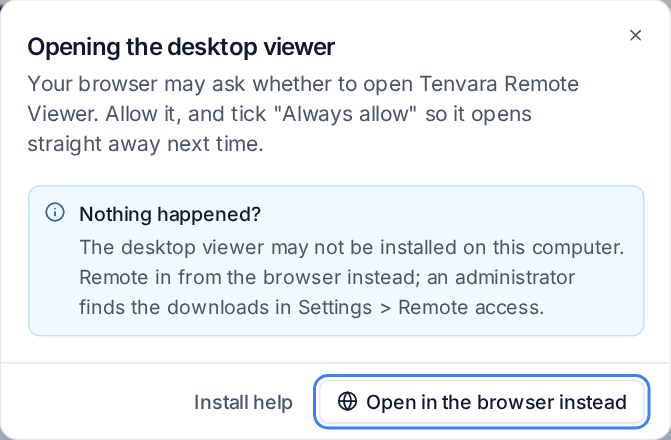
Tenvara checks the device and makes the one-time link, and your browser asks whether to open the viewer. Allow it, and tick Always allow so it opens straight away next time. If nothing happens, the Opening the desktop viewer dialog offers Install help and Open in the browser instead, and Download the desktop viewer once the packages are on your server.
A device that needs approval first opens in the browser viewer, which asks for the approval and connects once someone says yes. With an approval for the next few hours, the desktop app opens it from then on.
The toolbar
In a window, the toolbar has its own strip along the top and the device's screen is scaled into the space below it, so it never covers the device's title bars or a browser's address bar. Clicks on the toolbar never reach the device.

| Control | What it does |
|---|---|
| Screen | Switch screen or open a window for each one, the device's Resolution, Picture quality (Automatic, Faster, Balanced or Sharper), Pause the picture and Refresh the picture. |
| Keys | Send Ctrl+Alt+Del, Type my clipboard and Send system keys to the device (on or off). Ctrl+Alt+Del belongs to Windows itself, so it is sent from here. |
| Lock | Locks the device. |
| Blank screen and Block input | As the session policy allows, the same as in the browser. |
| Full screen | The session takes the whole screen. |
| Disconnect | Ends the session. |
The right-hand end shows frames a second, bandwidth, round trip and whether the route is direct or relayed, where there is room.
Full screen
In full screen the session has the whole screen and the toolbar hides. Move the pointer to the very top edge of the screen and it slides down; it stays while the pointer is on it or one of its menus is open, and goes once you move back into the session. The top of the device's screen stays reachable, so you can still click its tabs and title bars. The button then reads Exit full screen.
The browser viewer behaves the same way in full screen. On a touch screen, tap the top strip to bring the toolbar down.
Keyboard and clipboard
While a viewer window has the focus, system shortcuts go to the device. Switch to another app on your own computer and your keys are your own again. Untick Send system keys to the device under Keys when you want Alt+Tab to stay on your computer.
Text copied on either side is on the other side's clipboard: your text goes over when a viewer window comes to the front, and text copied on the device comes back to you.
Sessions from the desktop viewer
Sessions opened in the desktop viewer are ordinary remote sessions. They appear under Devices > Remote sessions with the technician, can be linked to a ticket and are recorded when the session policy says so.
Tip: If your network blocks the direct and relay routes the viewer uses, open the session in the browser instead: the browser viewer can also reach the relay over TCP and TLS on port 443.
Was this page helpful?
Thanks for the feedback.