The tray app
What the people at a managed computer get from the agent's tray icon: report a problem, my requests, your own menu entries, the App store, computer details, remote help and messages, and how to set it up.
The agent puts an icon in the system tray (the menu bar on a Linux desktop). Clicking it gives the person at the computer a menu of ways to get help from you, in your brand and their language. Everything they do there lands in Tenvara: as a ticket, a remote help request, an install or a line on the device's timeline.
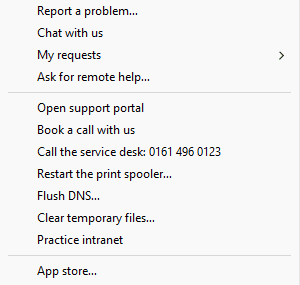
The tray works on Windows and on Linux desktops (GNOME on Wayland, such as Ubuntu desktop; the agent's Linux package installs it and starts it in each desktop session).
Setting it up
Settings > Tray menu holds the defaults. Each can differ per customer on the customer's Settings tab.
| Section | What it controls |
|---|---|
| The MSP's own entries | Your links, contact details and self-help actions, in order |
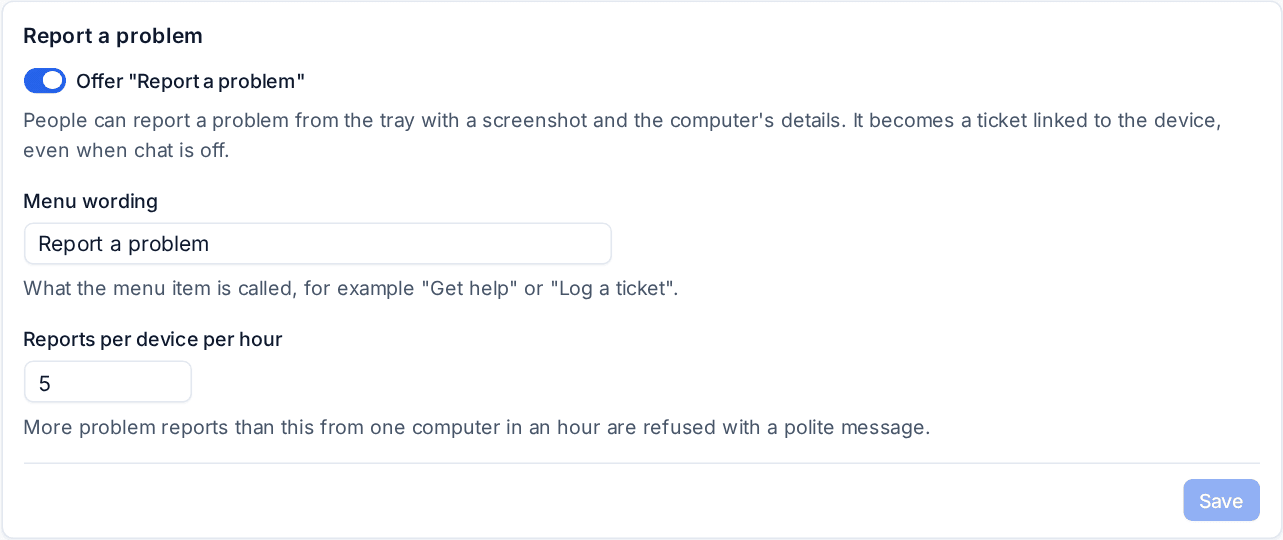
| Report a problem | Whether it is offered, its wording and Reports per device per hour |
| What the menu offers | My requests, Computer details, Open support portal, the App store, whether a customer sees your entries as well as their own, and logging self-help as closed tickets |
| Remote help | Ask for remote help and how long the person's consent lasts |
| Messages and notifications | Telling people when support replies, and how long messages wait for offline devices |
| Record a problem | See Record a problem |
Changes reach devices at once, or within five minutes for a customer's own values.
Report a problem
The person chooses Report a problem (or your wording, such as "Get help"). The tray takes a screenshot of every screen before its window opens, then asks what is wrong and how it is affecting them. The screenshots show as thumbnails they can untick, and the window lists the computer's details that will be sent (computer name, user, operating system, IP addresses, serial, uptime, free disk space and the support id), so nothing is sent without them seeing it.
Sending makes a ticket for the person's contact, linked to the device, with the screenshots on its first message and the computer's details as an internal note. They get the reference in the tray and your usual "logged" email. It works whether or not chat is on.
My requests and replies
My requests lists the person's open tickets with their status in plain words and a "new reply" marker. Each opens the ticket in the portal with a one-time sign-in link, and All my requests opens their whole ticket list there. When a technician sends a public reply on one of their tickets, the tray shows a notification; clicking it opens the ticket.
Who is at the tray
The tray matches the signed-in account to a contact: a domain, Entra ID or Microsoft account is trusted as it is. A computer's own local account is only trusted once the device's Used by is set to that contact. Until then the tray says plainly what is missing, for example "This PC's login 'jo' isn't confirmed as yours yet: ask your IT team to set who uses this computer."
On the contact's page and the device's Used by card, a device matched only from who signs in reads "Signed in as jo: probably theirs" with Confirm. One click sets Used by, records it in the device's history and the audit log, and from then on the tray trusts that login.
Your own entries and self-help
Under The MSP's own entries press Add for:
- Links, such as "Book a call with us" or the customer's intranet.
- Contact details, such as "Call the service desk: 0161 496 0123", which the person can copy, ring or email.
- Self-help actions: a published script from your library marked End users may run, such as restarting the print spooler or flushing DNS. The person confirms, it runs as a normal script run on the device, and the result comes back as a notification. It is logged on the device and, if you choose, as a closed ticket.
Open support portal comes first whenever the portal is on. Choose a customer under Entries for to give them entries of their own.
The App store
Software deployed as Optional to a device appears in the tray's App store, with its publisher, version and, for a paid app, its monthly cost. On the deployment you choose whether an app installs at once, needs the customer's approval or needs yours. While approval is pending the tray shows "Requested, waiting for approval", and it tells the person when the app is approved and installed. Installs show in the device's software history as from the App store. See Software deployment.
Computer details and remote help
Computer details shows the computer name, who is signed in, IP addresses, serial number, operating system and a short support id, with Copy, for reading out on the phone.
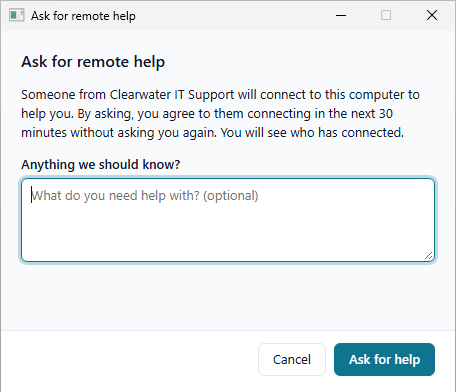
Ask for remote help lets the person add a note and ask. It raises a request in Devices > Remote sessions and a ticket in your inbox, and tells the queue. Asking counts as agreeing to a session opened within Consent lasts (30 minutes by default), so your technician connects without waiting for a prompt, and the person sees who connected.
Messages to users
Show a message to users on a device's page, the device list's bulk bar or a customer's page sends a title, text and optional link to every connected tray on those devices, as a notification or a dialog that needs OK. Tenvara records per device whether it was shown and acknowledged. Offline devices get it when they come back, within Keep messages for offline devices. Service notices marked Also on the tray go the same way (see Setting up the portal).
Related: Admin elevation on request, Website widget, portal and tray.
Was this page helpful?
Thanks for the feedback.