Templates, import and export
Start rules from about 30 ready-made templates, export rules as a file, and import them into Tenvara with every reference checked before anything is saved.
Most MSPs want the same few dozen rules: page on-call for a critical server alert, chase a customer who has not replied, tidy up after a backup fails. Tenvara ships those as templates, so you start from a working rule rather than a blank page. Rules can also be exported to a file and imported again, to copy them between installs, keep a copy before a big change, or share a rule with a colleague.
Templates
- Go to Automation and press New rule.
- The gallery lists about 30 templates in groups: Alerts, On-call, Devices, Tickets, Customers and Projects. Pick a group, or type in Search templates... to find one by what it does.
- Each template says what it does and what it Needs, for example a script called Disk cleanup, an on-call rota, a standard device group or Microsoft 365 connected.
- Pick one, or From scratch for an empty rule.
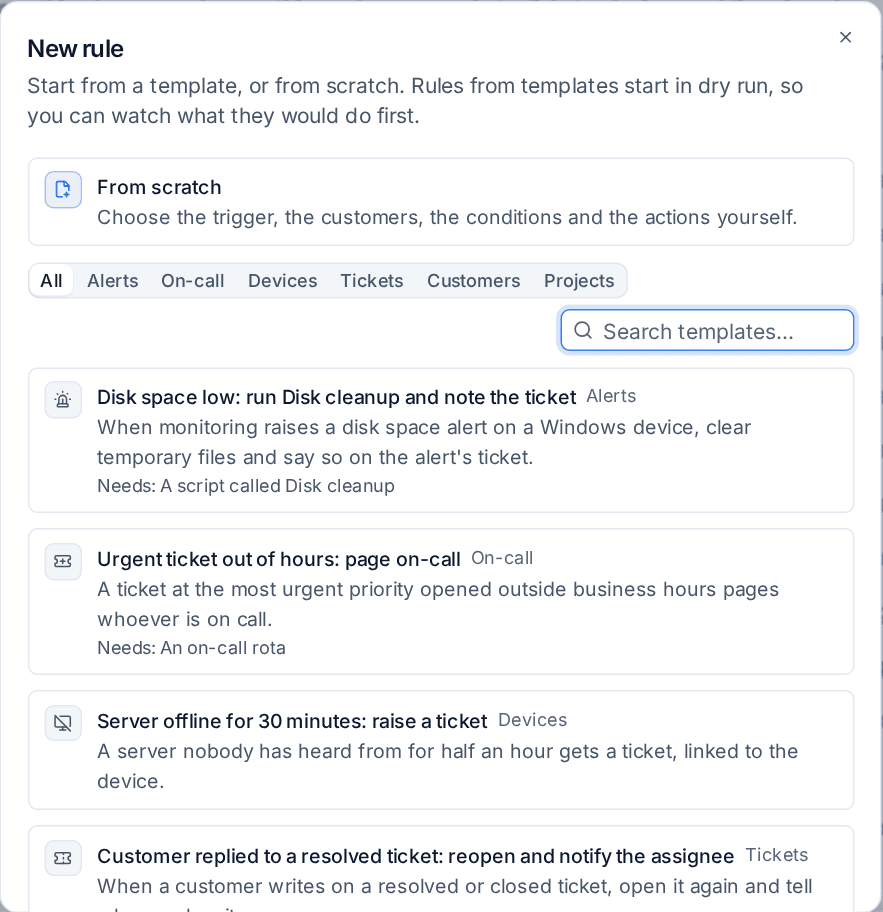
The rule opens in the builder, filled in. Check the trigger, customers, conditions and steps, point anything it needs at your own script, group or policy, and save.
Note: Rules made from a template start in dry run, so they record what they would have done without doing it. Watch their runs for a day or two, then turn dry run off. See Testing, dry run and versions.
Some of the templates:
| Group | Example |
|---|---|
| Tickets | Resolved tickets with no reply for 5 days: close them |
| Tickets | Customer waiting 4 hours for a reply: nudge the assignee |
| Alerts | Ransomware alert: isolate the device and page on-call |
| Devices | Server offline: wait 2 hours for it to come back, else page on-call |
| Projects | Project task overdue: tell the project owner |
| On-call | Low priority ticket out of hours: hold it until the morning |
| Customers | Contract ends in 60 days: open a renewal ticket |
| Customers | Contact marked as a leaver: block their Microsoft 365 sign-in |
Templates use the same triggers and steps as any rule, described in Building a rule and Actions.
Export rules
Rules export as a JSON file. References to other things (customers, scripts, groups, policies, booking types) are written by name, and people by email address, so the file makes sense in another install.
- Chosen rules: tick them in the rules list (one or several) and press Export in the bar above the list.
- Every rule: open More (...) above the list and choose Export every rule.
Webhook signing secrets and header values are never shown back by Tenvara, so set them again on imported webhook steps.
Import rules
- Go to Automation, open More (...) and choose Import rules....
- Choose the export file: a
.jsonexport. Nothing is saved until you import. - Tenvara lists the rules in the file with their trigger and steps, and checks every reference against this install: each script, priority, escalation policy, device group, customer, person and so on is matched by name or email. Change any match in its list. Choose another file starts again.
- Untick any rule you do not want; the footer counts the rules chosen.
- Press Import in dry run.
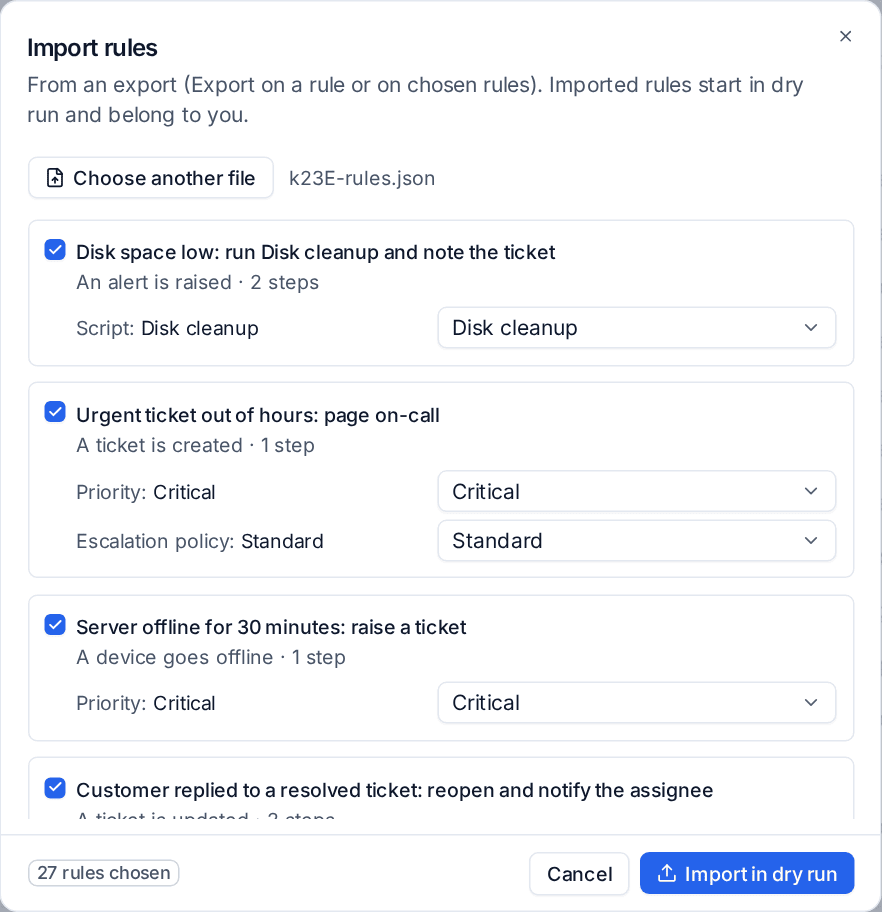
Imported rules:
- start in dry run, whatever they were in the file;
- are owned by you, so they run with your permissions until you hand them to someone else;
- have any step whose reference could not be matched switched off, with a note saying why, so nothing acts on the wrong thing.
Open each imported rule, fix anything switched off, test it against a recent event and turn dry run off when you are happy.
Tip: Export every rule before a big tidy-up. If something goes wrong, the file and each rule's own version history let you put it back. See Testing, dry run and versions.
Who can do it
Importing and starting from templates needs the Manage level for automation, like any other rule change. Rules that run scripts, deploy software or send webhooks still follow Settings > Automation, which by default keeps those steps to administrators.
Related
Was this page helpful?
Thanks for the feedback.