Data exposure
Find what is shared too widely in SharePoint, OneDrive and Teams, read the findings, and fix links, grants and guests through the customer's approver.
Copilot and other AI tools answer each person from everything that person can open. A file shared with an Anyone link or with Everyone is a file AI can bring to anyone. The Data exposure section finds that sharing before it becomes a problem, and is the biggest part of the AI readiness score (30% by default).
Open the customer, go to AI readiness and choose Data exposure.
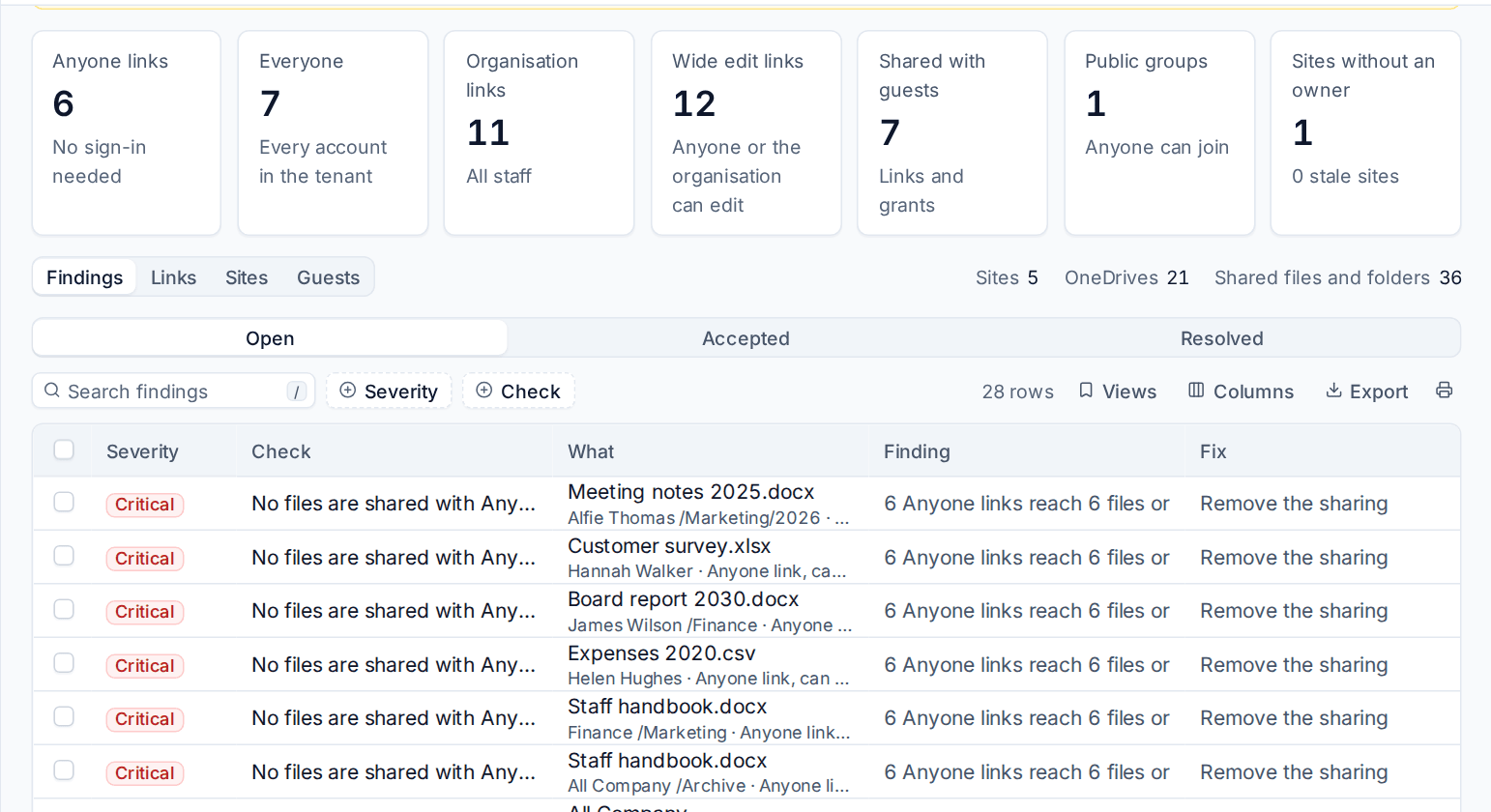
What the scan reads
Tenvara reads every SharePoint site, Teams site, document library and OneDrive in the customer's tenant and keeps the files and folders that have sharing of their own. Everything inside a shared folder counts as part of that folder's exposure, so the list stays short enough to act on.
For each shared item it records how far the sharing reaches (anyone, everyone, the whole organisation, guests or named people), whether the wide sharing lets people edit, and which guests can reach it. It also reads each site's owners and whether they are still here, when the site was last used, and the tenant's sharing settings. Later scans only read what changed.
When it runs
- Every day for customers that have been assessed, by default. Change it in Settings > AI readiness with Read sharing every.
- A full read of everything again every 30 days (Read everything again every).
- Before an assessment, when the last scan is older than that.
- When you press Scan now on the page. Its menu offers changes only or everything again.
The line under the description says when it last read and what it found.
The counts
The tiles across the top each open the links table filtered to that kind of sharing:
| Tile | What it counts |
|---|---|
| Anyone links | Links that work without signing in |
| Everyone | Files and folders shared with Everyone or Everyone except external users |
| Organisation links | Links for everyone in the organisation |
| Wide edit links | Organisation, Everyone or guest links that let people edit |
| Shared with guests | Links and grants to guests, and guests in groups and teams |
| Public groups | Microsoft 365 groups and teams anyone in the tenant can join |
| Sites without an owner | Sites whose owners have left, have no licence or that have none; it also shows how many sites are stale |
Below them, Findings, Links, Sites and Guests switch between the findings and the evidence tables. The links table lists every link, widest first, with its reach, whether it can edit and its site. The sites table shows sharing, stale sites and owners who have left. The guests table shows what each guest can reach.
Note: File, site and people names need the See evidence permission. Without it, people see the counts and the findings but not the names.
The checks
| Check | Severity | Fails on |
|---|---|---|
| No files are shared with Anyone links | Critical | Any Anyone link |
| Nothing is shared with Everyone | Critical | Files and folders shared with Everyone or Everyone except external users |
| Few files are shared with the whole organisation | High | View links for the whole organisation |
| Wide sharing does not allow editing | High | Organisation, Everyone or guest links that can edit |
| Sharing policy keeps new links narrow | High | A tenant that allows Anyone links |
| Guests reach only what they need | Medium | Guests in groups and teams, or with files shared with them |
| Groups and teams are private | Medium | Public Microsoft 365 groups and teams |
| Every site has an owner who is still here | Medium | Sites whose owners left, are unlicensed or that have none |
| Sites are still in use | Low | Sites unused for 180 days (change it per customer with A site is stale after) |
| Sites keep to their own permissions | Low | More than 10 folders with broken inheritance on one site |
Findings are one per link, site, group or guest, so you can fix them one at a time or select many.
Fixing exposure
Every fix goes through the customer's approver. Nothing changes in the tenant until they say yes, and every fix that Microsoft allows can be undone.
- In Findings, tick the findings you want to fix.
- Press Fix with approval.
- Read what will happen. The dialog lists every item, what the fix does and anything that cannot be put back exactly.
- Add a reason in Why (the approver sees it).
- Press Send for approval.
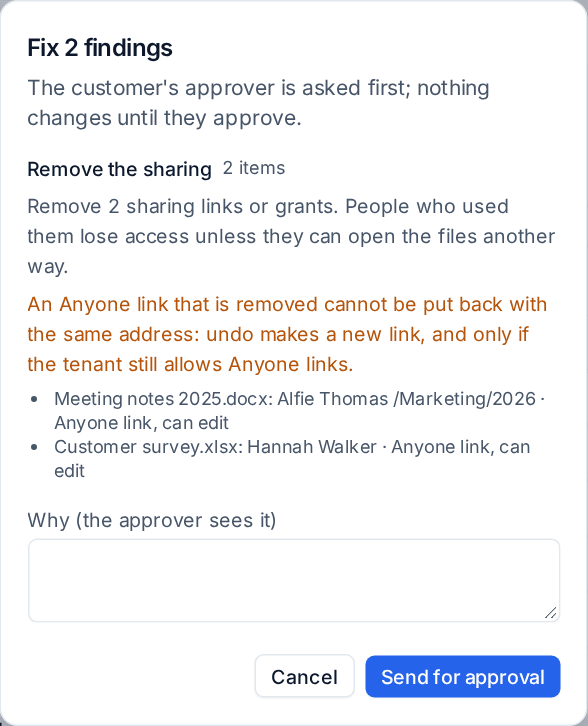
The fixes on offer:
| Fix | What it does | Undo |
|---|---|---|
| Remove the sharing | Removes the link or grant. People who used it lose access unless they can open the file another way | Makes a new link of the same kind (an Anyone link only while the tenant still allows them), or shares with the same people again |
| Narrow the sharing | Turns an Anyone link into an organisation link, or an edit link into a view link | Puts the old kind back |
| Expire the guest | Blocks sign-in for a guest not seen for a while | Allows sign-in again |
| Remove the guest's access | Takes a guest out of its groups and teams and off its shared files | Adds it back and shares the files with it again |
| Ask the owners to review | Emails each site owner still here, with the widely shared files by name | No approval needed and nothing to undo |
Warning: Microsoft never gives a removed link back with the same address. Undo makes a new link, so anyone who had the old address needs the new one.
Findings such as the tenant's sharing policy or ownerless sites are the customer's decision and say By hand.
What happens to a fix after it is asked for, and how to undo it, is in Fixes, reports and the portal.
Settings
In Settings > AI readiness under Data exposure:
- Read sharing every: hours between scans (24 by default).
- Read everything again every: days between full reads (30 by default).
- A site is stale after: days unused (180 by default). A customer can have its own.
New critical or high exposure found by an assessment raises an alert when Alert on new exposure is on. Alerts give counts, never file or people names.
Was this page helpful?
Thanks for the feedback.