Tickets and requests in the portal
How contacts raise tickets and requests in the portal, what they see while you work on them, and how managers follow their whole company's tickets.
Tickets are still the heart of the portal. This guide covers what your customers' contacts see when they raise a ticket or a request, and what reaches your team from their side.
One front door
Contacts start from How can we help? on Home, Report a problem, Request something or New ticket. They all lead to the same place:
- New ticket suggests up to three matching help articles as the summary is typed, and offers matching service catalogue items. Opening an item carries what they typed into the item's form.
- The catalogue starts with "Something is not working? Report a problem", shows the items people at their company ask for most, offers Request again for their own recent requests, and shows how long each item usually takes.
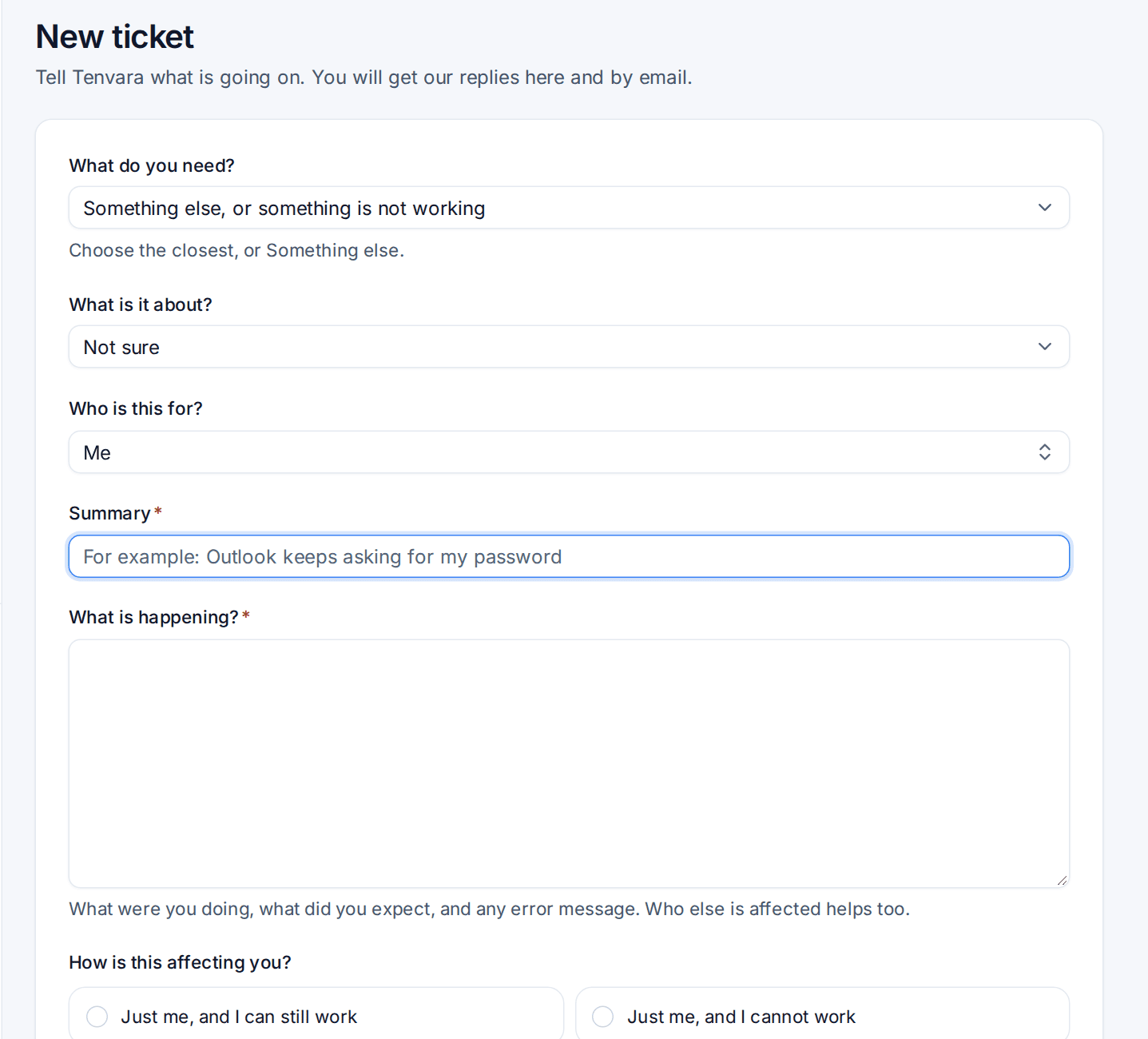
On New ticket the contact fills in Summary and What is happening?, and, depending on your settings, How is this affecting you?, When do you need it by? and Which device?. Someone allowed to raise tickets for colleagues gets Who is this for?, and anyone can Keep someone else informed by copying in colleagues.
Screenshots and photos
Under Screenshots and files, contacts drop or paste files, press Attach, or press Take a screenshot on a computer. On a phone or tablet the button is Take a photo and opens the camera. The same buttons are on every reply. When a contact has a computer with the Tenvara agent that allows it, Show us on your computer starts a screen recording on that computer instead (see Record a problem).
After sending
The ticket opens with a confirmation: its reference, when to expect a reply (from the ticket's SLA), and who will look after it once it is assigned.
The conversation
A ticket in the portal reads like a chat: your replies on one side, theirs on the other, grouped by day, opening at the first message they have not read. On a phone the reply box stays at the bottom.
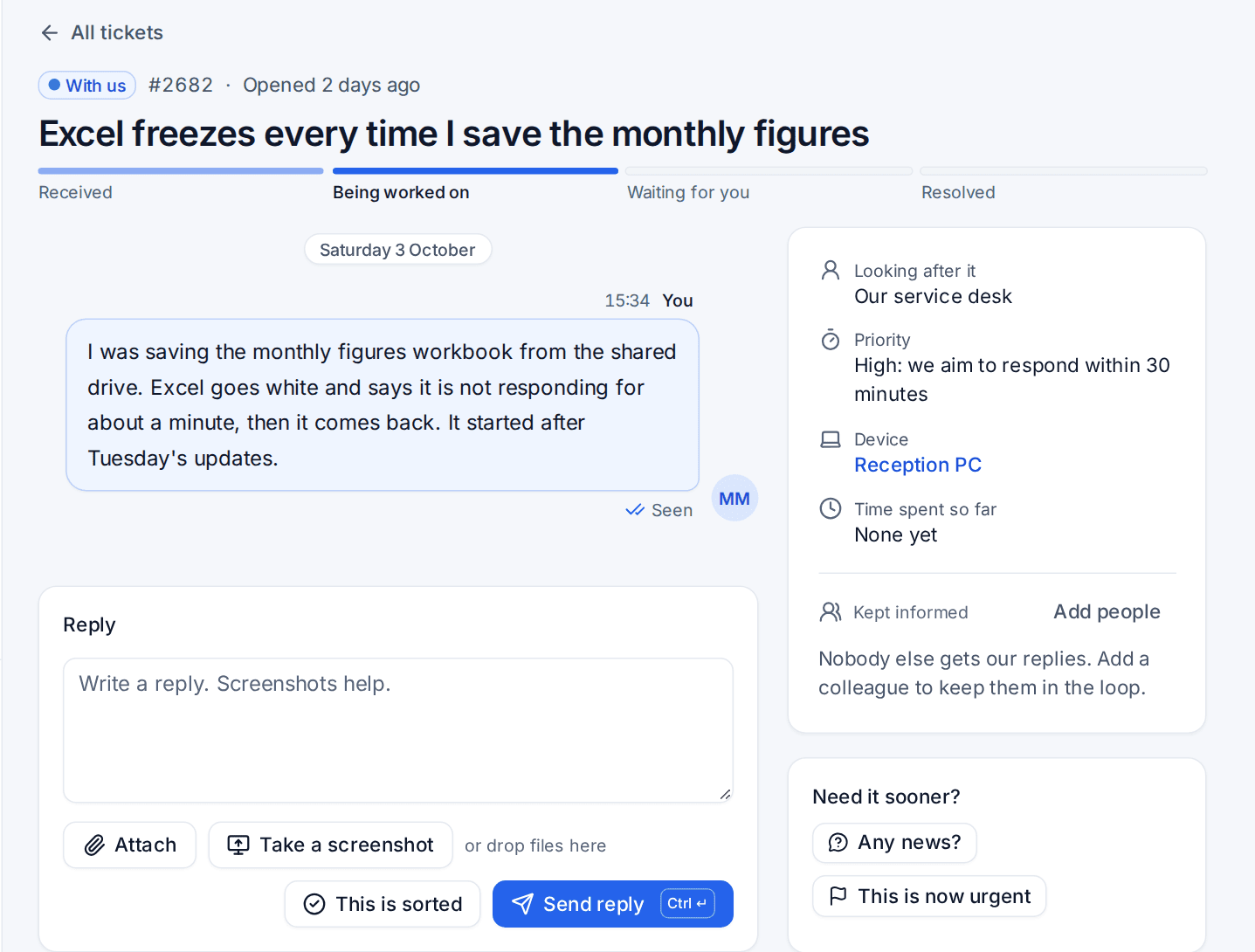
- Progress: a strip under the subject shows Received, Being worked on, Waiting for you and Resolved, and quiet lines in the conversation say who is looking after it, when a visit was booked or an approval asked for. Statuses are always in the customer's words, never your internal status names.
- Live: replies from your team appear without a refresh, and while a technician types a public reply the contact sees "Priya is writing a reply". Their own message shows Seen once one of you has opened the ticket. Internal notes are never shown, and never trigger the typing line.
- Details: Looking after it, the Priority in your wording (for example "High: we aim to respond within 1 business hour"), the Device (a link to its portal page), Time spent so far when you show it, and Kept informed.
- This is sorted tells you the problem is fixed. After resolving, the rating card asks how you did.
Any news? and This is now urgent
Under Need it sooner? contacts get two buttons:
- Any news? appears once the time you aimed to reply by has passed (or after a set number of hours with no reply), and at most once in that time. It never shows while you are waiting for the customer.
- This is now urgent can be used once per ticket, with a reason.
Both notify the technician (or the queue's leads) and go on the ticket's activity. Neither changes the priority: that stays your call. Both can be turned off in Settings > Customer portal > What customers see.
The ticket list
Tickets shows each ticket with a stage in plain words: With us, Waiting for you, Visit booked, On hold, Resolved: please confirm or Closed. Tickets waiting for the contact come first. "New reply for you" only counts tickets they raised or are copied in on.
Catalogue requests appear as rows of the same list with their progress, so a request is never listed twice. A Type filter switches between tickets and requests.
Managers can switch to a table (number, subject, who it is for, stage, updated and expected reply) and keep saved views. On a phone the list stays as cards.
Tickets your monitoring raised
Tickets raised by monitoring or automation, such as a server offline or a failed backup, are shown according to Tickets raised by monitoring in Settings > Customer portal > What customers see: Everyone who could see the ticket, Managers only (the default) or Nobody. Their summary uses your wording, by default "We are looking at: {subject}". Hidden ones are filtered on the server, so they never reach the browser.
Approvals
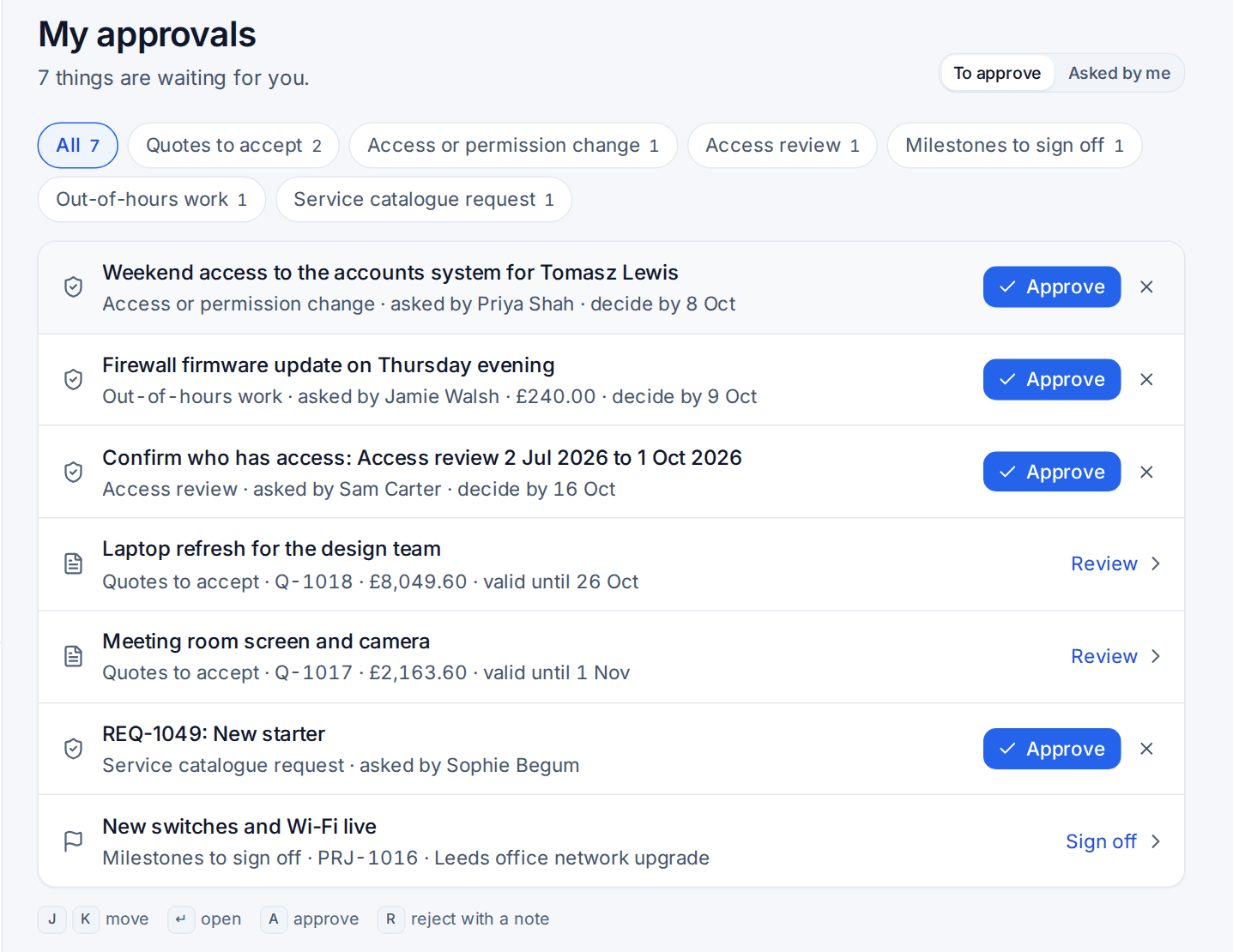
Approvals lists everything waiting for the contact's yes in compact rows: catalogue requests, changes, purchases, access, out-of-hours work, quotes to accept and project milestones to sign off. Each row says what it is, who asked, the cost and when to decide by, with Approve and reject on the row. The full request opens beside the list. Approvers can also Ask a question, which goes back to whoever asked, and a requester can change and resend a request that was turned down. See Approvals.
Feedback, complaints and surveys
- How did we do? is asked after a ticket is resolved, after a catalogue request completes and after a visit, with the wording and windows from Settings > Feedback. Nobody is asked twice about the same thing.
- Give feedback in the account menu takes praise, a complaint or an idea, and tells your team leads.
- An open Net Promoter Score survey shows as a card on Home, answered in place.
See The customer portal and feedback for the feedback settings.
Was this page helpful?
Thanks for the feedback.