Sprints, Kanban and releases
Plan and run sprints with burndown, burnup and velocity, run a Kanban board with work in progress limits and cumulative flow, ship versions with release notes for the portal or a status page, and tell linked tickets when their fix ships.
This guide covers the day-to-day of a software project: planning the work, running the board and shipping versions. It assumes the project is set up for development; see Software development projects.
Sprints
On a project that plans in Sprints, work runs in timeboxed sprints, two weeks by default.
Plan a sprint
- On the Backlog tab, press Plan a sprint.
- Give it a Goal: what the sprint is for, in a sentence the team can check against. The name defaults to the next number, such as Sprint 4, and the dates follow the last sprint for the project's sprint length unless you set them.
- Set the Capacity (points). The dialog shows the Average velocity of the last few closed sprints as a guide.
- Press Plan sprint, then drag items from the backlog into it. The sprint's header shows the points planned against its capacity, in red when it is over.
Press Start sprint on a planned sprint to make it the running one. Its items then fill the Board.
The sprint board
The Board tab shows the running sprint with a column for each task status (cancelled is left out). Drag a card to change its status. Use Everyone or Mine to filter, and Burndown to jump to the chart.
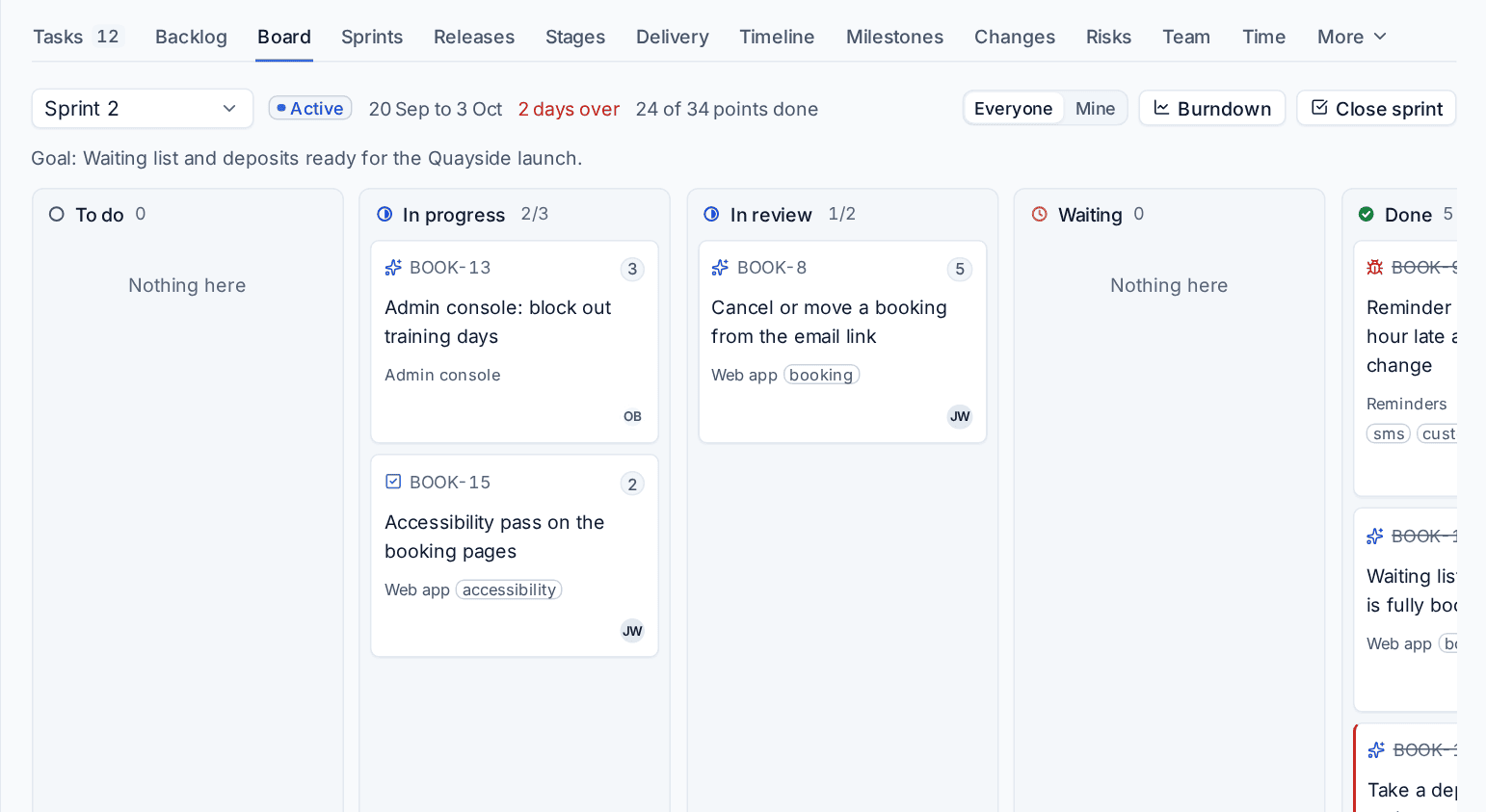
Each column can have a work in progress limit, set on the project's Development tab under Work in progress limits. A column shows its count against the limit (for example 2/3), and turns red when it holds more than the limit, so the team finishes work before starting more.
Close a sprint
- Press Close sprint on the board or the backlog.
- Choose where unfinished items go under Unfinished items go to: The next sprint, A new sprint, planned now or The top of the backlog.
- Write Review notes: what was shown, what the customer said, what to change. They are kept with the sprint.
- Confirm.
Burndown, burnup and velocity
Open a sprint from the Sprints tab to see its page: what was Committed at the start, what was Done, the Scope now and the Capacity, with the review and every scope change (items added, removed or re-estimated after it started).
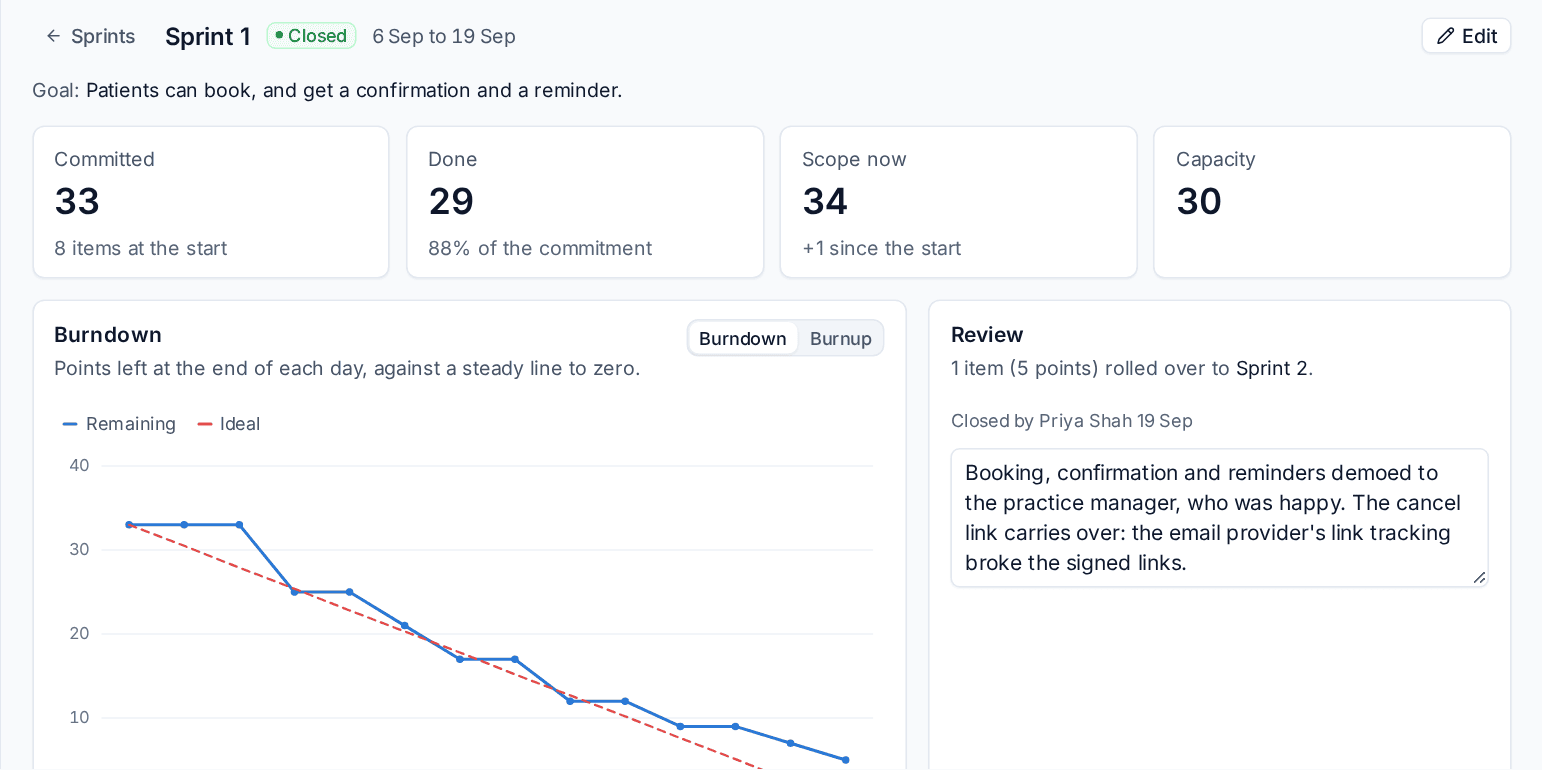
- Burndown shows the points left at the end of each day against a steady line to zero.
- Burnup shows the scope and the points done, so added work is visible rather than hidden.
- The Sprints tab charts Velocity: points committed when each sprint started against points done when it closed, with the average.
With AI set up, a sprint can also have a short AI summary on its page. See Project reports and status summaries.
Kanban
On a project that plans in Kanban there are no sprints. The team pulls from one ranked backlog onto a continuous board.
- The board has the same columns and work in progress limits as a sprint board.
- The Done column keeps items finished in the last 14 days (change it in Settings > Projects > Software development). Older items leave the column but stay in the reports.
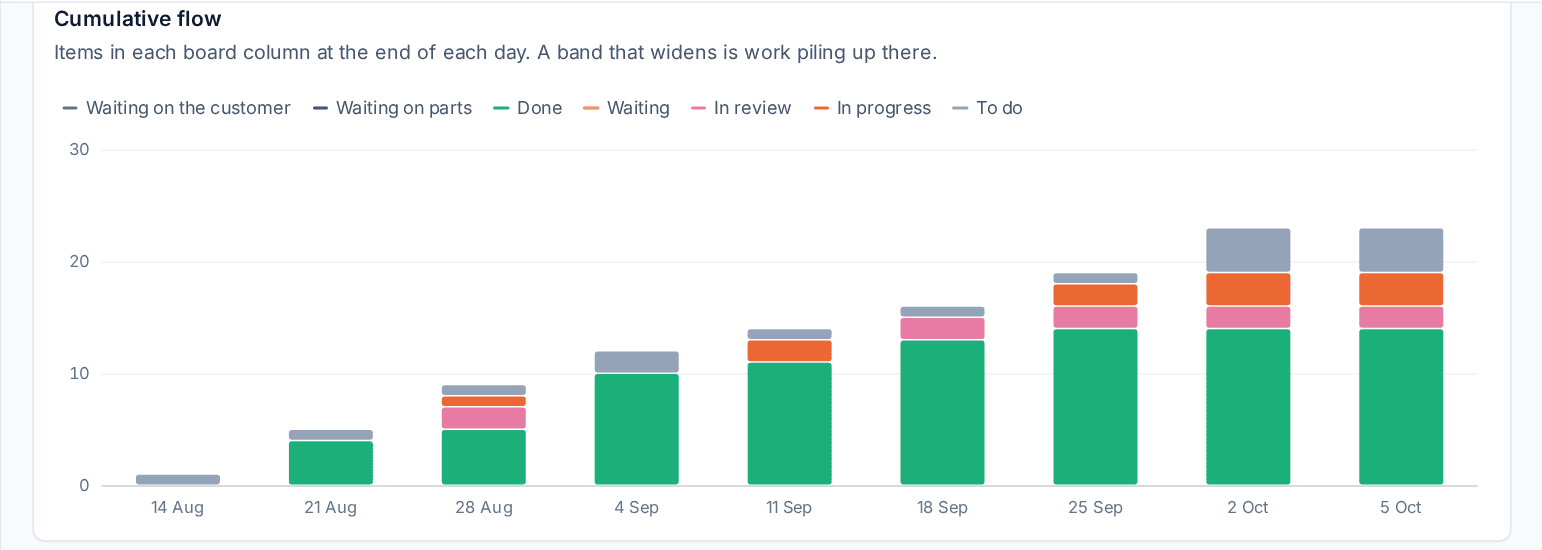
- The Delivery tab shows Cumulative flow: the items in each board column at the end of each day. A band that widens is work piling up in that column. Beside it, Work in progress lists open items, oldest first, with how long each has been going.
Versions and releases
A version groups the items that ship together, such as 1.1.0. The Releases tab lists every version with its status (Planned, In progress or Released), its target date and its progress in items and points.
- Press New version, give it a name such as 1.4.0, a description and a target date.
- Put items in it from the item panel's Version field, or from the backlog.
- Open the version to see its release page: progress, points done, blockers (flagged items and open bugs), the items, a burnup of scope against done, every scope change and where the version has been deployed.
Release a version
Press Release on the version's page. Its done items ship now: linked tickets are told and release notes are drafted from what shipped, unless you have already written them. Unfinished items can Move to another version or Leave the version.
When you are recording a release that happened earlier (for example when you start using Tenvara on a project already under way), give it the date it really shipped. Linked tickets are not told about a release dated in the past.
Release notes
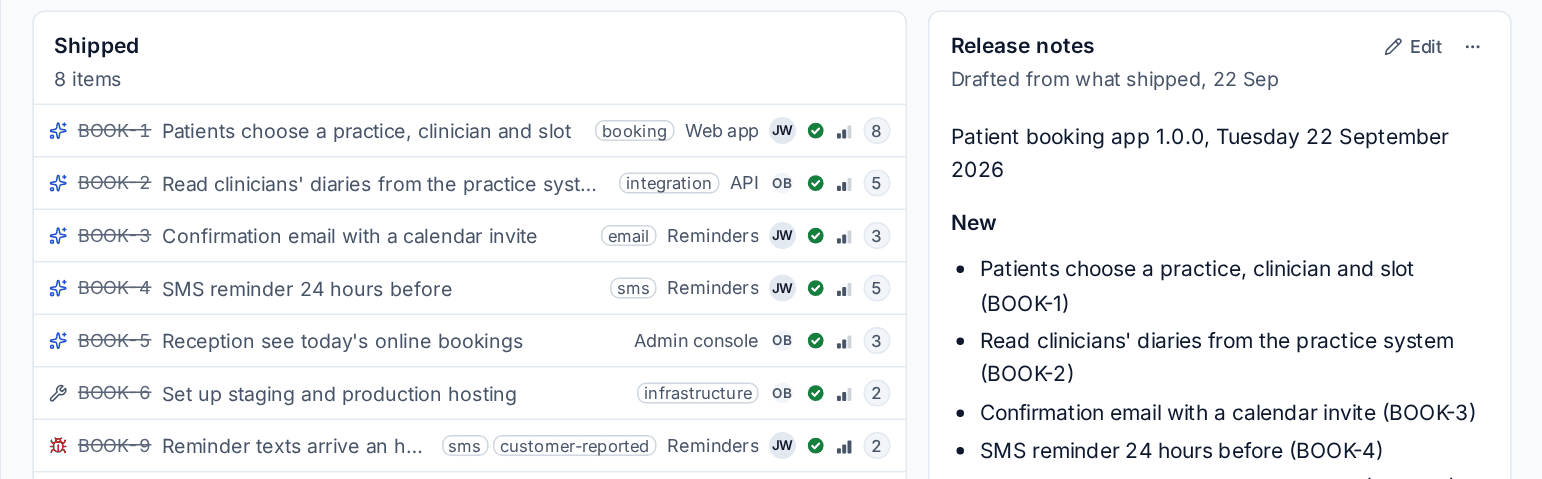
The release page drafts notes from what shipped, grouped under headings for new features, fixes and other changes. Edit them as you like.
Then share them:
- Show on the customer portal: the project's page in the portal lists the published notes for the customer.
- Announce on the customer's status page: posts them as an announcement on one of your status pages. See Status pages.
Choose the headings, and which item types the notes list (chores and spikes are usually left out), in Settings > Projects > Release notes and customers.
Telling linked tickets
When a customer reported something on a ticket, link the ticket to the work item (or make the item from the ticket with Send to a backlog). When the item ships, its version's release tells the ticket with a reply; an item with no version tells it when it is done.
In Settings > Projects > Release notes and customers:
- Update linked tickets when their item ships turns this on.
- What the ticket is told sets the wording, with
{key},{title},{version}and{project}filled in. - Resolve the ticket too resolves it after the reply.
Each can be set differently per customer. Each ticket is told once per item.
Related: GitHub and deployments, Project reports and status summaries.
Was this page helpful?
Thanks for the feedback.