Credit, write-offs and disputes
Take one payment across several invoices, keep and use credit on account, write off what will never be paid, and handle invoice queries and disputes.
Real payments rarely match one invoice to the penny. A customer pays three invoices in one bank transfer, pays a little too much, or never pays the last £3.20. Others question a line before they pay. This guide covers how Tenvara handles each of those, all inside Tenvara, alongside the credit notes described in Invoices and credit notes.
One payment across several invoices
When one bank transfer pays several invoices, record it once.
- Open the customer's Contracts and time tab and press Receive payment under Payments and credit on account. Or go to Invoices, open Payments and choose Receive payment....
- Enter the Amount, Currency and Date.
- Choose How it was paid and the Reference as it shows on the bank statement.
- Under Share across, the amount is spread over their open invoices Oldest first. Type your own amounts against each invoice if the customer said which ones they were paying.
- Press Record.
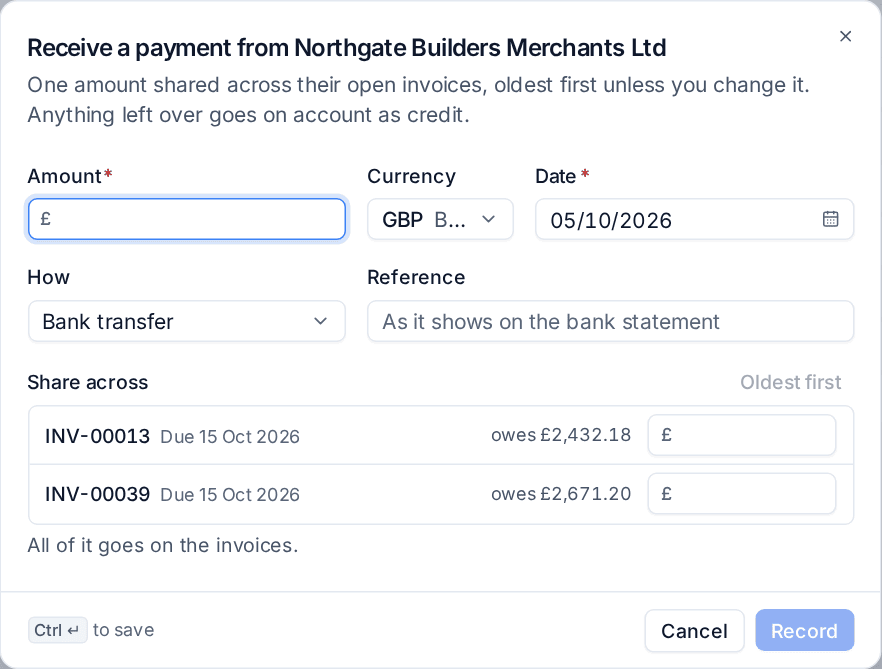
Each invoice becomes Part paid or Paid. Anything left over goes on account as credit, and the dialog tells you how much before you save. The payments stay together as one receipt: removing the receipt removes them all.
Credit on account
Credit on account is money the customer has paid you that is not against any invoice. It comes from:
- a receipt with something left over;
- a payment on one invoice that was more than it owed: Tenvara asks whether to Put the extra on account rather than leave a negative balance;
- what is left of an issued credit note.
The customer's billing panel lists it under Payments and credit on account, with where each amount came from. Credit is kept per currency and never converted.
Use it
- On an open invoice, press Apply credit, choose the credit or credit note, enter the Amount and press Apply. It is recorded as a payment by credit.
- On the billing panel, open the ... menu on an amount and choose Apply to an invoice....
- Customers can use their own credit from the portal's billing pages when you allow it. See Billing in the portal.
Pay it back
To return credit to the customer, open the ... menu on the amount and choose Pay it back.... Record how and when you paid it. Either can be undone from the list if it was recorded by mistake.
Write-offs
A write-off says you will not collect what is left on an invoice. It is recorded as a payment, not a credit note, so the tax invoice stands; that is how UK bad debt relief and most ledgers expect it.
- Open the invoice, open the More actions menu and choose Write off....
- Choose Why: Bad debt, Small balance or Goodwill.
- Check the Amount. It starts as everything still owed; lower it if part is still expected.
- Set the Date and add a Note for your records.
- Press Write off.
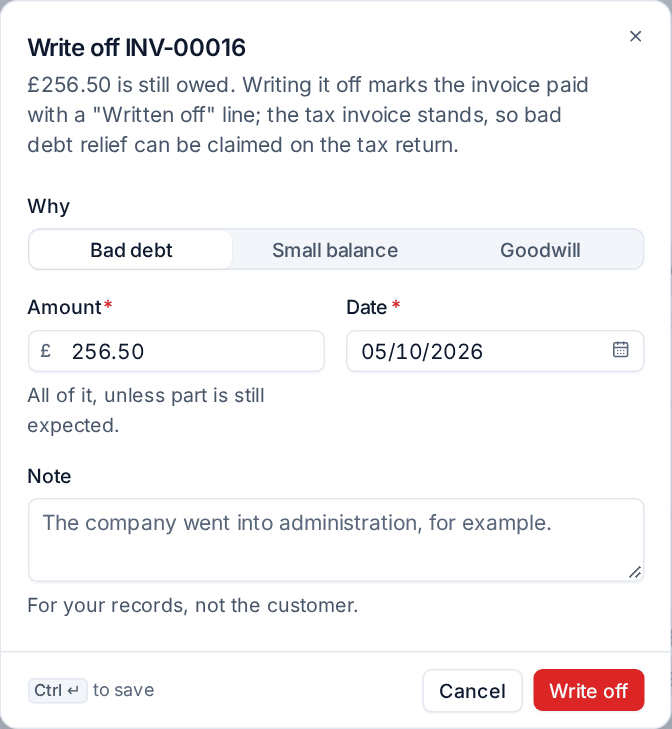
The invoice becomes paid with a Written off line, drops out of overdue and reminders, and shows Written off in lists.
Small balances in one go
Rounding errors and bank fees leave invoices owing a few pence. Go to Invoices, open Payments and choose Write off small balances.... Enter Balances under an amount and press Write off: every issued invoice still owing less than that is written off as a small balance. Other currencies are compared in your base currency at today's rate.
Approval for credit notes, write-offs and large invoices
In Settings > Billing > Invoices > Approval you choose which drafts need someone to approve them before they are issued:
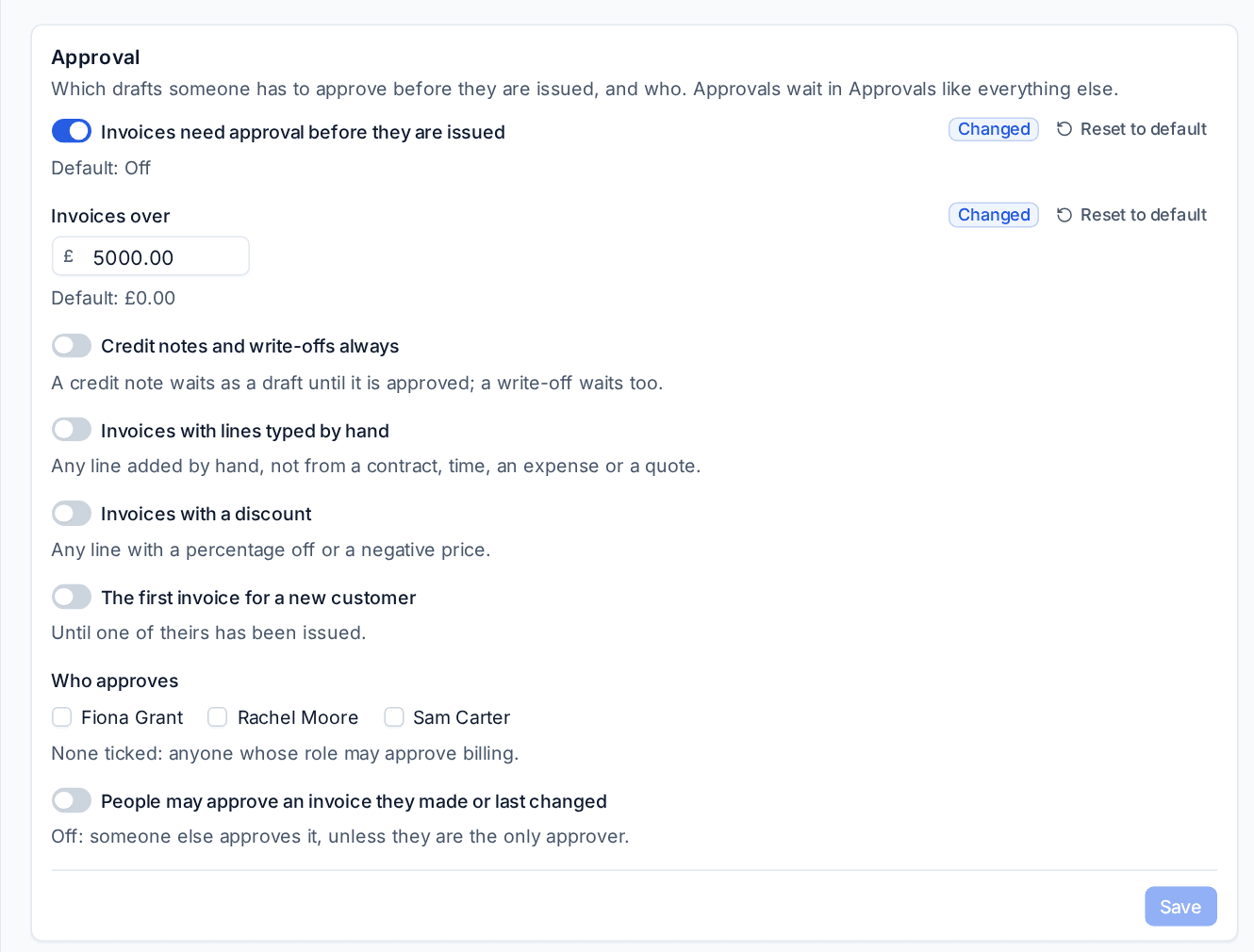
- Invoices over an amount in your base currency;
- Credit notes and write-offs always: a credit note waits as a draft until it is approved, and a write-off waits too;
- Invoices with lines typed by hand and Invoices with a discount;
- The first invoice for a new customer.
Under Who approves, tick named people, or leave them all unticked for anyone whose role may approve billing. People may approve an invoice they made or last changed is off by default, so someone else approves it unless they are the only approver.
A draft that needs approval cannot be issued until it is approved; it says why, for example "Needs approval: over 5,000.00". Requests wait in the Approvals inbox with reminders and escalation like every other approval. See Approvals.
Queries and disputes
A customer who questions an invoice should not keep getting reminders while you look into it.
From the portal
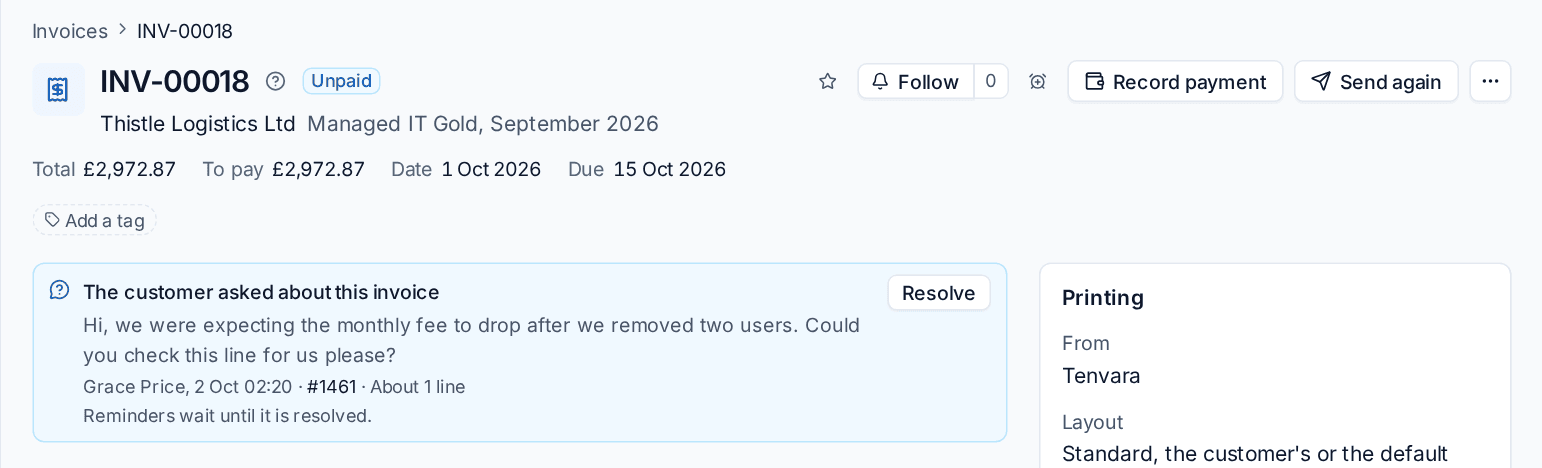
On an invoice in the portal, the customer presses Question about this invoice, picks the lines they mean and writes a message. Tenvara:
- opens a ticket (type Billing query unless you choose another) in the queue set in Settings > Billing > Invoices > Queries and disputes, linked to the invoice;
- marks the invoice queried and holds its reminders;
- tells the people who manage billing.
Recorded by your team
For a query taken by phone or email, or a disputed invoice:
- Open the invoice, open the More actions menu and choose Query or dispute....
- Choose Disputed or A question (by phone or email).
- Write what is disputed, or what they asked.
- Press Mark as disputed or Record the query.
A card calls out the dispute or query at the top of the invoice, with who raised it and when. If a customer disputes a card payment with their bank through Stripe, the invoice is flagged the same way and cleared when the dispute closes.
Resolve it
Press Resolve on the card (or Resolve the query... in the menu), choose the Outcome (No change, Credit note raised or Reissued), say What was agreed and press Resolve. Reminders start again for whatever is still owed.
The invoice list has a Queried view, and its Credit control column shows queried, disputed and written off invoices at a glance.
Pausing reminders on one invoice
For a payment plan or anything else agreed with the customer, choose Pause reminders... in the invoice's More actions menu, set Until and Why. The customer's other invoices are chased as normal. Send reminder now in the same menu sends one straight away, whatever the schedule says.
Note: Credit on account, write-offs, queries and promises to pay are all kept in Tenvara, on the customer's account, so everyone working the account sees the same picture.
Related
Was this page helpful?
Thanks for the feedback.