Skipped items
Why a backup can be OK with a few skipped items, how Tenvara tells a handful of refused emails or locked files from a real problem, where to see what was skipped, and when it alerts.
Every real mailbox, OneDrive and computer has a few items that cannot be read: a damaged email Microsoft refuses to hand over every time, a file that is locked or open, a document protected by a sensitivity label, a OneDrive file that was never downloaded to the computer. Treating those as failures would put half your customers in red every morning for nothing.
Tenvara skips them quietly, backs up everything else, and only raises its voice when the number stops being "a few".
Three levels
Each part of a backup (a mailbox, a OneDrive, a site, a team, a Google account's part, a device's folder or volume) ends as one of:
- OK: everything was read.
- OK with skipped items: a few items the source refused in a known way were skipped, and everything else is backed up. The part and the job stay Completed, with a quiet amber note such as "2 emails Microsoft would not hand over were skipped; everything else is backed up". No alert, no ticket, nothing in Needs attention.
- Failed or completed with errors: the part did not finish, a real error happened, or the skipped items passed a threshold. Only these turn amber or red and alert.
Real errors (the network, sign-in refused, the backup storage, access denied, anything not recognised) are never folded into skipped items.
Reasons that count as skipped
| Reason | Examples |
|---|---|
| The source refused it | Microsoft or Google answered with a server error for that one item every time |
| Moved or deleted meanwhile | The file went between being listed and being read |
| Damaged | A corrupt message |
| Protected | Encrypted by a sensitivity label or rights management; a Google file the owner stopped from being downloaded |
| Too large | A message over Exchange's size limit, a Google export over Google's limit |
| Locked or in use | A SharePoint file locked for editing, a file Windows holds open |
| Checked out | A SharePoint file checked out with no checked-in version |
| Flagged as a virus | Microsoft, Google or Windows refused it as malware |
| Cloud only | A OneDrive Files On-Demand file the computer could not download |
Seeing what was skipped
The job panel shows the note at the top, a note on each unit, and Skipped items: each item with what it is, the reason, how many runs it has failed and when it was first seen.
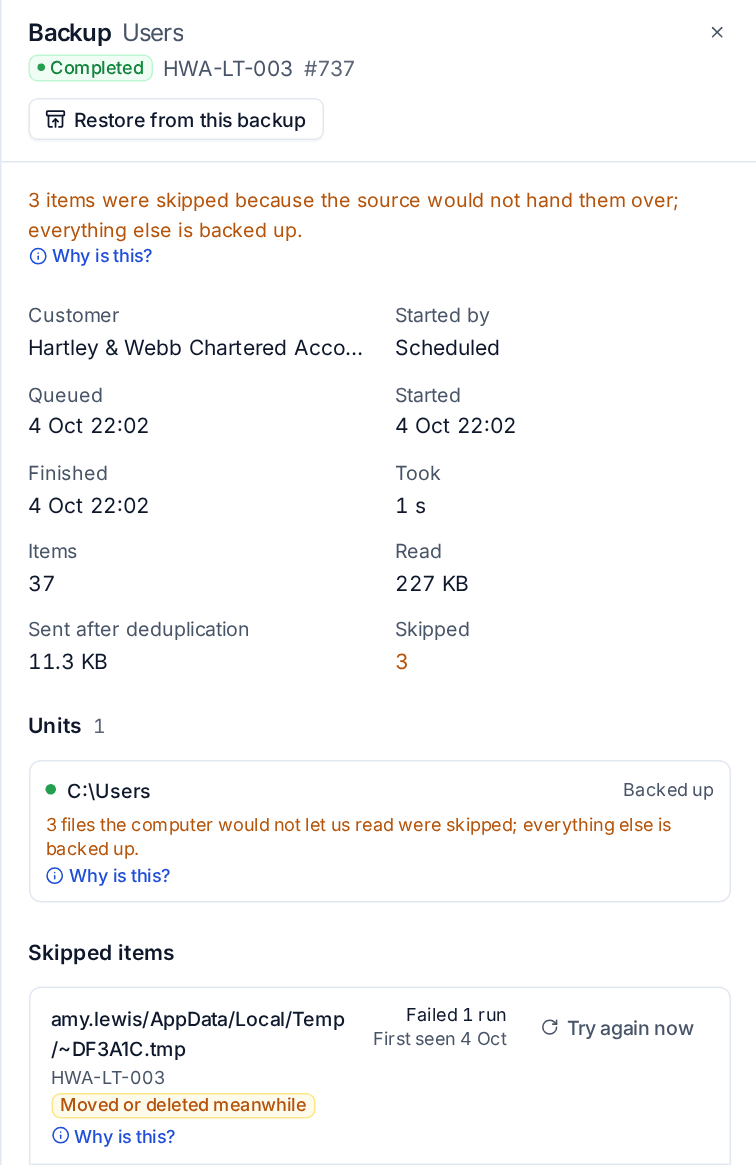
The same list is on:
- the customer's Backup tab and the device's backup section, in a Skipped items card (shown only when there is something);
- the Microsoft 365 tenant page, where an amber dot on a part's chip opens its skipped items;
- a Google Workspace item's page;
- the lists in Browse by user or device, as "2 skipped" beside the backup.
Each item has Try again now, which backs up that item's part (or the device's unit) again and reads it afresh. An item that backs up on a later run drops off the list by itself; one that fails again comes back.
Why is this?
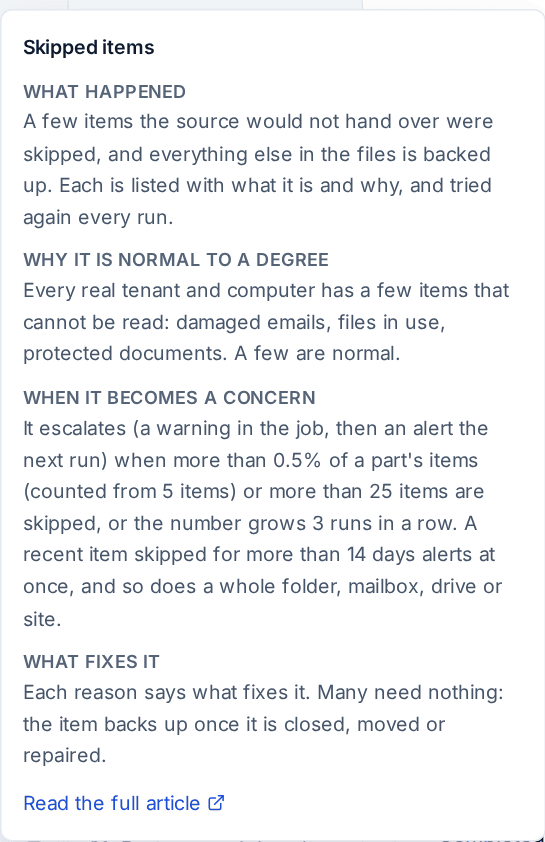
Next to every note, item and alert, Why is this? opens a short explanation for that reason: what happened, why it is normal to a degree, when it becomes a concern (with the customer's own thresholds) and what fixes it.
When skipped items become a problem
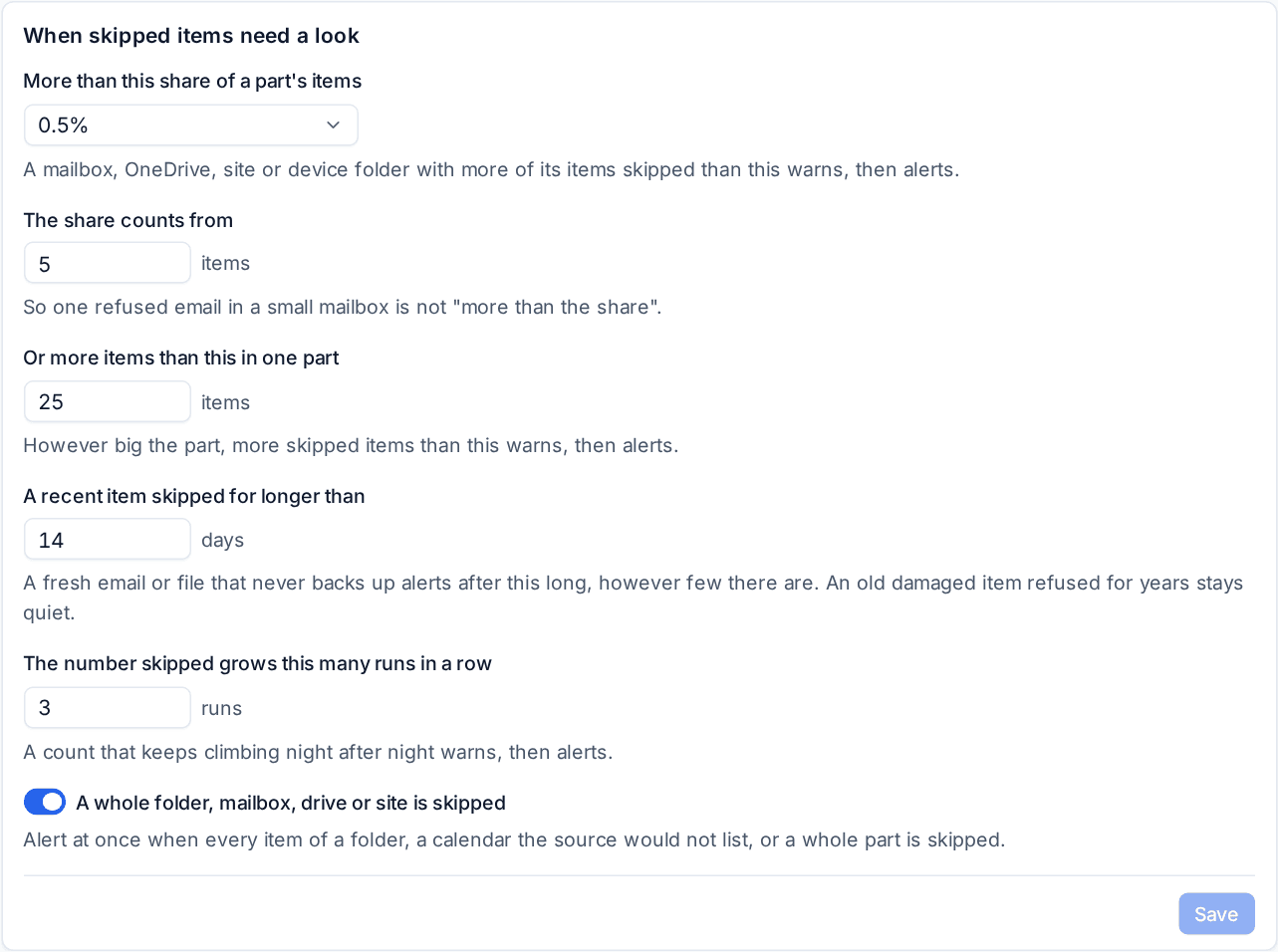
Open Settings > Backup and choose the Alerts tab. When skipped items need a look sets the thresholds. Each customer can have its own values.
| Setting | Default | What it does |
|---|---|---|
| More than this share of a part's items | 0.5% | A part with more of its items skipped warns, then alerts |
| The share counts from | 5 items | So one refused email in a small mailbox is not "more than the share" |
| Or more items than this in one part | 25 | However big the part |
| A recent item skipped for longer than | 14 days | A fresh email or file that never backs up alerts after this long. An old damaged item refused for years stays quiet |
| The number skipped grows this many runs in a row | 3 | A count that climbs night after night |
| A whole folder, mailbox, drive or site is skipped | On | Alerts at once |
The share, the count and the growth warn first: the part is marked completed with errors with a warning in the job, and no alert. If the next run is still over, it alerts. A stuck recent item, or a whole folder, calendar or part skipped, alerts straight away. The alert carries Why is this? too.
What your customers see
With Show skipped items to customers on (the default, under Customers on the same tab), the portal's backup status page shows the company's skipped items per mailbox, drive or computer folder with a plain sentence and Why is this?, and the monthly customer report's backup section lists the month's. Customers see counts and reasons only: which emails or files they are is for you.
Fixing the common ones
- Locked or in use on a computer: usually Outlook's
.ostor a user profile'sNTUSER.DATwhile the person is signed in. Leave them out with an exclusion rule if you do not need them (see Protecting devices), or back up when nobody is signed in. - Cloud only: the file only exists in OneDrive. Back it up through Microsoft 365 backup rather than from the computer.
- The source refused it: nothing to do unless the count grows. Microsoft usually hands the item over on a later run.
Related
Was this page helpful?
Thanks for the feedback.