Leave allowances, sickness and overtime
Give people leave allowances with balances and carry-over, record sickness with return-to-work forms, set team cover rules and blackout dates, and turn extra hours into paid overtime or time off in lieu.
Leave in Tenvara is more than a calendar of who is away. Each person has an allowance and a balance, requests are checked against your team cover rules before anyone approves them, sickness is recorded the moment someone is ill with their work handed over, and the extra hours on an approved timesheet become overtime or time off in lieu. Every rule lives in Settings > People, on the Leave, Sickness and Overtime tabs.
For asking for leave, approving it and the leave types themselves, see Working hours, leave and skills.
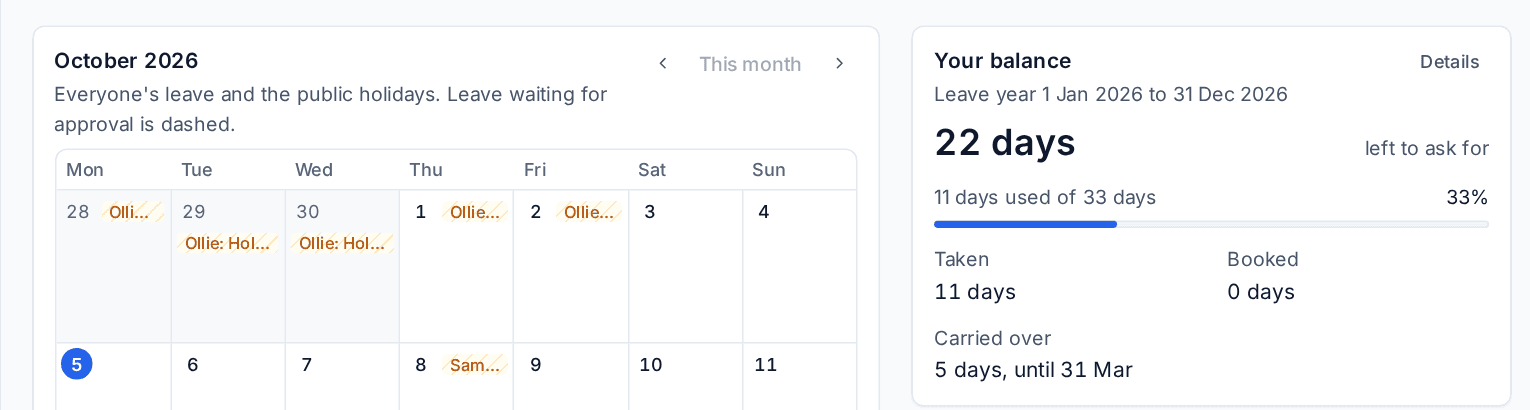
Allowances and balances
Settings > People > Leave, under Allowances:
- Set the Annual leave allowance and whether Allowances are in Days or Hours. Hours suit people with irregular patterns.
- Choose the month The leave year starts in.
- Choose how Public holidays count: On top of the allowance or Included in the allowance.
- Leave Part-timers get their share and Starters and leavers get their share on to scale the allowance by working pattern and by start and leaving dates, and choose how a share is rounded (Round a share to).
- Set Carry over at most and when Carried-over leave expires after.
- Press Save.
A person's staff profile can give them their own allowance or leave year. Leave types that count against the allowance (holiday, by default) take from it; sickness and training do not.
Your balance on the Leave page shows what is left to ask for, what is taken and booked, and anything carried over with its expiry. Details opens the breakdown, including adjustments such as days bought or a long service day. Approvers and managers see the team's balances further down the page, with Export CSV for the leave year.
When someone asks for leave, the dialog says what it uses and what is left after it. Under Asking for and changing leave, Leave that would go below zero can warn and let them ask, refuse it, or allow it without a word.
Changing and cancelling leave
Use Change or Cancel on a request under Your leave. Leave still waiting for approval simply changes. Approved leave becomes a change request that an approver decides; the old dates stay booked until then. Cancelling approved future leave tells the approver and the dispatchers. Leave that has started, or is further back than Leave further back than this needs an approver allows, needs an approver to cancel.
Team cover and blackout dates
Team cover sets, per team, At least this many working and At most this many away. When a team's cover rule is broken chooses whether a request is allowed with a warning that the approver sees, or refused.
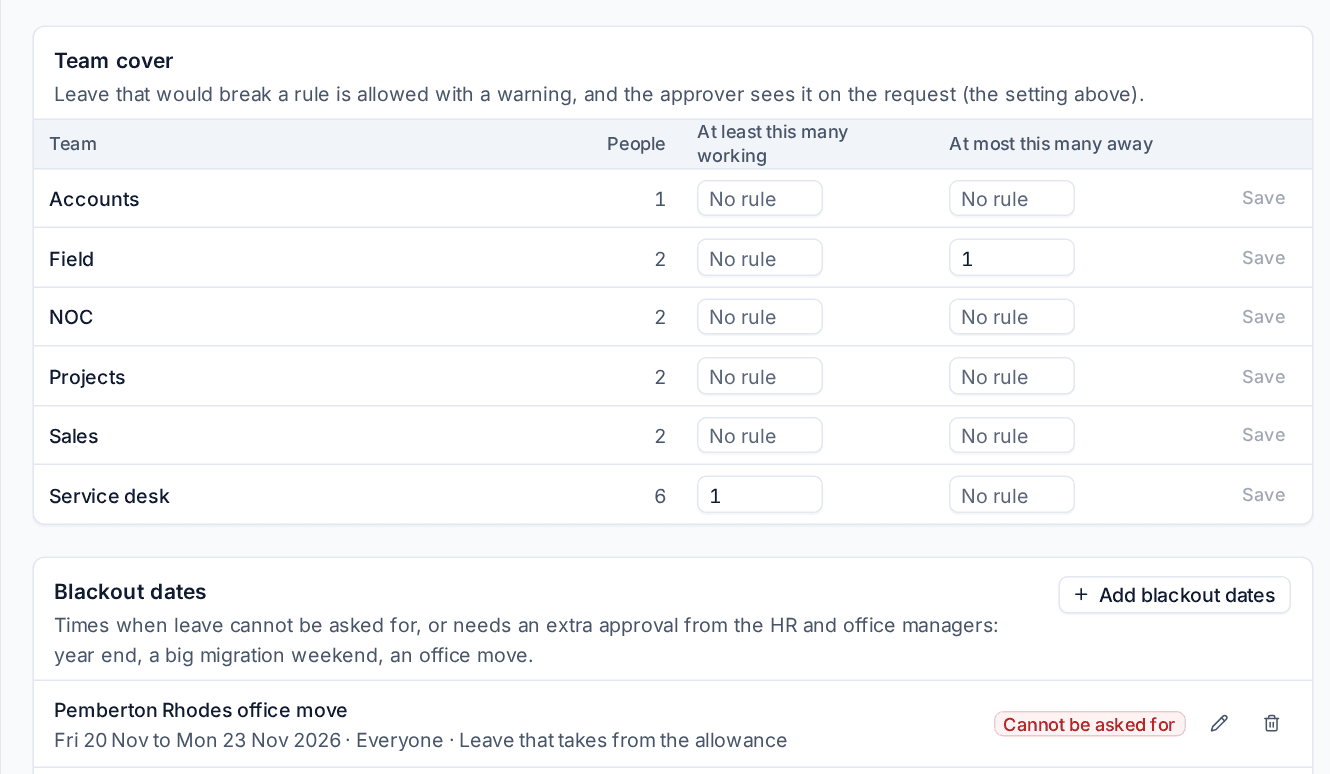
Blackout dates are times when leave cannot be asked for, or needs an extra approval from the HR and office managers: the year end, a big migration weekend, an office move. Press Add blackout dates, choose the dates, who it applies to and which leave, and whether it Cannot be asked for or needs an Extra approval.
The request dialog and the approver both see any clash. Leave approvals also wait in the Approvals inbox; see Approvals.
Public holidays per person
Each person can have their own holiday region (set in Settings > Scheduling > People and skills and on their staff profile), so someone working from Scotland gets Scottish bank holidays. Their region is used for expected hours, timesheets, availability, dispatch suggestions, leave counting and on-call pay.
Sickness
Recording it
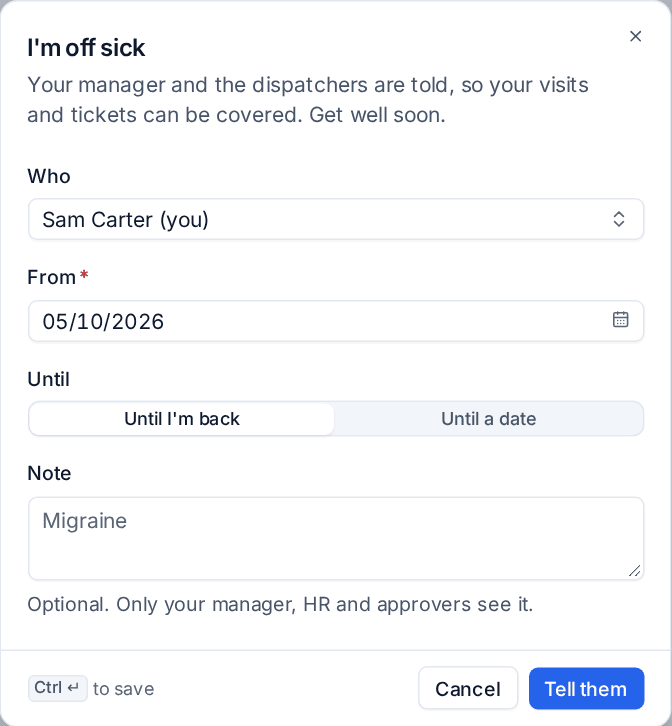
Anyone off sick presses I'm off sick on the Leave page (or finds it with Cmd+K):
- Who is you, unless you approve leave and are recording it for someone else.
- Set From, and Until I'm back or Until a date.
- Add a Note if you like. Only their manager, HR and approvers see it.
- Press Tell them.
Their manager, the dispatchers and anyone named under Also told about sickness in Settings > People > Sickness are told, with the person's bookings and assigned open tickets for the period, ready to reassign from the dispatch suggestions or to tell the customer. Work to cover, for sickness with no end date sets how many working days ahead that list looks.
When they are back, Back at work ends open-ended sickness, and their manager is asked to fill in the Return-to-work form with the questions you set. After Ask for a doctor's note after a number of days (7 by default), the person is asked to upload one on the leave.
The sickness report
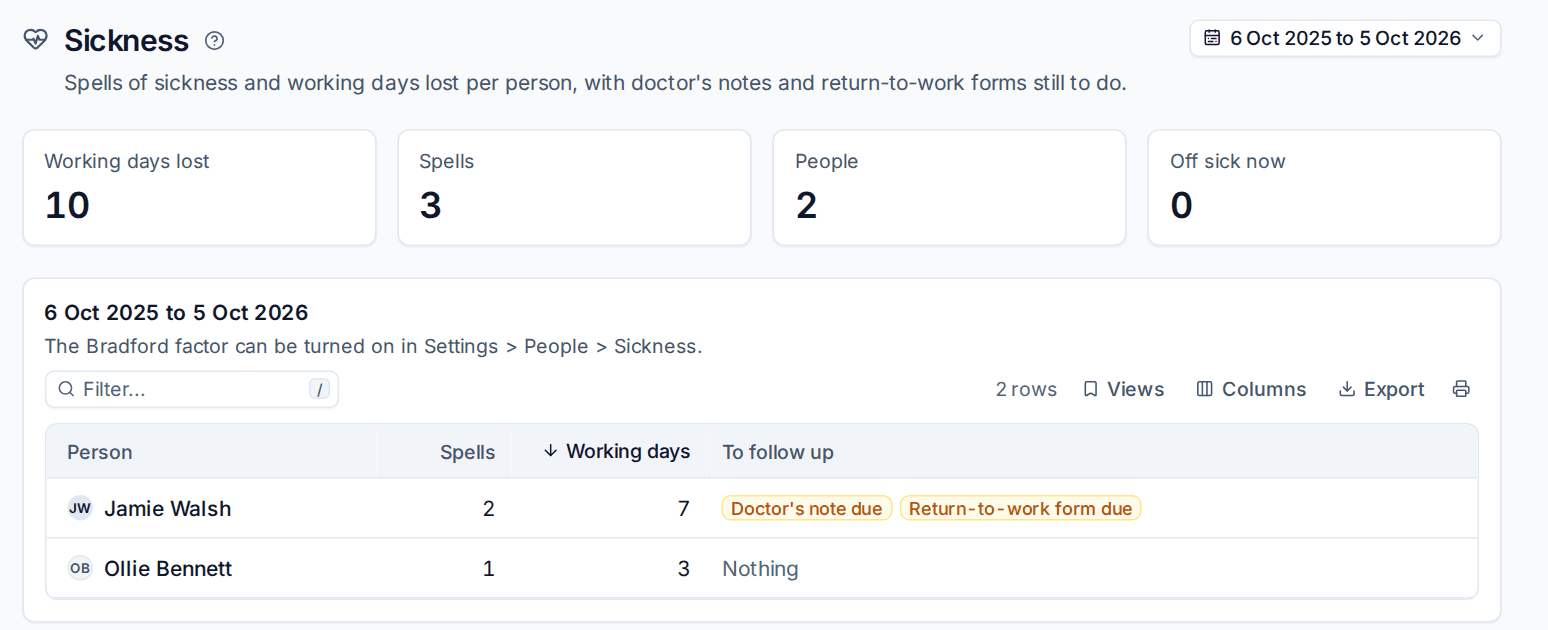
Schedule > Sickness shows spells of sickness and working days lost per person over a period, with Off sick now and what is To follow up (a doctor's note or return-to-work form due).
The Bradford factor (spells squared times days) is off by default. Turn on Show the Bradford factor in Settings > People > Sickness and set how far it looks back.
Overtime and time off in lieu
When a timesheet is approved, Tenvara works out the overtime in it. Settings > People > Overtime:
- Record overtime: time past the expected hours (Past the expected hours of the day or the week), outside the working pattern, on days off and on public holidays. Overtime counts from ignores the odd few minutes.
- Overtime is Banked as time off in lieu, Paid through payroll or Recorded only. A person's staff profile can say otherwise.
- The rates, as a percentage of normal pay (150 is time and a half), for each kind: past the expected hours, outside the working pattern, Saturdays and other days off, Sundays and public holidays.
- Out-of-hours work needs approving ahead: evening, weekend and public holiday time only counts when the visit was approved for it (on the booking panel), or the approver accepts it on the timesheet.
- Time off in lieu is banked at time for time or the overtime rate, and expires after a number of months.
Time off in lieu has its own balance and is taken as the Time off in lieu leave type. Schedule > Overtime reports overtime Per person or Per customer, so you can see who works the extra hours and which customers cause out-of-hours work.
Paid overtime, leave and sickness all go to payroll. See Payroll export and on-call pay.
Staff profiles
Schedule > Staff is the directory. Each profile holds the person's photo, job title, dates, contracted hours, payroll number, holiday region, overtime choice and emergency contact, seen only by administrators, HR and their managers. After someone's leaving date they drop off the calendar, dispatch and on-call rotas.
Was this page helpful?
Thanks for the feedback.