Alert history, dependencies and flapping
See a device's alert history with time to acknowledge and resolve, hold back alerts behind a firewall, switch or host that is down, and stop alerts that keep opening and clearing from paging anyone.
This guide covers the tools that keep alerts useful once you have a lot of them: the history of every alert on a device, dependencies so that one outage is one alert, site outages and alert storms, and flapping and cool-off for problems that come and go.
A device's alert history
On a device page, the Open alerts section has two views: Open and History. History lists every alert on the device in a period, from every module, with its severity, status and source.
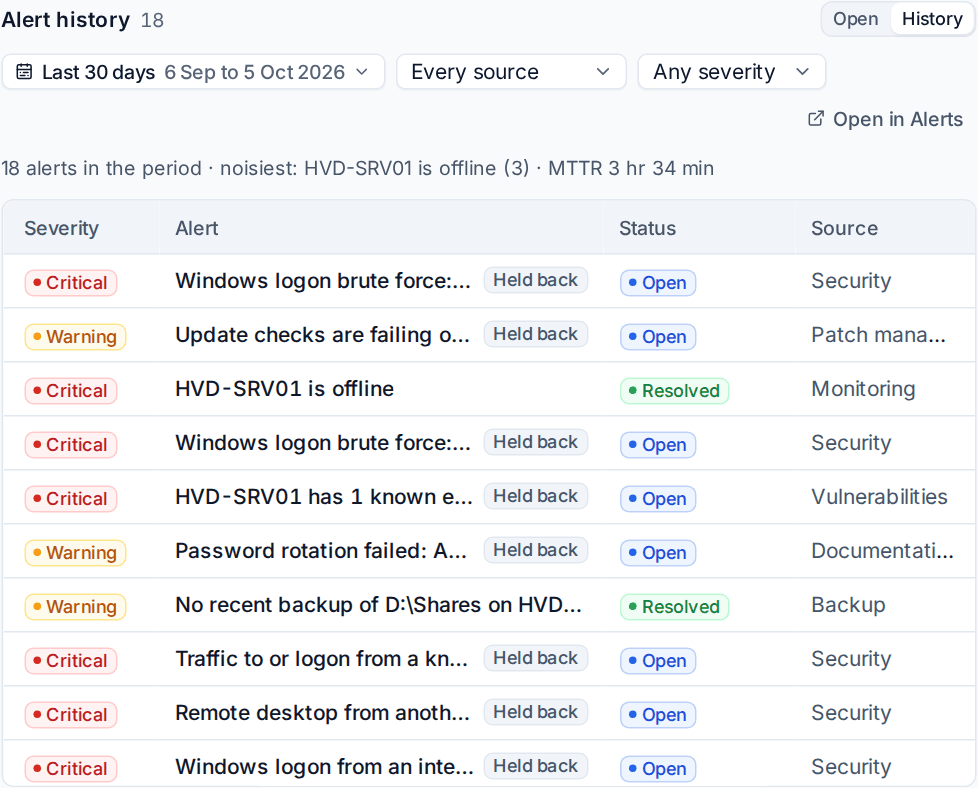
- Open the device and find Open alerts.
- Click History.
- Choose the period (for example Last 30 days), the source and the severity.
The line above the table sums it up: how many alerts in the period, the noisiest problem, the average time to acknowledge (MTTA) and the average time to resolve (MTTR). Open in Alerts opens the alert list filtered to this device and period, for exporting or working them in bulk.
The same figures appear elsewhere:
- Reports > Overview has Time to acknowledge and Time to resolve tiles against the previous period, and an alert response card per technician and per customer.
- The monthly customer report's Monitoring section shows the average time to acknowledge and to resolve the customer's monitoring alerts. See Monthly customer reports.
Dependencies: one outage, one alert
When a site's firewall goes down, every device behind it stops reporting. Rather than an alert, a ticket and a page for each, Tenvara knows what each device depends on and holds the others back.
A device's parent is, in order:
- the device it names itself;
- otherwise, the device its site hangs off (usually the site's firewall or core switch);
- otherwise, for a virtual machine Tenvara knows from Infrastructure, its hypervisor host.
While a parent is offline, its children's monitoring alerts still open but are Held back under the parent's alert: no tickets, no pages. The parent's alert lists them under Held back by this alert. When the parent comes back, the children get a short grace period to report in, and only what is still wrong is then raised.
Set what a device depends on
- Open the device and find Depends on under its open alerts. It says what the device depends on and where that comes from, or Depends on no other device.
- Click Change, choose the device (from the same customer) and save.
Set the device a site hangs off
- Open the site's page and find the Alerting card.
- Choose the device the whole site hangs off, such as its firewall, and save.
A device cannot depend on itself or on something that depends on it.
Site outages and alert storms
Two more rules gather many alerts into one. Both are in Settings > Monitoring > Alert noise > Outages and alert storms:
- Site offline: when at least 3 devices and at least half of a site's monitored devices go offline within 5 minutes, one Site offline alert holds their offline alerts. It clears when they are back. Only devices that alert when offline count, so an office's desktops going home at night is not an outage.
- Alert storm: beyond 20 new alerts that tell people for one customer within 10 minutes, new alerts gather under one Alert storm alert (one ticket, one page) until things calm down.
Change the numbers there; most can be set per customer.
Flapping
A problem that keeps opening and clearing (a link dropping in and out, a service that keeps restarting) is flapping. By default, 5 opens and clears of the same problem within 60 minutes mark its alert as flapping.
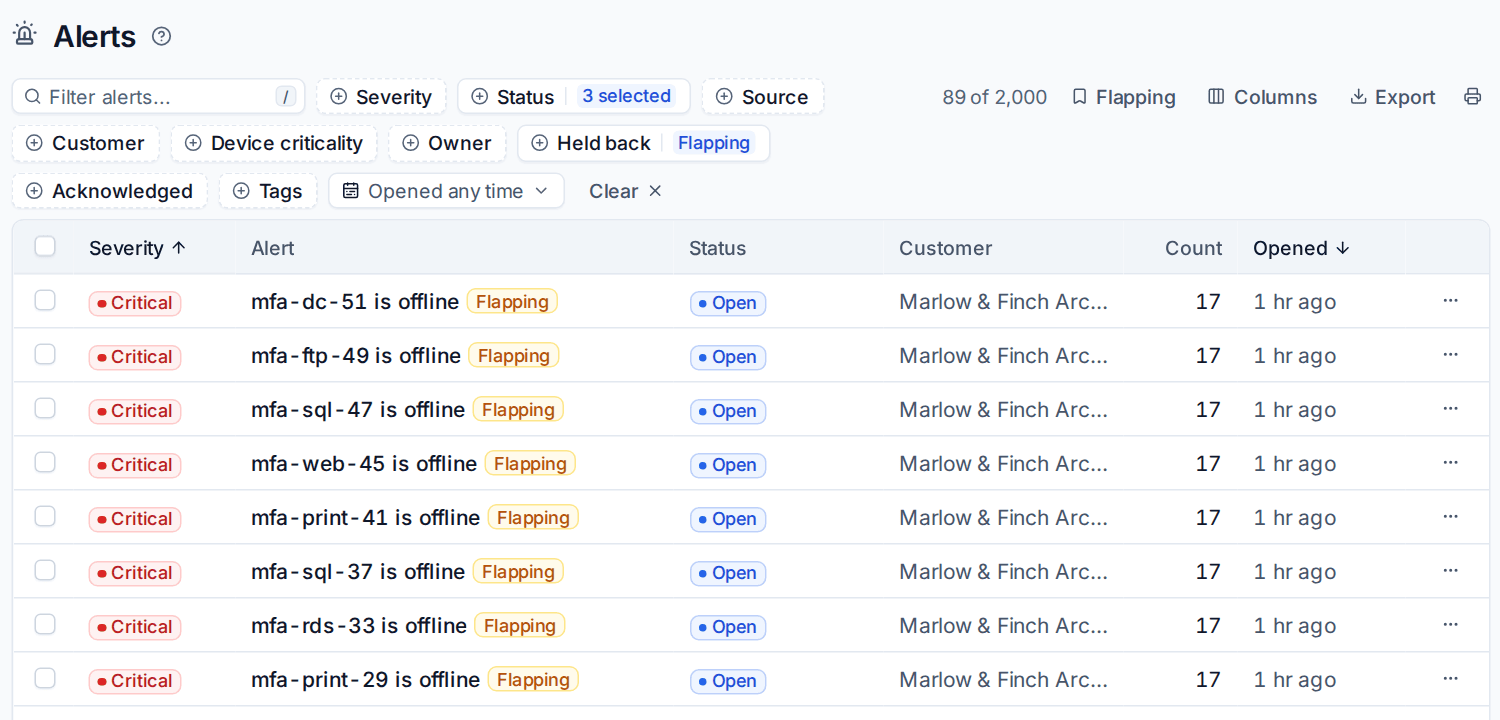
A flapping alert:
- shows a Flapping badge, and the Flapping view in Alerts lists them all;
- stays open and does not resolve by itself while it flaps;
- tells nobody again until it has stayed in one state for 30 minutes, then resolves once (if it cleared) or alerts again (if it is still wrong).
Cool-off
Cool-off before the same problem alerts again makes a problem that comes back soon after its alert resolved open quietly, and tell people only if it is still there when the cool-off ends. It is 0 (alert at once) by default.
Changing the numbers
Set the flapping count, the window, the settle time and the cool-off in Settings > Monitoring > Alert noise > Flapping and cool-off. A monitoring policy can set its own in its settings (Flapping after, Flapping counted over, A flapping alert settles after and Cool-off before the same problem alerts again), for example a looser rule for a site on a poor line.
Devices that never reported
A device that enrolled and then went silent raises Never reported since enrolment after its offline delay, so a failed install does not go unnoticed. Turn it off with Alert on devices that enrolled but never reported in Alert noise > Offline devices.
Related
Was this page helpful?
Thanks for the feedback.