Chat channels and routing
Split live chat into Support, Sales, Accounts and your own channels, each with its own people, hours and greeting, route chats by page, words, team and skill, and wrap chats up with outcomes, tags and reports.
Channels split live chat by who should answer it, so the service desk is not rung for sales questions and your salespeople never see a broken printer. Each channel has its own people, hours, greeting, chat bot behaviour and routing.
The channels
Open Settings > Chat > Channels. Every install starts with one Support channel that everyone who takes chats answers, so nothing changes until you add another.
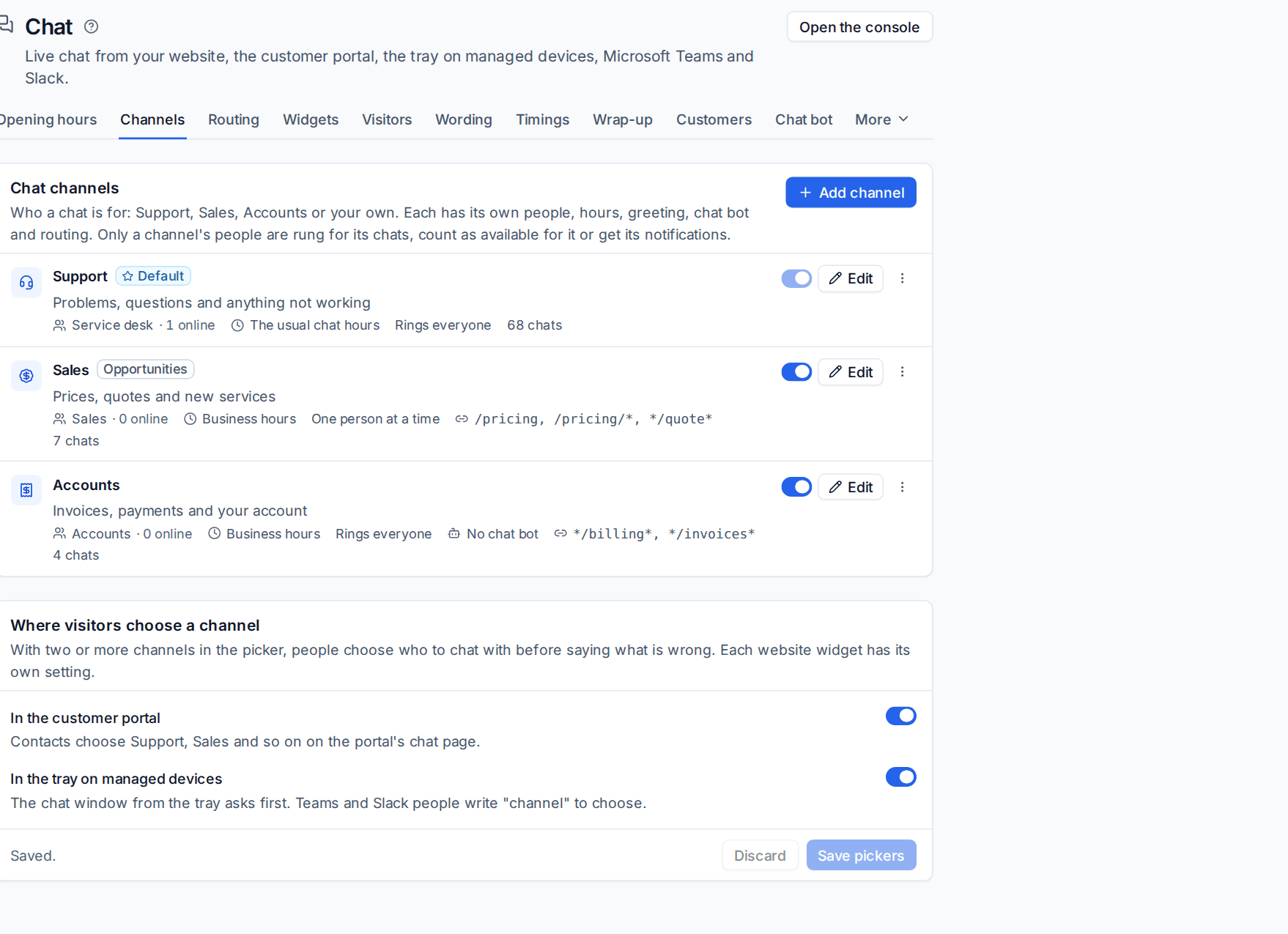
Note: Only a channel's own people are rung for its chats, count as available for it and get its notifications. The website widget's "we are online" follows the same rule, so a Sales channel with nobody in shows as closed even while the service desk is busy.
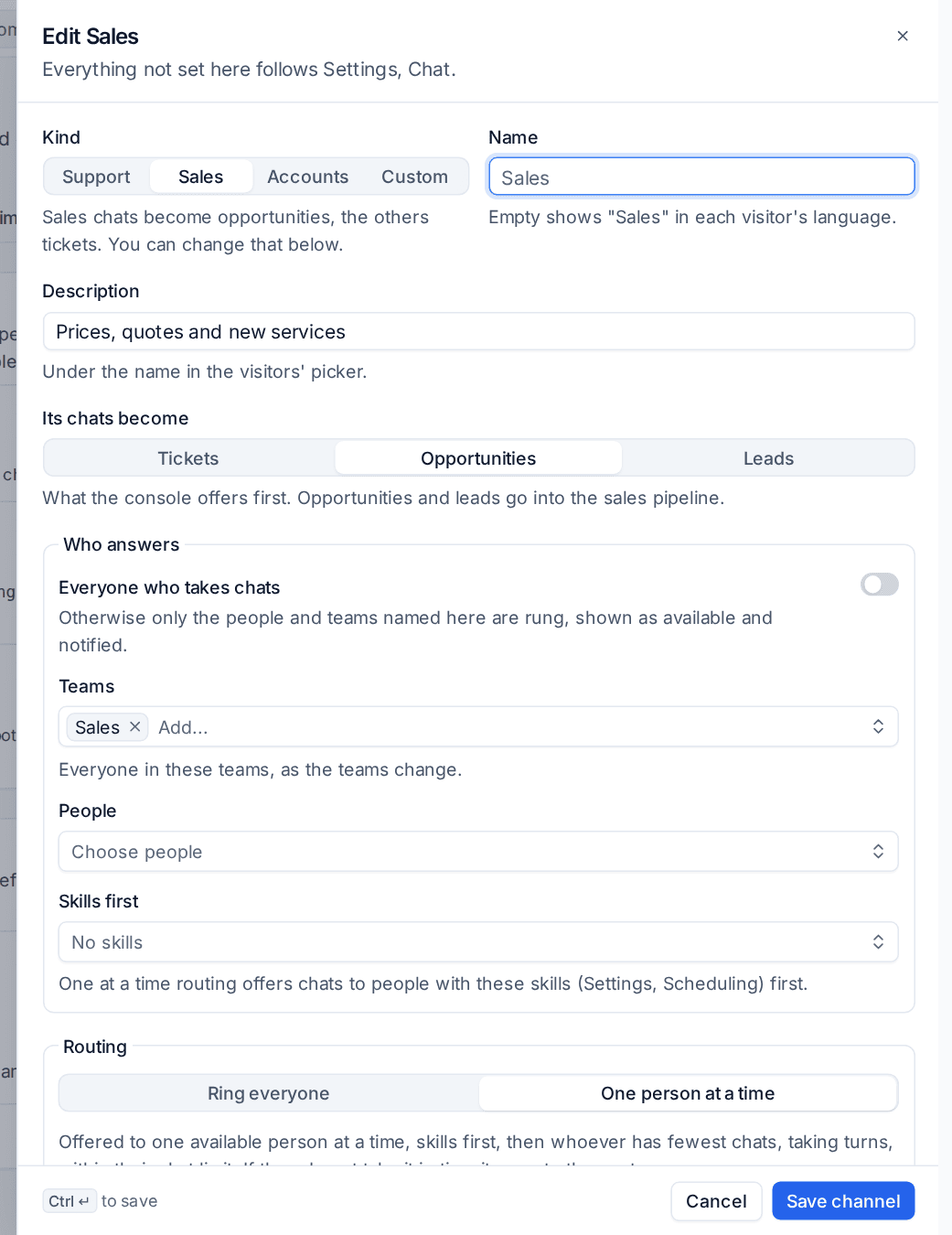
Add or edit a channel
- Press Add channel, or Edit on an existing one.
- Choose the Kind: Support, Sales, Accounts or Custom. Sales chats become opportunities and the others tickets, which you can change below.
- Leave Name empty to show the kind's standard name in each visitor's language, or type your own. Add a Description: it shows under the name in the visitors' picker.
- Under Its chats become, choose Tickets, Opportunities or Leads. This is what the console offers first when a chat needs following up.
- Under Who answers, leave Everyone who takes chats on (the people whose role works tickets), or turn it off and choose Teams and People. Naming a team means everyone in it, as the team changes. See Teams, invitations and handover.
- Choose the Routing (below).
- Add Pages that come here, such as
/pricingor*/quote*. A chat started on a matching page goes straight to this channel. - Under Hours and greeting, choose The usual chat hours, A business calendar, Its own hours or Always open, and write a Greeting for visitors who choose this channel.
- Under Chat bot, keep As Settings, Chat bot or choose Never for this channel, and limit what it may answer from and offer to do.
- Leave In the visitors' picker on to let visitors choose this channel. Off means only page rules, routing rules and transfers bring chats here.
- Press Save channel.
Ring everyone or one at a time
- Ring everyone rings every available person in the channel at once. The first to reply takes it.
- One person at a time offers the chat to one available person for the Seconds for each person you set, people with the channel's Skills first (from Settings > Scheduling), then whoever has fewest chats, taking turns and within each person's chat limit. If they do not take it in time it moves to the next.
Ring everyone after (minutes) decides what happens when nobody in the channel takes a chat: after that long, the people who usually answer support chats are rung as well. 0 never does.
Where visitors choose
Below the channels, Where visitors choose a channel turns the picker on for the customer portal and the tray. With two or more channels in the picker, people choose who to chat with before saying what is wrong. In Microsoft Teams and Slack, people write "channel" to choose. Each website widget has its own setting (see Website widget, portal and tray).
Routing rules
Settings > Chat > Routing sends chats to a channel by where they came from, who they are from or what they wrote. The first rule that matches wins; a chat that matches none goes to the default channel.
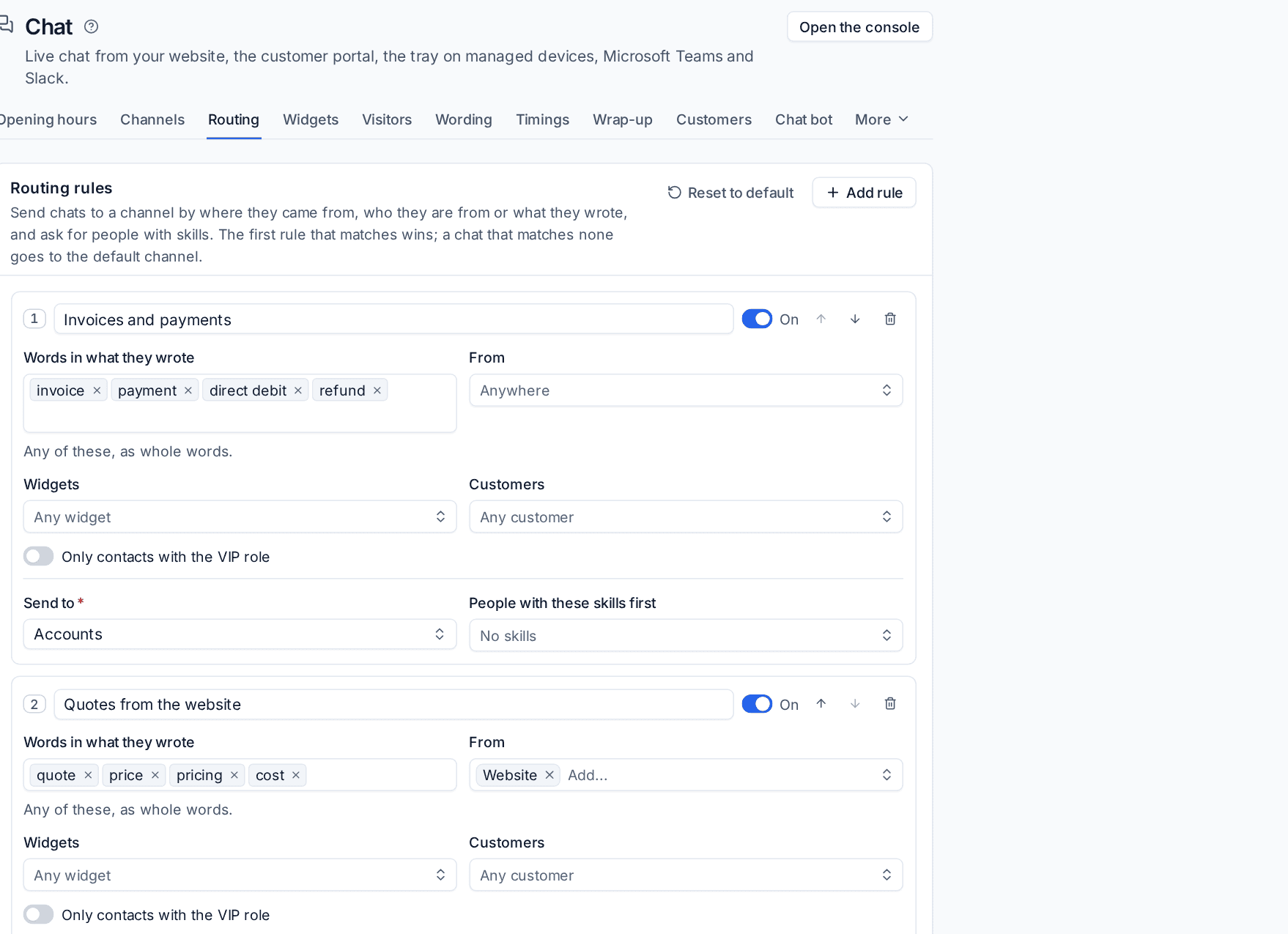
Press Add rule and set Words in what they wrote (any of them, as whole words), From, Widgets, Customers, Only contacts with the VIP role, the channel to Send to and People with these skills first, then Save rules.
How a new chat finds its channel, first match wins: the visitor's own choice in the picker (or the widget's fixed channel), the channel Teams, Slack or the tray remembered for that person, the first channel whose page rules match, the first routing rule, then the default channel.
In the console
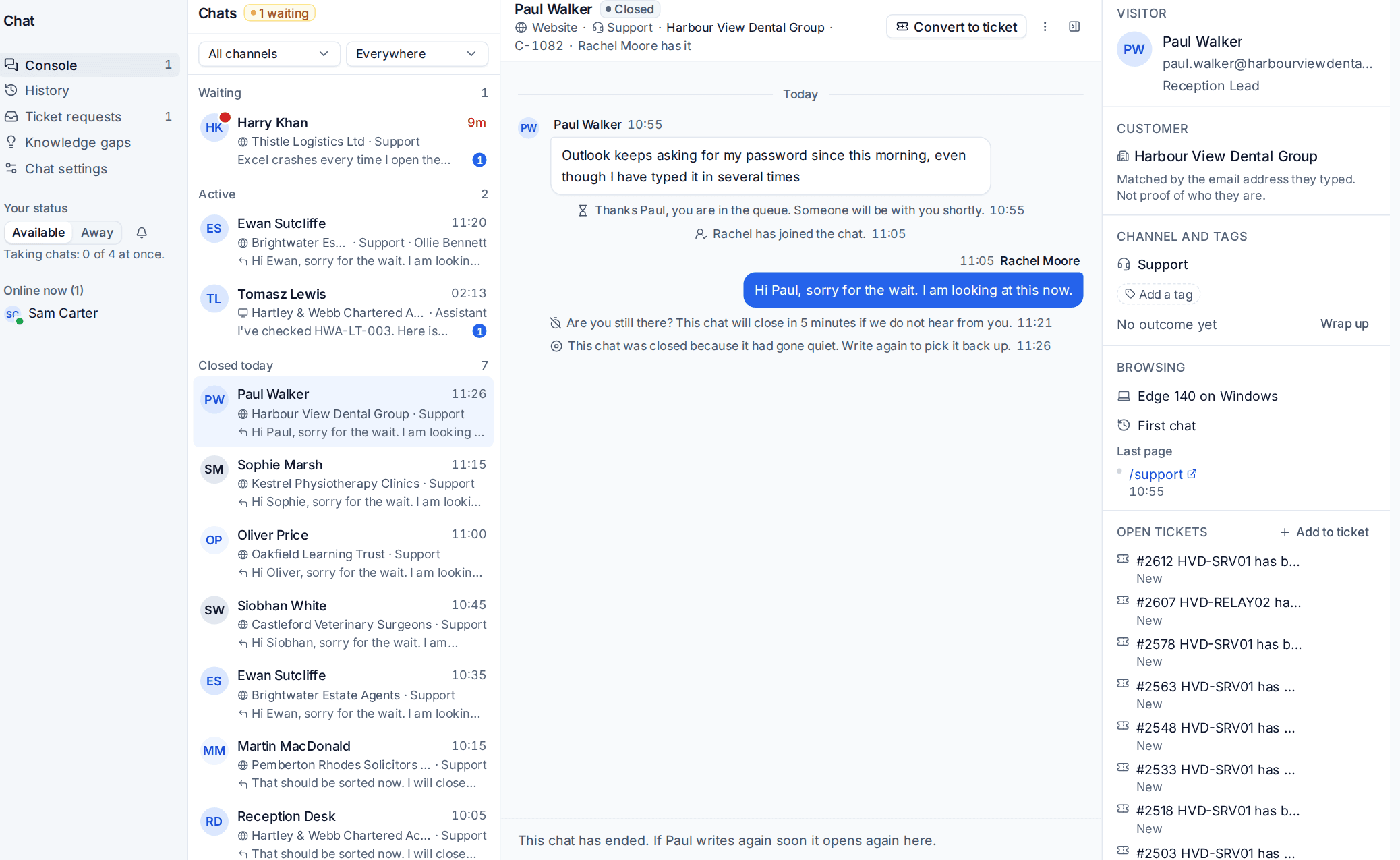
Chats waiting in other channels show in their own group in the console, never ringing you. Filter the queue by channel with All channels at the top. Transfer can send a chat to a channel as well as a person: it goes back into that channel's queue with a note.
Out of hours, a sales channel's request becomes a lead, and its wording never promises a ticket.
Sales chats
A chat in a channel that makes opportunities shows Add opportunity in the console. For a known customer it adds an opportunity to your sales pipeline; for a visitor Tenvara does not know it adds a lead from the website with the transcript as its note, and the opportunity on it. See Leads and Opportunities and pipelines.
Tags and the wrap-up
Chats carry tags from the one tag list everything shares (Settings > Tags). Add them under Channel and tags in the console's side panel.
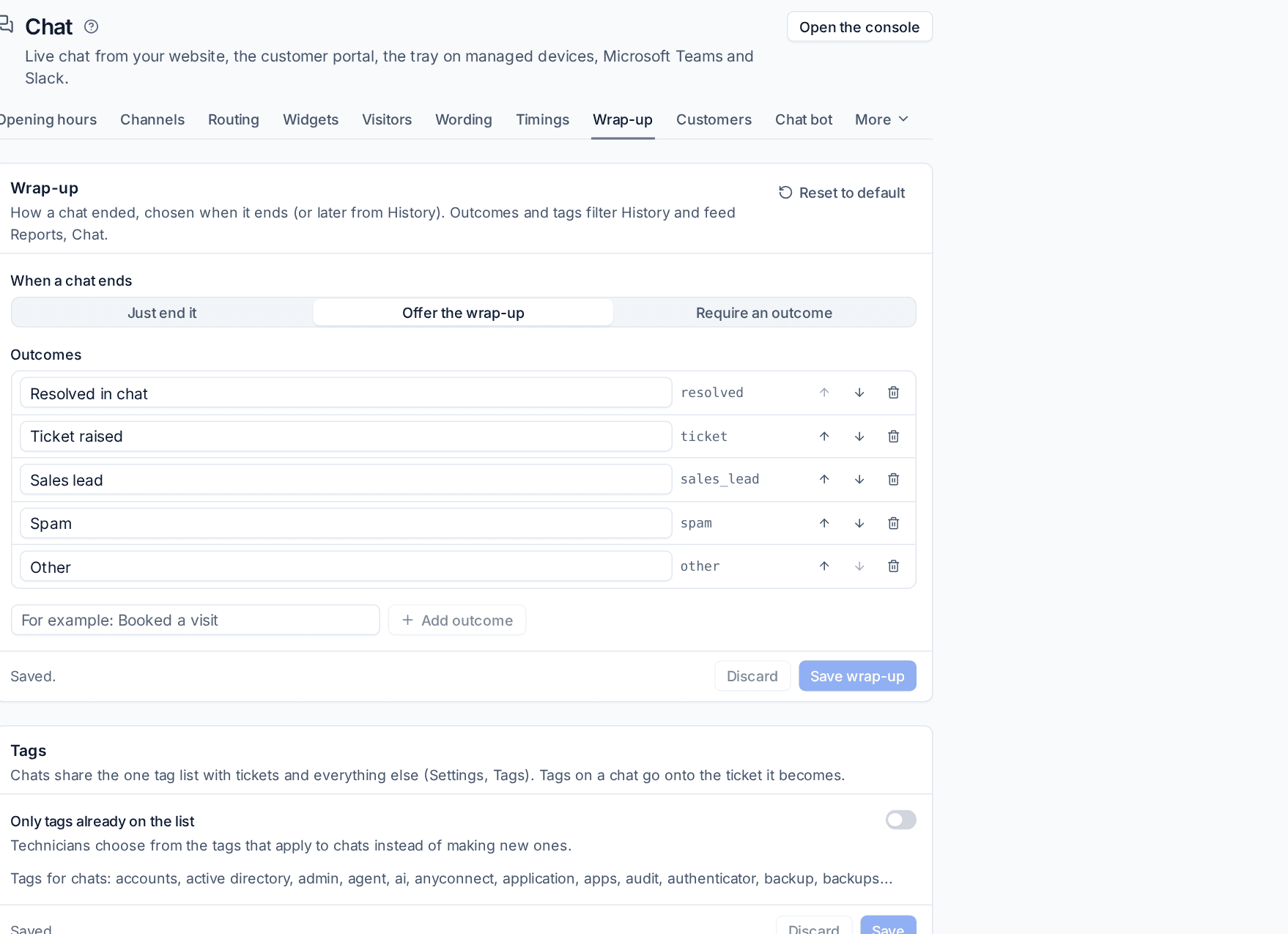
Settings > Chat > Wrap-up decides what happens When a chat ends:
- Just end it.
- Offer the wrap-up: the technician is asked how it ended and can skip it.
- Require an outcome: the chat cannot end without one.
The outcomes start as Resolved in chat, Ticket raised, Sales lead, Spam and Other; add your own with Add outcome. A note can go with the outcome (staff only). A chat converted to a ticket is marked Ticket raised by itself, and a chat can be wrapped up later from History, which filters by outcome and tag. Turn on Only tags already on the list to stop technicians making up new tags.
Starting a chat yourself
Sometimes you need to reach the person first: "I'm about to restart your PC, is now OK?"
- Message the user on a device page (and in the remote viewer) starts a chat in the tray of whoever is signed in to that computer.
- Start a chat in a contact's More actions menu starts one in their portal, when they have used the portal recently. They see "wants to chat" in their portal. Chats you start on the Wrap-up tab sets how recent that must be, in minutes.
Choose the Channel (empty is the default channel), write your Message and send. The chat opens active with your first message.
Visitor details
The console's side panel shows, under Browsing, the visitor's browser and system, roughly where they are (when location lookup is on in Settings > Security), the page they are on now and each page they looked at during the chat, and whether they are a returning visitor with how many chats before. Recent chats lists the same person's earlier chats.
Chat reports
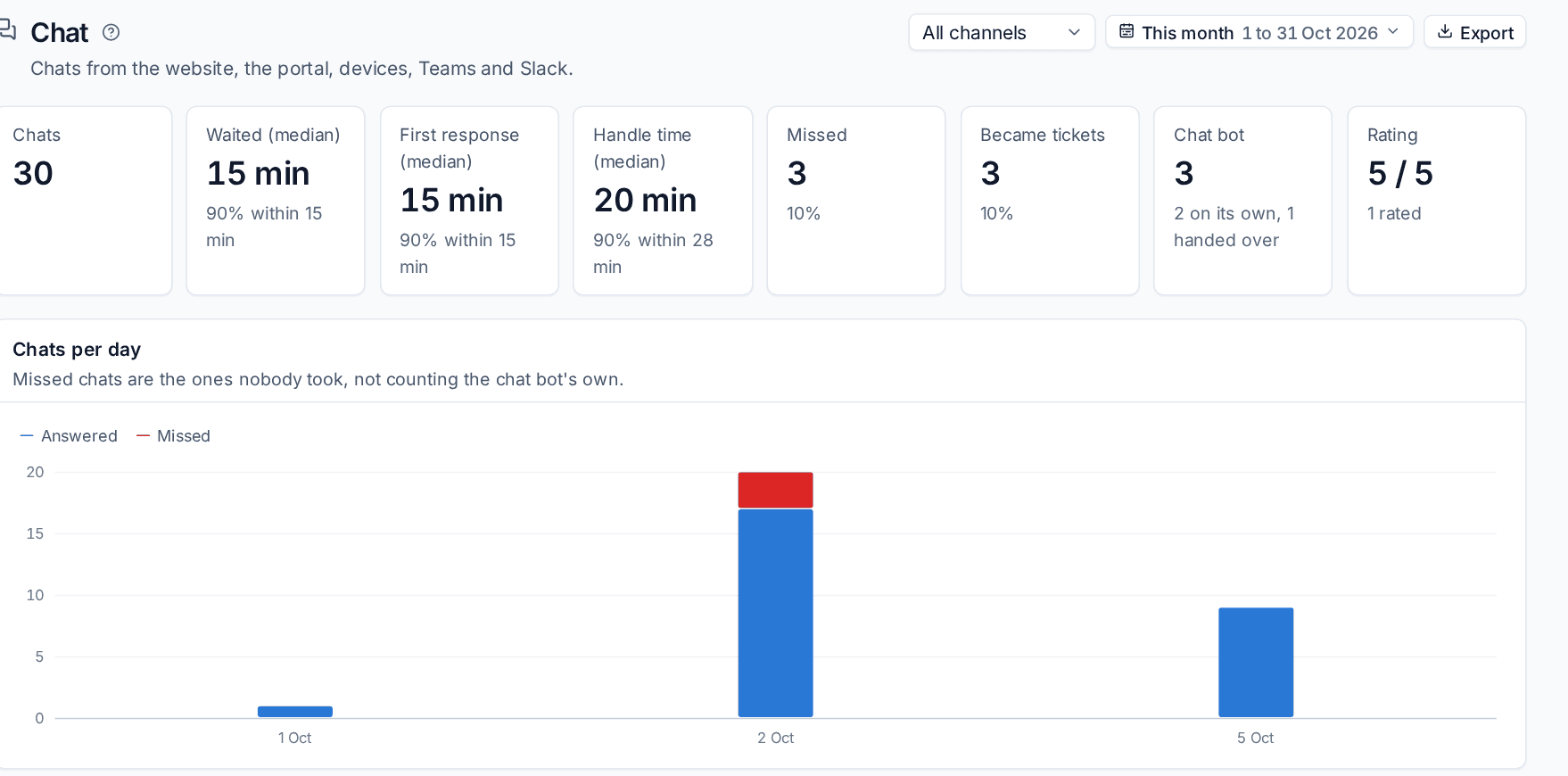
Reports > Chat shows chats, missed chats, waiting time, first response and handle time (median and 90th percentile), what the chat bot handled on its own or handed over, ratings, outcomes and tags. Break it down by day, by hour of the week, by channel, where from, widget, customer and technician, and filter by period, customer, channel and widget. Tables export as CSV and the report as a PDF.
Was this page helpful?
Thanks for the feedback.