The setting library and baselines
Browse the 424 hardening settings in plain words, use the shipped baselines, and build and version your own.
Everything device hardening checks or changes comes from one library of settings. A baseline is a named set of those settings with the value each one should have. Tenvara ships a library and seven baselines, and you can add your own of both.
The setting library
Go to Security > Hardening and open the Setting library tab. It lists 424 settings for Windows, macOS and Linux, each with its Platform, Area, Risk and the value Expected.
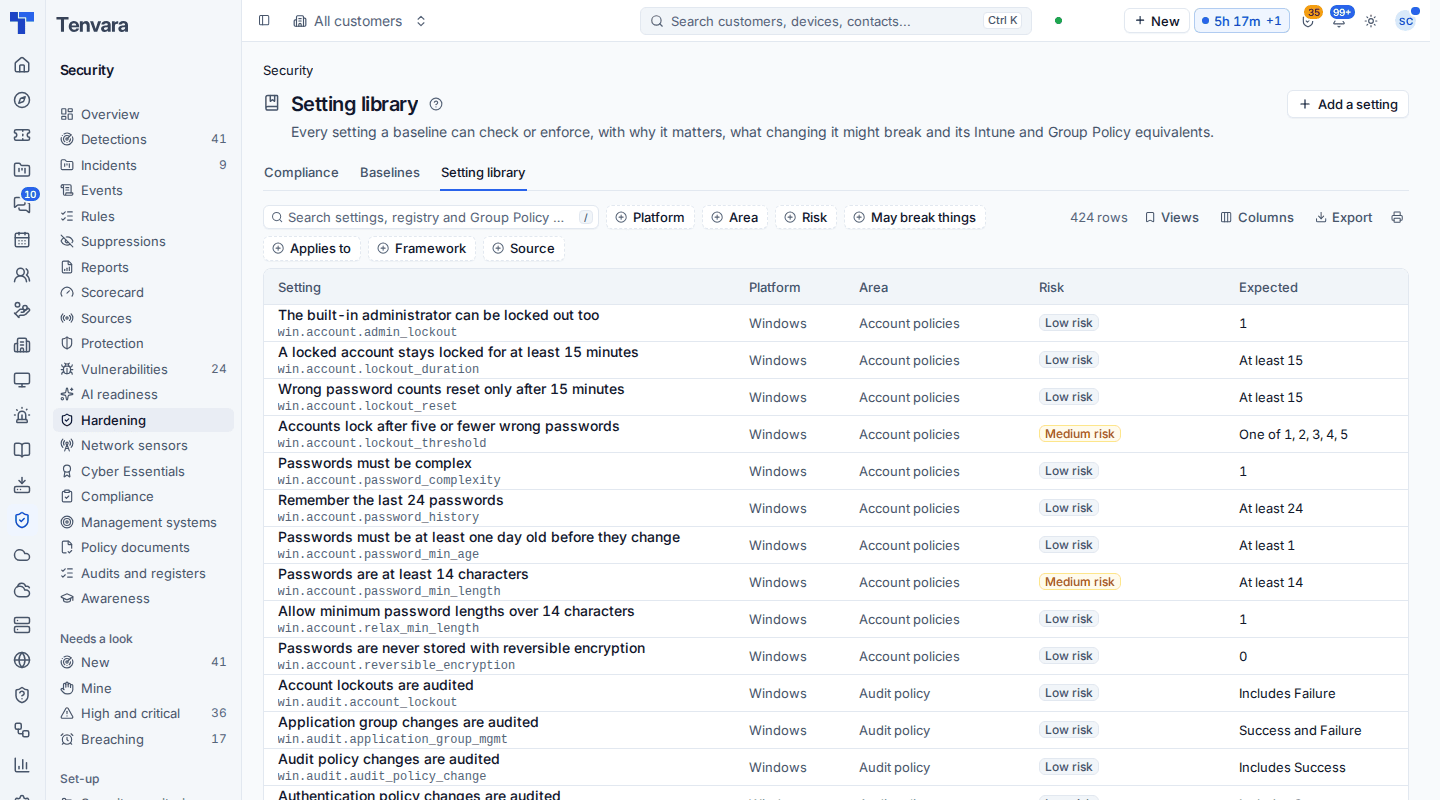
Search by title, reason, the setting's key, a Group Policy or CSP path or an Intune setting ID, and filter by Platform, Area, Risk, May break things, Applies to (workstation, server or domain controller), Framework and Source.
Click a setting to read:
- Why it matters, and the risk of changing it, in plain words.
- What it expects and how it is checked, and how it is put back.
- Its default out of the box on each version of Windows, on macOS and on Ubuntu.
- Its Intune setting and CSP path and its Group Policy path, each with a copy button, so you can set it in those tools too.
- The Cyber Essentials requirements and common controls it counts towards (see Frameworks and the control library), and the baselines it is in.
The areas cover Windows account policies, local accounts and LAPS, user rights, security options and UAC, advanced audit and log sizes, attack surface reduction, firewall profiles, network protocols (LLMNR, NetBIOS, SMB version 1, hardened UNC paths, TLS), credential protection, system settings (AutoPlay, SmartScreen, the lock screen, Point and Print, updates, Secure Boot), Remote Desktop and WinRM, PowerShell, BitLocker, services and domain controller additions, plus macOS and Ubuntu and Debian.
Adding your own settings
Press Add a setting to add one the library does not have. Your setting uses the same typed checks as the shipped ones (a registry value, a security policy line, an audit subcategory, a service start type, a local group and so on), never a script, and the form checks it before it saves. Shipped settings are read only; one of your own can be deleted while no baseline uses it.
The shipped baselines
| Baseline | Settings | For |
|---|---|---|
| Quick wins | 31 | Low-risk, high-value Windows settings: a safe first baseline for everyone |
| Windows 10 and 11 workstation, Level 1 style | 198 | Desktops and laptops |
| Windows Server 2016 and later, member server, Level 1 style | 164 | Servers, with server values for user rights, SMB signing and remote access |
| Windows Server domain controller additions | 26 | Assign beside the member server baseline on domain controllers |
| macOS 13 and later, Level 1 style | 46 | Macs |
| Cyber Essentials device controls | 27 | Windows and macOS: the device side of the five controls |
| Ubuntu and Debian checks | 23 | Linux, read only |
Every shipped baseline holds its settings in audit, and settings that may break things start in the pilot ring. Whether a setting is enforced is decided when you assign the baseline. The shipped baselines never force passwords to expire, following current Microsoft and NCSC advice, and never set who belongs to the local Administrators group: that list is each customer's own.
Building your own baseline
Go to Security > Hardening, open Baselines, and either:
- press New baseline, choose its platform and add settings, or
- open a shipped baseline and press Copy: every setting, expected value, mode and ring comes along.
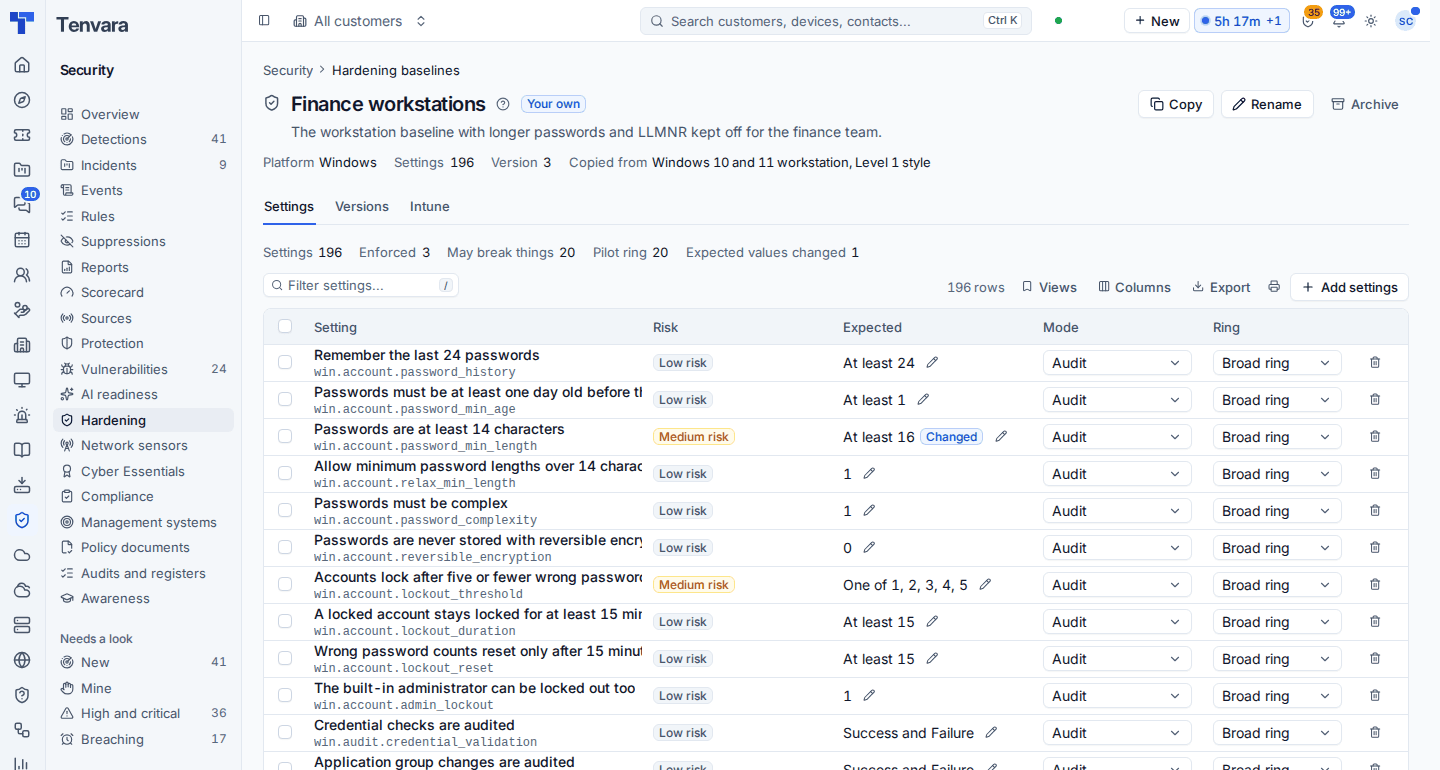
On your own baseline, for each setting you can change:
- Expected: the value it should have (press the pencil), or back to the library's value. A changed value is marked Changed.
- Mode: Audit, Enforce or Keep enforced (put back whenever it drifts).
- Ring: Pilot ring or Broad ring.
Select several rows to change them together. Add settings adds more from the library (only the baseline's platform, leaving out ones already in it), and the bin takes one out. The header counts the settings, how many are enforced, how many may break things, how many are in the pilot ring and how many expected values you changed.
Save makes a new version, with an optional note. The Versions tab lists every version, who saved it and what it added, took out and changed. Rename and Archive are at the top; archived baselines move to their own tab and can be restored.
Note: Shipped baselines are read only and say so. Copy one to change it. When a shipped baseline is updated with a release, your copies are left exactly as they are.
The Intune tab on a baseline pushes it into a customer's Intune: see Group Policy and Intune.
Was this page helpful?
Thanks for the feedback.