Setting up the portal
The seven tabs of Settings > Customer portal, Home and navigation per customer, announcements and service notices, the help centre and the installable portal.
Settings > Customer portal holds every portal setting, in seven tabs. Each tab has its own address, and most settings can be set for every customer and then changed for one customer: the customer's own value wins. Reset this page puts the whole portal back to the standard set-up, and Open portal opens it in a new tab.
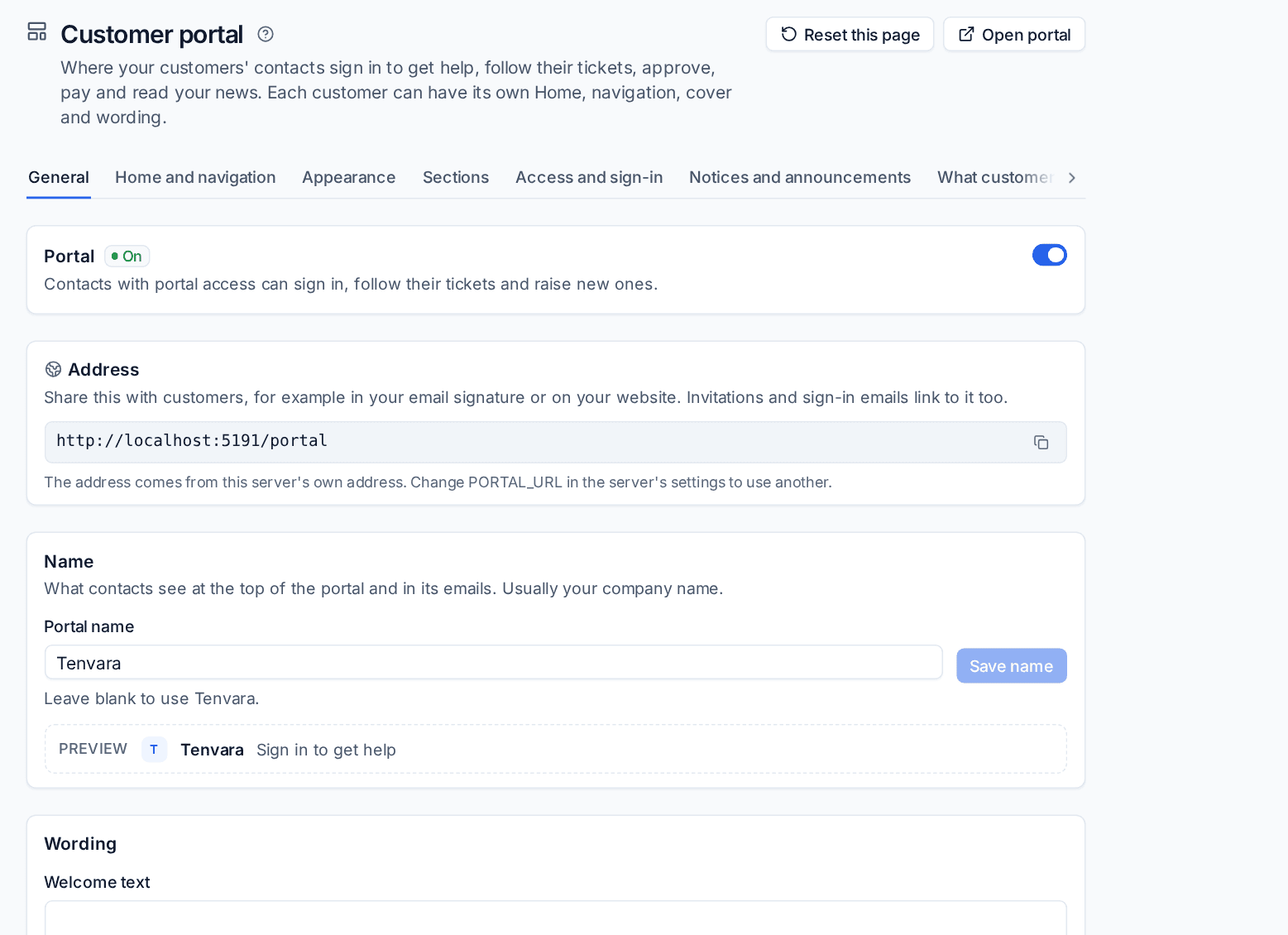
The tabs
| Tab | What it holds |
|---|---|
| General | The Portal switch, its Address, the Portal name, wording (welcome text, support email and phone, the message when the portal is off), file limits, quote links and the installable app |
| Home and navigation | The managers' overview, what Home shows, the order of the phone bar and the company dashboard |
| Appearance | Name, logos, colours, style, Home's greeting and tiles, the side menu, footer, sign-in page and emails, with a live preview. See Portal appearance |
| Sections | Turn whole parts of the portal on or off |
| Access and sign-in | Who starts with access, how contacts sign in, self-registration, managers and their people, profile options and account requests |
| Notices and announcements | Service notices, announcements and notification options |
| What customers see | New request questions, tickets, devices, transparency, services, help articles, billing, the assistant, the company dashboard, documents and priority wording |
Getting started
- On General, check Portal is On and note the Address to share with customers. It comes from your server's address; change
PORTAL_URLon a self-hosted install to use another. - Type the Portal name, usually your company name, and press Save name. Contacts should see your company, not your software.
- Add a Welcome text and your Support email address and Support phone number.
- On Access and sign-in, choose whether to Give new contacts portal access and how they may sign in (see Sign-in, profiles and notifications).
- On What customers see, decide how much to show: devices, the transparency log, services and agreements, documents.
- Invite your first contacts from their contact pages (see Portal permissions and people), then check what they see with See the portal as a contact.
Home and navigation for one customer
Use Change it for at the top of a tab to choose Every customer or One customer. For one customer each option says whether it is their own or follows everyone's, with Use every customer's to go back.
- Home: how many open tickets Home lists, Show service status on Home and Welcome new contacts.
- Company dashboard: Show managers a company dashboard and What the company dashboard shows.
- Navigation: the order of the sections the phone's bottom bar picks from. Home's tiles, the side menu's order, hidden sections and your names for them are on Appearance.
A section hidden from the menu still opens from a link; to switch a part off completely, use Sections.
Sections
Sections turns Tickets, Billing, Payments, Quotes, Projects, Help articles, Service status and Reports on or off. A section that is off leaves the menus and the portal refuses it, with a page that says so. Links you already emailed keep working where they do not need the section.
What customers see
This tab gathers the finer choices, each per customer:
- New requests: ask how it is affecting them, which computer, and when it is needed by.
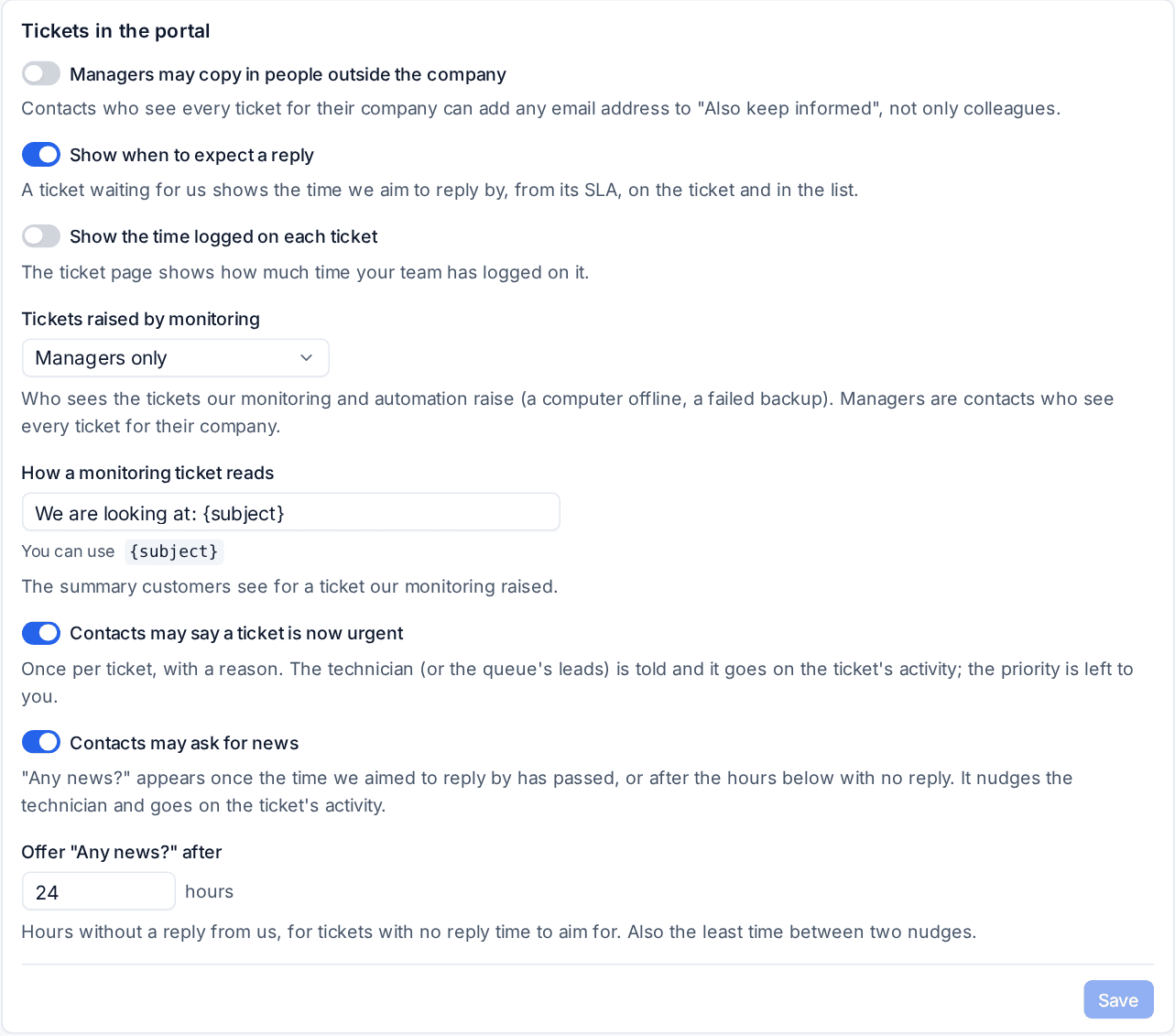
- Tickets in the portal: copying in people outside the company, showing when to expect a reply and the time logged, who sees Tickets raised by monitoring and how they read, and whether contacts may say a ticket is urgent or ask for news.
- Devices: Show devices, What a device shows, when laptops count as in use, when a device is "Not seen for a while", self-service fixes and what co-managed IT contacts see.
- Transparency, Services and agreements (with where the support hours went) and Help articles (suggest articles on new tickets).
- Billing in the portal: letting customers use their credit, paying several invoices in one payment, showing spend and asking for a change to an agreement.
- Company dashboard: showing what each licence costs. Documents: the documents library.
- What customers see for each priority: your wording, for example "High: we aim to respond within 1 business hour".
Service notices and announcements
Notices and announcements has two kinds of message:
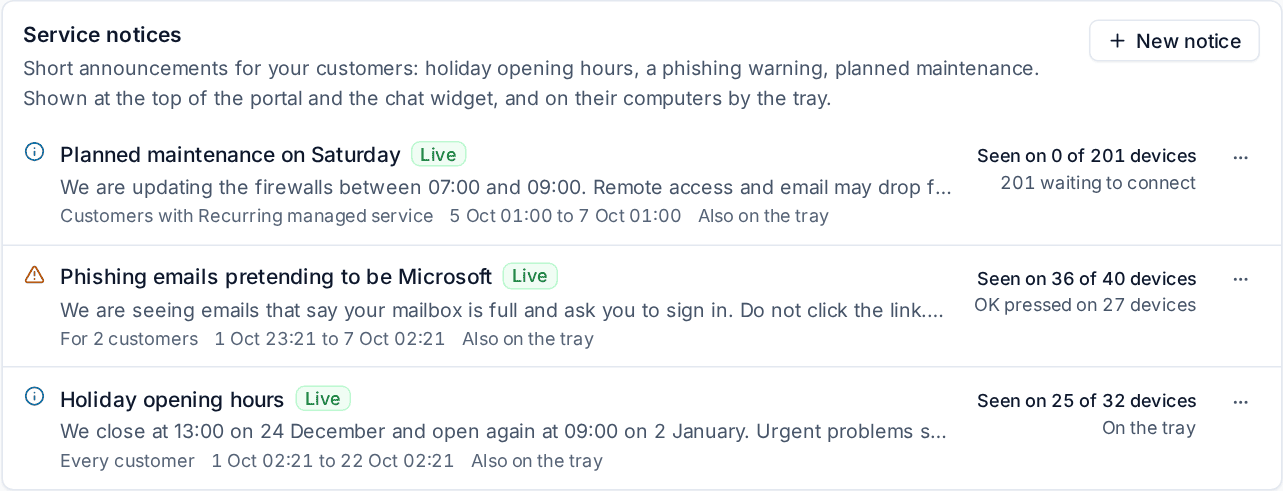
- Service notices are short and time-bound: holiday hours, a phishing warning, planned maintenance. Press New notice, give it a title and short text, a severity (information or warning), an audience (every customer, chosen customers, or customers with chosen kinds of contract), a start and optional end, and an optional link. Notices show at the top of the portal and in the chat widget, and with Also on the tray on the computers of the customers it reaches: a warning as a dialog that needs OK, information as a notification. The list shows how many devices have seen each one.
- Announcements are news that stays to read again: a new service, a security tip, your next review. Press New announcement and add a title, summary, body, an optional picture, the audience (everyone, or managers only) and when it starts. Without a start it is a draft. Home shows the newest three and the News page lists them all, with how many contacts have read each.
Help centre
Answers in the portal is your help centre: the knowledge base's top folders as topic tiles, popular and recently updated articles (the customer's own first), reading times, contents for long articles and related articles. "Was this helpful?" on each article tells the article's owner. Articles and records you show on the portal can have an audience: everyone at the customer, their managers, a site's people or chosen contacts. See Documentation on tickets and in the portal.
The installable portal
Contacts can add the portal to their phone's home screen, and with Offer push notifications on (General tab) switch on push from their profile for replies, tickets waiting on them, approvals and the other topics they choose. The app takes its name and icon from your portal's look, and keeps nothing offline.
Was this page helpful?
Thanks for the feedback.