GitHub and deployments
Connect your own GitHub account, link repositories to software projects, create branches from work items, see pull requests and CI on each item, map GitHub releases to versions, and keep a deployment log per stage.
A software project can follow the code. Once you connect GitHub and link a repository, every branch, commit and pull request that mentions an item's key (such as BOOK-17) shows on that item with its CI status, and opening or merging a pull request can move the item on the board. Stages and the deployment log then record which version is running where.
Connect GitHub
GitHub is an integration you connect with your own GitHub account. You need an access token from GitHub with access to the repositories you want to link, and an administrator in Tenvara.
- In GitHub, create an access token. A fine-grained token needs Contents, Pull requests, Commit statuses, Checks and Webhooks (read and write for branches and webhooks). A classic token needs the repo and admin:repo_hook scopes.
- In Tenvara, open Settings > Integrations > Git and press Add a connection.
- Choose GitHub as the Service, give the connection a Name if you like (it defaults to the service and account), choose Access token under Sign in with and paste the token.
- Save. The connection shows as Connected with the GitHub account it Signed in as.
Open a connection to see its webhook address, when it was last checked, the repositories linked to it and the webhook deliveries it has received, each with what it did. Process again replays a delivery.
Note: Tenvara hears about pushes and pull requests through a webhook, so GitHub must be able to reach your Tenvara address. Where it cannot, Sync now on a linked repository reads recent commits, branches and pull requests instead.
Link a repository to a project
- Open the software project's Development tab (under More).
- Under Repositories, press Link a repository.
- Choose the Connection and the Repository.
- Press Link. Tenvara adds the webhook to the repository for you. If it cannot, the repository says Webhook by hand and the connection's Webhook address and secret tell you what to enter in GitHub.
A repository belongs to one project; a project can link several. Unlink removes the webhook Tenvara made and takes its commits and pull requests off the items.
Work items and code
Put the item's key in a branch name, a commit message or a pull request title and it shows on the item. The item panel's Development block lists the pull requests, branches and commits, each with its state, CI result, author and time, and links to GitHub.
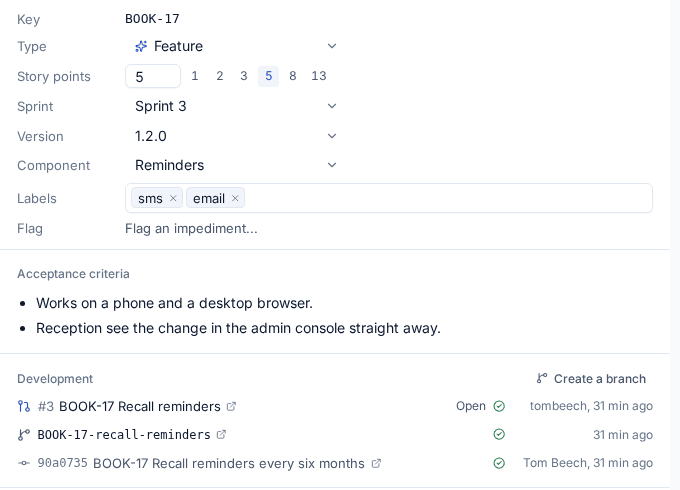
Create a branch from an item
Press Create a branch in the item's Development block. Choose the repository and the branch it starts from, check the Branch name (named from the item, such as BOOK-17-recall-reminders) and press Create branch. The branch is made on GitHub and shows on the item straight away.
The naming pattern is in Settings > Projects > Git automation under Branch name from an item, using {key}, {title} and {type}.
What pull requests do to items
Git automation decides what happens to the items a branch or pull request mentions:
- When a branch mentioning an item is pushed: by default the item is left where it is. Teams that branch when they start can move it to In progress.
- When a pull request mentioning an item opens: moves it, by default to In progress. Many teams add an In review status for this.
- When it is merged: moves it, by default to Done, which closes the item.
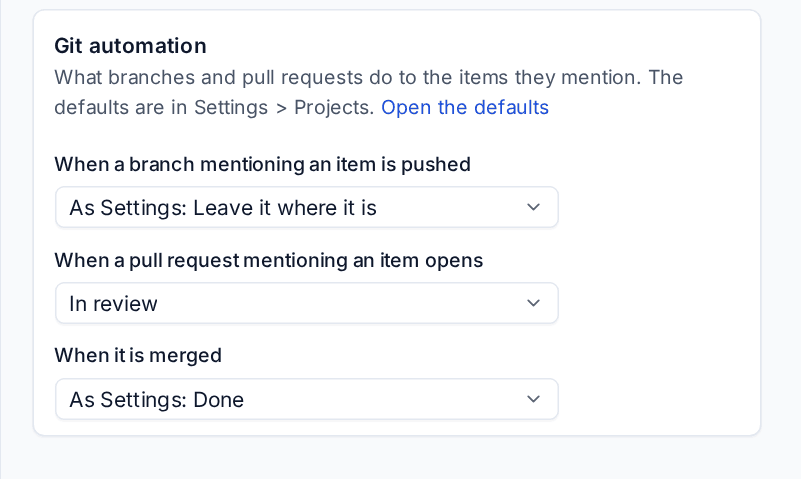
The defaults are in Settings > Projects > Git automation; each project can choose its own on its Development tab.
GitHub releases and versions
With A published release marks its version released turned on in Settings > Projects, publishing a release on GitHub whose tag matches a version's name (v1.4.0 matches 1.4.0) releases that version in Tenvara: its done items ship, release notes are drafted and linked tickets are told. See Sprints, Kanban and releases.
Stages and the deployment log
Stages are the places a version runs, such as Development, Staging and Production. Set them up when you set the project up for development (Start with stages), or on the Stages tab with New stage. Mark one as production: This is production (what customers use).
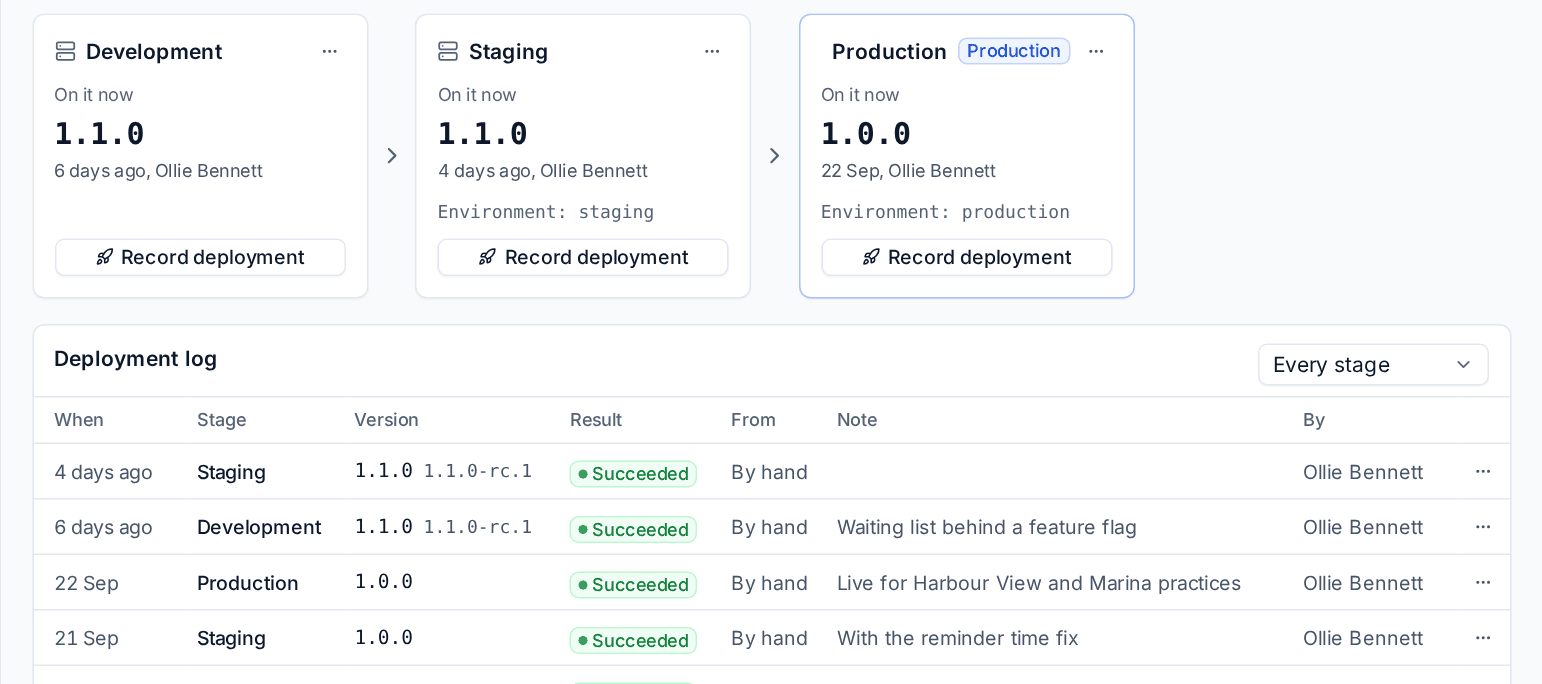
Each stage shows the version On it now, when it got there and who moved it. To record a deployment:
- Press Record deployment on the stage.
- Choose the Version, and optionally the Git tag or build (like 1.4.0-rc.2), a link, a note and when it happened.
- Save.
The Deployment log below lists every deployment with its stage, version, result (succeeded or failed), where it came from, the note and who recorded it. Filter it by stage. A deployment recorded by hand can be corrected or removed from its row's menu. Each release page also lists where that version has gone.
Tip: Deployment scripts can record deployments through the Tenvara API with their own deployment ID. Recording again with the same ID updates the entry rather than adding a second one, so a retried pipeline never logs twice.
Delivery reports
The Delivery tab reports on how the team delivers, from the project's start or the period you choose:
- Finished items and points, Cycle time (first in progress to done), Lead time (created to done), Throughput (items a week) and Open bugs;
- charts of throughput, bugs opened against closed, velocity (sprints) or cumulative flow (Kanban), and phase progress (phased projects);
- Cycle time by item and the list of Finished items.
Each sprint and each release has the same figures for its own span. Home has a Development block with running sprints, Kanban and phased projects and your own items.
Related: Software development projects, Project reports and status summaries.
Was this page helpful?
Thanks for the feedback.