Record a problem
Let people at a Windows computer record their screen and the steps they take, review it and send it as a ticket with a video player and a readable steps document.
Some problems are easier to show than describe. Record a problem lets the person at a Windows computer record their screen while they do the thing that goes wrong. They review it and send it, and it becomes a ticket with the video, every step they took as a numbered list with screenshots, and a steps document you can download. Your technician watches the problem happen instead of guessing from "it just freezes".
How the person records
- They click the tray icon and choose Record a problem (or your wording).
- A set-up window says what is recorded and what never is, and asks which screen when there are several. Nothing records until they press Start.
- A small bar at the top of the screen shows a red dot, the time, the steps so far, Pause and Stop. The bar is never in the video. Near the longest allowed time it says "Stops in 0:30".
- They do the thing that goes wrong, then press Stop (or click the tray icon).
- The review shows the video, any errors seen, and the numbered steps, each with its sentence and picture. They can remove a step, add a note to it, give a title, say What were you trying to do? and add Anything else?.
- They press Send. The tray shows progress and ends with "Thank you. Your reference is ...".
A recording carries on sending after a lost connection, a tray restart or a reboot, and one never reviewed opens its review again after a restart.
The steps log and privacy
While recording, the tray notes each click, double click, right click, scroll, drag, key press and window switch, and names what was clicked and in which program and document: "Clicked 'Save' in Excel (Book1.xlsx)".
- Typed text is never kept. A key press is recorded by kind only: "Typed in a field", a named key such as Enter, or a shortcut such as Ctrl+S.
- Password fields are hidden. Typing in one is always "Typed in a password field (hidden)", never named and never pictured while typing.
- Errors are called out. Error message boxes, Windows Error Reporting dialogs and windows marked "Not Responding" become their own steps with what the dialog said.
- Blur other windows (an option) blurs everything except the window in front, in the video and the step screenshots.
The person always starts the recording themselves and can see that it is recording.
On the ticket
The recording becomes a ticket for the device's customer and the signed-in person's contact, linked to the device, with the computer's details as an internal note and a note saying how long the recording is, how many steps it has and how many errors were seen. The person gets your usual "logged" email.
At the top of the conversation, the recording card shows the title, when it was made, its length and errors, the device and contact, what they were trying to do and their notes. Inside it, the video plays beside the steps.
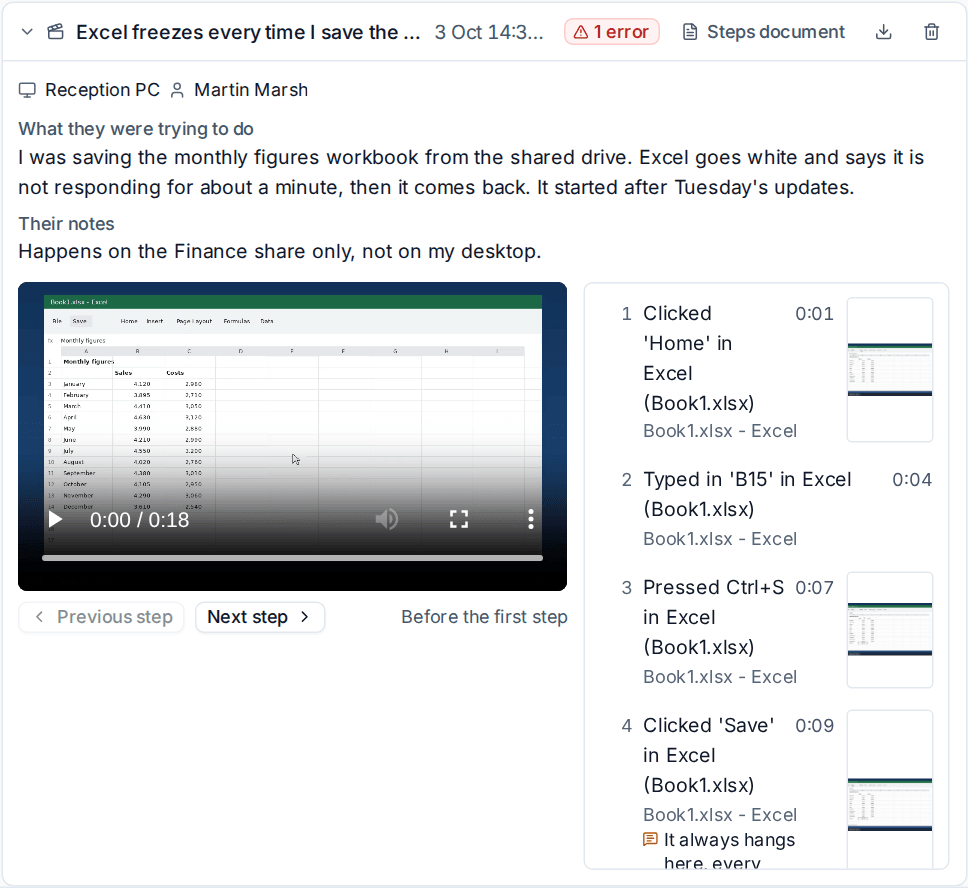
- Click a step to jump the video to just before it. Previous step and Next step (or
jandk) step through, and the step the video has reached is highlighted as it plays. - Step screenshots open in the file viewer.
- Steps document opens the steps as a page with every screenshot, and the download button gives it as a PDF: handy for a supplier or a knowledge base article.
- Remove (for people who manage tickets) deletes the recording at once. The ticket keeps a line saying there was one.
Recordings on tickets merged into this one show too.
From the portal: Show us on your computer
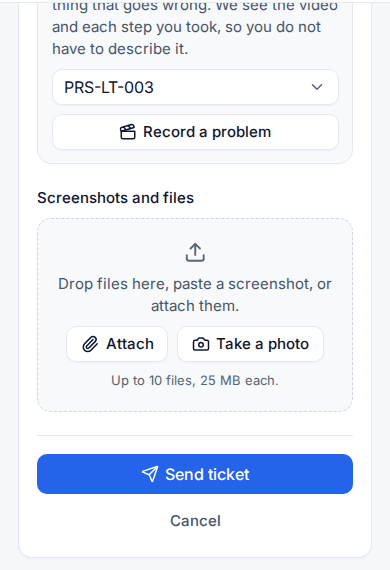
On the portal's New ticket page, a contact with a computer that can record sees Show us on your computer. They pick the computer and press Record a problem. The tray on that computer opens the recorder ready to start, they still press Start themselves, and the portal page follows it. When they send the ticket from the portal, the recording goes on it, now or when it arrives.
Settings
Settings > Tray menu > Record a problem holds the policy. Each value can be set per customer, and a device's page has a Record a problem card where an administrator can give that device its own policy.
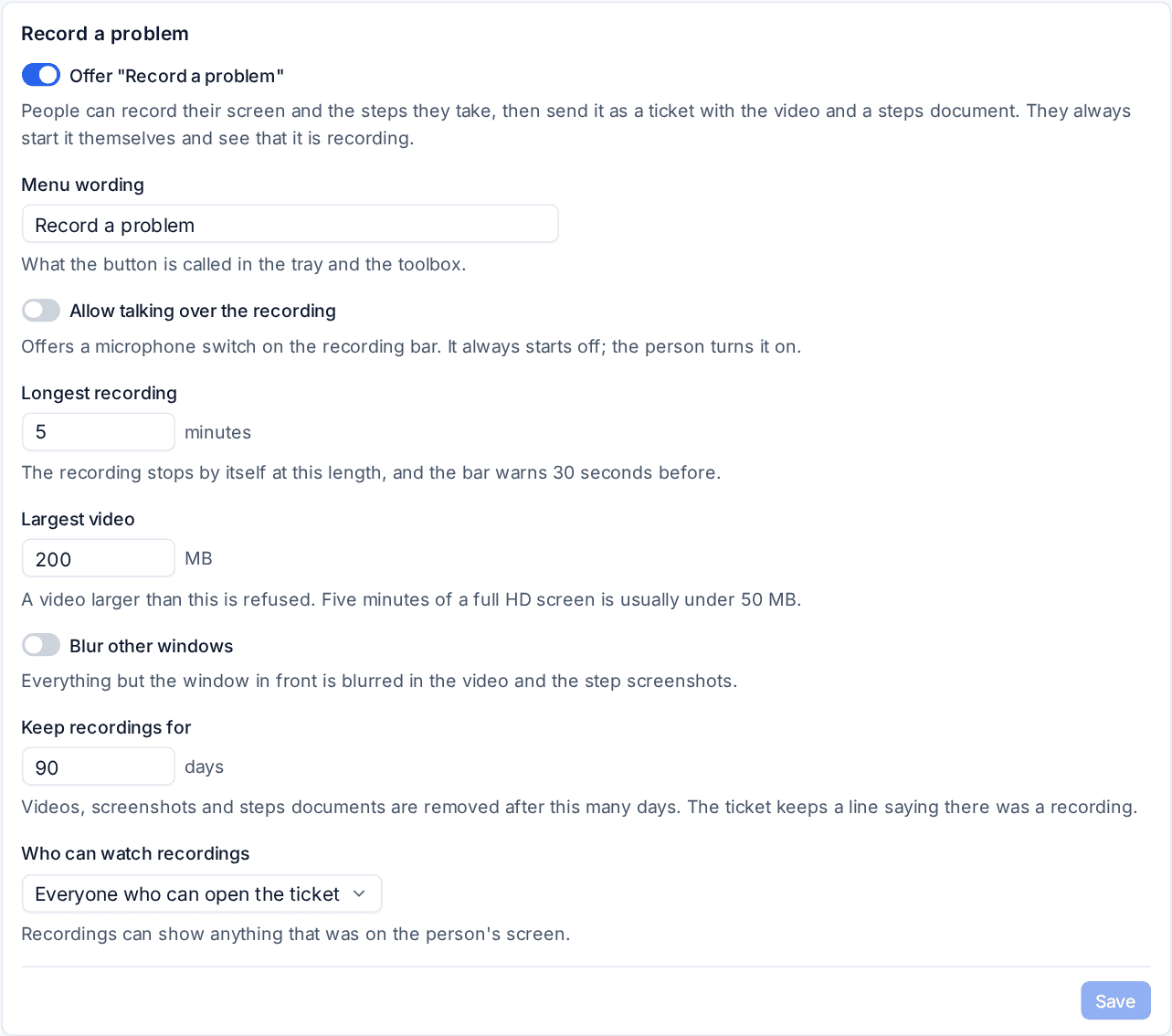
| Setting | Default |
|---|---|
| Offer "Record a problem" | On |
| Menu wording | Record a problem |
| Longest recording | 5 minutes |
| Largest video | 200 MB (five minutes of a full HD screen is usually under 50 MB) |
| Blur other windows | Off |
| Keep recordings for | 90 days |
| Who can watch recordings | Everyone who can open the ticket, Roles allowed "Watch screen recordings" or Administrators only |
Recordings can show anything that was on the person's screen, so choose who may watch with care.
Retention and legal hold
Videos, screenshots and steps documents are removed once a recording is older than Keep recordings for. The ticket keeps a line saying there was a recording. Settings > Data retention lists them as "Screen recordings", and a customer on legal hold keeps theirs until the hold is released. The bottom of the settings page shows what recordings use in storage and lists the devices with a policy of their own.
Every recording is checked for viruses before it is stored. Reports and recordings from one computer share the Reports per device per hour limit.
Related: The tray app, Working a ticket.
Was this page helpful?
Thanks for the feedback.