See the portal as a contact
Open the customer portal as one of a customer's contacts to see exactly what they see, read only and recorded, from the contact's page.
When a contact says "I can't see the invoice" or "where do I approve this?", the quickest answer is to look at the portal through their eyes. See the portal as them opens the customer portal as that contact, with their permissions, roles, organisation and language, so you see exactly what they see. You can only look: nothing can be changed, and every page you open is recorded.
Who can use it
Staff with the See the portal as a contact action, which technicians and above have by default. Change who has it in Roles and permissions. The contact must have portal access.
Opening the portal as a contact
- Open the contact (from Customers, or search with
Cmd+K). - Find the card See the portal as name.
- Press See the portal as them.
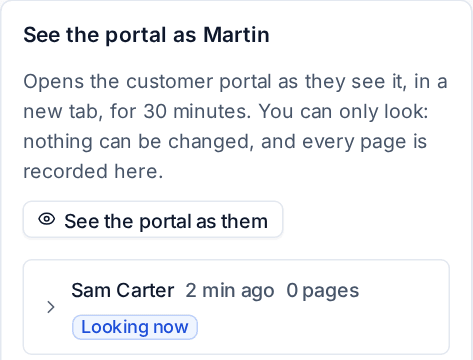
The portal opens in a new tab, signed in as that contact for 30 minutes. A banner across the top stays there the whole time, saying who is looking, as whom and until when, with End to finish early.

Change how long a look lasts with "See the portal as" lasts in Settings > Customer portal > Access and sign-in.
What you can and cannot do
You can move around the portal freely: Home, tickets, the company dashboard, billing, approvals, profile, any page the contact can open. Pages they cannot open are refused for you too, with the same message they would see, which is often the answer to their question.
Every change is refused, whatever the page: sending a reply, approving, paying, inviting a colleague, changing a setting. Each refused change is recorded.
A look is a sign-in of its own. It does not appear in the contact's signed-in devices, does not change when they last signed in, and does not keep their own sessions alive.
The record
Every look is recorded:
- The start and end are in the audit log and on the contact's activity.
- Every page the portal showed is listed under the look on the contact's See the portal as card, with the time, and any refused changes are marked "Refused" with what was tried. Looks still running say Looking now.
So a customer can always be told who looked at their portal as one of their people, when and what they saw.
Good uses
- Checking a new set-up: after changing portal permissions, contact roles or what a customer sees, look as a manager, a billing contact and an ordinary user to confirm each sees the right things.
- Answering "where is it?": see the side menu, Needs you and the page they are stuck on exactly as they do.
- Before a review: look at the customer's company dashboard and board pack as their primary contact.
Tip: The live preview on Settings > Customer portal > Appearance uses the same read-only look, so you can try a new look for one customer as one of their contacts before saving it. See Portal appearance.
Related: Portal permissions and people, Customer portal overview.
Was this page helpful?
Thanks for the feedback.