Change requests, risks and issues
Agree extra hours, money and time with the customer through change requests and approvals, keep a log of risks, issues, assumptions and decisions, and close a project out with a checklist of what is still outstanding.
Projects rarely end exactly as planned. Something is found on site, the customer asks for more, a supplier slips. This guide covers the three tools for that: change requests the customer approves before the plan moves, a log of risks and issues, and the closeout checklist that stops a project being closed with loose ends.
Change requests
A change request (CR-1, CR-2 and so on per project) asks for more hours, more money, more time, or all three. Nothing about the project changes until it is approved.
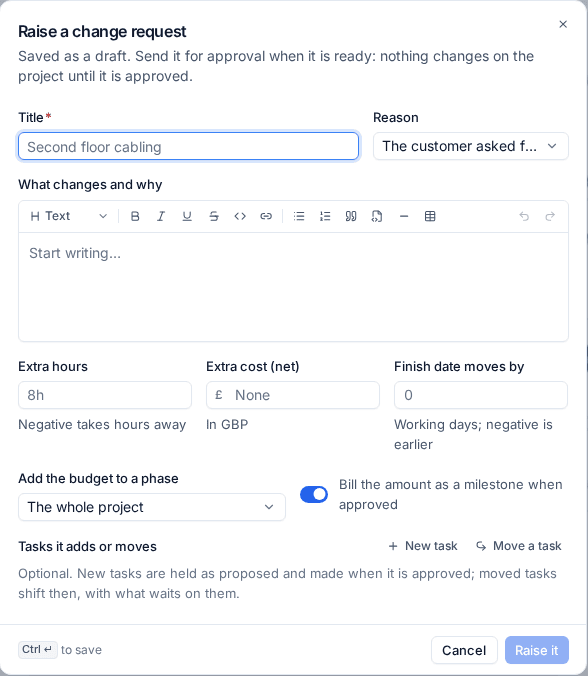
Raise a change request
- Open the project's Changes tab and press Raise a change request.
- Enter a Title and choose the Reason, such as The customer asked for it or found on site.
- Under What changes and why, explain it in the customer's terms.
- Enter the Extra hours, the Extra cost (net) and how far the Finish date moves by in working days. Negative values take hours away or bring the date forward.
- Under Add the budget to a phase, choose a phase or The whole project. On a fixed price project, leave Bill the amount as a milestone when approved on to bill it once approved.
- Under Tasks it adds or moves, add a New task or Move a task. New tasks are held as proposed until the change is approved.
- Press Raise it. It is saved as a draft, then sent for approval when it is ready.
Who approves it
Change requests run on Tenvara's approvals engine, so they follow the same rules as everything else that needs a yes. See Approvals.
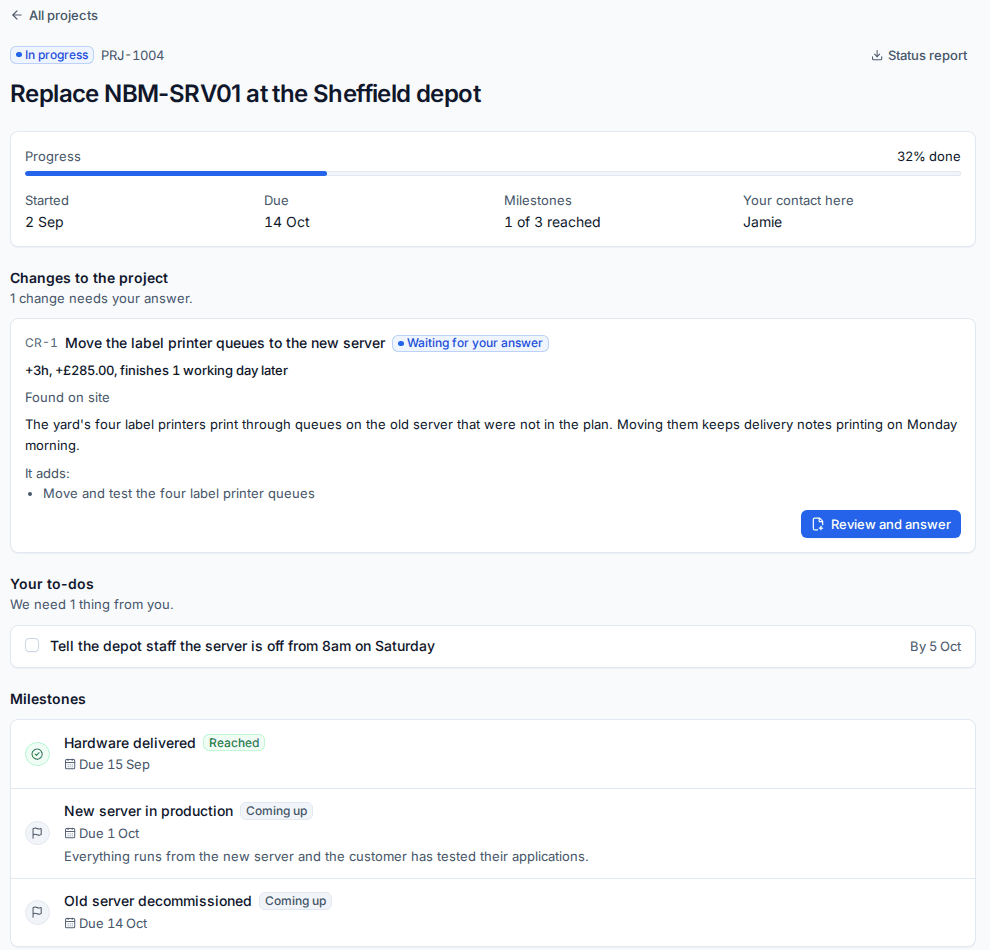
- The customer decides. The request goes to the project's contact or the customer's approvers (people with the approver contact role) by email, with a link, and appears on the project's page in the customer portal.
- Above an amount you set in Settings > Projects, one of your managers approves it first, before the customer is asked.
- The customer approves with their typed name, or declines with a note for your team. Their name, the date and time and their IP address are kept with the answer.
What approval does
When a change is approved, Tenvara changes the plan once:
- the project's budget, and the phase's budget if you chose one, grow by the extra hours and money;
- the target date moves by the days given;
- proposed tasks become real tasks, and moved tasks shift with what waits on them;
- on a fixed price project, a milestone for the amount is added and bills on the next invoice run.
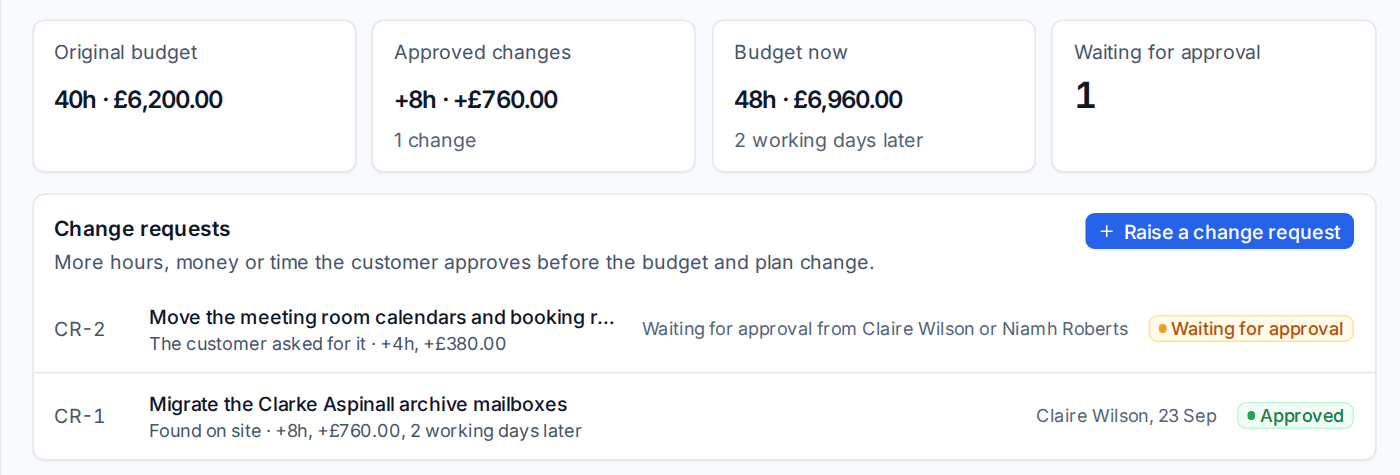
The Changes tab sums it up: the Original budget, Approved changes, the Budget now and what is Waiting for approval. The Financials tab and the customer's status report show the same split, so everyone can see how the budget grew and why.
The automation trigger A change request is approved or declined lets you act on the answer, for example to tell the project team or raise a purchase order task. See Project reports and status summaries.
Risks, issues, assumptions and decisions
The Risks tab is the project's log. Press Add to the log and choose the kind:
| Kind | Use it for | Rated by |
|---|---|---|
| Risk | Something that might happen, such as "The partners' 90 GB mailboxes may not finish before cutover" | Probability and impact, giving a score |
| Issue | Something that has happened and needs dealing with | Impact |
| Assumption | Something the plan relies on being true | |
| Decision | Something agreed, kept for the record |
Each entry has an owner, a status (open, mitigating, closed and so on), a response saying what you are doing about it, a due date and the tasks it affects. The owner is told when it is given to them.
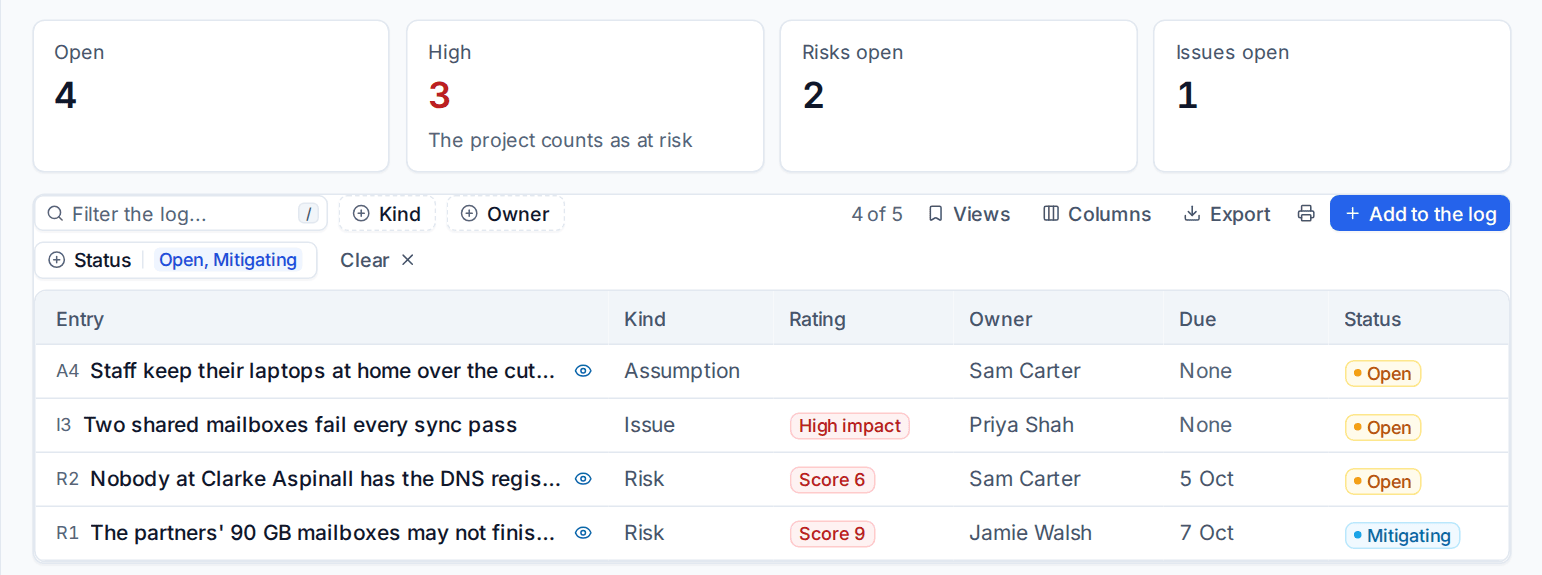
- Open high risks and high impact issues count against the project's health: the project shows At risk with the reason, such as "2 high risks open".
- Mark an entry as visible to the customer and it appears on the project's page in the portal and in the status report, with what you are doing about it. Everything else stays internal.
- The AI status summary reads the log when it writes the project's risks.
Filter the log by kind, owner and status, and export it like any list.
The closeout checklist
When you complete or cancel a project, Tenvara first shows what is still outstanding, each line linking to the work:
- open tasks, and milestones not reached or not signed off;
- time not on an approved timesheet, and time or milestones not invoiced yet;
- costs and expenses not billed;
- no status report sent to the customer;
- future bookings and open tickets on the project.
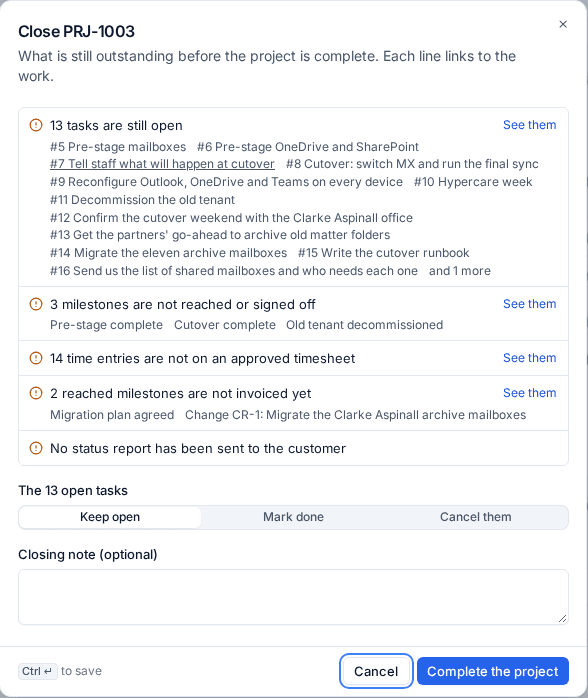
Choose what happens to the open tasks (Keep open, Mark done or Cancel them), add a closing note, and press Complete the project. If Settings > Projects names a checklist from your checklist library, its items are asked too. The answers are kept on the project's activity.
Completing a project also sends the close survey to the customer, as described in Projects in the customer portal.
Related: Time, budgets and billing, Phases, tasks and dependencies.
Was this page helpful?
Thanks for the feedback.