Importing from other PSAs
Bring customers, sites, contacts, contracts and open tickets across from HaloPSA, ConnectWise Manage, Autotask or Syncro using their own CSV exports, check the result with Verify, and undo if it is not right.
If you are moving from HaloPSA, ConnectWise Manage, Autotask or Syncro, you do not need to rebuild your customers by hand or reformat spreadsheets. Export from your PSA as you normally would, give Tenvara the ZIP of CSV files, and it reads each file with a saved mapping of that PSA's columns.
What comes across
| From the export | In Tenvara |
|---|---|
| Customers (clients, companies, accounts) | Customers |
| Sites | Sites. Syncro has no sites file, so each customer's address becomes its main site |
| Contacts (users, contacts) | Contacts, matched to their customer |
| Contracts | Contracts, as drafts to start with (below) |
| Open tickets | Tickets, with their description as the first message, matched to their contact by email address or name, and their type and priority by name |
| Priorities, SLAs, ticket types and business hours | Not imported as data: the setup helper offers to copy them into your ticket settings (below) |
Tickets your old PSA had already closed are listed and skipped. A record the export holds twice (the same customer on two rows) is brought across once.
Note: Contracts arrive as drafts, so nothing is invoiced twice while your old PSA is still billing. When you switch billing over, the setup helper's billing section can make the imported contracts active (and undo puts them back to drafts).
Step by step
- Export from your PSA. Most PSAs export each list (clients, sites, users or contacts, contracts, tickets) as a CSV file; put them in one ZIP. A single CSV works too.
- In Tenvara, go to Settings > Migration and press Add source.
- Under Help desk and PSA, choose HaloPSA export (CSV), ConnectWise Manage export (CSV), Autotask export (CSV) or Syncro export (CSV).
- Give it a Name, choose the ZIP, and press Add source.
- Open the source. Files in the export lists each file, what Tenvara recognised it as, how many rows it has and which columns it reads into which fields.
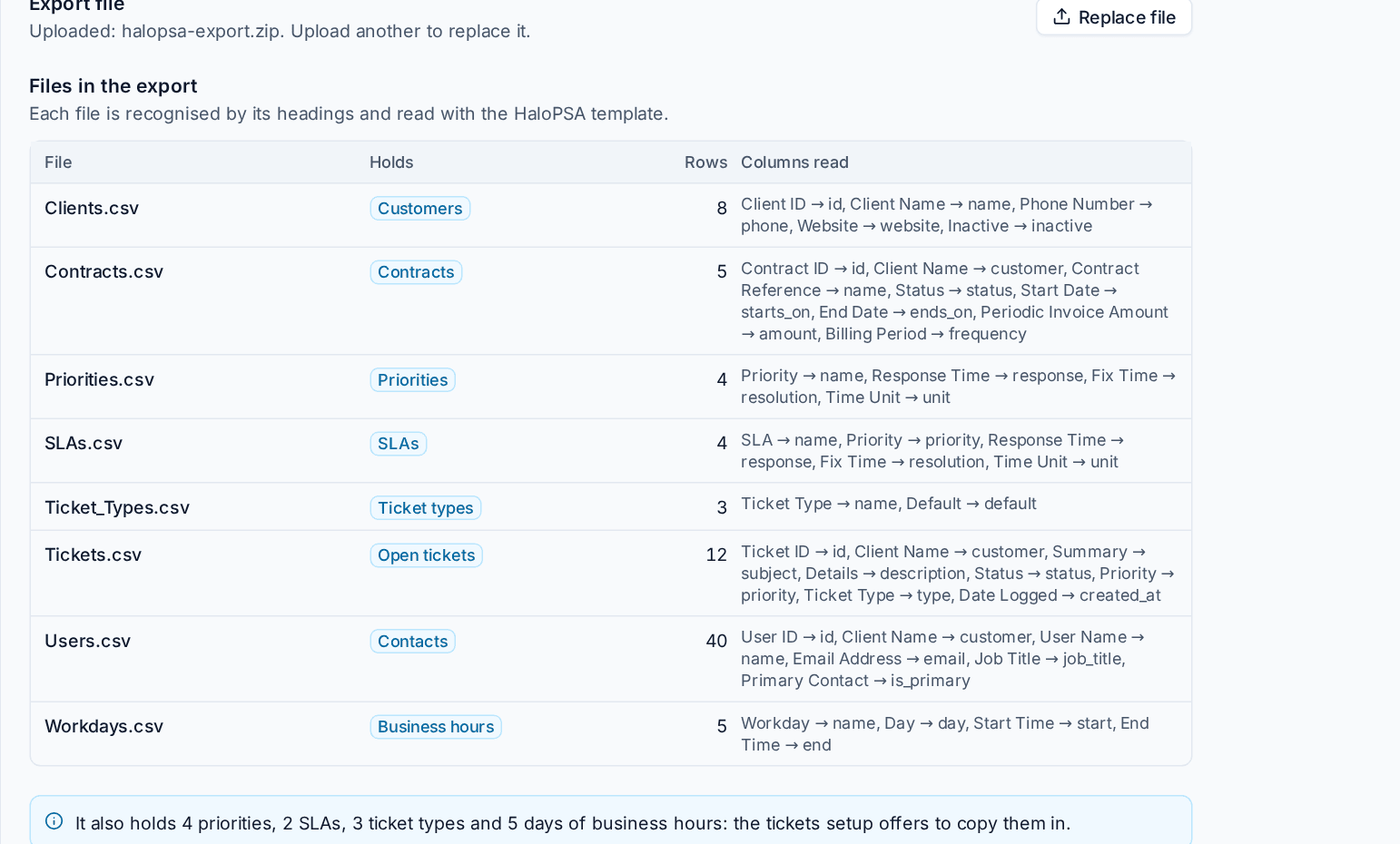
- If a file was not recognised, tell Tenvara what it Holds. If a required field was not found, choose the column it is in. Your choices are saved with the source and win over the saved mapping.
- Under Run, choose what to bring across (Customers, Sites, Contacts, Contracts, Open tickets) and press Dry run.
Each file is recognised by its column headings, so exports with columns in a different order, or from a newer version of the PSA, still work. Dates are read the way each PSA writes them (HaloPSA day first, the others month first) unless the numbers make it obvious.
Checking with Verify
A finished run, dry run or import, has a Verify section that checks the result against the source before you trust it.
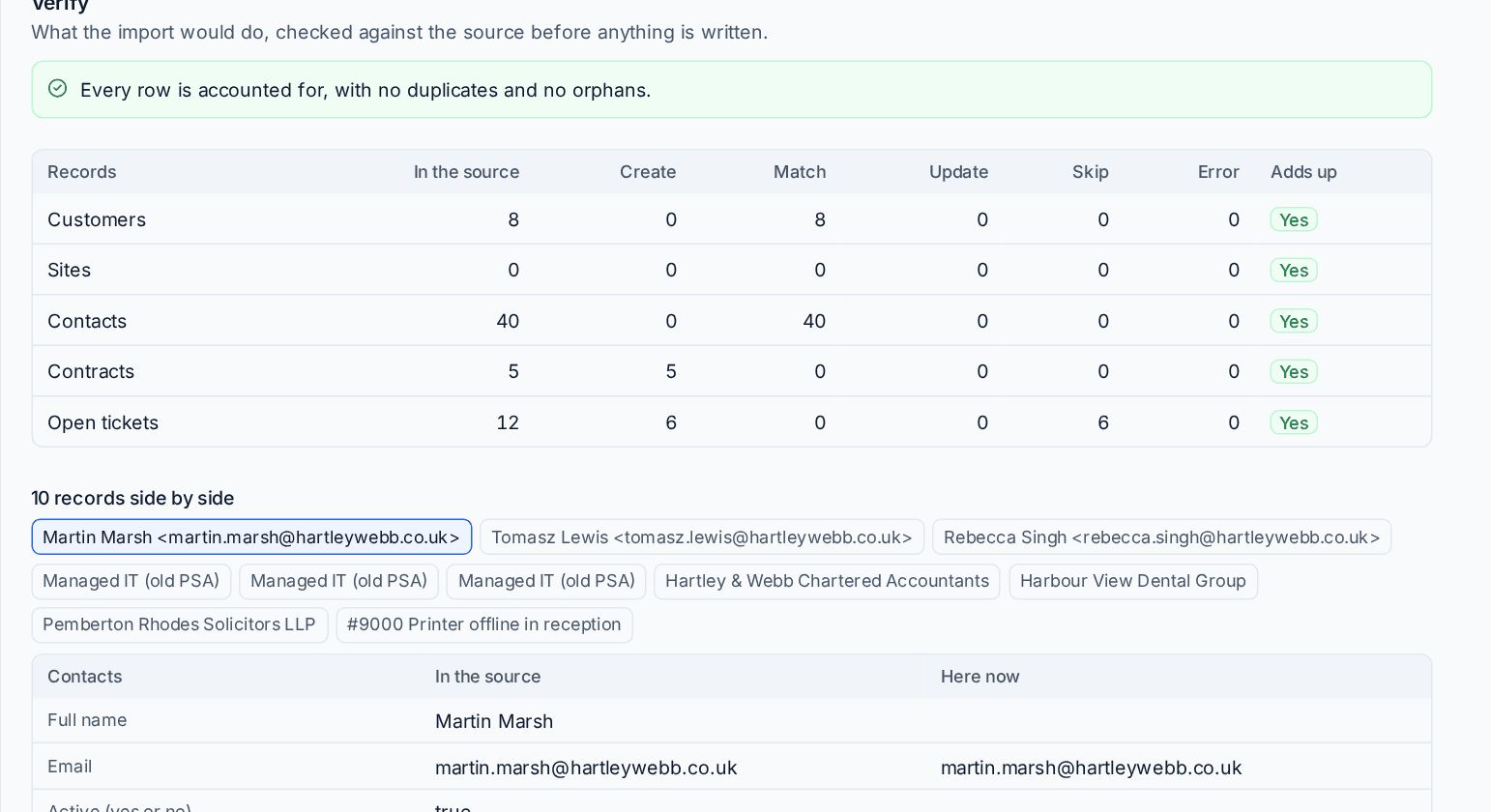
- Totals: for each kind, the rows in the source against what would be created, matched, updated, skipped or in error, and whether it Adds up.
- Duplicates: records that are in the source more than once, or rows that would land on the same record.
- Orphans: rows whose customer is neither in the source nor already in Tenvara.
- Records side by side: ten records with what the source said and what is in Tenvara now (or "will be created" on a dry run).
When everything is accounted for it says "Every row is accounted for, with no duplicates and no orphans." Below it, Records lists every decision (create, match, skip) with the reason, as for any import.
Importing, running again and undo
- When the dry run looks right, press Import.
- Customers, sites and contacts already in Tenvara are matched rather than duplicated. See How records are matched.
- While you still work in the old PSA, export again, press Replace file on the source and run it again: only what changed is brought across.
- If an import is not right, undo it. Everything it created is removed.
See Running side by side and switching for matching by hand, undo and moving customers over.
In the setup helper
The setup helper's Customers and import section walks you through the same import, with checks that the import matched and has no duplicates. Once an export is in, the Tickets, priorities and SLAs section offers to copy your old PSA's priorities, SLAs, ticket types and business hours into Tenvara: names are matched, so nothing is doubled, and undo puts back every value it changed. See Working through a section.
Tip: Import customers and contacts first and check them on a few customer pages before you bring the open tickets across.
Related: Importing from CSV, Importing from IT Glue and Hudu.
Was this page helpful?
Thanks for the feedback.