The MCP server
Connect AI assistants that support MCP to Tenvara, working as the person who connected them, with scopes, an audit of every call and tools you can switch off.
Tenvara has a built-in MCP server. MCP (the Model Context Protocol) is the open standard AI assistants use to work with other systems, so an assistant that supports MCP can read and work your tickets, customers, devices, alerts, documentation, projects and reports directly, without copying and pasting. It works as the person who connected it, with that person's permissions, customers and modules, and never more.
It uses the same tools as AI assist inside Tenvara, more than a hundred of them across the service desk, devices, Microsoft 365, documentation, projects, security and reports. It does not need AI assist to be set up, and it does not use your Anthropic key: the assistant brings its own model.
How it keeps you safe
- It acts as a person. Every connection belongs to someone who signed in and approved it. It can never do more than that person can do in the app, and switching the person off stops it.
- Read by default. A connection can always read. Anything else needs a scope the person ticks by hand when they connect.
- Every call is logged with the assistant's name. Calls that change something are also in the audit log, with the connection as the actor, such as "Claude Code (Sam Patel)".
- Credentials need their own scope and the person's vault permission. Every reveal is audited as in the app, and the call log never keeps the secret.
- Module switches, customer scope and each customer's AI opt-out apply as they do for AI assist. A customer opted out of AI is invisible to the assistant.
The scopes
| Scope | What the assistant may do |
|---|---|
| Read | See what you can see in the app: customers, tickets, devices, alerts, articles and reports. Never credentials. Always on |
| Write | Make the changes you could make yourself: update tickets, reply, add notes, log time, acknowledge alerts |
| Destructive | Things that are hard to undo: delete records, run scripts and deploy software on devices |
| Credentials | Reveal passwords from the credentials vault, if you have the vault |
Changes still follow the same rules as in the app: anything that needs an approval in Tenvara still waits for one.
Connecting an assistant
The endpoint is your Tenvara address followed by /api/core/mcp, for example https://yourname.tenvara.app/api/core/mcp. Settings > Security > AI assistants (MCP) > How to connect shows yours, with instructions for common clients and the tools you get.
With OAuth (in the browser)
Most assistants that support MCP over the internet connect this way.
- In the assistant, add a custom connector or MCP server with your endpoint.
- Choose to connect. Your browser opens Tenvara: sign in the usual way, with two-factor or a passkey if you use them.
- The Allow ... to use your account? screen shows the client's name, website, when it registered and where it sends you back to, the person it will act as and the scopes it asks for. Read is always ticked; tick Write, Destructive or Credentials only if you want them.
- Press Allow. You are sent back to the assistant. Deny refuses.
Access tokens last an hour and the assistant renews them by itself. A connection unused for 30 days has to be approved again.
With a personal MCP token
For an assistant on your own computer that cannot sign in through a browser.
- Go to Settings > Security and find AI assistants (MCP).
- Press New MCP token.
- Give it a Name, such as the client that uses it, so you know what stops if you revoke it.
- Tick What it may do. Read is always on.
- Choose when it Expires, within your token policy.
- Press Make token, and copy the token. It is not shown again.
Use it in the client as a bearer token on the endpoint. You get an email, as for every new token. An MCP token only works on the MCP server, and the MCP server only takes MCP tokens.
Disconnecting
Your own connections and tokens are listed under AI assistants (MCP) in Settings > Security, with when each was last used. Disconnect or Revoke stops it straight away.
For administrators
Go to Settings > Integrations > MCP server. It has four tabs.
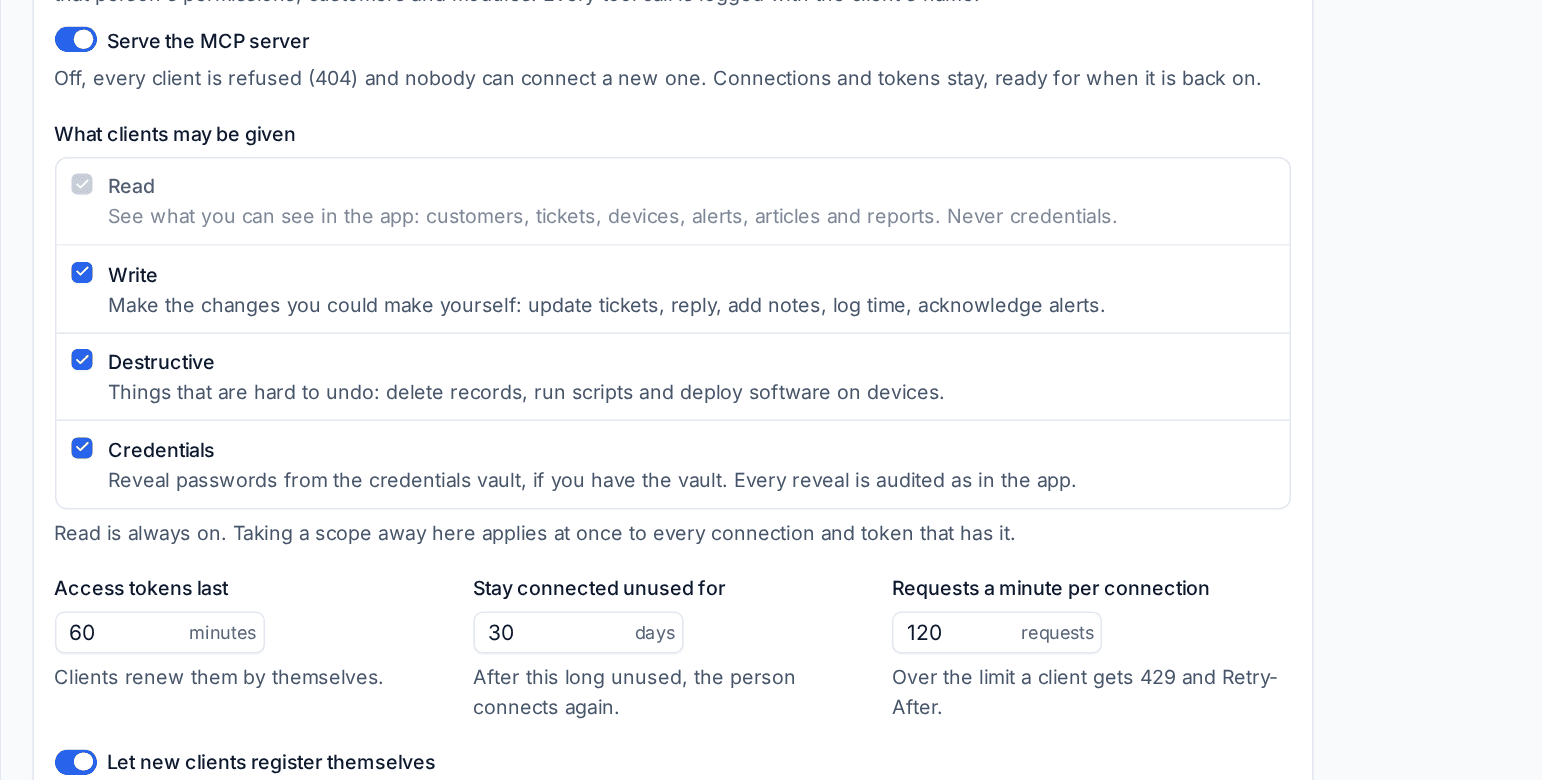
Settings
- Serve the MCP server: on by default. Off, every client is refused and nobody can connect a new one; connections and tokens stay for when it is back on.
- What clients may be given: untick a scope to stop anyone being given it. Taking one away applies at once to every connection and token that has it.
- Access tokens last (60 minutes), Stay connected unused for (30 days) and Requests a minute per connection (120; over it a client is asked to wait).
- Let new clients register themselves: most clients register the first time someone connects. A person still has to sign in and approve each one. Off, only clients already registered can connect.
- Browser origins allowed: web pages on other sites are refused unless listed. Clients on a computer are not affected.
Tools
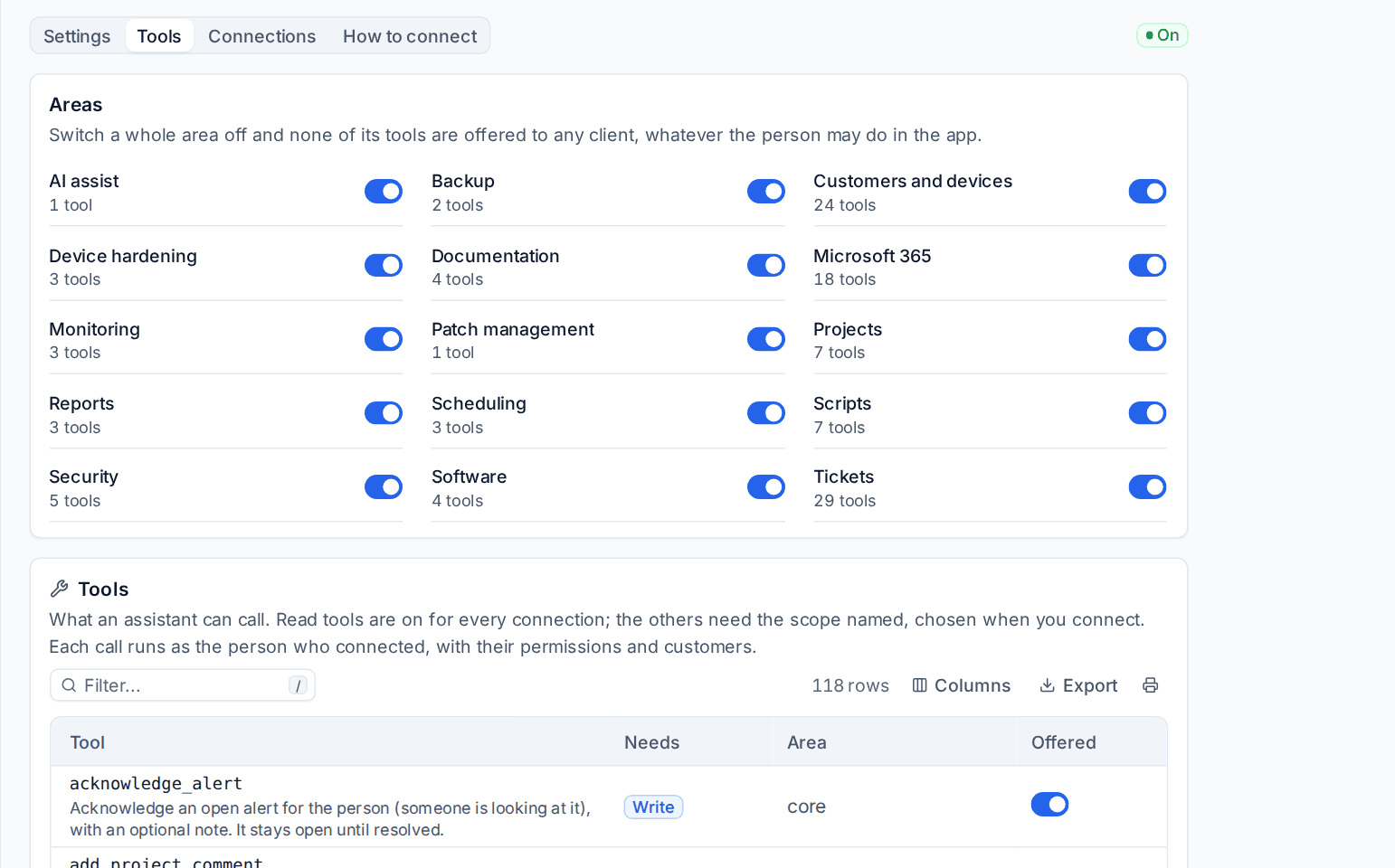
Areas switches a whole area off, such as Scripts or Microsoft 365: none of its tools are offered to any client, whatever the person may do in the app. Tools lists every tool with what it does, the scope it Needs and its Area, and switches single tools off with Offered.
Connections
Every connected client with its person, scopes and last use, every personal MCP token, and every client that registered itself. Disconnect ends one person's connection; Block on a registered client disconnects everyone using it and stops it connecting again until you Unblock it.
How to connect
The endpoint and the instructions, plus the live tool list with each tool's description, scope and area. Everyone else sees the same guide, marked with what their role allows, from Settings > Security.
Seeing what assistants did
Every tool call is logged with the assistant's name and the person it worked as. Calls that change something, and every credential reveal, are also in the audit log (Settings > Audit log), so you can always see which assistant did what and for whom. See Audit log, data retention and privacy requests.
Tip: Start people on Read only. Reading tickets, alerts and device history and summarising them is where assistants save most time, and nothing can change.
Was this page helpful?
Thanks for the feedback.