Job sheets, parts and recurring visits
Print a job sheet for a visit, record parts used and photos, send the customer a visit report, book visits that repeat, handle no access with a missed visit fee, and work with the bookings list.
A field visit is more than a time slot. Technicians need to know what to take and who to ask for, customers want to see what was done, parts need to come out of stock and go on the bill, and some visits happen every fortnight for years. This guide covers what the booking panel offers around a visit.
Job sheets
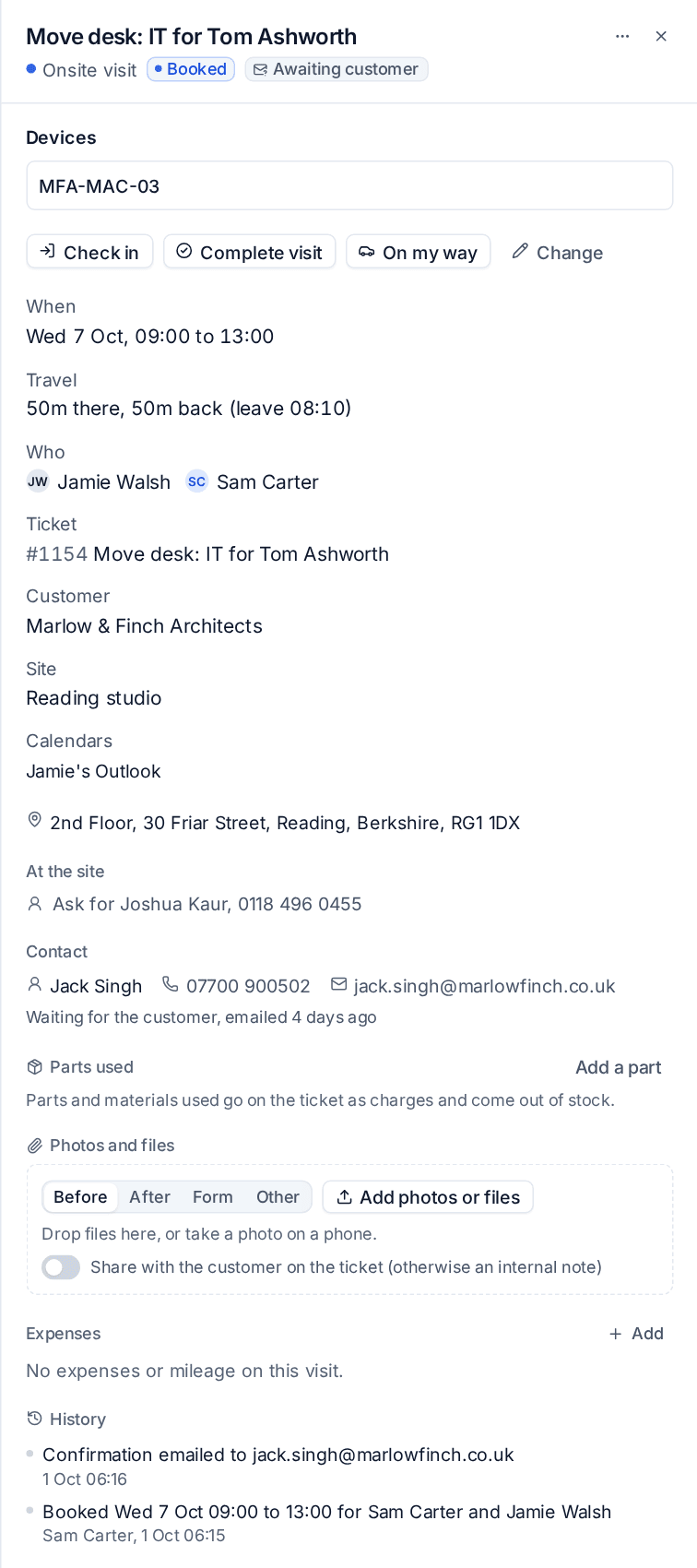
Open the booking and choose Print job sheet from the ... menu. It is an A4 PDF with the customer, the site and its access notes, the contact, the ticket and its recent notes, the linked devices, the parts to take, and blank lines for the work done, times and a signature: everything a technician needs without signal.
To print a technician's whole day at once, use Print the day on their day in dispatch.
Parts used
Under Parts used on the booking panel (and in Complete visit), press Add a part:
- Choose a Catalogue item, or type a Description for something not in the catalogue.
- Set the Quantity.
- Add a Serial number if it has one. The unit becomes an asset of the customer.
- Leave Charge it on the ticket, at the catalogue price on if the customer pays for it.
- Press Add.
A chargeable part becomes a charge on the ticket, billed once by the next invoice run. A stock-tracked item comes out of the technician's van (or the default warehouse) through stock. Removing a part puts the stock back, and the charge too unless it has been invoiced. See Stock locations and vans.
Photos and files
Under Photos and files, choose what the file is (Before, After, Form or Other) and press Add photos or files, or drop files on the panel. On a phone, this opens the camera. Files are copied to the ticket as an internal note, unless you turn on Share with the customer on the ticket, and appear on the visit report.
The visit report
When a visit is completed, Tenvara makes a visit report: arrival and departure, the work done, time, expenses, parts, photos, and the customer's signature and name. It is attached to the ticket and, unless you or the customer have turned it off, emailed to the visit's contact. Customers also see past visits with their report in the portal.
Recurring visits
For a monthly onsite day or a weekly check, book the series once.
- Press New booking and fill it in as usual. See Booking a visit.
- Turn on Repeat.
- Choose Every so many week or month. For weekly, pick the days; for monthly, a day of the month or a weekday such as the second Tuesday.
- Under Ends, choose After a number of visits or On a date.
- Check the summary, for example "Every week on Monday, 8 visits", and any clashes. You can book them all or skip the clashing ones.
- Press Book the visits.
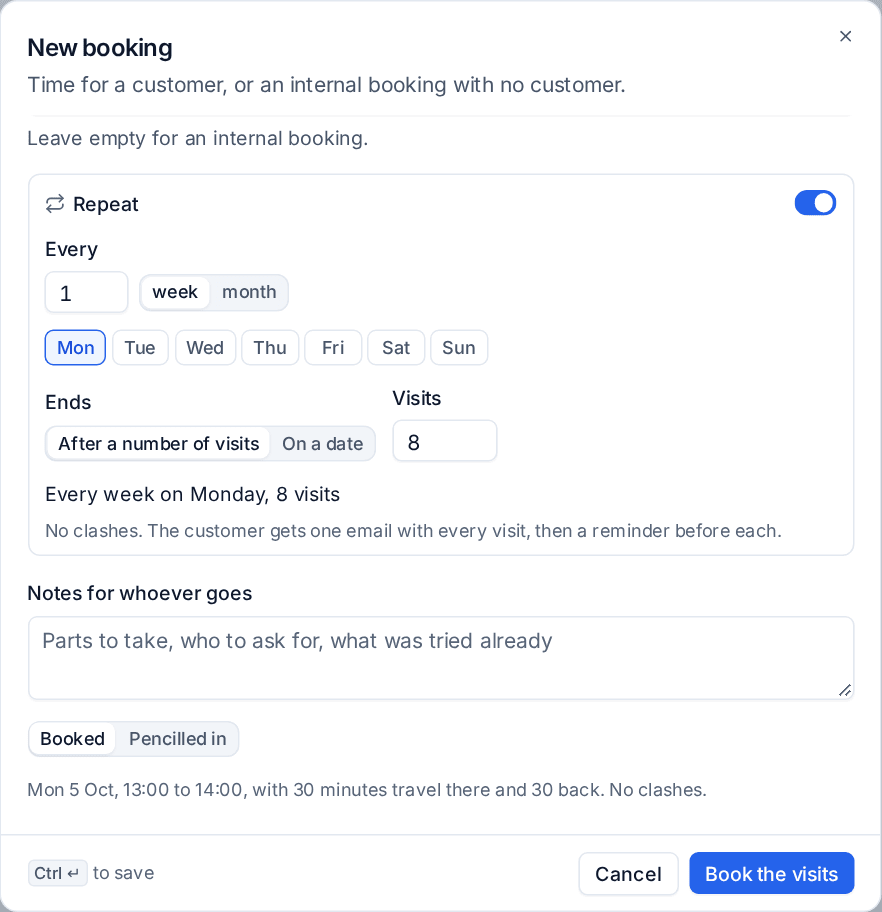
The customer gets one email with an invitation for the whole series, then a reminder before each visit. Changing or cancelling a visit in a series asks whether it is for this visit, this and later ones, or all of them.
No access
When the technician gets there and cannot get in, open the booking, choose Mark as no access from the ... menu, and:
- Choose Why: Nobody on site, Site closed, Customer cancelled late or Other, and say What happened.
- Leave Email the customer on to send them a link to pick another time.
- Tick Charge a missed visit fee if you charge for wasted trips. The fee comes from Settings > Scheduling > Dispatch (or the customer's own rule) and is billed once on the ticket.
- Tick Put the reason on the ticket as a public reply to tell them on the ticket; otherwise it is an internal note.
- Tick Rebook now to open a new booking with the same details.
- Press Mark as no access.
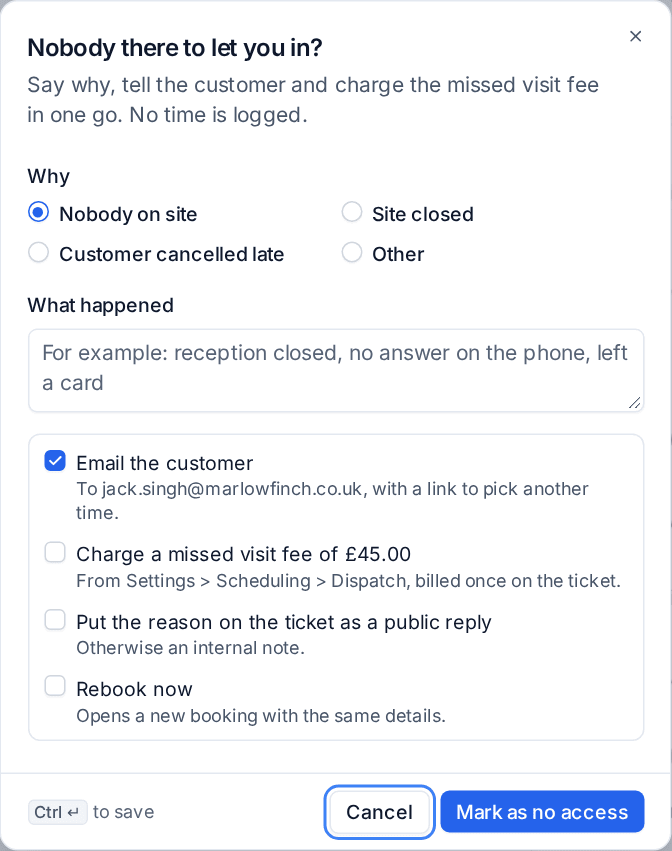
No time is logged. Schedule > Missed visits lists no-access visits per customer, so repeat offenders stand out.
Visits in the portal
Customers whose company has visits get a Visits page in the portal: upcoming visits (when, the technician's first name, the site and the ticket) with Confirm or ask for another time, and past visits with their report and signature. Managers see every visit for their company; other contacts see visits for their own tickets.
The bookings list
Schedule > Bookings list (or List on the calendar) shows bookings over a period as a table, with filters for technician, customer, type, status (including no access and cancelled), confirmed, signed and booked over a clash. Save views, export to CSV, print, and tick several bookings to reassign them, cancel them (one email each) or resend their confirmations.
Related
Was this page helpful?
Thanks for the feedback.