Sensitive content
Find files that hold identity numbers, bank details, card numbers, passwords, CVs and payslips, see where they are shared, and tune the patterns.
Sharing on its own is only half the risk. A shared spreadsheet of meeting rooms is fine; a shared spreadsheet of National Insurance numbers is not. The Sensitive content section looks inside the customer's files for data that should never be found by Copilot or by everyone a file is shared with, and puts the two together: a sensitive file that is shared widely is a critical finding.
Open the customer, go to AI readiness and choose Sensitive content.
What it looks for
| Pattern | What counts |
|---|---|
| UK National Insurance numbers | Two letters, six digits and A to D, with the prefixes HMRC never issues left out |
| UK sort codes and account numbers | A sort code with an eight digit account number beside it, or with the words "sort code" |
| Payment card numbers | 13 to 19 digits that pass the Luhn check and start like a real card |
| IBANs | International bank account numbers that pass the IBAN check |
| Passport numbers | A passport number next to the word passport, or a passport's machine-readable line |
| Passwords and keys | Private keys, cloud access keys and tokens, "password: ..." lines and spreadsheet columns of passwords |
| CVs | Documents with the headings of a CV, or named as one |
| Payslips | Documents with the wording of a payslip, or named as one |
The patterns are tuned for few false positives: placeholders such as **** or changeme are not passwords, and a lone number only counts as a passport number next to its words.
Note: Tenvara never keeps what it finds. For each file and pattern it keeps a count and a one-way hash of one match, so the same value in two files can be matched up, but no value can be read back from it.
Where it reads files from
- From the backup copy: where Tenvara backs up the customer's Microsoft 365, files are read from the backup, so nothing is downloaded from Microsoft again.
- From Microsoft 365: otherwise only files in shared places are read, which is where the risk is: the files the data exposure scan found shared, and the files inside shared folders.
Word, Excel, PowerPoint, OpenDocument, PDF and plain text files are read. Each scan only reads files that are new or changed since the last one, up to Files read in one scan (2,000 by default), shared files first; the next scan carries on with the rest. Files larger than Largest file read (20 MB) are listed but not read.
The line under the description says when it last read, and how many files came from the backup copy, from Microsoft 365 and were unchanged. Scan now reads at once.
The counts and the checks
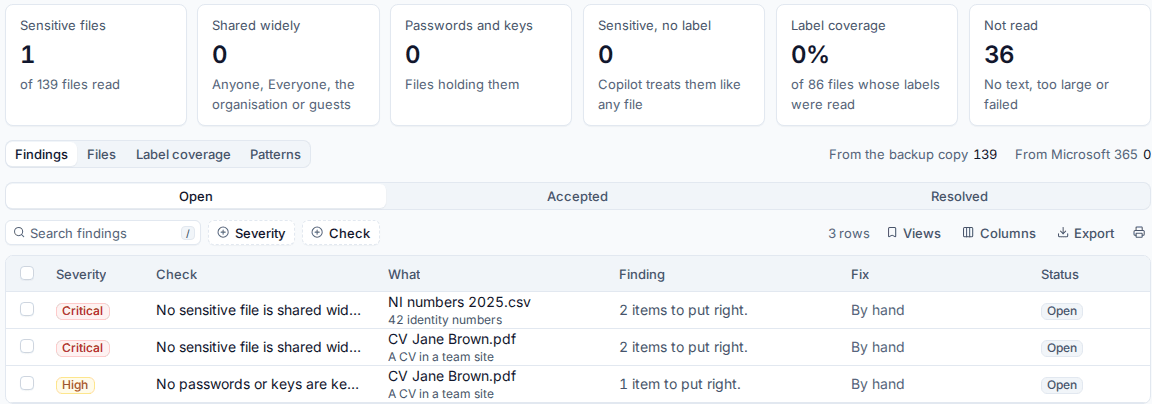
The tiles show Sensitive files (of all files read), Shared widely (anyone, Everyone, the organisation or guests), Passwords and keys, Sensitive, no label, Label coverage and Not read (no text, too large or failed).
| Check | Severity | Finding per |
|---|---|---|
| No sensitive file is shared widely | Critical | Sensitive file shared with anyone, Everyone, the whole organisation or guests |
| No passwords or keys are kept in files | High | File holding passwords or keys |
| Sensitive files carry a sensitivity label | Medium | Sensitive file with no label |
| Files are labelled across the sites | Low | Site with fewer labelled files than you set |
The critical check is the one that matters most: it is where sharing and sensitive data overlap. Because Tenvara recalculates where each sensitive file is shared after every sharing scan, a file drops off the list as soon as its sharing is narrowed, without being read again.
Below the tiles, Findings, Files, Label coverage and Patterns switch between the findings, the sensitive files with their patterns and reach, label coverage per site and how often each pattern matched.
Putting it right
Most sensitive content findings are put right through sharing: remove or narrow the link on the file in Data exposure, or move the file somewhere only the right people can open. Files holding passwords belong in a password manager or your credentials vault rather than a spreadsheet; once the file is gone, the next scan resolves the finding.
Tip: Run the scan, sort the Files table by reach, and start with sensitive files shared with Anyone links. They are usually few and the quickest win for the score.
Tuning the patterns
Go to Settings > AI readiness and find Sensitive content.
- Switch each pattern on or off. A customer can have its own choice.
- Edit the words the word-based patterns use: Passport words, Password words, CV headings and Payslip words.
- Add Your own patterns, one per line, as
Name: regular expression, for exampleEmployee number: EMP-\d{6}. A pattern that does not work is listed as not working and the scan says so. - Set Look for sensitive files every (24 hours by default), Files read in one scan and Largest file read (MB).
- Choose which files have their sensitivity labels read in Read sensitivity labels of: every file read (for label coverage by site), sensitive files only, or none.
- Set Labelled files per site, at least for the label coverage check (50% by default).
- Press Save.
The UK patterns are on by default for installs in the UK; the rest are on everywhere.
Was this page helpful?
Thanks for the feedback.