Replies, forwarding and scheduled send
Choose who each reply goes to, forward a ticket to a supplier and get their answer back on it, use signatures and macros, send later or undo a send, and log time as you reply.
The composer at the bottom of every ticket chooses who gets each message, forwards to suppliers, adds your signature, applies macros, schedules replies, lets you take a reply back, and logs your time in the same action.
Who a reply goes to
The line beside Reply, Internal note and Forward shows who the reply goes to, such as "To Jack Wilson · Cc ...". Press To, Cc, Bcc to change it for this reply:
- Reply all (the requester and everyone copied in) or Reply to just the person who last wrote.
- To: add or remove people. Removing the requester warns you that they will not get this reply.
- Cc: copy others in. You choose whether this reply's Cc becomes the ticket's copy list.
- Bcc: blind copies. Only staff see them, on the message. They are never on the ticket, in the portal, or in the email the other recipients get.
Rich text and pictures
Replies, notes and forwards use a rich text editor: bold, italic, lists, links, quotes and code. Paste or drop a screenshot and it goes into the reply in line, where the customer sees it, rather than as an attachment. Write in plain text switches the editor off for a reply.
Signatures
Your signature goes under your replies and forwards.
- Settings > Email > Company signature is a template filled in with each person's details: name, job title, direct line, mobile, email and company.
- In Profile, each person fills in their Job title, Direct line, Mobile, Booking link and Photo under Email signature, and chooses The company signature or My own.
- Each support mailbox chooses the technician's signature, its own or none.
The composer shows the signature under the reply, with Include to leave it off once.
Forward to a supplier or third party
When a printer lease company, a line provider or a software vendor needs to act, forward the ticket to them and keep the whole conversation in Tenvara.
- Press Forward in the composer (or Forward this message on one message's menu).
- Under Forward to, search your suppliers and the customer's contacts, or type any address.
- Add Forward Cc if needed, and check the Subject. It carries the ticket reference so their answer threads back.
- Tick Quote the whole conversation to send the conversation below your message. When forwarding one message, that message is quoted, and Forward the whole ticket instead switches back.
- Under Send files from the ticket, tick any attachments to send on.
- Write your message and press Forward. It goes from the ticket's mailbox, with your signature.
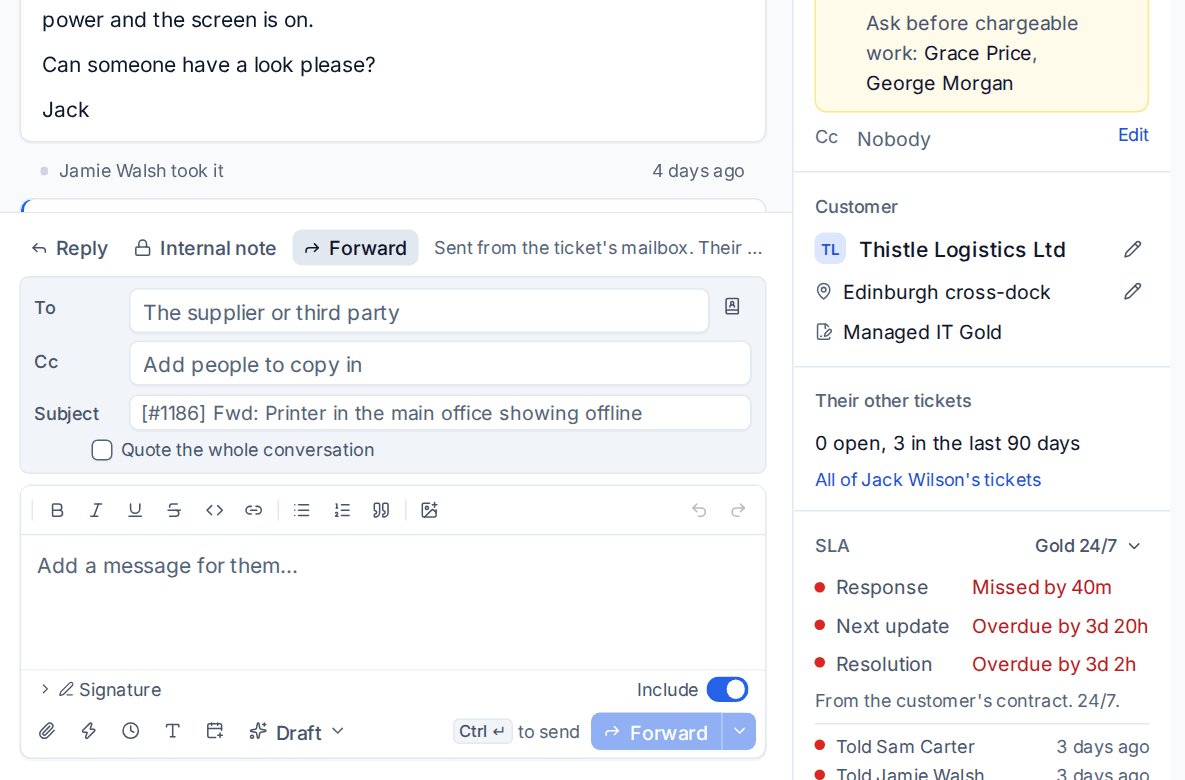
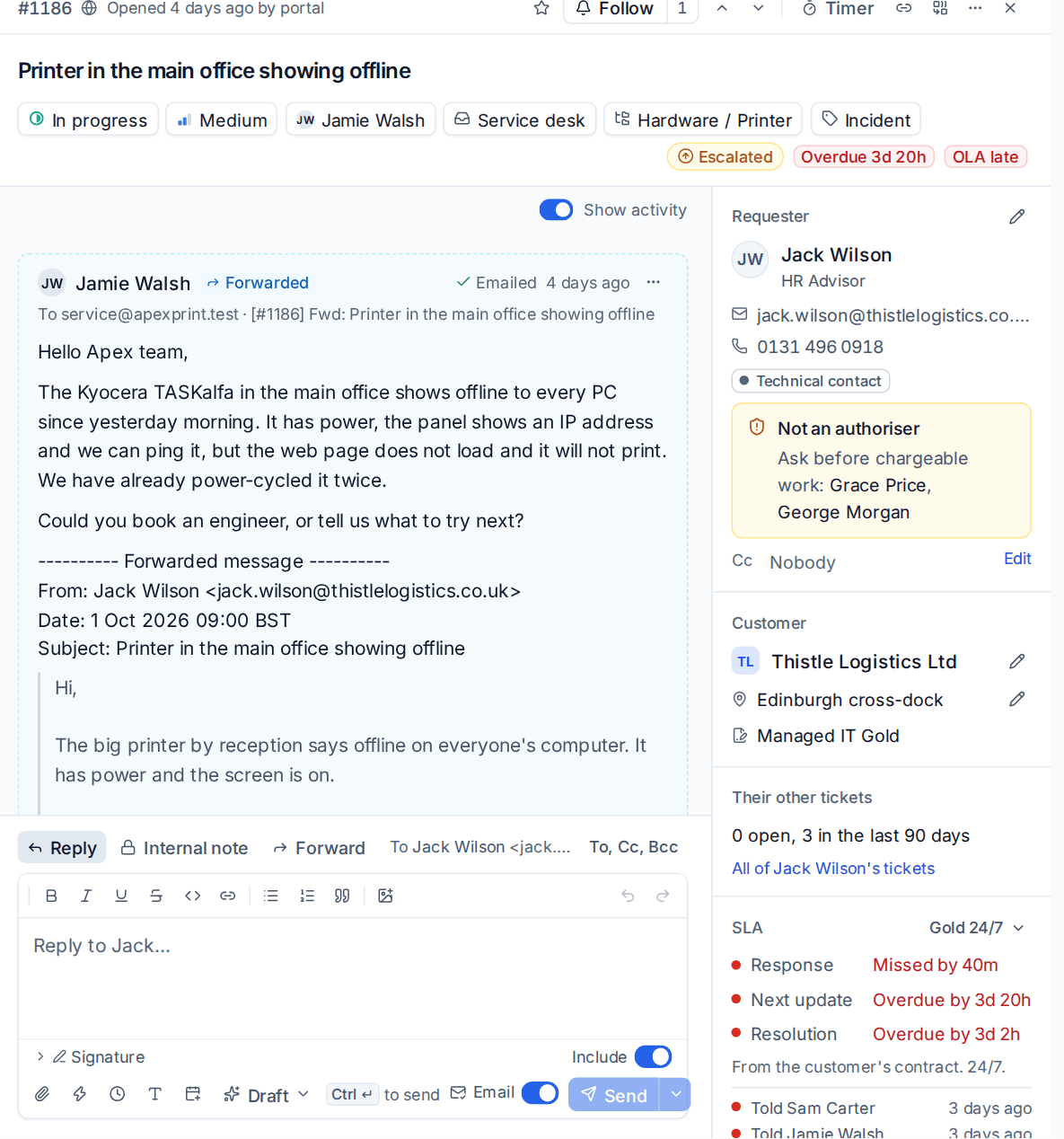
The forward shows in the conversation as Forwarded, internal to your team. When the supplier answers, their email comes back onto the ticket as a Third party message, and the assignee is told. Third party messages never show in the portal and never count as the customer replying, so they do not reopen the ticket or stop its waiting clock.
Your suppliers list
Settings > Ticket setup > Forwarding keeps the support desks you pass tickets to, so Forward finds them by name. Press Add address and enter a Name, Email address and Organisation, link it to a Supplier in Procurement if it is one, and add Notes such as an account number. The notes show when you forward.
Macros
Canned responses are macros: as well as inserting text, they can change the ticket. Press the lightning button (Insert a canned response, or Cmd+/) or type a macro's keyword, such as ;;toner, in the composer.
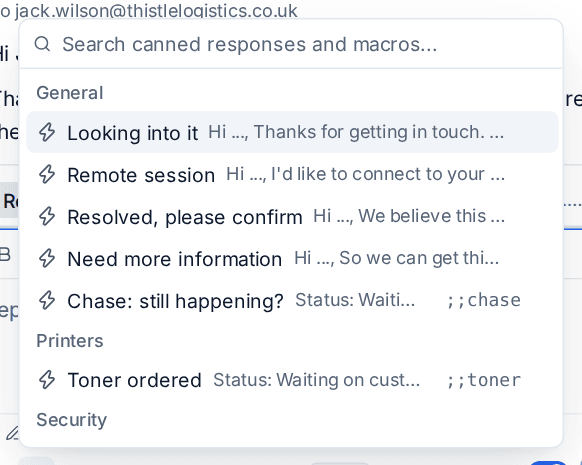
A macro can:
- set the status, priority, queue or assignee,
- add tags and followers,
- log time, such as 5 minutes,
- switch the composer to an internal note,
- attach stored files.
The picker shows what each macro will also do before you use it, such as "Status: Waiting on customer, Tags: printer, consumables, Log 5 minutes". Each can be limited to the ticket types and queues it fits. Manage them in Settings > Canned responses.
Send and set the status
Press the arrow next to Send for more ways to send:
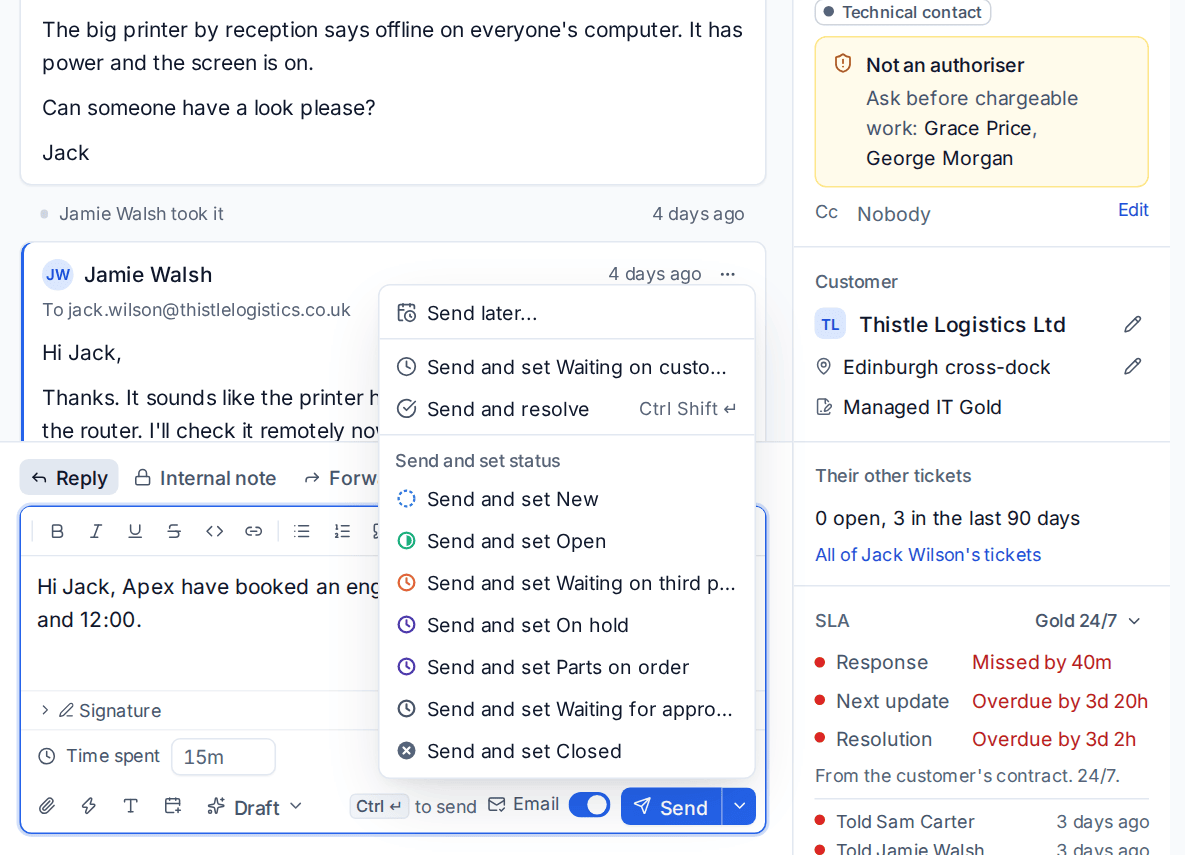
- Send later... (below),
- Send and set Waiting on customer,
- Send and resolve (
Cmd+Shift+Enter), - Send and set status, with every other status.
Send later
A reply written at 11 at night can wait for the morning.
- Press the arrow next to Send and choose Send later....
- Pick This afternoon, Tomorrow morning or Monday morning, or Or choose a day and time. Times are on the customer's clock (their contact's or company's time zone), with yours shown beside them when they differ.
- Leave Cancel it if the customer replies first on if their answer might change what you would say. If they write first, the reply is cancelled and you are told.
- Press Schedule.
Scheduled replies wait above the composer under Replies waiting to go, with when they go. Change the time, Send now, or Cancel and edit to put the reply back in the composer. Nothing shows on the ticket, by email or in the portal until it goes, and the status you chose is set when it does.
Undo send
After Send, a reply waits a few seconds with Undo in a toast. Undo puts it back into the composer, and nothing reaches the customer, the portal or the SLA. The time is set in Settings > Ticket setup > Rules under Undo send (Off, 5 seconds, 10 seconds or 20 seconds; 10 by default), and each person can choose their own in Profile under Sending replies.
Log time as you reply
Press the clock (Log time with it) in the composer to add a Time spent field, with Billable and the running timer offered. The reply and the time entry are saved together, and the time shows on the message. Turn on Ask for time on every reply in your Profile to have the field open every time.
If Time required when resolving is on (Settings > Ticket setup > Rules), a ticket cannot be resolved or closed until time is logged on it. Time logged with the resolving reply counts. A ticket type can choose for itself.
Email from your own mailbox
When you answer a ticket email from Outlook rather than Tenvara, it lands on the ticket as you. Each support mailbox chooses what it becomes under Mail from staff becomes:
- A reply if the customer was on it (the recommended choice): a public reply when the requester, someone copied in, one of the customer's contacts or an address at their email domain was in To or Cc, otherwise an internal note,
- Always a reply,
- An internal note.
Starting the email with #note or #reply on its own first line decides for that one email. See Email to ticket and alert rules.
See also Logging time.
Was this page helpful?
Thanks for the feedback.