AI readiness overview and the score
What an AI readiness assessment looks at, how the score and its sections are worked out, the top fixes and the all-customers view.
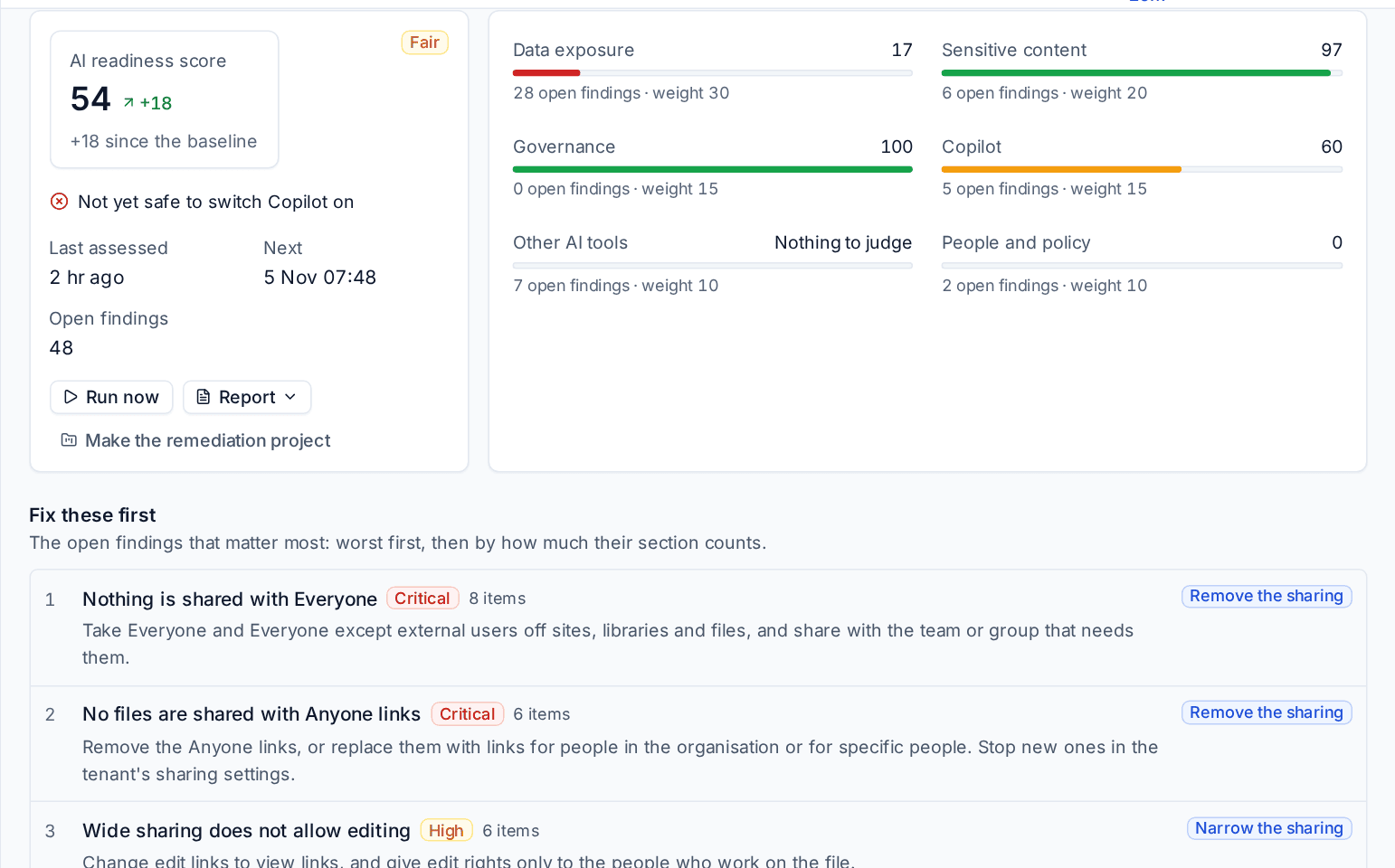
Before a customer switches on Copilot or lets staff loose on AI tools, someone should ask what those tools will be able to find. AI readiness answers that question for each customer you connect: what is shared too widely in SharePoint, OneDrive and Teams, which files hold sensitive data, which AI tools staff already use, whether Copilot licences are given out and used, and whether there is a policy people have agreed to. It turns that into one score out of 100, a short list of what to fix first, fixes that go through the customer's approver, and a branded report you can hand over.
Turning it on for a customer
AI readiness reads the customer's Microsoft 365 tenant, so the customer needs a connected tenant first. See Connecting a tenant.
It is an opt-in Microsoft 365 feature with its own consent. It is never chosen for you, and the extra Microsoft permissions it needs only reach tenants where you turn it on.
- Open the customer's tenant and go to its Features tab.
- Turn on AI readiness.
- Sign in as a Global Administrator of the customer's tenant when Microsoft asks, and approve the extra permissions.
Settings > Microsoft 365 > Features decides whether AI readiness is ticked already when a new tenant is connected. See Choosing features and consent.
Once the feature is on, open the customer and go to AI readiness. Press Run now for the first assessment. The first one is the customer's baseline: every later score shows its change against it.
The sections and the score
An assessment runs every check in six sections. Each section gets its own score out of 100, and the overall score is the weighted average of the sections:
| Section | What it looks at | Default weight |
|---|---|---|
| Data exposure | Anyone links, Everyone grants, organisation links, wide edit links, guests, public groups, ownerless and stale sites | 30% |
| Sensitive content | Files that hold identity numbers, bank details, card numbers, passwords and keys, CVs and payslips, and whether they are shared widely | 20% |
| Governance | The tenant's information protection settings | 15% |
| Copilot | Copilot licences bought, given out and held by accounts that are switched off | 15% |
| Other AI tools | AI apps, browser extensions, consents and sign-ins seen for the customer | 10% |
| People and policy | The AI acceptable use policy, who acknowledged it, the awareness lesson and the approved tools register | 10% |
Each failing check takes points off its section by its severity: critical checks cost the most, then high, medium and low. A section with nothing it could judge says Nothing to judge and its weight is shared out among the others, so a customer is never marked down for something that does not apply to them.
Change the weights in Settings > AI readiness under Score.
Fix these first
Under the scores, Fix these first lists the five open findings that matter most: worst severity first, then by how much their section counts, then by how many items they cover. Each shows the fix it offers, such as Remove the sharing or Narrow the sharing, so you can go straight to it. See Fixes, reports and the portal.
Findings
Every check that fails produces findings, one per link, site, guest or app, so you can fix them one at a time or in bulk. A finding keeps when it was first and last seen. When a later assessment no longer sees it, it is resolved; if it comes back, it opens again. You can also Accept a finding the customer is happy to live with: it moves to Accepted and stops counting.
Who sees what
AI readiness has its own permission area beside Security, in Settings > Roles and permissions.
- View shows scores, findings and counts, and the customer's copy of the report.
- Manage changes settings, publishes the report and keeps the policy, lesson and register.
- Run lets someone press Run now.
- Remediate lets someone ask for fixes, undo them, accept and reopen findings and make the remediation project.
- See evidence shows the names behind the counts: files, sites, people and apps. Without it, people see counts and findings but never names.
Every customer at once
Go to Security > AI readiness for every assessed customer, lowest score first.
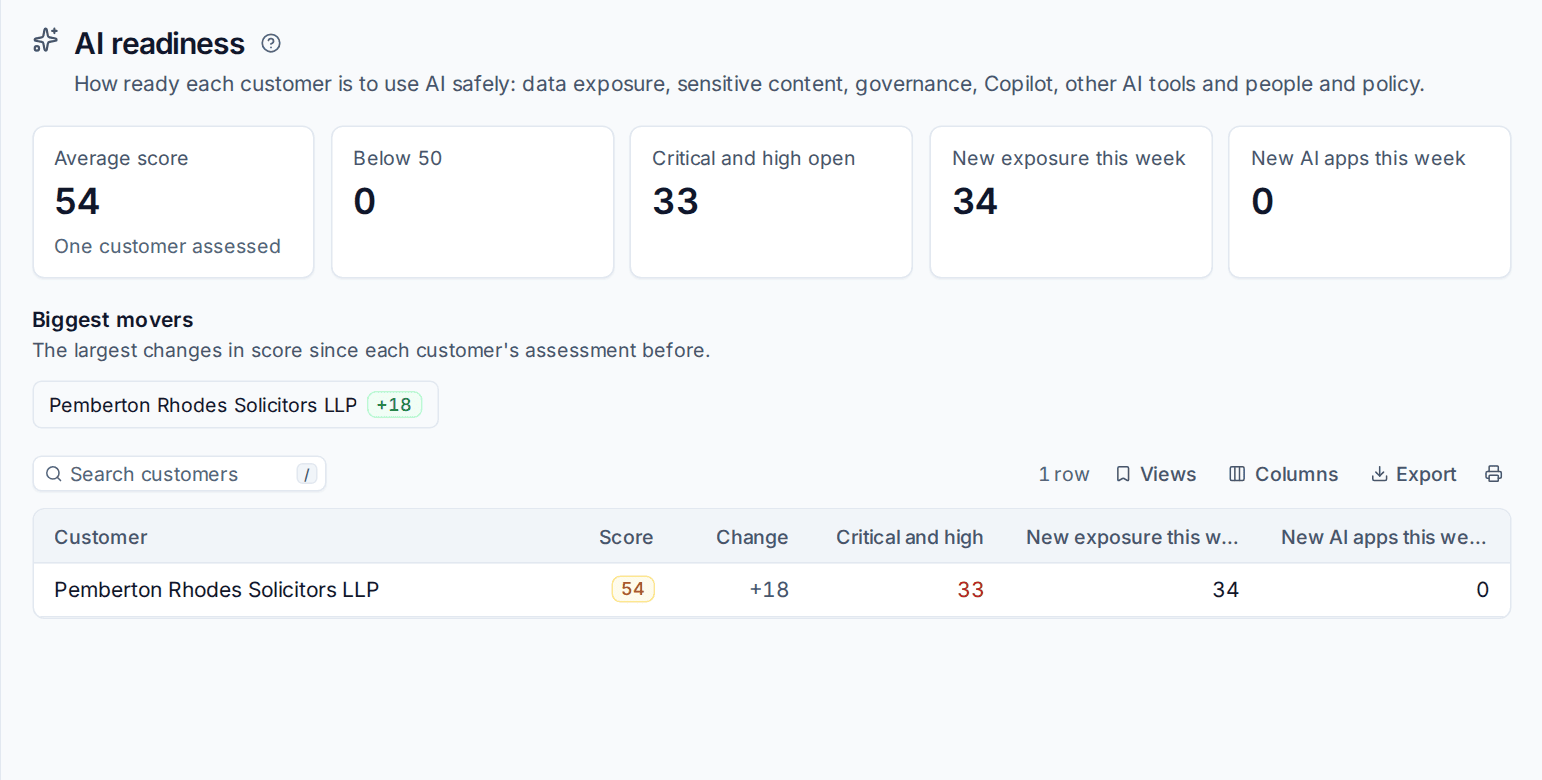
The tiles show the Average score, how many customers are Below 50, Critical and high open findings, New exposure this week and New AI apps this week. Biggest movers lists the largest changes since each customer's previous assessment. Click a customer to open their AI readiness.
AI readiness also feeds the rest of Tenvara: the report builder has an AI readiness assessments dataset for saved reports and dashboards, TV dashboards have an AI readiness widget, and the monthly customer report gets an AI readiness section for assessed customers. See Monthly customer reports.
In this section
Was this page helpful?
Thanks for the feedback.