Policy documents under control
Keep policies and procedures under document control, from a master library you adopt for customers, with customer approval, versions and staff acknowledgement.
A management system needs its policies and procedures under control: numbered, owned, approved, versioned, reviewed and read by the people they apply to. In Tenvara a controlled document is a documentation article with document control added, so writing, drafts, review, comparing versions, share links and printing all work as they do for any article.
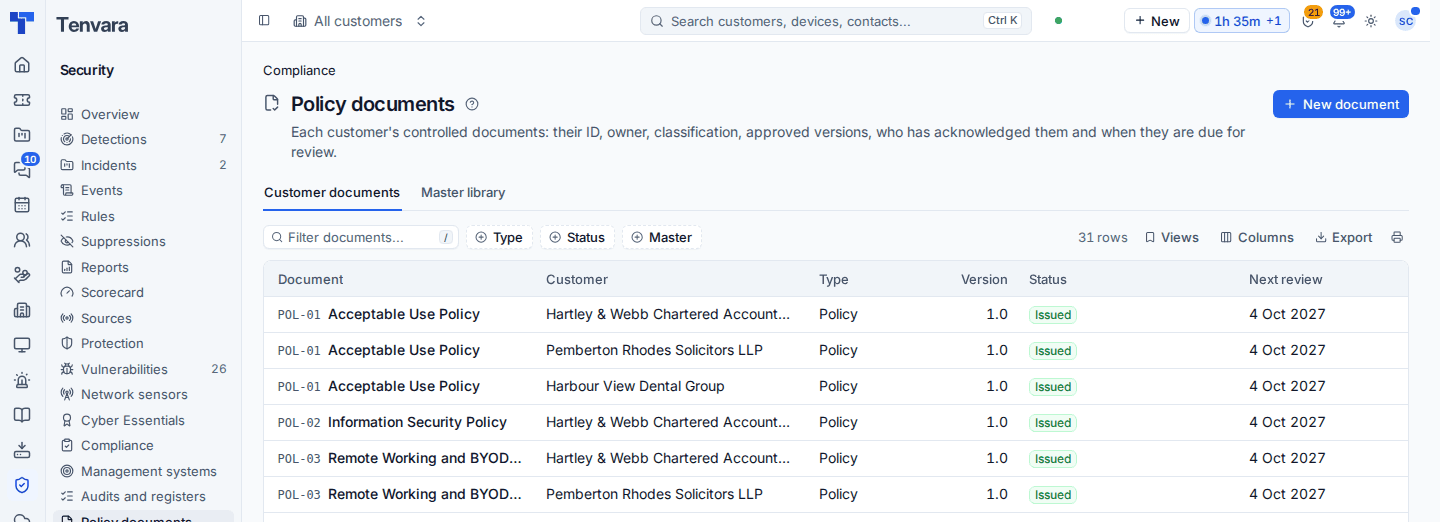
Open Security > Policy documents. Customer documents lists every customer's controlled documents with their ID, customer, type, version, status and next review. Master library holds your own masters.
What document control adds
- An ID numbered per type (POL-01, PRO-03 and so on, prefixes in Settings), a type (policy, procedure, standard, plan, form or record) and a classification.
- An owner: a member of your staff or one of the customer's contacts.
- Issued versions in major.minor form. Version 1.0 is issued when the document first goes live; each change is the next minor version unless it is sent as a major change.
- The common controls it supports, so it counts towards the programme's frameworks and its Statement of Applicability.
- A review interval, and who must acknowledge it.
The live text of a controlled document only changes by issuing a new version. Editing it, or restoring an old version, makes a draft change that goes through approval.
The master library
Write a policy once and use it for every customer:
- On Master library, press From templates to make masters from a template pack, or New master to write your own.
- Adapt the text. A master made from a template keeps the "template, adapt before use" notice until you change it.
- Choose Adopt for customer (one or many). Each customer gets their own copy, with the placeholders filled from their programme: their name, owners, scope, review period, certification body and your brand name. Values you type in the dialog win, and anything unknown stays for you to fill in.
When you issue a newer version of a master, each copy shows Update available with the master's changes beside the copy's own text. Accept takes the master's text, Merge folds the master's changes into the copy paragraph by paragraph (anything that clashes is marked for you to settle), and Decline hides it until the next master version. Roll out version N updates every copy nobody has changed in one go, and lists the customised ones for their owners. A copy whose text differs from what its master gave it is marked customised and still hears of updates.
Customer-only documents with no master are fine too.
Approval
Settings > Documentation > Policy documents decides whether every change needs approval (on by default). The approval runs through Approvals: your reviewers first, then the customer's approver, who decides in the portal's My approvals or from the email. The customer step comes from the document's own approvers, else the programme's: a named contact, contacts with a role, or the customer's fallback approver. The issued version records who approved it, and fills {approver} and {effective_date} in its text.
Acknowledgement
Issuing version 1.0, or any new major version, asks the document's audience to read and accept it: everyone at the customer, members of chosen Microsoft 365 groups, contacts with a role, or named contacts. Anyone who accepted an older major version is asked again; a minor version asks nobody. New starters can be asked automatically.
People accept in the customer portal, and the tray app tells them on the computers they use with a notification that opens the policy. Reminders, the monthly report and the programme's Policies acknowledged part all count acceptance of the current major version.
Note: The policies that used to live under Security > Awareness are now controlled documents, with every acceptance kept. Their old address takes you to Policy documents.
Sharing
A customer's document can go on their portal's Documents page with its PDF, out through a documentation share link (for a supplier or an auditor), or as a PDF in the customer's branding with a document control block and the version history. External auditors see each document at its latest issued version: see Auditors and the portal.
Was this page helpful?
Thanks for the feedback.