Portal permissions and people
Give contacts portal access, choose what each person can see and do with permissions and contact roles, let managers handle their colleagues, and approve sign-ups.
Every contact with portal access can raise tickets and see their own. Anything beyond that comes from portal permissions, ticked on the contact, and from their contact roles. This guide covers both, and how your customers' managers can look after their own people.
Turning on portal access
- Open the contact (from Customers, or search with
Cmd+K). - In the Customer portal card, press Turn on portal access.
- Press Change permissions to choose what else they can do (below).
- Press Invite to portal. They get an email with a link to sign in. For someone who has signed in before, the button is Send sign-in invitation.
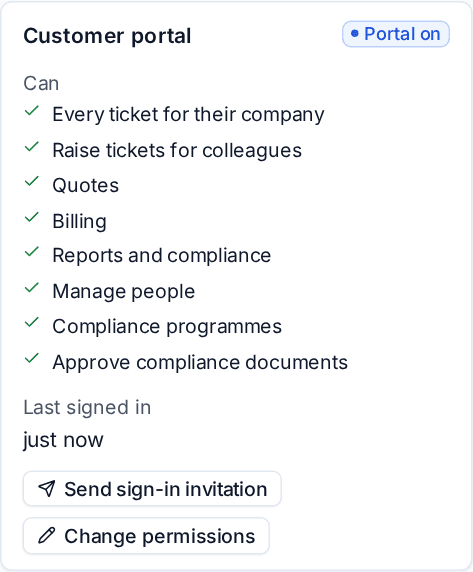
The card shows Portal on, what they Can do, and when they last signed in. Turning access off signs them out. Marking a contact inactive when they leave stops them using the portal too.
Permissions
Change permissions opens a list headed "Besides raising tickets and seeing their own, name can:". Just their own tickets clears it and Everything ticks every box.
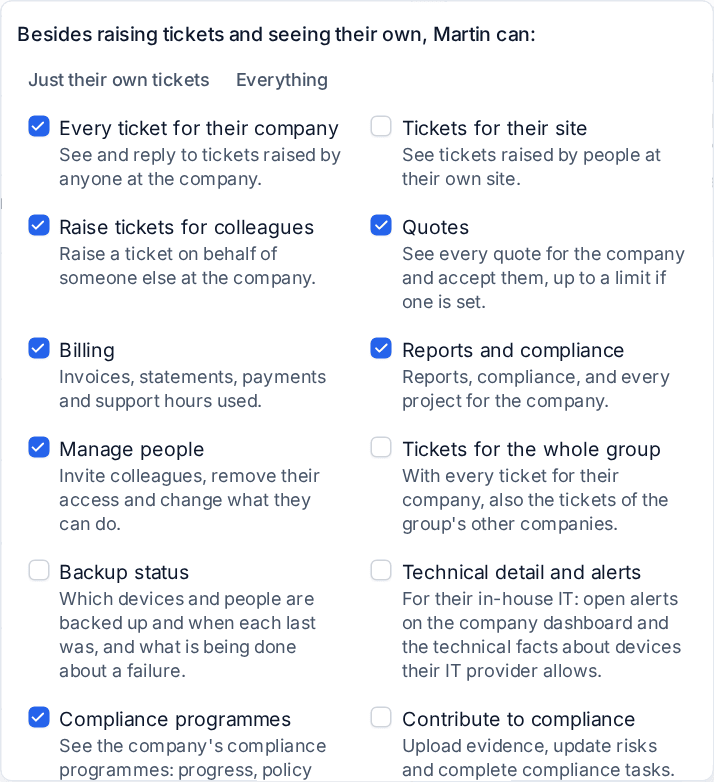
| Permission | What it allows |
|---|---|
| Every ticket for their company | See and reply to tickets raised by anyone at the company. This makes them a manager: they get the company dashboard and devices. |
| Tickets for their site | See tickets raised by people at their own site. |
| Raise tickets for colleagues | Raise a ticket on behalf of someone else at the company. |
| Quotes | See every quote for the company and accept them, up to a limit if one is set. |
| Billing | Invoices, statements, payments and support hours used. |
| Reports and compliance | Reports, compliance, and every project for the company. |
| Manage people | The People page: invite colleagues, remove their access and change what they can do. |
| Tickets for the whole group | With every ticket for their company, also the tickets of the group's other companies. |
| Backup status | Which devices and people are backed up, when each last was, and what is being done about a failure. |
| Technical detail and alerts | For their in-house IT: open alerts and the technical device facts you allow. |
Compliance, AI readiness and device security permissions appear here too when you use those areas.
Contact roles add permissions
Contact roles say what each person at a customer is for (primary contact, billing contact, approver, decision-maker, technical contact, out-of-hours contact, site contact, VIP and your own), and decide who is sent invoices, quotes, reports, outage notices and approval requests. A role can also give portal permissions: the billing role gives Billing, and approver and decision-maker give Quotes. The card marks a permission that comes from a role with "(from their role)".
Roles are set on the contact and managed in Settings > Contact roles. See Contact roles, merging and duplicates.
Managers looking after their people
A contact with Manage people gets the portal's People page (see Company pages for managers). From there they can:
- Invite a colleague with name, work email, job title, site and only the permissions they hold themselves, or Invite several at once.
- Change what a colleague can do, resend an invitation or remove their access (the person stays a contact).
- Add a new starter and Mark as left, through your catalogue items.
Addresses that belong to your own staff or to another customer are refused. Every change is written to the contact's activity as done by that manager, and your team is told.
Settings > Customer portal > Access and sign-in > People controls this, for every customer or one customer:
- Managers may add colleagues (on by default).
- New colleagues need our approval: a new colleague waits until someone on your team approves them before they can sign in. The contact page shows Waiting for your approval with Approve and Decline, and the request also appears in your Approvals inbox.
- Offer a leaver ticket: where you have no Leaver catalogue item, marking someone as left can raise a ticket for you to remove their accounts.
- What managers can do for a colleague's sign-in: Reset their password and Set up multi-factor sign-in again, with We approve these first on by default.
Sign-ups
Self-registration lets people create their own portal account. Choose Off, After a member of staff approves them or Straight away, once they confirm their address, for every customer or per customer on the customer's Settings tab. Someone with an address on one of the customer's email domains asks for an account from the registration link on the sign-in page and confirms their address from an email.
With approval on, confirmed requests wait under Account requests on the Access and sign-in tab, with Approve and Turn down, and in your Approvals inbox, so whoever manages contacts can decide from either place. See Approvals.
The transparency log
What we did shows a customer's contacts what your team did on their devices: remote sessions (who, when, how long and what the person at the device answered), scripts and fixes by name and outcome (never their contents), software installed or removed, and, for managers, Microsoft 365 changes. Managers see all of it; everyone else only rows for their own devices. Turn it on with Show what we did on their devices in Settings > Customer portal > What customers see.
Was this page helpful?
Thanks for the feedback.