Public knowledge base
Publish chosen knowledge base articles as a help centre anyone can read without signing in, on your own domain, in your branding and found by search engines.
Your customers' staff search the web before they raise a ticket. The public knowledge base puts your best how-to articles where they will find them: a help centre on your own address (for example help.yourcompany.co.uk), readable without signing in, with topics and search, in your branding.
It is separate from the portal's Help articles, which stay behind the portal sign-in.
What can be public
Only knowledge base articles: never a customer's documentation and never a template. A public article shows only its last published version (never a draft or a change waiting for review), and never when it is archived or expired, or in a folder with limited access.
On the public page, embedded credentials are left out and links to devices, contacts and tickets become plain names, as on the portal. Images and files are served only when they belong to a public article.
Who can publish
Publishing needs permission to manage documentation and the role action Publish publicly, which only administrators have to start with. Give it to other roles in Settings > Roles and permissions (see Roles and permissions).
Setting it up
- Go to Settings > Documentation > Public knowledge base.
- Switch on Publish a public knowledge base.
- Fill in the Title (empty uses your company name and "Help centre") and an Introduction.
- Choose the Brand whose logo and colours it uses.
- Decide whether to Let search engines index it.
- Add a Contact link for the foot of each page, for example your portal or a contact page.
- Press Save. The card underneath shows the address, whether the domain is verified, and how many articles are on the site.
Your own domain
- Go to Settings > Branding and open the brand the knowledge base uses.
- Under Custom domains, add the address under Public knowledge base.
- Create the DNS record it shows at your DNS host, then press Check now.
Once the domain is verified, the help centre is served at its root with its own certificate, and the old address redirects there. Until then it is at /kb/ on your Tenvara address. See Custom domains for how brand domains work.
Choosing what is public
An article is public when its own setting says so, or when it follows its folder and the folder (or one above it) is public.
- A whole folder: open the knowledge base folder's dialog and switch on Public knowledge base. It is saved at once. A folder with limited access cannot be public.
- One article: the article's Public knowledge base card has As its folder (the default), Public and Not public. It says why the article is or is not public, and View public page opens it. Not public keeps an article off the site whatever its folder says.
Public articles carry a Public badge in the knowledge base list.
Tip: Make one folder, such as "Help for your staff", public, and write the articles there for end users rather than technicians: short, numbered steps, no internal detail.
What visitors see
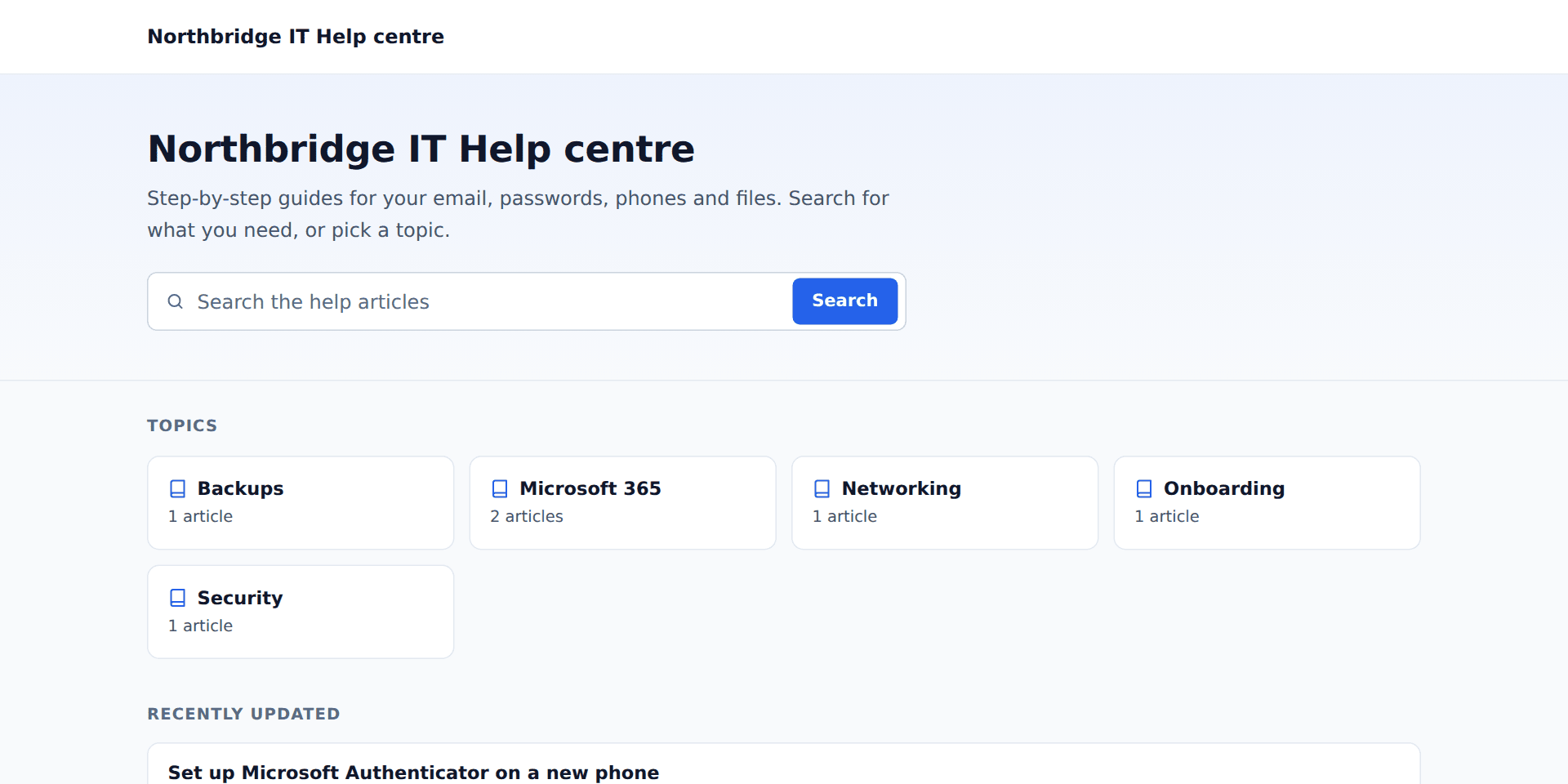
- The home page: your title and introduction, a search box, the topics (each public folder that has an article) with their article counts, and the most recently updated articles.
- A topic: its articles and the topics inside it.
- An article: a breadcrumb, when it was updated, other languages it is written in, and more from the same topic.
- Search across the public articles.
Pages follow the visitor's light or dark setting, use your brand's logo and colours, and load fast on a phone. A white-labelled brand never shows the Tenvara name. Visitors read an article in their own language where it has a version in that language.
Search engines
With Let search engines index it on, each page has a proper title, description and canonical address, a sitemap lists every topic and article, and an article keeps its address when its title changes (the old address redirects). Off, the site asks search engines to stay away and every page is marked not to be indexed.
Related: Knowledge base articles, Documentation on tickets and in the portal.
Was this page helpful?
Thanks for the feedback.