Bulk, scheduled and time-limited changes
Change many users at once, import new users from a CSV file, run a change at a set time, give access that takes itself away, and keep every change on its ticket.
The change dialog does more than "now, for one person". You can change many users in one go, bring in a spreadsheet of new starters, schedule a change for later, give access with a time limit so Tenvara removes it by itself, and tie the change to a ticket so the ticket says what was done. Every one of these is an ordinary change underneath, with its preview, approval, log and undo (see Making changes safely).
Changing many users at once
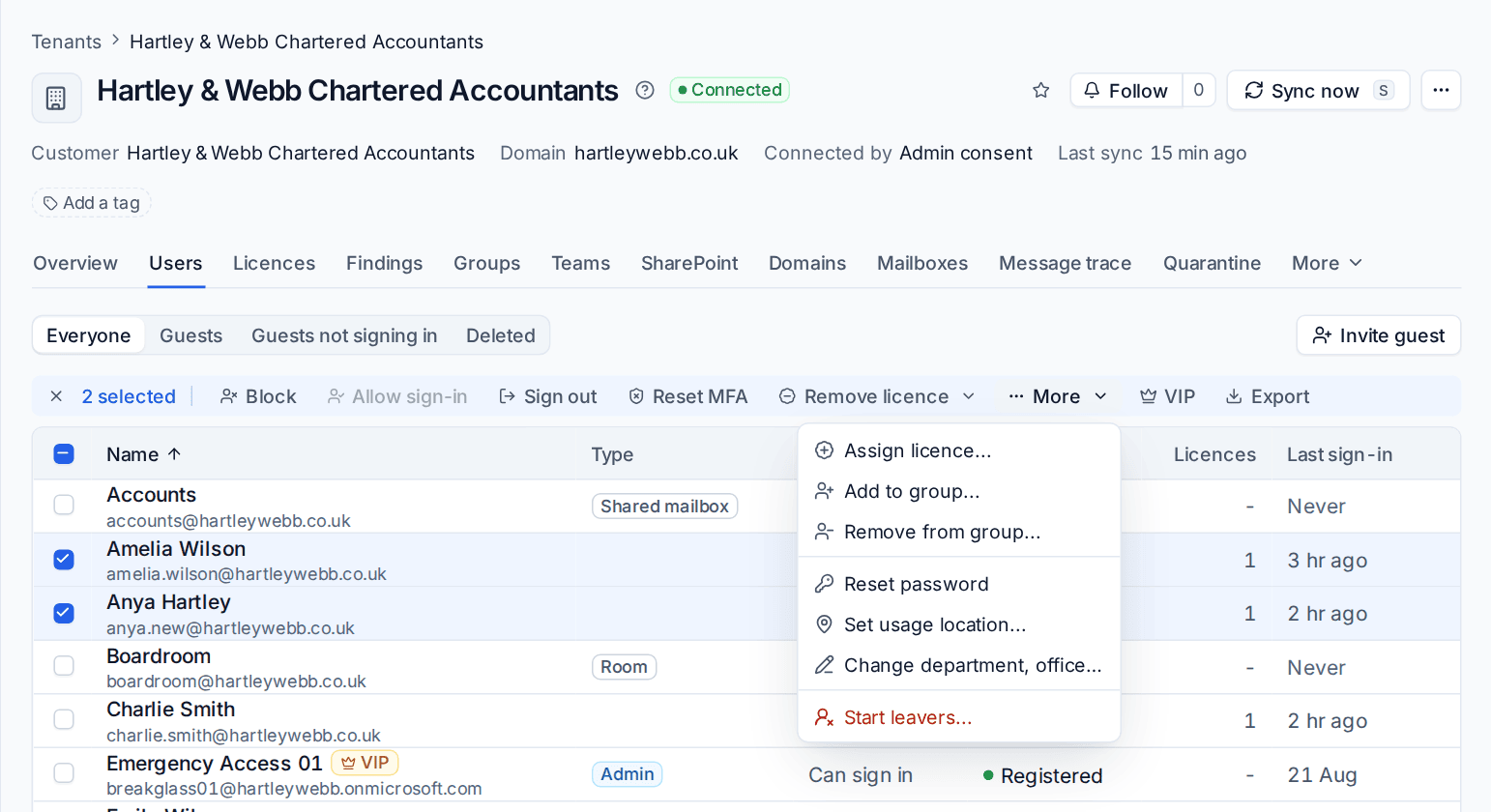
- Open Microsoft 365 > Users, or a tenant's Users tab.
- Tick the people you want, or filter first and use the header tick box.
- Use the bar that appears: Block, Allow sign-in, Sign out, Reset MFA and Remove licence, with more under More:
- Assign licence..., Add to group... and Remove from group...
- Reset password: the new passwords are gathered into one download for you, available once.
- Set usage location... and Change department, office or company...
- Start leavers...: a leaver run for each person.
- Check the preview and confirm. For destructive changes you type the number of people.
A bulk change to more than 25 people, or to people in more than one tenant, is high risk and needs an administrator's approval if you are not one. The limit is in Settings > Microsoft 365 > Timings under Changes and approvals. One approval covers every person in the change.
Tip: Microsoft 365 > Forwarding and Inbox rules list forwarding and rules across every tenant, with Stop on each forwarding row, so an estate-wide check takes minutes.
Importing new users from a CSV file
Microsoft 365 > Users > Import users makes a starter for each row of a spreadsheet.
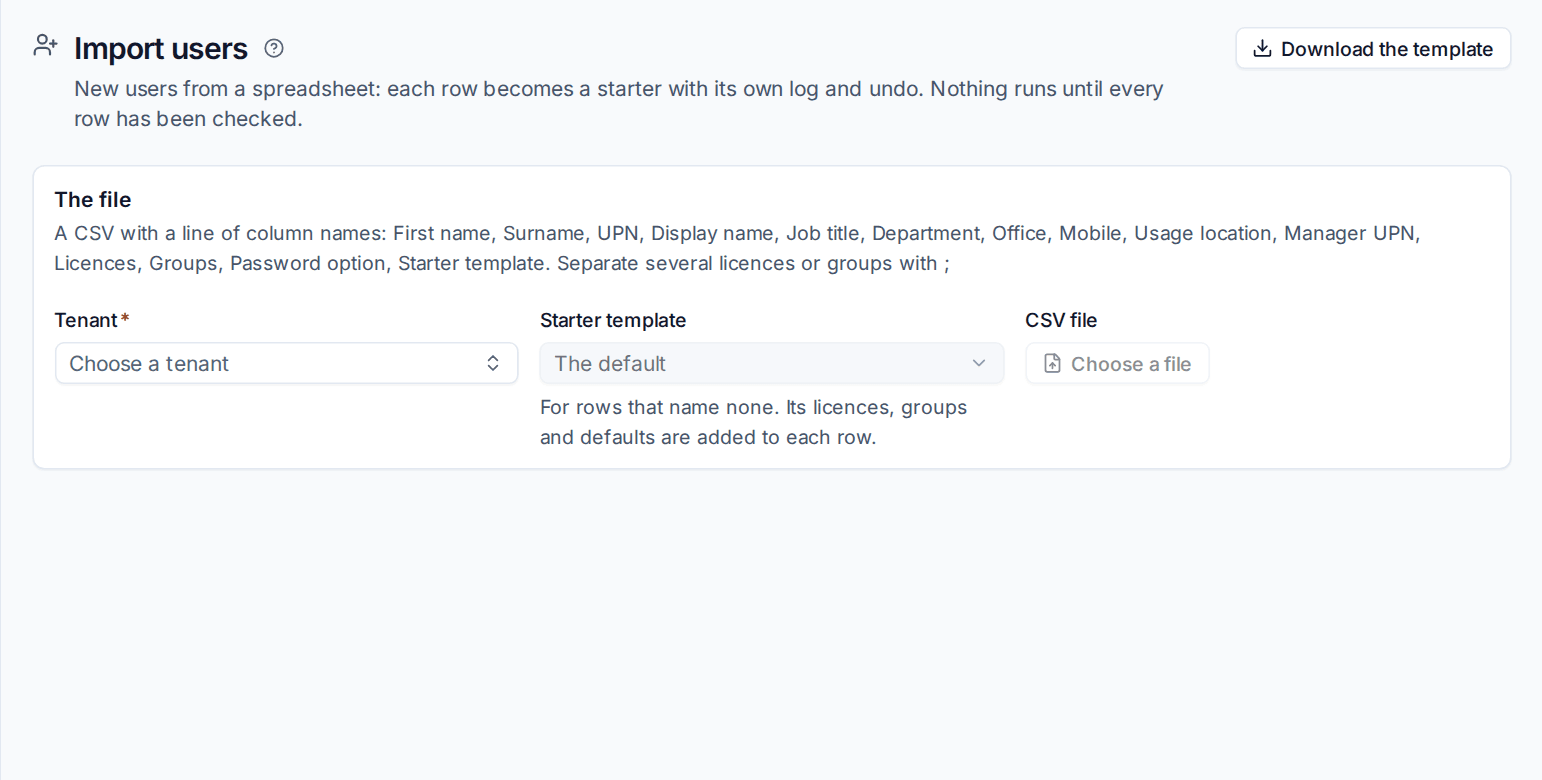
- Press Download the template. Its columns are First name, Surname, UPN, Display name, Job title, Department, Office, Mobile, Usage location, Manager UPN, Licences, Groups, Password option and Starter template. Separate several licences or groups with a semicolon.
- Fill it in and save it as CSV.
- Choose the Tenant, and a Starter template for rows that name none. Its licences, groups and defaults are added to each row.
- Choose the CSV file.
- Tenvara checks every row before anything runs: a verified domain, a free sign-in name, licences by their usual names, the groups, the manager, the template and enough free seats. Rows with problems say what is wrong.
- Start the import. Each good row becomes its own starter run, with its own steps, log and undo, and the import page follows them.
The passwords are gathered into one download for whoever started the import, for 24 hours at most, like a single starter's.
Running a change later
Every change dialog has When, time limit and ticket.
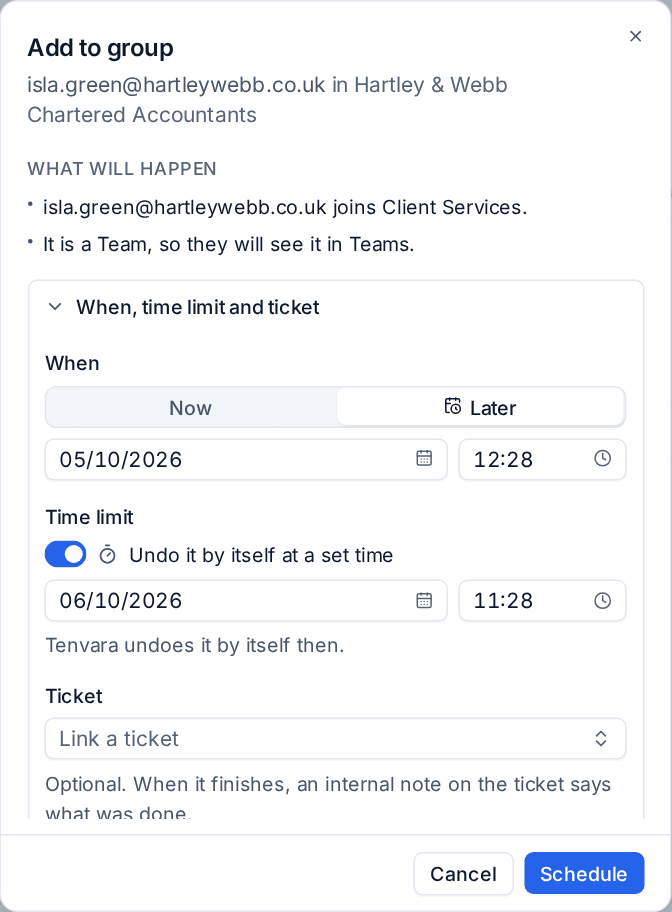
- Start the change as usual and open When, time limit and ticket.
- Under When, choose Later and pick the date and time. Times are on the customer's clock.
- Press Schedule.
Tenvara checks the change now as if it were running (your permission, the target, and for a destructive change the typed name), then keeps it until its time. When the time comes it runs as you, and your permission and any need for approval are checked again. If you have left, or the change now needs approval, it fails and says why.
Only an administrator can schedule a high-risk change. Anyone else runs it now, which asks for approval.
Tip: Schedule a leaver's block for 17:30 on their last day, or a mailbox permission for the morning someone starts covering.
Access with a time limit
For a change that can be undone (Full Access or Send As to a mailbox, calendar access, group membership, an administrator role, unblocking an account, forwarding and the like), switch on Undo it by itself at a set time under Time limit and pick when. Once the change has been made, its undo waits for that time and then runs by itself.
The user panel says what is waiting for that person, for example "Ends Fri 17:00: Finance (Remove Full Access)". If someone undoes the change by hand first, the scheduled end has nothing to do and is cancelled.
Scheduled changes
Microsoft 365 > Changes > Scheduled lists everything waiting: scheduled changes and the ends of time-limited access, with when each runs. A tenant's Actions tab shows the same at the top for that tenant.
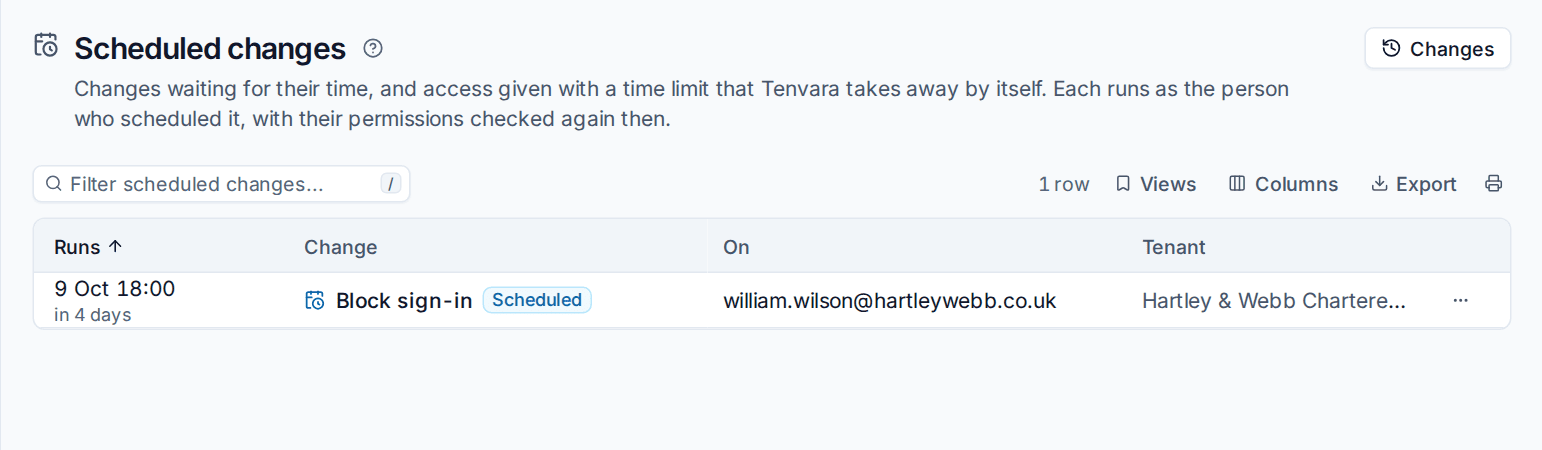
Open one and use Change the time or Cancel it. Whoever scheduled it, or an administrator, can do either.
Changes on the ticket
When you are working a ticket, the change belongs on it.
- The requester's Microsoft 365 account is on the ticket's right-hand column when the contact is linked to a Microsoft 365 user: sign-in, MFA, last sign-in, licences and mailbox size, with the same Actions menu as the contact page.
- Link a ticket in When, time limit and ticket ties any change to a ticket of the tenant's customer. Changes started from the ticket fill it in for you.
- When the change finishes (or fails), an internal note on the ticket says what was done, by whom and when, with Microsoft's message and when any time limit ends. Passwords and passes never go in the note.
- The dialog can log your time on the ticket at the same time.
- The change log has a Ticket column, and each change links to its ticket.
Message trace results, a quarantined message and a person's sign-in log also have Copy to ticket, which shows the text first so you can trim it. See Mailboxes, guests and message trace.
Related: Starters and leavers, Approvals.
Was this page helpful?
Thanks for the feedback.