Evidence and compliance tasks
Evidence that cannot be changed and proves itself, daily check snapshots, access reviews, and the recurring compliance tasks and calendar.
An auditor wants to see that each control works, and has worked all year. Tenvara collects that evidence as you go, much of it without anyone lifting a finger.
Evidence
Open a programme's Evidence tab. The top shows how many Items there are, Controls with fresh evidence, Stale evidence and controls with No evidence yet. Switch between Items and By control.
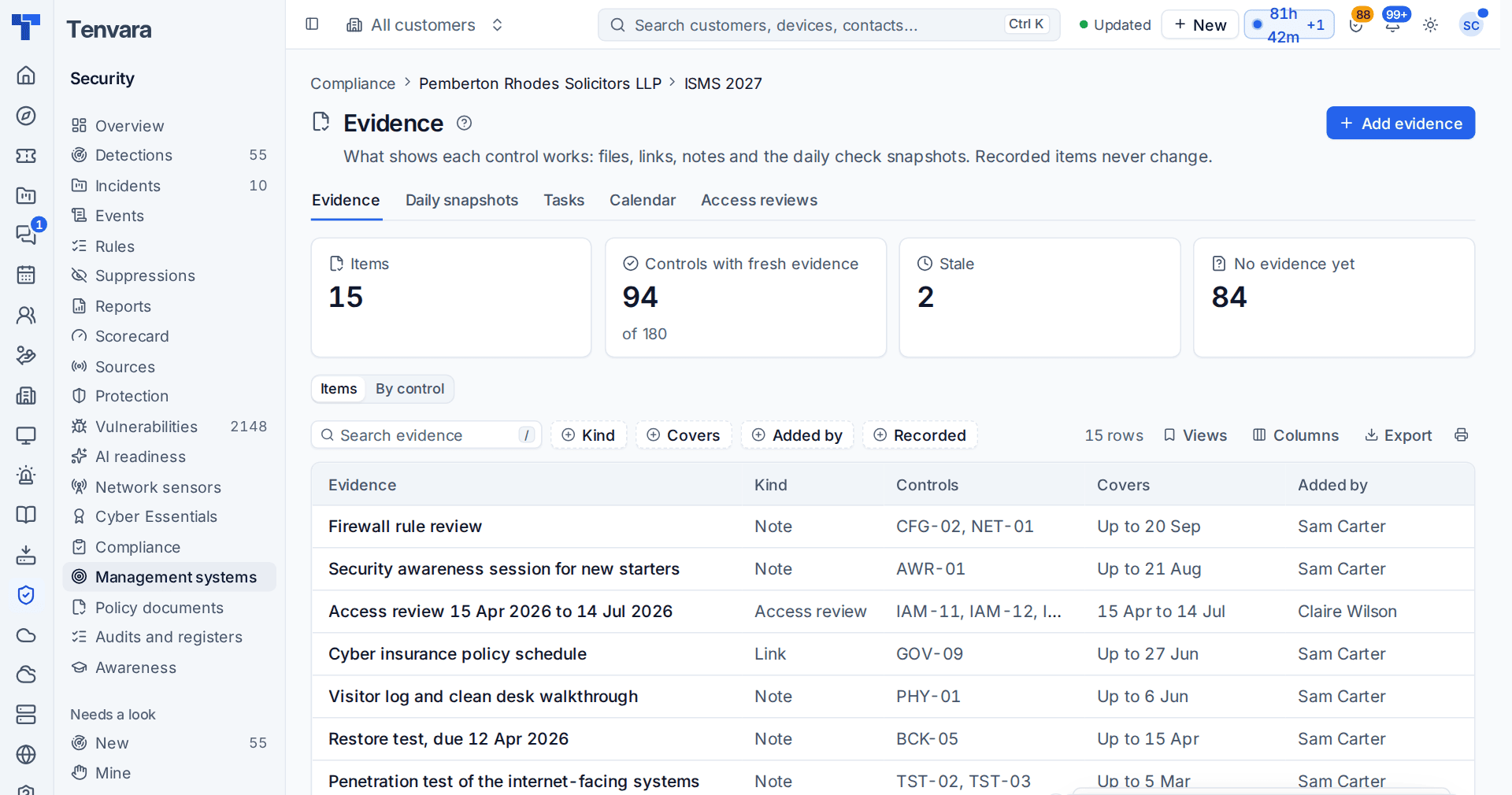
An evidence item is a file, a link, a note, a pinned check snapshot or a completed access review. Each is tied to one or more common controls, covers a period, and records who added it (a member of staff, a customer contact in the portal, or automatic) and when.
To add one, press Add evidence, choose the kind, the controls it is for and the period it covers, and add the file, link or note.
- It never changes. A recorded item cannot be edited. To put a mistake right, add a correction that names the item it corrects and why; both stay, and lists hide the corrected one unless asked.
- It proves itself. Every item has a SHA-256 hash of everything it says. Check the hash on an item works it out again (and the file's) and records that you checked.
- It goes stale. Evidence stays fresh for 365 days after the end of the period it covers by default. A control can have its own rule for every customer or one customer. Stale evidence shows on the calendar on the day it goes stale and pulls readiness down.
Daily snapshots
Every night Tenvara records each check the programme's frameworks use, exactly as it stood: pass, fail, warning or no data, the figures (for example 26 of 33 devices), what failed and the controls it covers. Each day's row is hashed and chained to the day before, so a changed or missing day shows when you press Check the chain. Take today's now records today's straight away.
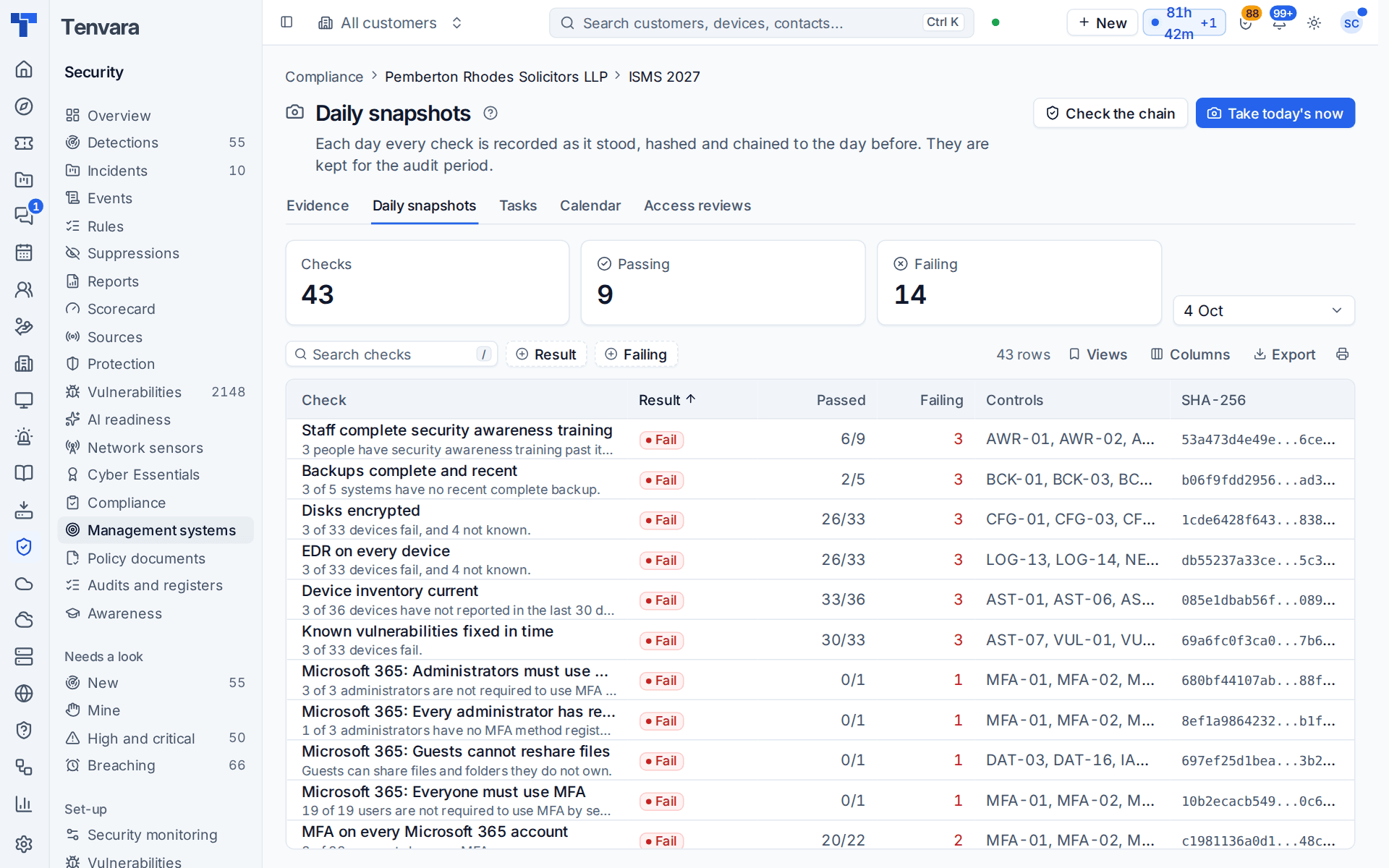
Snapshots are kept for the audit period (three years by default). A recent snapshot counts as fresh evidence for its controls, and any day can be pinned as an evidence item. Checks include Microsoft 365 MFA and Conditional Access, Secure Score, Intune compliance, backups complete and recent, disks encrypted, EDR on every device, updates and vulnerabilities fixed in time, awareness training, leavers offboarded in time, changes approved before they started, supplier assurance in date, and policy, risk and access reviews on time. With nothing to judge (no tenant, no register yet) a check says so rather than passing.
Note: An attestation never outvotes a failing check. A control attested as met still shows failing while one of its checks fails.
Access reviews
The Access reviews tab runs the quarterly review of who has access, on the customer's connected Microsoft 365 tenants as last synced.
- Press Start an access review (or let the access review task start it when it falls due).
- Every enabled member account (with last sign-in, licences, department and job title), every administrator role and every guest becomes a line.
- The reviewer (the contact you choose, else the programme's owner at the customer) is asked through Approvals, by email and in the portal, due in 14 days.
- In the portal they choose Keep, Remove or Change for each line and submit. Staff can record decisions given by phone.
When it is complete, the result is recorded as evidence and the removals and changes become one ticket for your service desk.
Compliance tasks and the calendar
The Tasks tab holds the programme's recurring work: access review (quarterly), restore test, disaster recovery test, policy, risk, supplier and management reviews and internal audit, or any task of your own, once or every 1 to 36 months.
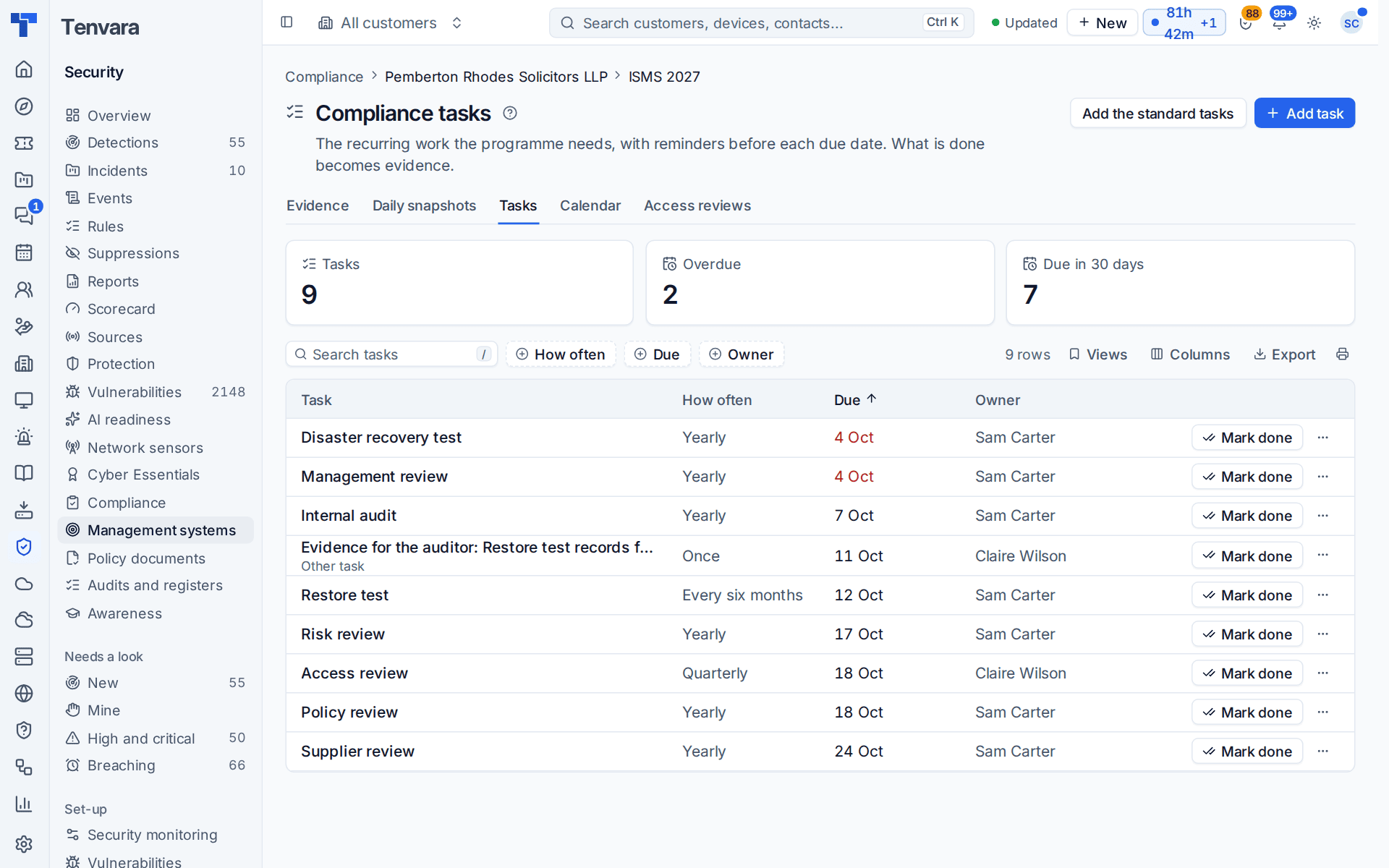
- Add the standard tasks adds the usual set the programme does not have yet.
- Add task sets the name, how often, the first due date, an owner here and at the customer, the controls it is evidence for, and how far ahead to remind (14 days by default).
- Mark done records your notes or a file as evidence for its controls. Skipping one needs a reason. Overdue tasks notify their owner and raise an alert.
The Calendar shows the programme's year month by month: tasks done, due and overdue, certification audits, access reviews, evidence and attestations going stale, document and risk reviews, supplier reviews and certificates expiring.
Customer contacts with the right portal permission can add evidence and complete tasks from the portal: see Auditors and the portal.
Was this page helpful?
Thanks for the feedback.