Building a proposal
Build a branded proposal the customer reads as a web page, from templates, blocks and your content library, with locked wording, merge fields filled from live customer data, AI help with the words and your brand's look.
A proposal is what you send when a price list is not enough: a managed services offer with three support packages, a laptop refresh, a Microsoft 365 migration. It sits beside quotes under Sales > Proposals. Each proposal is built on a quote, so its number (Q-1042), pricing, approvals, acceptance, contract lines, project and invoicing all work exactly as for a quote. What changes is how it reads: a branded web page made of blocks, with interactive pricing and online signing.
Use a plain quote for a quick price, and a proposal when you want to sell.
Start a proposal
- Open Sales > Proposals and press New proposal.
- Choose who it is for: A customer (with the Contact) or A lead.
- Choose a Template. Its blocks, priced sections, look, validity, signers and acceptance steps come with it.
- Enter the Title: what the customer is buying, such as "Managed IT services" or "Laptop refresh".
- Press Start proposal. The builder opens.
The builder
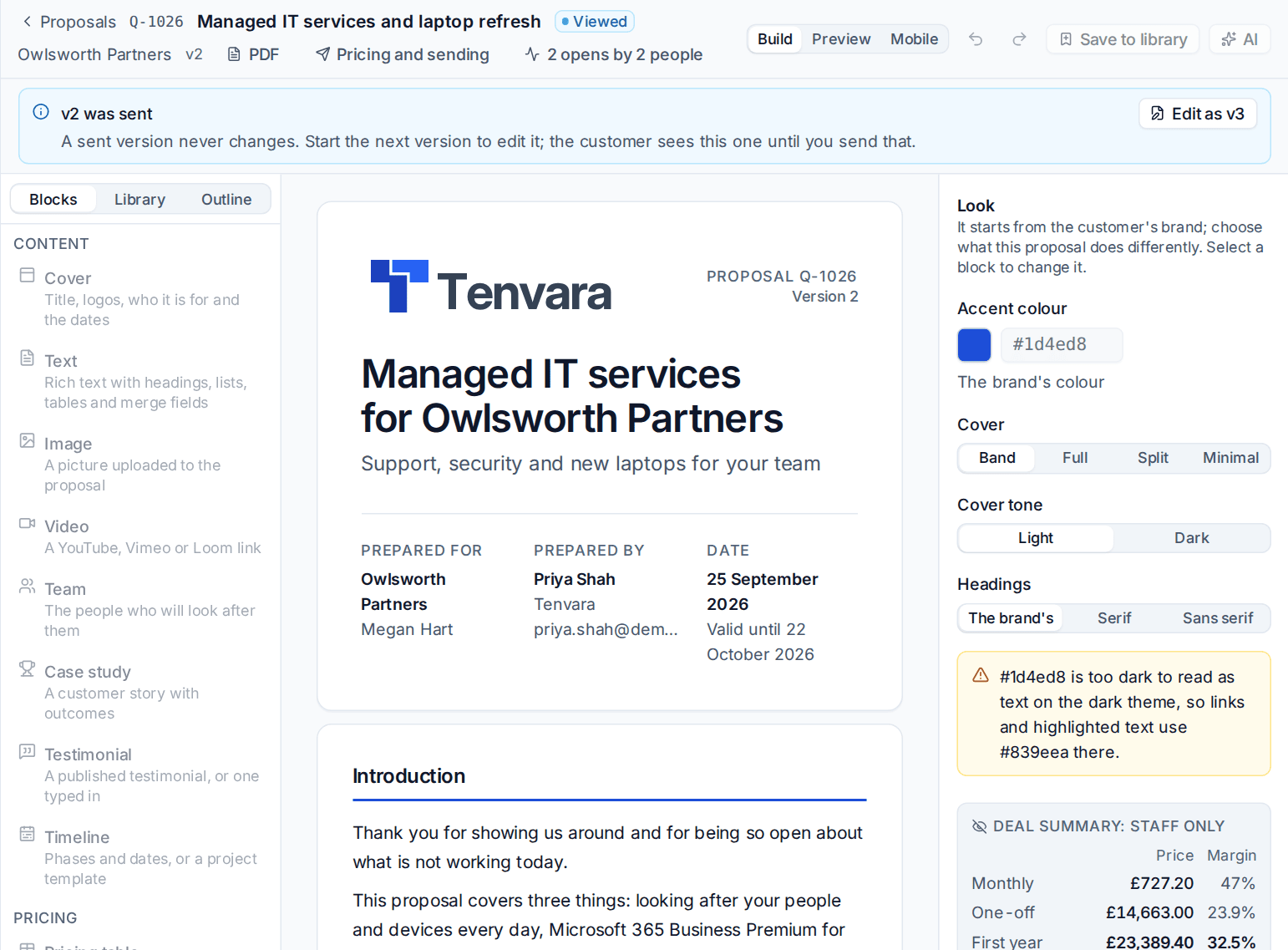
- Left: Blocks to add, the Library of saved sections, and the Outline of every block in order (drag to reorder).
- Middle: the page exactly as the customer will see it, with merge fields filled in and the pricing worked out. Select a text or terms block and type straight onto the page.
- Right: the selected block's settings, or the Look when nothing is selected. For a proposal, the Deal summary: staff only shows the monthly, one-off and first year figures with their margins. The customer's page and PDF never carry cost or margin.
Build, Preview and Mobile at the top switch between editing, the page as the customer sees it, and the page on a phone. Changes save a moment after you make them. If someone else saves the same proposal from another window, you are told it Changed elsewhere and asked to reload rather than overwriting their work. Only one person edits at a time; others can look, or Take over.
A sent version never changes. To change a sent proposal, press Edit as v2 and send the new version; see Sending a quote and versions.
Blocks
There are sixteen block types, in three groups:
| Group | Blocks |
|---|---|
| Content | Cover (title, logos, who it is for and the dates), Text (rich text with headings, lists, tables and merge fields), Image, Video (a YouTube, Vimeo or Loom link; a picture with the link in the PDF), Team (the people who will look after them), Case study, Testimonial (a published one, or typed in), Timeline (phases and dates, or from a project template) |
| Pricing | Pricing table (one quote section, or the whole quote with its totals), Packages (good, better and best from a "customer picks one" section), Optional extras, Quantity choice (a slider or stepper for a line), Summary (monthly, one-off and first year totals) |
| Closing | Terms (your wording, or a linked service agreement), Files (datasheets and documents to download), Accept and sign (who signs, in what order, and what they agree to) |
Prices, lines and sections are the quote's: use Edit the pricing to change them in the quote builder, and the pricing blocks decide how the customer sees them. See Proposal pricing, signing and tracking.
Merge fields and live data
Insert a merge field puts details in the words that fill in for each proposal, such as {customer.name}, {contact.first_name}, {owner.name}, {quote.valid_until} or {opportunity.title}. The picker shows each field's value for this proposal.
For an existing customer, live data fills in from what Tenvara already knows about them: Microsoft 365 users and licensed users, devices, laptops, workstations and servers (and how many are over 3, 4 or 5 years old or out of warranty), backup storage and seats, and Secure Score. "11 of your laptops are over 4 years old" is far more persuasive than a generic paragraph. A Quantity choice can be filled from live data too, so a refresh proposal starts at the right number of laptops. Leads have no live data, so those fields stay as typed.
The content library
Sales > Content library keeps sections you reuse: Why us, Our security stack, Onboarding plan, Service levels, Terms of business.
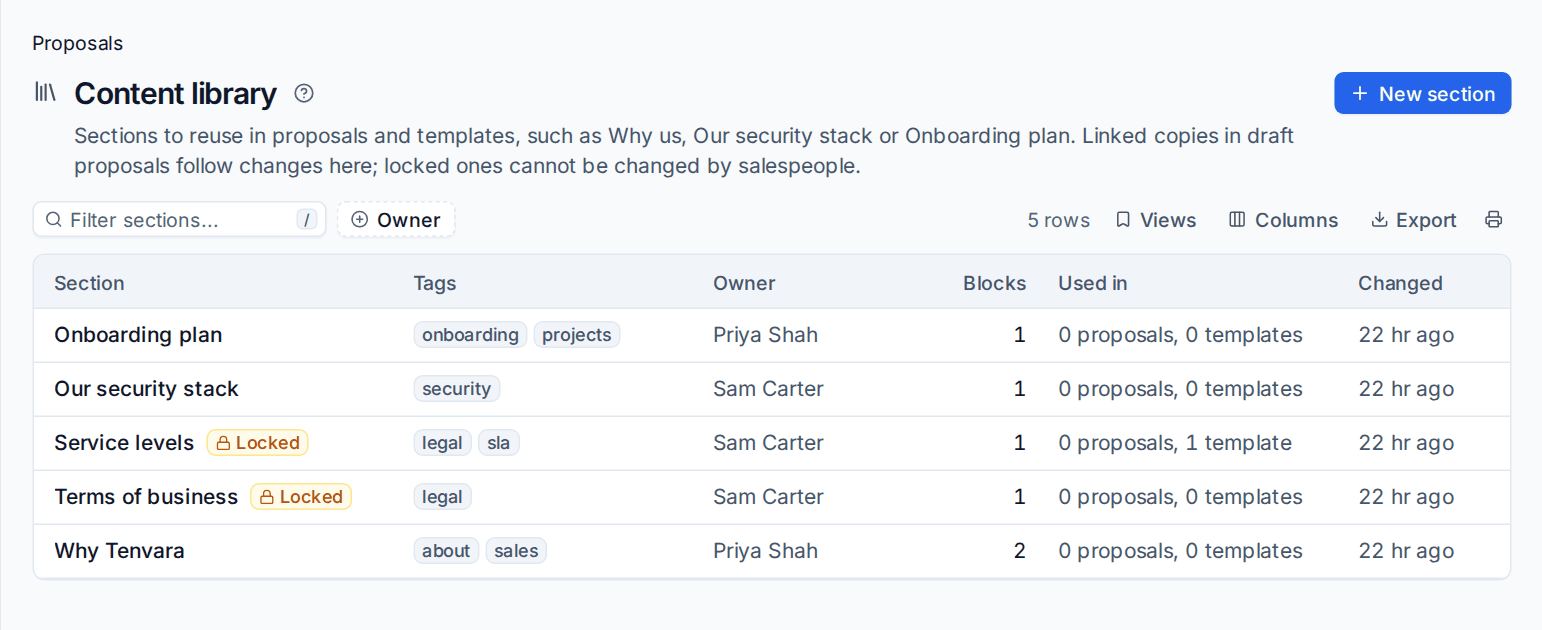
- Save blocks to it from the builder: select them and press Save to library. Or press New section in the library.
- In a proposal, open Library on the left and choose Insert a copy (yours to change) or Insert linked. A linked section follows the library: when the library section changes, every draft proposal and template holding it is brought up to date. Sent proposals never change.
- Each section shows its tags, owner and where it is used.
Locked blocks
Administrators (and anyone given the action to lock content) can lock a section or a block, such as your legal terms or service levels. Salespeople can place, move and hide a locked block, but not change its words. Make an edited copy unlocks a copy for them, and sending the proposal then needs approval, so changed legal wording is always checked. See Quote approval.
Templates and starters
Sales > Proposal templates lists what proposals start from: blocks, priced sections (from a quote template, at today's prices), the look and the template's settings: Valid for (days), reminders, signers and their order, the project template one-off work becomes, and which acceptance steps run.
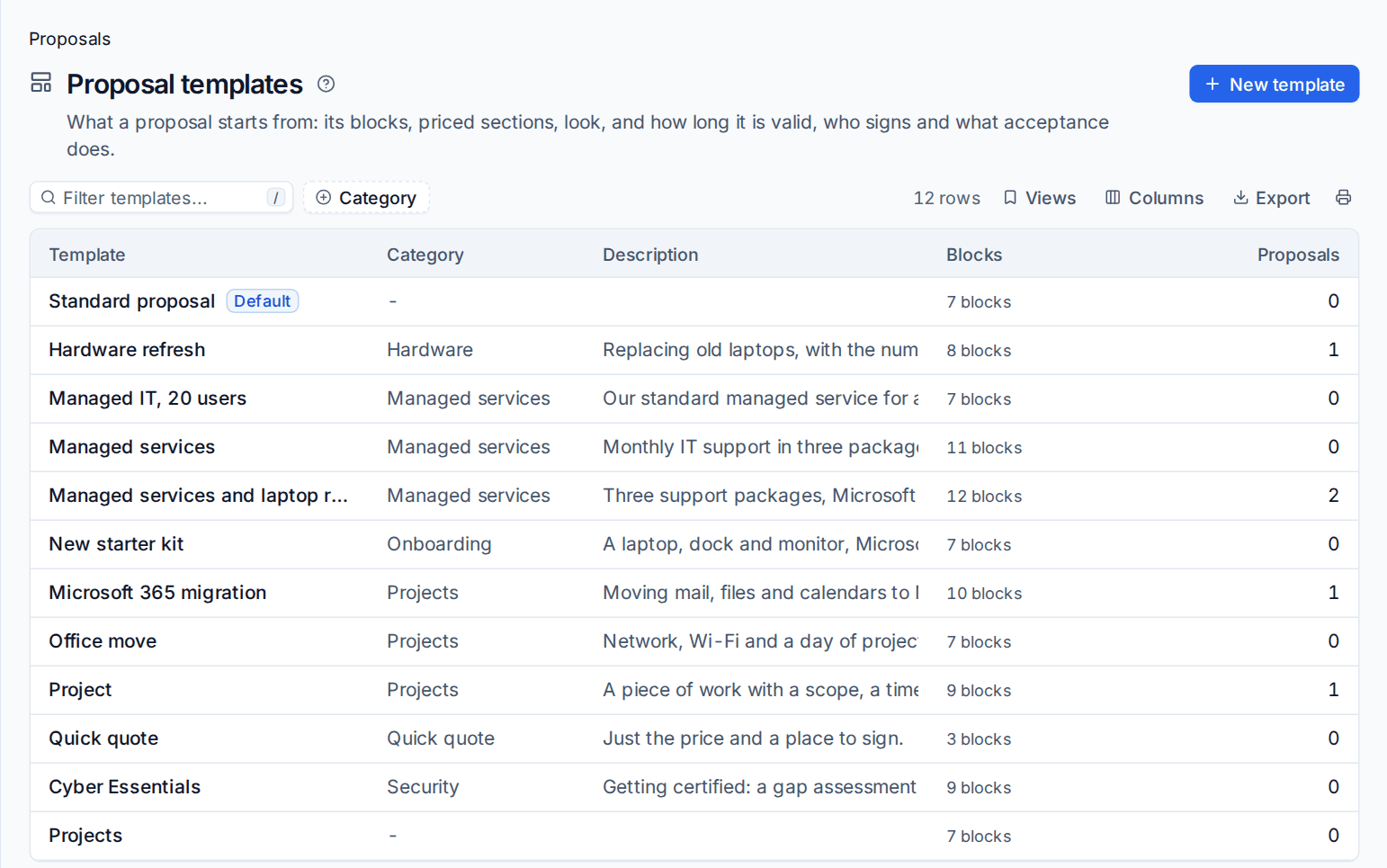
Tenvara comes with starters you can use as they are or change: Managed services (three support packages with Microsoft 365 licences and extras), Project, Hardware refresh (with the laptop count from live data), Microsoft 365 migration, Cyber Essentials and Quick quote. Your existing proposal templates and quote templates are copied in too, so they keep working.
Preview with a customer shows a template with a real customer's merge fields and live data. Nothing is sent.
The look
With no block selected, the Look panel sets the Accent colour, the Cover style (Band, Full, Split or Minimal), the Cover tone and the Headings (The brand's, Serif or Sans serif). It starts from the customer's brand profile in Settings > Branding, and warns when a colour would be hard to read, picking a readable shade for text automatically when the brand allows it.
AI help with the words
With AI set up and Proposal writing switched on in Settings > AI, the AI button can:
- Draft the introduction from the opportunity's description, next step, notes and qualification answers;
- Tighten the selected text;
- Suggest sections from the library that fit.
Each answer is a suggestion to accept or discard. The AI works on words only: it never sees or changes prices, lines, totals, cost or margin. See Setting up AI.
Related: Proposal pricing, signing and tracking, Acceptance and what happens next.
Was this page helpful?
Thanks for the feedback.