Device lifecycle, retire, replace and stale devices
Put a device into maintenance mode, retire it with a disposal certificate, move a user's work to a replacement, merge duplicates, review stale devices and report uptime.
Devices come and go. Laptops are replaced, servers are rebuilt, machines go missing or sit in a drawer for months. Tenvara keeps the device list honest with a set of lifecycle tools, all under Lifecycle in the Devices sidebar and in the device's ... menu: Waiting for approval, Stale review, Retired, Changes and Uptime.
The rules behind them (how long before a device counts as stale, how long maintenance mode lasts, the uptime target) live in Settings > Devices under Device lifecycle. Most can be changed for one customer in the customer's own settings.
Maintenance mode
Maintenance mode tells every part of Tenvara to leave a device alone while you work on it: no alerts or pages from monitoring, patching, backup, security, printing or infrastructure, and automation rules skip it unless a rule says otherwise.
- Open the device and choose Maintenance mode... from the ... menu.
- Pick how long it lasts under For: 1 hour, 4 hours, 1 day or Until... a time you choose.
- Add a Reason, for example Replacing the RAID controller.
- Click Start maintenance.
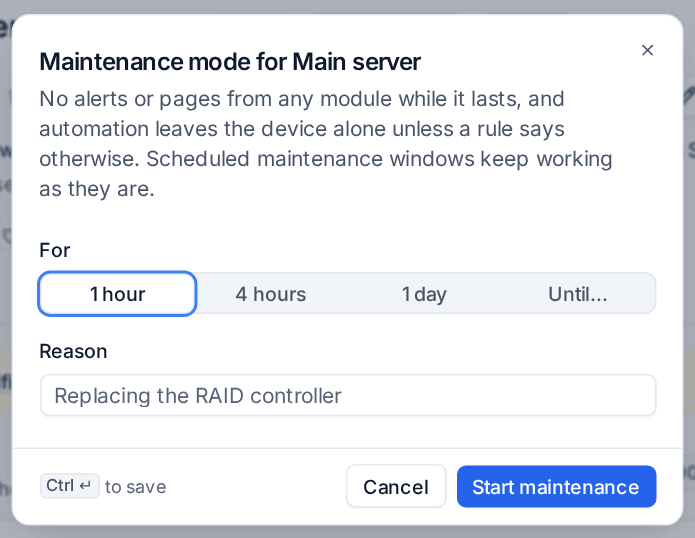
The device page shows a banner with End now, and lists and Cmd+K show a wrench beside the device. Maintenance mode ends by itself at the time you chose. You can also start it for many devices at once from the list's bulk bar, or for every device at a customer or site from their menus.
Patch policies put devices into maintenance mode while updates install and the restart runs, ending it when the device is back online. Maintenance while updates install in Settings > Devices turns this on or off for everyone, and a patch policy can turn it off for its devices.
Note: Maintenance mode is for work happening now. Regular, planned quiet times are maintenance windows, covered in Maintenance windows and mutes.
Automation can start and end maintenance mode with the Maintenance action, and rules can check that a device is not in maintenance before they act.
Retiring a device
Retire a device when it leaves service: sold, lost, stolen, broken or replaced. It leaves the device list, counts, billing and reports, while its history, tickets, alerts, sessions and documentation stay readable.
- Choose Retire device... from the device's ... menu.
- Pick Why: Replaced, Sold, Lost, Stolen, Broken beyond repair, Disposed of or No longer used.
- For a replaced device, choose what replaced it under Replaced by (see below), and add a Note if you like.
- Under What happens, choose whether to Uninstall the agent (removed when the device is next online, within 7 days, then revoked either way), what happens to Its backups (Keep for their retention or Delete), and whether to Raise a ticket to collect and wipe the hardware.
- Click Retire device.
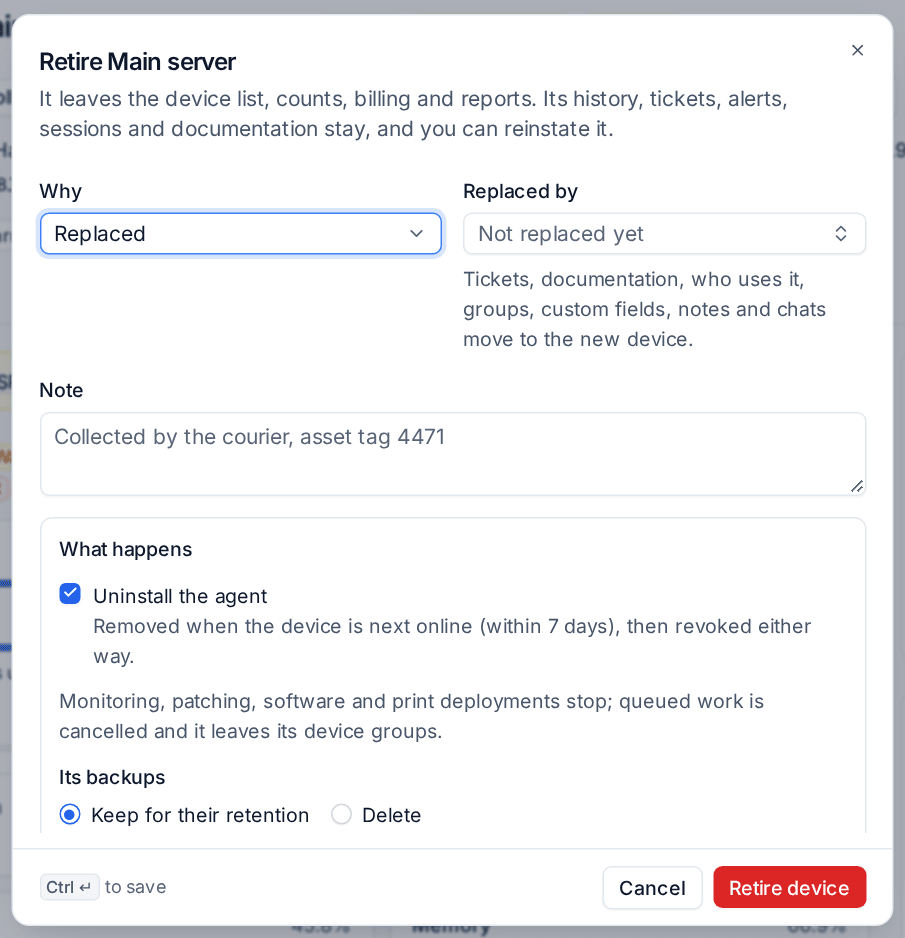
Retiring cancels queued work, ends maintenance mode, resolves its open alerts and takes it out of its device groups. Monitoring, patching, software and print deployments stop.
Devices > Retired lists every retired device with when, why and what replaced it. Open one to add a Disposal certificate (a PDF, image or document up to 20 MB) for your records, now or later. Reinstate brings a device back to the list and its groups; if its agent was uninstalled, install it again.
Tip: A retired machine that comes back online is never matched to its old record. If it enrols again it arrives as a new device, so the retired one keeps its history intact.
Replacing and merging
When a retired device was Replaced by another, what follows the user moves to the new device: tickets, documentation, credentials, who uses it, tags, custom fields, notes, device group memberships and chats. Alerts, remote sessions, script runs and patch history stay on the old one, and the new device shows them under Previous device.
Merge into another device... is for one machine that appears twice, for example a laptop that was reimaged and enrolled as new. Choose the device to keep under Merge into and click Merge. Everything recorded against the duplicate moves to the kept device, the newer agent is kept, and the duplicate is retired as merged. Both devices get a line on their activity.
The stale review
Devices > Stale review lists devices that have not reported for a while (30 days by default), so you can deal with them before they skew counts, billing and reports.
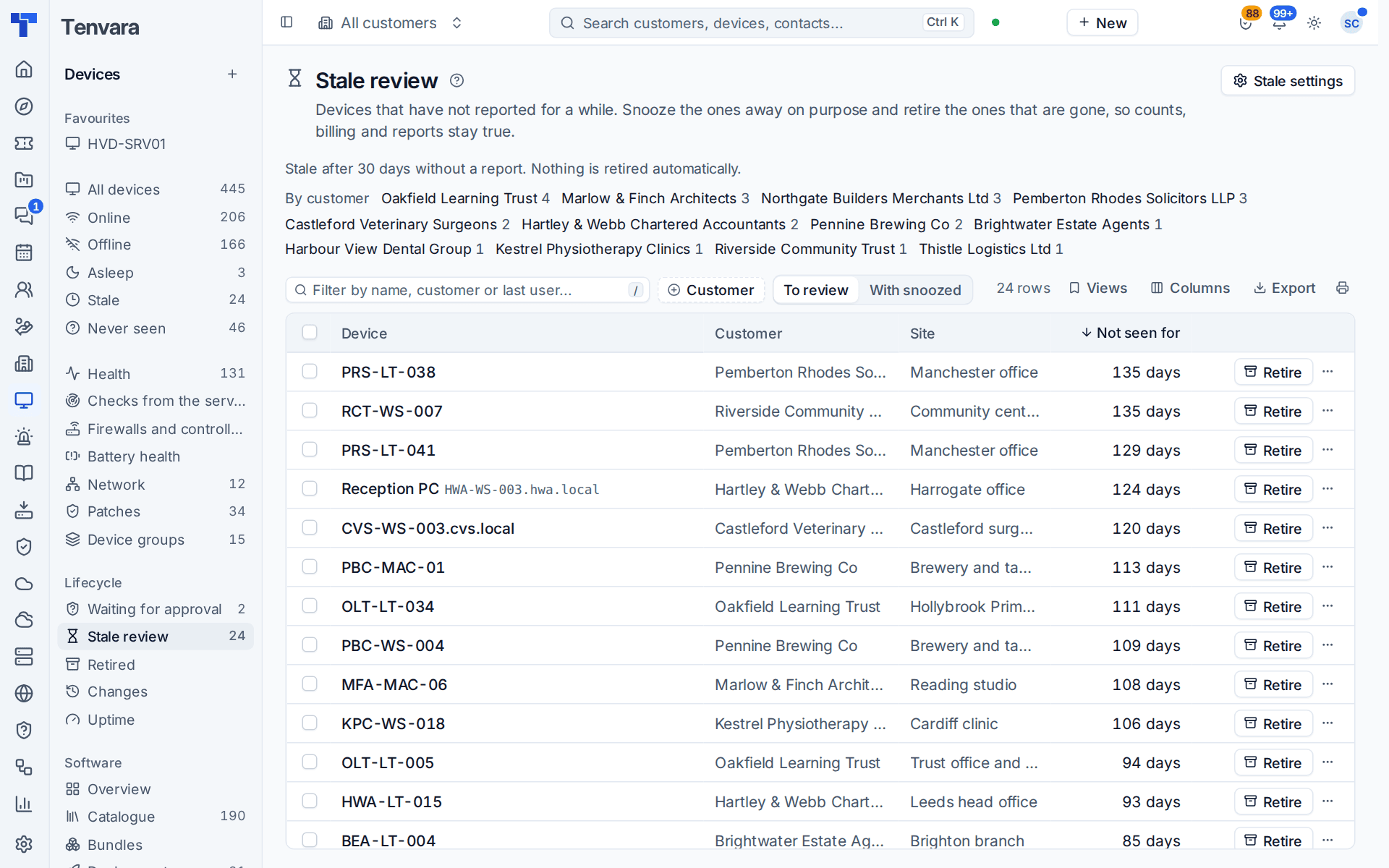
Each row shows the customer, site and how long it has not been seen, with columns for the last user, agent, open tickets and backups. For each device:
- Retire it if it is gone.
- Snooze for 30 days or Snooze for 90 days if it is away on purpose, for example someone on long-term leave.
- Delete... a device that never really existed or was added twice. It goes to the recycle bin with its history.
By customer at the top counts stale devices per customer, and Stale settings shows the current rule. In Settings > Devices you set Stale after (with a different number per device type if you like), turn on the Weekly digest that tells device managers every Monday which devices went stale, and optionally Retire stale devices after a further number of days.
Group rules, columns and bulk actions
Device groups can take their members by richer rules, such as Installed software, Service present, Agent version below, Seen in the last, Backup, Patch compliance, tags, OS version and support state, and custom fields, combined with Every rule or Any rule. See Device groups.
The device list's Columns add Used by, Warning, Maintenance, Agent version, Restart pending, Patch status and more. Select devices for the bulk bar: Power, Maintenance, Add to group..., Install updates now, Move to another customer..., Retire... and the rest.
Changes and uptime
Devices > Changes lists what changed between inventories across the fleet: software installed, removed or updated, operating system upgrades, hardware, network adapters, serial, model or domain, and local administrators. Filter by date, customer and kind. Each device page has the same under Changes.
Devices > Uptime shows, per device and month, how much of the month it was up against its target, its downtime, outages and the longest one. Maintenance mode and maintenance windows are left out, so planned work never counts as downtime. The target is 99.9% by default (Uptime target in Settings > Devices), and a device group or a device can have its own. The customer's monthly report has an Uptime section too. See Monthly customer reports.
Was this page helpful?
Thanks for the feedback.