Assigning and auditing
Assign baselines at every policy level, override single settings, agree exceptions with the customer, and read compliance and what enforcing would change.
A baseline does nothing until it is assigned. Assigning it tells the agent on every device it reaches to read those settings and report them, so you see the gap before anything changes.
Assigning a baseline
- Go to Settings > Hardening and press Assign a baseline (or Assign and override on a customer's Hardening tab).
- Choose the baseline.
- Choose the level: Every customer, a customer, a site, a device group or one device.
- Leave the mode at Audit. Switch on Every run needs an approval if you want every enforcement of this assignment approved, and Keep enforced if drifted settings should be put back once enforced.
- Save. Devices the baseline reaches are sent the settings at once and report back within minutes.
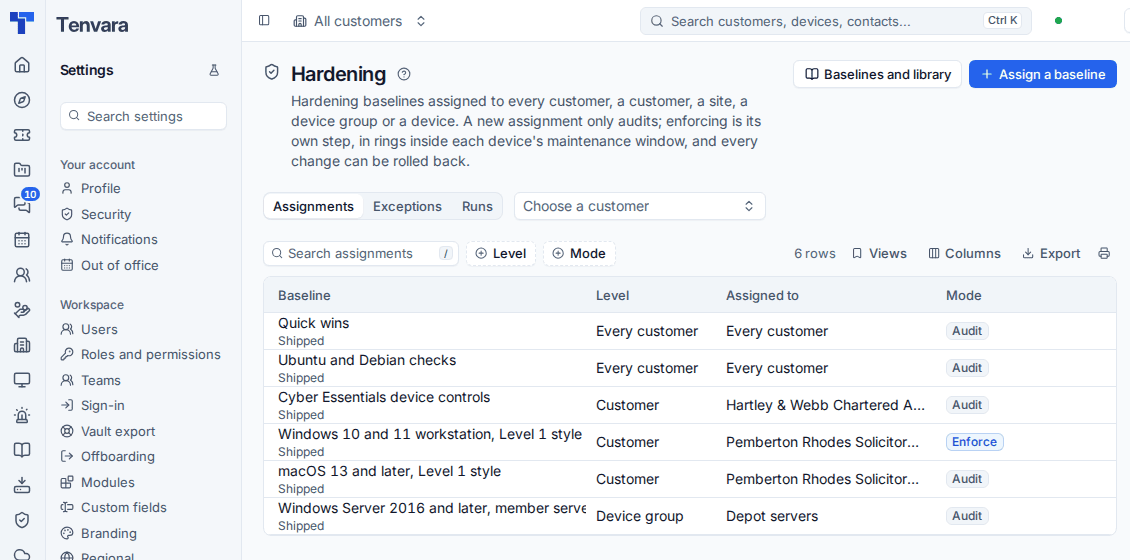
Baselines add up: every baseline assigned anywhere above a device applies to it, and the same baseline at two levels counts once, at the most specific. A baseline for another platform does not reach the device, and a setting meant for another role (workstation, server or domain controller) shows as not applicable.
The Assignments, Exceptions and Runs tabs on Settings > Hardening list everything, with a filter by customer.
Overrides
Open an assignment to see its settings at that level. For any setting you can change, for this baseline or for every baseline that has it:
- the value expected,
- the mode (Audit, Enforce or Keep enforced),
- whether a run needs an approval,
- the ring.
Overrides are kept at the assignment's level. The most specific level wins, field by field, so a device group can enforce one setting its customer only audits.
Exceptions
When a customer genuinely needs a setting left alone (a line-of-business app that needs SMB version 1, a kiosk that must not lock), add an exception instead of switching the baseline off:
- On the device's or customer's Hardening tab, choose the setting (or the whole baseline) and Exception.
- Give the Reason and an Expiry (90 days by default, at most 365).
- Optionally name a customer approver. The exception then waits for their yes through Approvals, by email or in the portal's My approvals.
An excepted setting is never enforced and never counts against compliance. Exceptions are listed on Settings > Hardening with Withdraw, and the customer sees the ones they approved in the portal.
Reading compliance
The agent audits its assigned settings every four hours (set in Settings > Endpoint > Device hardening), two minutes after the computer starts, straight after any change Tenvara makes, and a minute after Windows logs a relevant policy change. Audit now on a device asks at once.
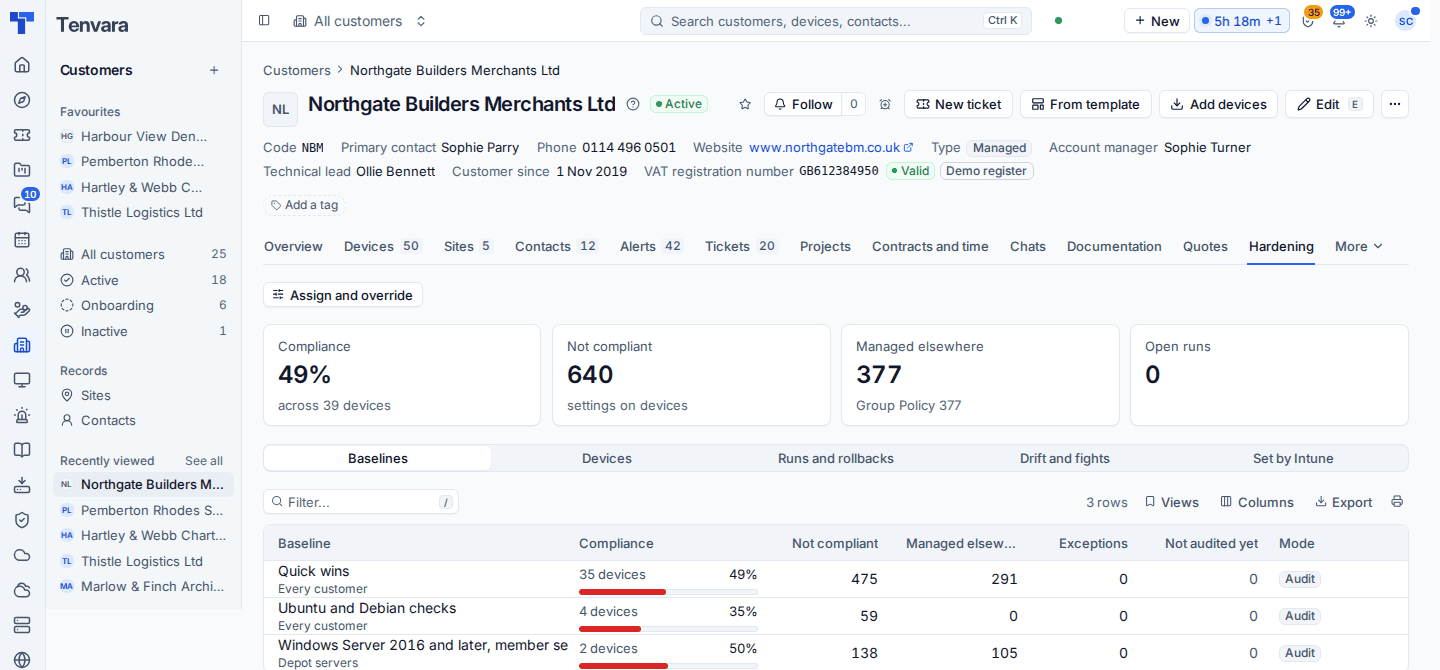
A customer's Hardening tab shows Compliance, Not compliant, Managed elsewhere and Open runs, then tabs for Baselines, Devices, Runs and rollbacks, Drift and fights and Set by Intune.
A device's Hardening tab lists every setting with its Status, the value Now, the value Expected, Set by (this device, or the Group Policy object that sets it) and the Last change with the account that made it.
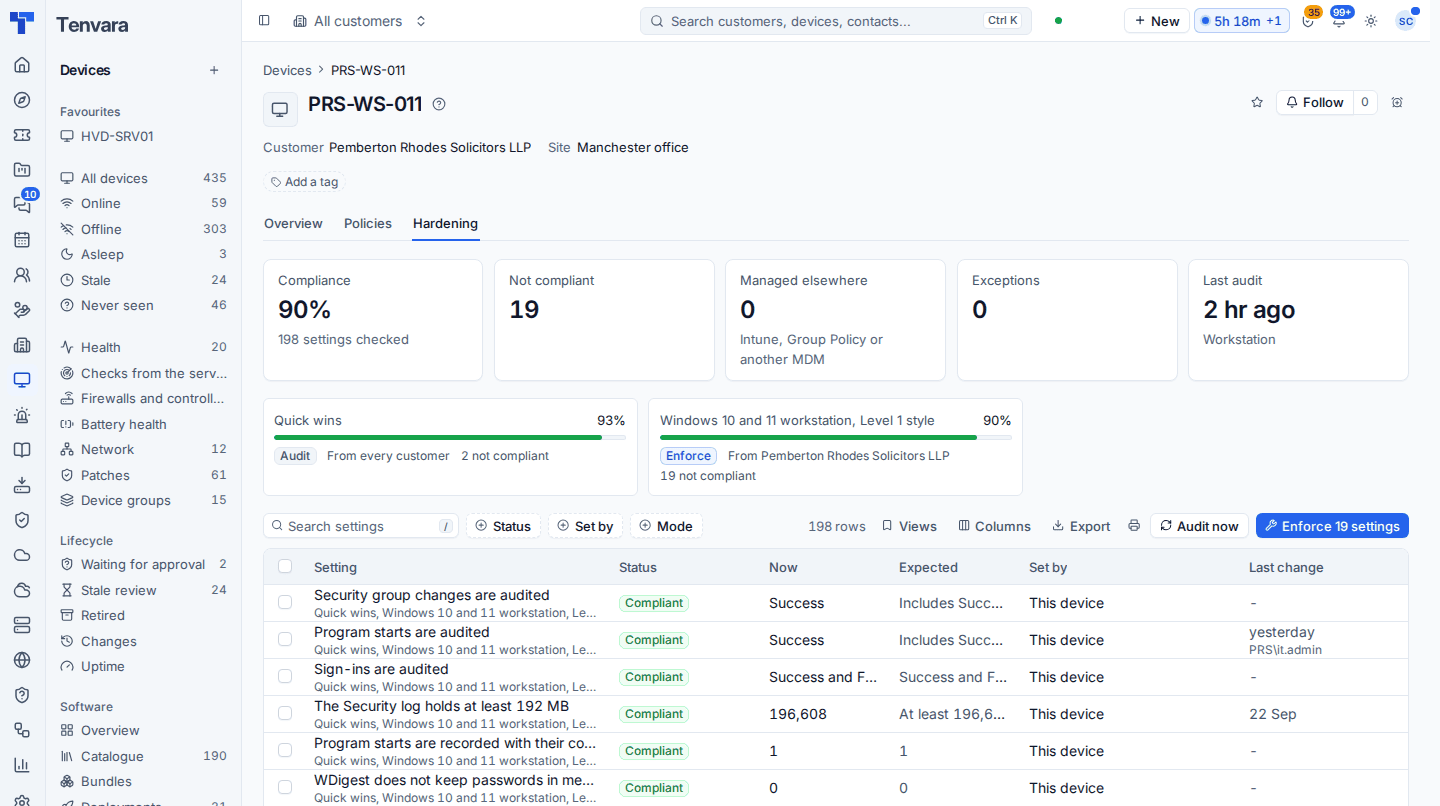
Each setting is one of:
| Status | Means |
|---|---|
| Compliant | The value meets the baseline |
| Not compliant | It does not |
| Managed elsewhere | Group Policy, an MDM or a configuration profile sets it. It still counts as compliant or not by its value, but Tenvara never writes it |
| Exception | Excepted, so it does not count |
| Not applicable | Not for this device's platform or role |
| Not audited yet or Could not be read | No answer yet, or the agent could not read it |
The percentage counts audited settings with an answer, never exceptions or settings that do not apply. When two baselines expect different values for one setting, each gets its own answer.
What enforcing would change
Before you enforce, the device tab, the customer tab and the run preview show every applicable setting Tenvara could write that is not compliant, with the value now and the value it would be set to. Settings managed elsewhere, excepted or read only are left out with the reason. This is the list to agree with the customer.
Was this page helpful?
Thanks for the feedback.