Disk backups and partitions
How Tenvara names the partitions inside a disk or volume image by what they are, which ones open as folders, and how to restore single files or a whole partition from them.
An image backup of a whole disk holds every partition on it: the system, the boot partition, the EFI system partition, swap, logical volumes and more. When you browse it, Tenvara names each partition by what it was on the machine, so you see "/ (root, ext4, 20 GB)" and "EFI system partition (/boot/efi, FAT32, 512 MB)" rather than "Partition 1" and "Partition 15".
Browsing a disk image
- Open the device in the restore browser: Restore on the device's Backup section, or search for it in Backup > Restore and choose Show in browser.
- Pick the disk (for example
sda) if the device has more than one unit. - Open the disk entry, for example Disk sda (GPT, 6 GB). It lists its partitions and volumes.
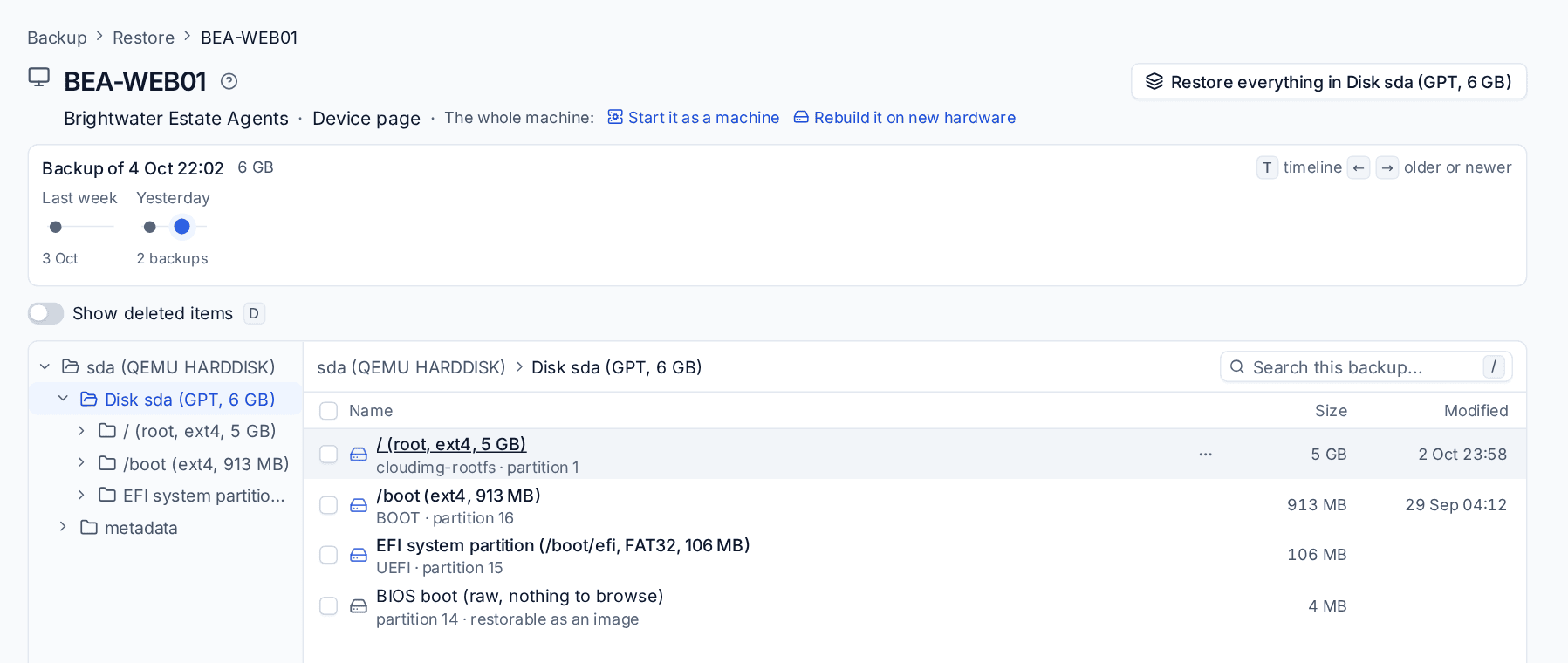
Each partition has a name and a second line with its label, partition number and, for logical volumes, the volume group and volume:
| Shown as | What it is |
|---|---|
| / (root, ext4, 20 GB) | The root file system, with where it was mounted |
| /boot (ext4, 1 GB), /home (XFS, 200 GB) | Other mounted file systems, by mount point |
| EFI system partition (/boot/efi, FAT32, 512 MB) | The EFI system partition, opened as a folder |
| Windows (C:, NTFS, 99 GB) | A Windows volume, by its letter and what is on it |
| Recovery (NTFS, 500 MB) | A Windows or Apple recovery partition |
| LVM physical volume ubuntu-vg (24 GB, raw) | The physical volume itself. Its logical volumes are listed as their own entries |
| Encrypted (LUKS2, 20 GB), not browsable without the key | An encrypted partition, with where it was mounted when unlocked |
| APFS container (500 GB), not browsable | A Mac container, with its volumes' names |
| BIOS boot (raw, nothing to browse), swap, Microsoft reserved | Partitions with no files in them |
Partitions are listed in the order people look for them: the root (or Windows) first, then other file systems by mount point, then recovery, containers, swap and the rest.
Names come from what the backup recorded about the machine's disks at the time of the backup. For older backups, or disks with no record, Tenvara reads the disk itself: the root file system's /etc/fstab, the partition types, and what is on a Windows volume.
What opens as a folder
- ext4, XFS and NTFS partitions and volumes open as folders.
- FAT partitions open as folders too, including the EFI system partition. Files restored from an EFI partition go to a folder named after it, never back to the original place.
- Logical volumes (LVM) made of linear or striped segments on disks in the same backup open as folders. Thin, RAID, cache and snapshot volumes, and groups spanning several disks, are named but not browsable.
- Encrypted (LUKS) partitions and APFS containers are named, with what they hold, but not browsable. Tenvara does not keep their keys.
Folder sizes are worked out as you look at them. Every row shows its modified date where the file system records one.
Restoring from a disk image
- Single files and folders: browse into the partition, pick them, and restore through the restore sheet. Files from a Linux disk image have no single original place, so they go to a download or a folder on a device. See Restoring.
- A whole partition that is not browsable (swap, BIOS boot, a LUKS container, an APFS container, a physical volume) restores or downloads as an image of itself, for example
sda-p14.img. - The whole disk: Restore everything in Disk sda restores it as an image file to a folder on a device or as a download. To bring a whole machine back, use Bare metal recovery or Instant recovery.
Windows volume images
A Windows device backs up each volume as its own image, named by its letter and contents at the top of the backup: Windows (C:, NTFS, 99 GB), D: (NTFS, 2 TB). The EFI system partition a Windows backup keeps beside its volumes opens as a folder as well.
Related
Was this page helpful?
Thanks for the feedback.