Dashboards and your Home layout
Build your own dashboards from saved reports, KPIs with targets and Home blocks, share them with the team or chosen roles, and choose what your Home page shows.
The report builder answers one question at a time. Dashboards put the answers you check every week on one page: billable hours against target, SLA breaches against last month, the customers with most breaches, the ticket queue. Each tile is a saved report, so a dashboard always shows today's numbers and only what the person looking is allowed to see.
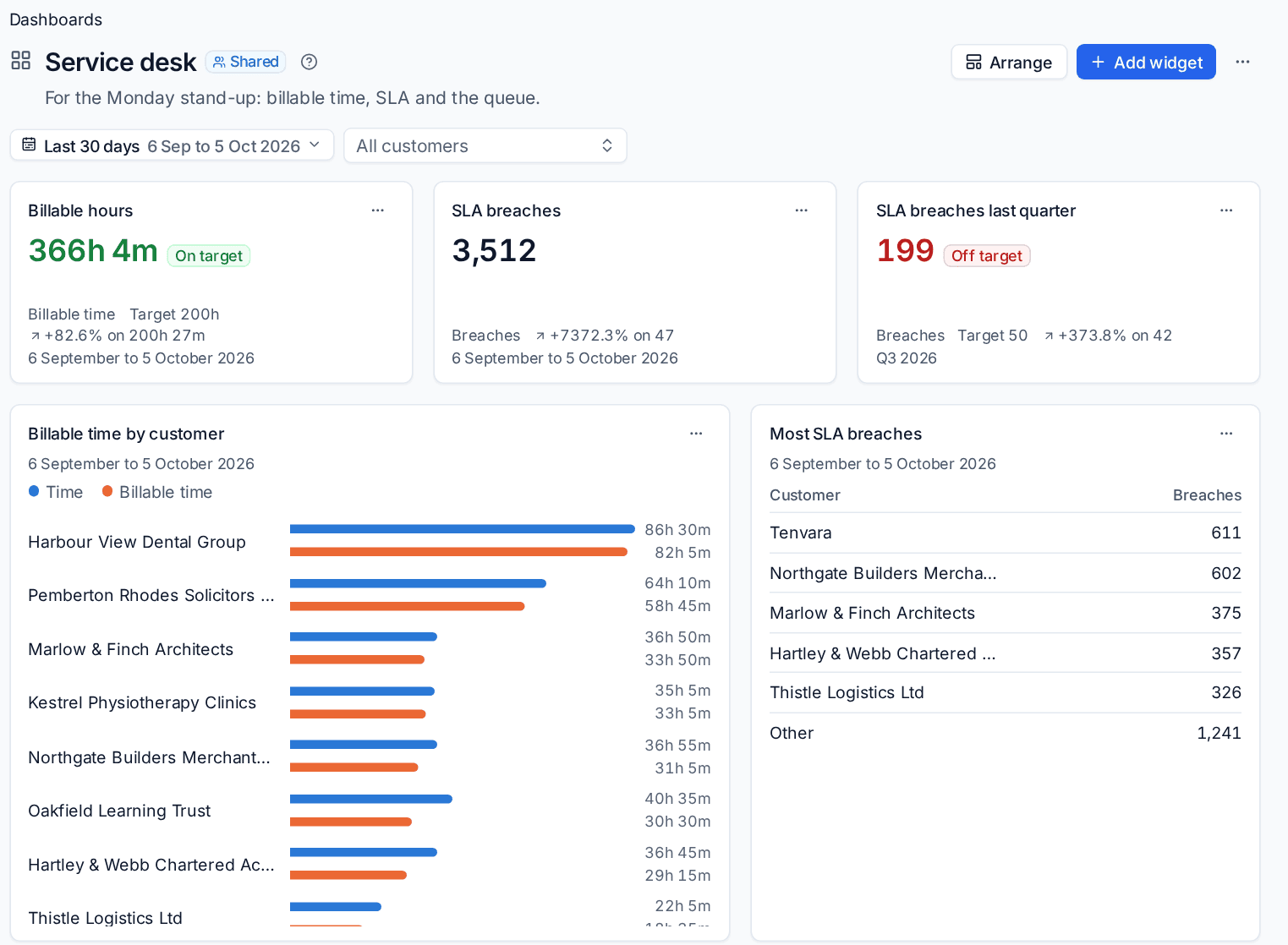
Making a dashboard
- Go to Reports > Dashboards and press New dashboard (or
N). - Give it a name and, if you like, a description, such as "For the Monday stand-up".
- Choose who sees it: Only me, or Shared with everyone who can see Reports or only with chosen roles.
- Choose the period and customer its widgets follow, for example Last 30 days and All customers.
- Press Create and add widgets.
Anyone who can see Reports can make personal dashboards. Sharing a dashboard needs Reports manage. The owner changes a dashboard; an administrator can change any shared one, but never someone's personal one.
Dashboards are listed under Dashboards in the Reports sidebar (shared ones first), and Cmd+K finds them by name.
Adding widgets
Press Add widget and choose what it shows.
| Widget | What it shows |
|---|---|
| Number | A saved report's total for one measure, optionally with the change on the period before |
| KPI | A measure against a target: green when met, amber when within a band of it (10% by default), red otherwise, always compared with the period before. Choose which way is good, for figures where less is better such as SLA breaches |
| Chart | A saved report's grouping as bars or a line |
| Table | A saved report's top groups, with the rest as Other |
| Home block | One of the blocks from Home, such as Tickets or Customer health |
For each widget, pick the saved report and the measure, an optional title, and whether it should Follow the dashboard's period and customer or keep its own. For a KPI, set the target, which way is good and Amber within (%). A widget that keeps its own period is handy for comparisons, such as last quarter's breaches beside this month's.
You can also send a report to a dashboard from the builder: open a saved report, and in its ... menu choose Pin to a dashboard. Pick one of your dashboards, or a new one, and whether it shows as a number, a KPI, a chart or a table.
Note: A shared dashboard can only show shared saved reports, so everyone who sees it can see them. If you add a personal report, Tenvara asks you to share it first.
Arranging
Press Arrange, then drag tiles by their grip and resize them from the corner. Tiles move down rather than overlap. With the keyboard, the arrow keys on a tile's grip move it, and Shift with the arrows resizes it. The layout is saved when you let go.
To change or remove a widget, use the ... menu on its tile.
On a phone the dashboard becomes one column, in reading order.
Looking at another period or customer
The period and customer pickers at the top change every widget that follows the dashboard, just for you and just for now. Nothing is saved; Back to the dashboard's own puts them back.
Every widget runs as the person looking at it, with their permissions and customers. If someone may not run a widget's report, that tile says so and the rest of the dashboard still works.
Your Home layout
Home is your own dashboard. Choose which blocks it shows and in what order.
- On Home, press Customise.
- Use the switch beside a block to show or hide it.
- Drag a block by its grip to move it within its column or between the main and side columns. Key figures always stay across the top.
- Press Save.
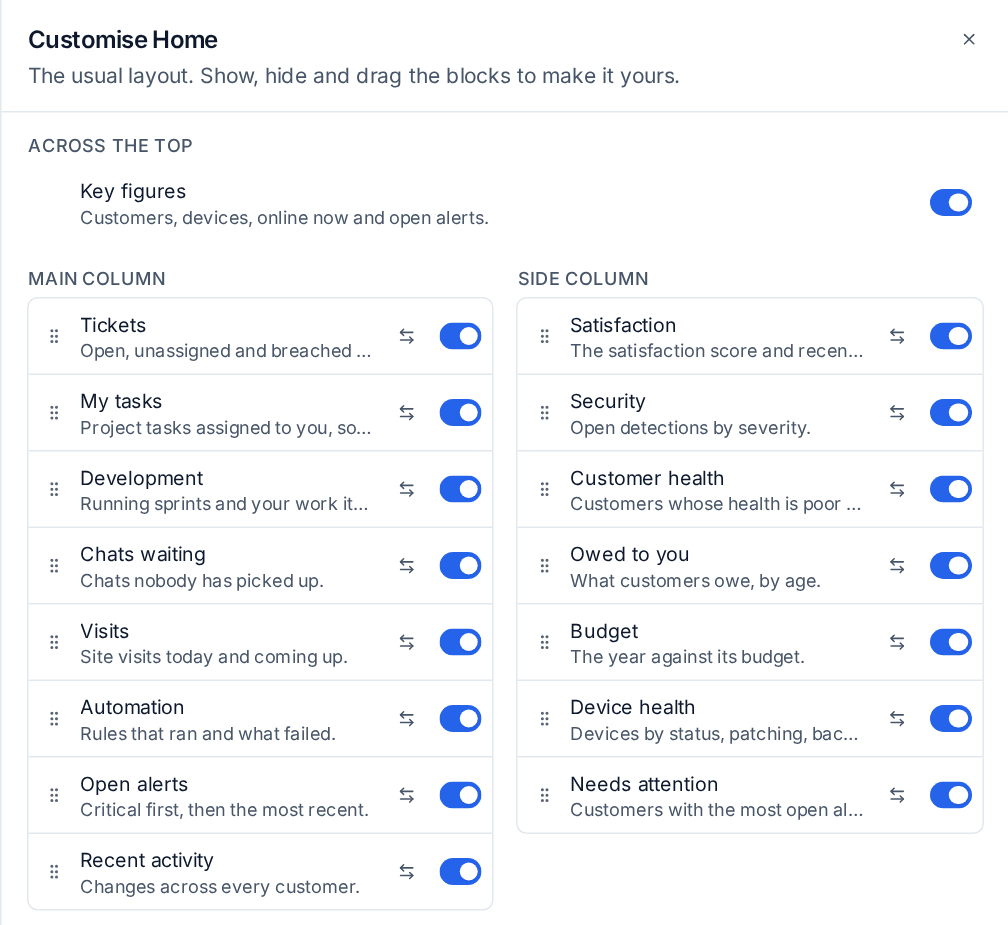
Blocks include Tickets, My tasks, Development, Chats waiting, Visits, Automation, Open alerts and Recent activity in the main column, and Satisfaction, Security, Customer health, Owed to you, Budget, Device health and Needs attention in the side column. A block still hides itself when its module is off or you may not see what it shows.
Back to the usual layout drops your own layout and goes back to your role's default.
A default for each role
Administrators set the layout each role starts with in Settings > Home page, with the same editor. People with that role see it until they change their own. Blocks added in a later update appear at the end of their usual column.
Related
- The report builder for building the saved reports behind widgets.
- TV dashboards for wall screens that rotate on their own and need nobody signed in.
Was this page helpful?
Thanks for the feedback.