Check-out, one-time links and secret types
Make sensitive credentials need an approved check-out, send a secret through a link that opens once, ask a customer to send you a password safely, store SSH keys, certificates, API keys, secure notes and secret files, and keep your own company's logins in the vault.
The vault holds more than logins, and not every login should be one click away. This guide covers credential check-out through approvals, one-time links in both directions, the six kinds of credential, rotation and expiry reminders, and your own company's credentials.
The kinds of credential
When you add a credential you choose what it is. The kind cannot be changed later.
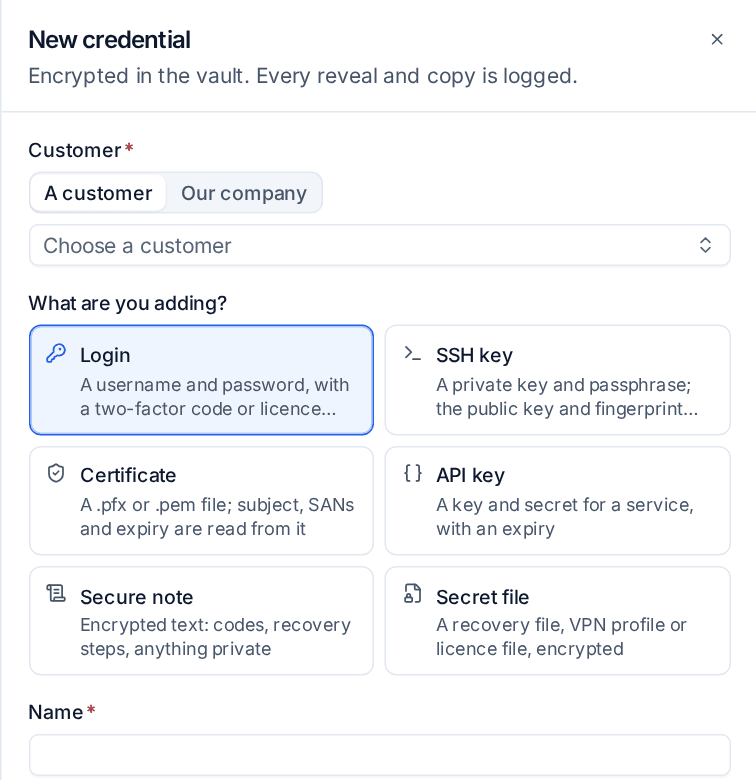
| Kind | Kept secret | Shown in clear |
|---|---|---|
| Login | Password, two-factor code, licence key | Username |
| SSH key | Private key and passphrase | Key type and size, public key, fingerprint |
| Certificate | The .pfx, .p12 or .pem file and its password |
Subject, names (SANs), issuer, validity, fingerprint and expiry, read from the file |
| API key | Key and secret | Its expiry |
| Secure note | Encrypted text: codes, recovery steps, anything private | Nothing |
| Secret file | Any file up to 5 MB: a BitLocker recovery file, a VPN profile, a licence file | Name, size and fingerprint |
Every kind is encrypted like a password, and every reveal, copy and download is in the vault audit log. An SSH key's public half and fingerprint are worked out from the private key, and a certificate is read when you add it, so a wrong .pfx password is refused with the reason. A secure note hides itself again a minute after you reveal it.
The Credentials list has a Kind column and filter, an Expires column, and views for SSH keys and certificates (soonest expiry first). The browser extension fills logins only.
Check-out with approval
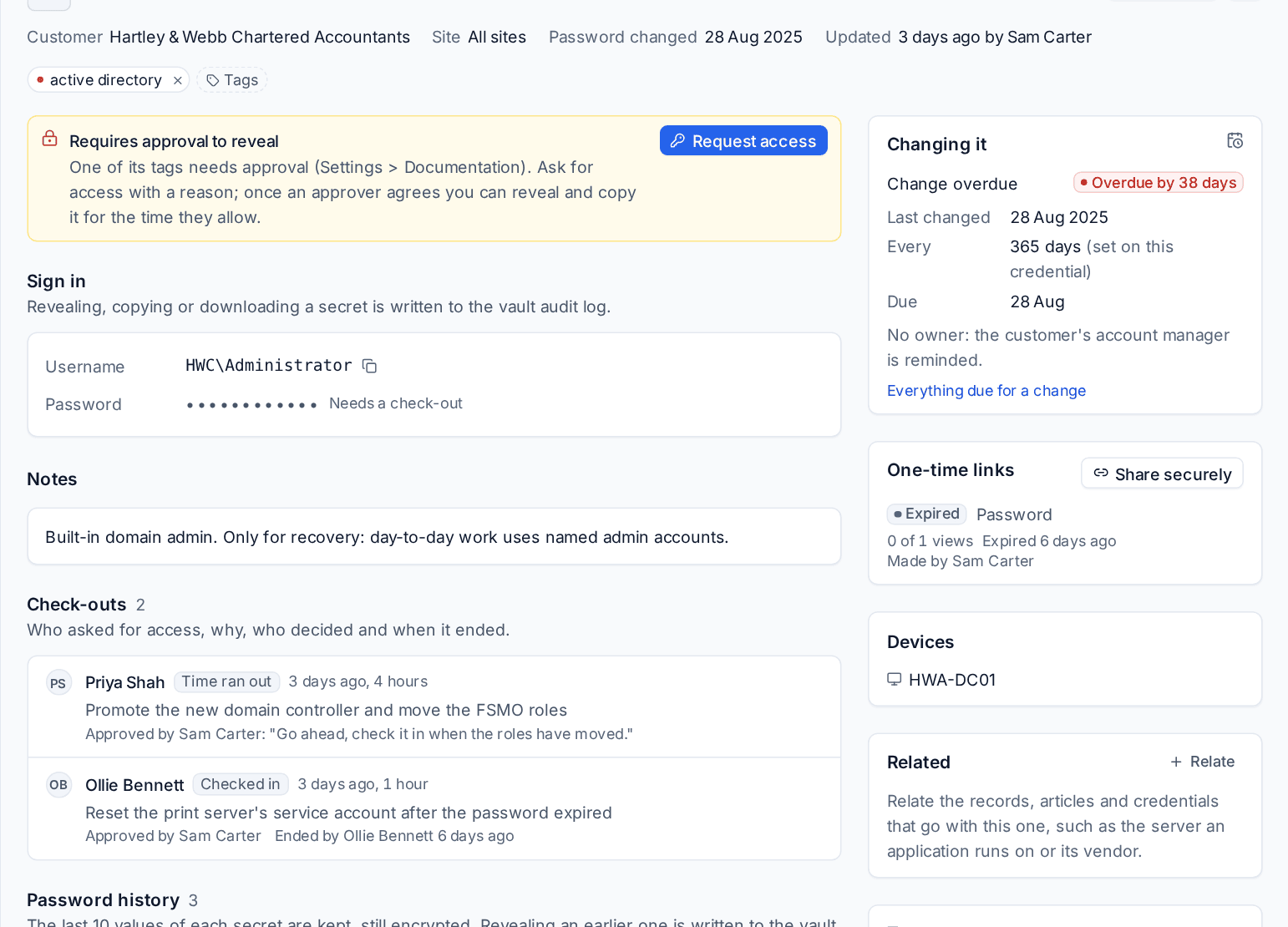
A credential can need someone's approval before anyone reveals it, copies it, fills it with the browser extension or types it into a remote session.
- Tick Requires approval to reveal on the credential, or give it a tag listed in Settings > Documentation > Credential check-out (
break-glassto start with). Only an administrator can take the tick off again. - The credential shows Needs approval in lists and on its page, and its secrets say Needs a check-out.
Asking for access
- Open the credential and press Request access.
- Say Why do you need it?, choose For how long (1 or 4 hours to start with), and optionally Link a ticket.
- Press Request access. An approver is told at once in the app and by email.
The request goes through Approvals: to the credential's own approvers, else the chain set for credential check-out in Settings > Approvals, else any administrator. Nobody approves their own request. Approvers decide on the credential's Check-outs section, on Docs > Check-outs, in the Approvals inbox or from the email.
Once approved, the credential says "Checked out by Priya until 15:30" and the person can reveal and copy it until then, or Check in early. A request nobody answers lapses (after 24 hours to start with). When a check-out ends, whoever approved it gets a reminder to change the password; credentials kept by password rotation are rotated instead.
Docs > Check-outs lists what is waiting, who has what checked out, and the last 30 days. Every request, decision, check-in and lapse is in the vault audit log.
Sending a secret by one-time link
Rather than pasting a password into a ticket reply or a chat, send it behind a link that opens a set number of times.
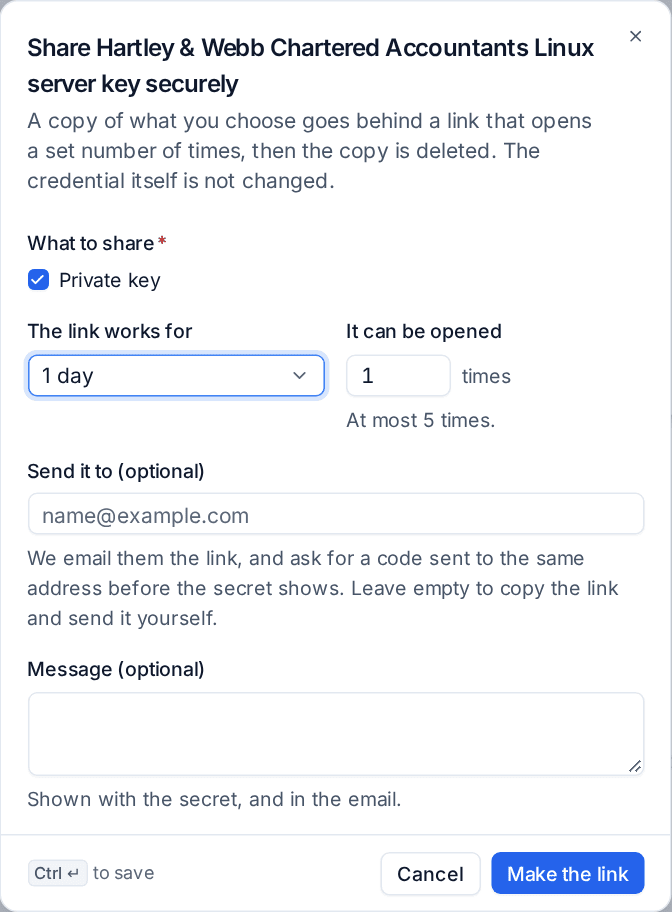
- Open the credential and choose Share securely from its ... menu (or its One-time links card). A record with secret fields has it too.
- Tick What to share (the password, the two-factor code, the key and so on).
- Choose how long The link works for (1 hour to 7 days) and how many times It can be opened (once to start with).
- Optionally Send it to an address, with a Message. They are emailed the link and must enter a code sent to the same address before the secret shows. Leave it empty to copy the link and send it yourself.
- Press Make the link.
The recipient opens a page on your portal's address, in your branding, with no sign-in. Opening the page uses nothing up (so a mail scanner cannot spend it); pressing to show the secret does. After the last view, or at expiry, the copy is deleted. The credential itself is not changed, and you are told when the link is opened.
Asking someone to send you a password
Request a password works the other way round: the customer (or a supplier) types a password into a one-time page and it lands in the vault.
- Choose Request a password from Docs > One-time links, Our company, a customer's Documentation tab or Cmd+K.
- Say what you need (it becomes the credential's name), for which customer and site, or for your own company.
- Add their address and a message if you like, and send or copy the link.
They enter the username, password, address and notes. It goes straight into the vault as a new credential, the link stops working and you are told.
Docs > One-time links lists every link and request with its state (waiting, used up or received, expired, cancelled), views, expiry, recipient and who made it, with Cancel on the waiting ones. Settings > Documentation > Secure sharing switches one-time links on or off and sets the default expiry, the longest expiry and the most views anyone may allow.
Rotation and expiry reminders
Tenvara counts how long since each password changed and reminds the right person.
- Set Change it every N days on a credential, or a default by tag in Settings > Documentation > Credential rotation and expiry (for example
domain admin=90), or a default for every login. - The credential's Changing it card shows the interval, when it last changed, the due date and how overdue it is. Docs > Credentials has a Change due column and a Due for a change view.
- Each morning the credential's Owner (else the customer's account manager, else whoever added it) is told once when a change is due soon and once when it is overdue, and likewise before a certificate or API key expires. Optionally a ticket is raised for the customer when a change is overdue.
- Changing the password, key or file starts the clock again. Overdue changes and expiring certificates and API keys also show on Docs > Expirations.
Our company
Your own logins (distributor portals, Partner Center, registrars, your firewall) belong to no customer. Docs > Our company keeps them, with your own records and the knowledge base's latest articles.
- Use New credential, New record or Request a password on that page, or choose Our company in the credential and record forms.
- They have their own permission, Our company credentials: technicians and read-only users have none to start with, administrators manage them.
- Their audit lines are shown only to people who manage them, their names stay out of the shared activity feed, and no customer ever sees them.
Related: The credentials vault, Reviews and the vault audit log.
Was this page helpful?
Thanks for the feedback.