Working through a section
The six beats of a setup section, pick for me, Why this, the preview, test mode, applying and undoing, live checks, and sharing the work with assignments, comments and step links.
Every section of the setup helper works the same way, so once you have done one you know them all. It asks about your situation, shows what it found in your data, recommends settings with reasons, applies them when you say so, proves they work with live checks, and tells your team what changes day to day.
Open a section from the hub, or press Carry on for the recommended next step.
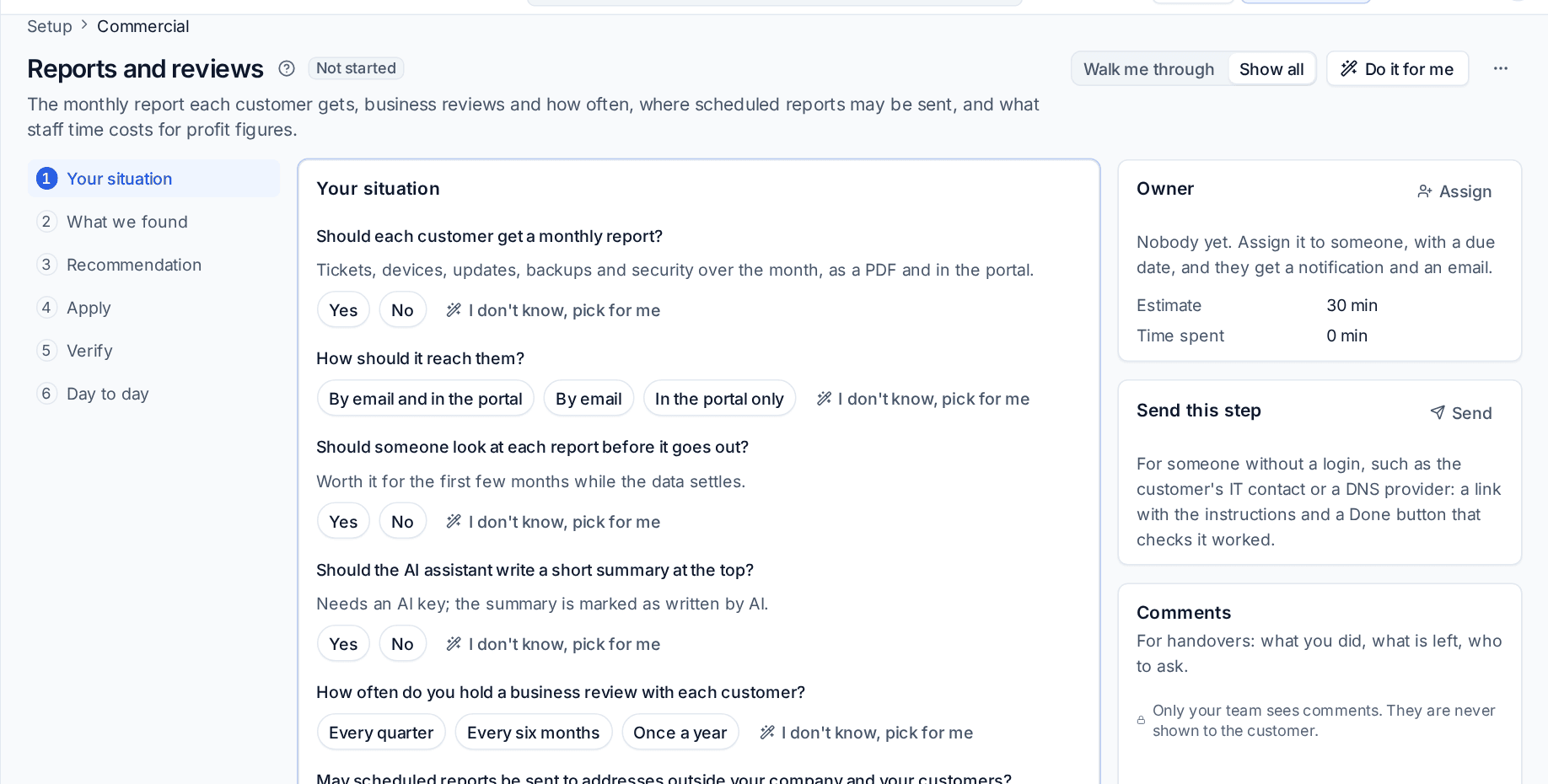
The six beats
The beats run down the left: Your situation, What we found, Recommendation, Apply, Verify and Day to day.
- Walk me through shows one beat at a time with Back and Next (
[and]). - Show all lays them all down the page.
A section opens where you stopped; a finished section opens on Verify.
1. Your situation
A few plain questions, with choices to tap where possible. Each answer is saved as you give it.
- I don't know, pick for me answers one question with the sound default.
- Pick for me for the rest answers every question still open.
Questions already answered in discovery, in another section or by your data are not asked again: they show under Already known.
2. What we found
What Tenvara read from your real data for this section, such as how many customer reports went out in the last 60 days, how many technicians have no cost rate, or how many devices have no patch policy.
3. Recommendation
What the helper recommends and why, in a few lines. Why this? on a recommendation explains the reasoning and the alternatives.
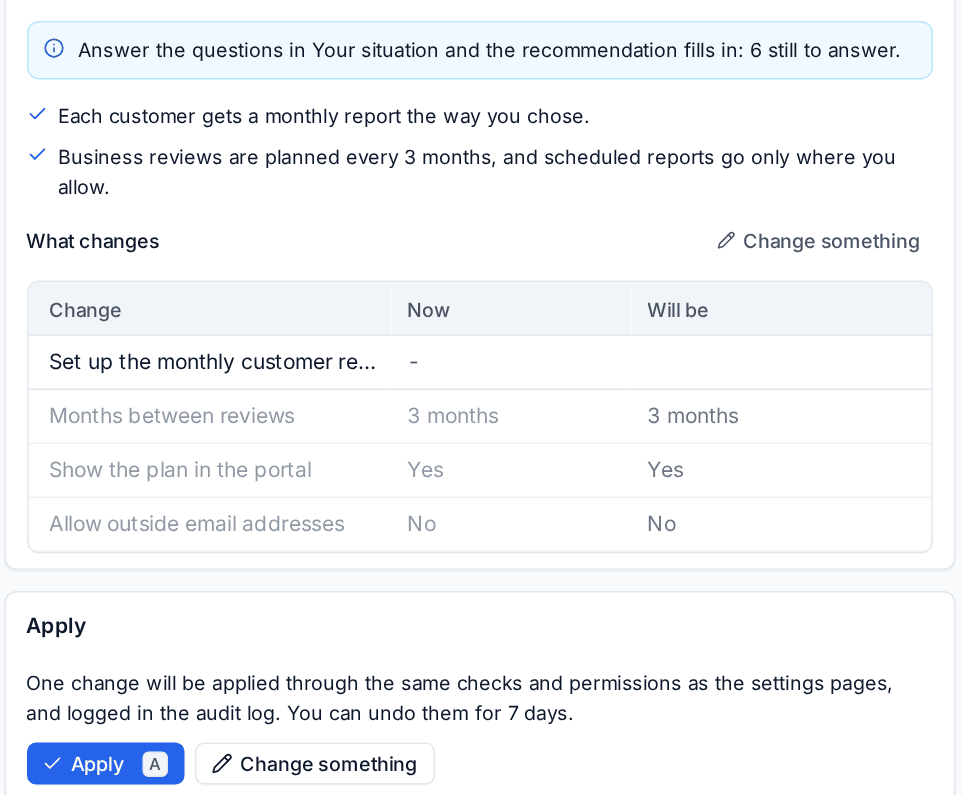
What changes is the preview: each change with its value Now and what it Will be, who it affects, and whether it is already in place, needs someone else's permission or cannot be undone. Nothing has changed yet.
Change something lets you leave lines out and change the values of settings (yes or no, numbers, text) before you apply.
4. Apply
Press Apply (or A). Changes go through the same checks and permissions as the Settings pages and are written to the audit log.
- Try it in test mode first appears when the preview holds settings that affect everyone. It puts them in your own drafts, so you can see the effect before your team does. Applying the same changes again later makes them real for everyone.
- When a change needs a permission you do not have, the whole apply waits for someone who has it. They see exactly the same lines and press Apply. A section is never half applied.
- Every apply is listed under the beat: waiting for permission or approval, tried in test mode, or applied.
Note: You can undo an apply for 7 days. Undo puts every setting back, newest first. A setting someone has changed since is left alone and reported, so undo never overwrites a colleague's later change.
5. Verify
The section's live checks, failing ones first, each with what it found, when it ran and a fix where there is one.
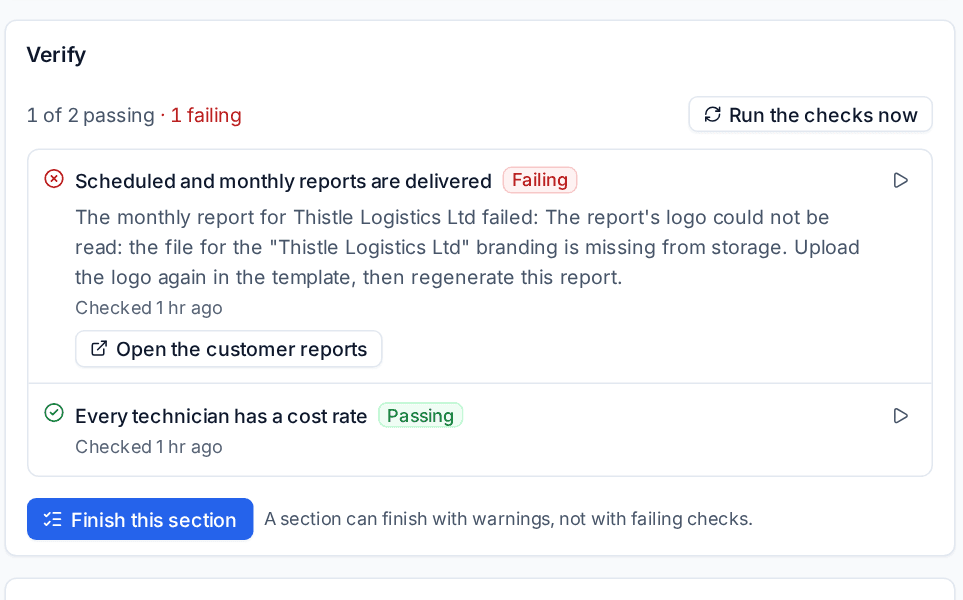
- Run the checks now runs them all; the play button on a check runs just that one. Checks that send or create something, such as a labelled test email that never becomes a ticket or a test page to whoever is on call, run in the background and clean up after themselves.
- One-press fixes apply the fix and run the check again. Link fixes open the page where you fix it.
- Finish this section marks it done. A section can finish with warnings (Done with warnings), not with failing checks, unless someone who manages setup finishes it anyway with a reason, which is kept.
6. Day to day
What changes for your team once the section is done, and links to the guides for it (Read the guide).
Doing it with other people
The side of each section has:
- Owner: Assign the section, or only the step you are on, to someone, with a due date and a note. They get a notification and an email, and are reminded on the due day and when it is overdue. Finishing the section finishes its assignments.
- Send this step: for someone without a login, such as the customer's IT contact or a DNS provider. Write the instructions, choose whether a check should prove it, and email the link or copy it. The page behind the link shows your company, the section, the instructions and a Done button that runs the check and says whether it worked. Links expire (at most 90 days), can be stopped, and you are told when the step is done.
- Comments: for handovers, with
@to bring someone in. Only your team sees them. - Estimate and Time spent for the section.
The header has Do it for me for this section, and, for people who manage setup, Waiting on someone and Not needed, each with a reason. A blocked section says what to finish first.
Asking about a step
At the foot of every section you can ask about the step, or describe what is different about your business ("1 year for everyone, 7 years for Kestrel"). With AI set up with your own Anthropic key, the answer explains the recommendation or turns what you wrote into answers to the section's questions, which you review in the preview and apply as usual: AI never applies anything itself. Attach an export summarises an export from the tool you are moving from for the section. Without a key, it searches the section's own help and your knowledge base. See Setting up AI.
Do it for me
Do it for me in a section's header sets up just that section with the answers it knows and its own picks for the rest. It shows the preview first. Sections marked Owner approves wait for the owner's approval; the rest apply at once. See The setup helper.
Was this page helpful?
Thanks for the feedback.