Lists, views and records
What every list and record in Tenvara can do: filters, columns, saved views, export, bulk actions, print, undo and the recycle bin, plus mentions, following, comments, files, history and tags.
Every list in Tenvara works the same way, and so does every main record (customers, contacts, sites, devices, tickets, projects, quotes, contracts and more). Learn it once here and it applies everywhere.
Lists
Filter
Type in the filter box (press / to jump to it) to narrow the list, then add filters with the buttons beside it, such as Status, Owner or Tags.
- Text and choice filters: pick one or more values, or is not and not empty.
- Date filters: a named period such as Today, Last 7 days, This month or Last quarter, two dates, or has a date or is empty. Due and expiry dates also offer Tomorrow, Next 7 days and Next 30 days. A named period keeps rolling, so "Last 7 days" saved today still means the last 7 days next month.
- Number filters: equals, between, more than, less than or empty. Money filters in the column's own currency.
Filters, sorting and the search box live in the page address, so you can bookmark a filtered list or send it to a colleague. Clear removes them all.
Columns
Columns chooses which columns show. Drag them (or use the arrow keys) to change the order, and Reset columns puts them back. Drag the edge of a column header to resize it; double-click it to fit the content. Your columns are kept with your account, per list.
Saved views
Views saves the filters, sort and columns you are looking at.
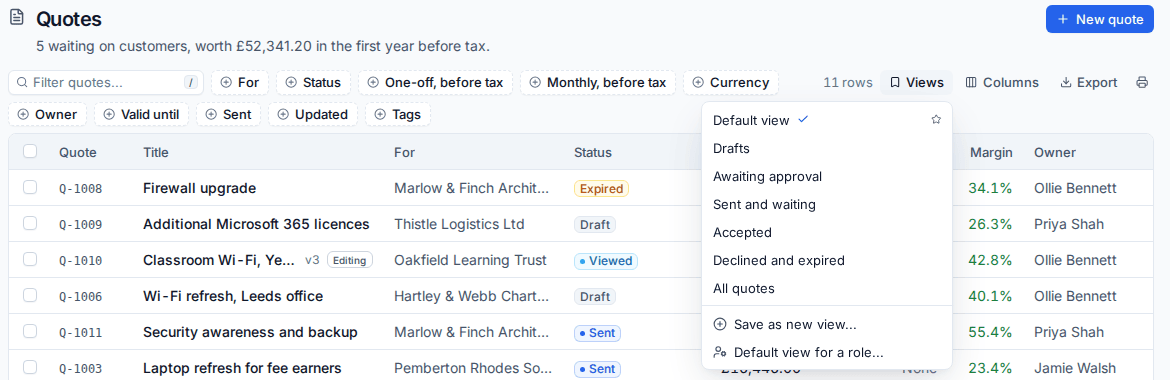
- Set up the list the way you want it.
- Open Views and choose Save as new view....
- Name it and choose who sees it: only you, everyone, a team or a role.
- Optionally pin it into the sidebar, or make it your default so the list opens on it.
Pinned views appear in the area's sidebar, in your own order. Administrators can choose Default view for a role..., and a person's own default wins over their role's.
Export
Export sits in every list's toolbar, and in the bar that appears when you tick rows.
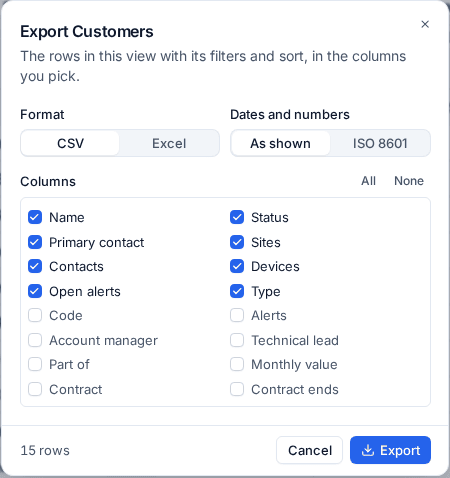
- Press Export.
- Choose CSV or Excel, and whether dates and numbers are As shown or ISO 8601.
- Tick the columns to include (All or None to start). The ones on screen are ticked, in their order.
- Press Export.
The file holds every row that matches your filters and sort, or only the rows you ticked, across every page. Columns your role hides, such as costs, and secret fields are always left out, and every export is recorded in the audit log.
Bulk actions
Tick rows (or the box in the header for all of them) and a bar shows what you can do to them all at once, such as changing the owner or status, adding or removing a tag, or exporting.
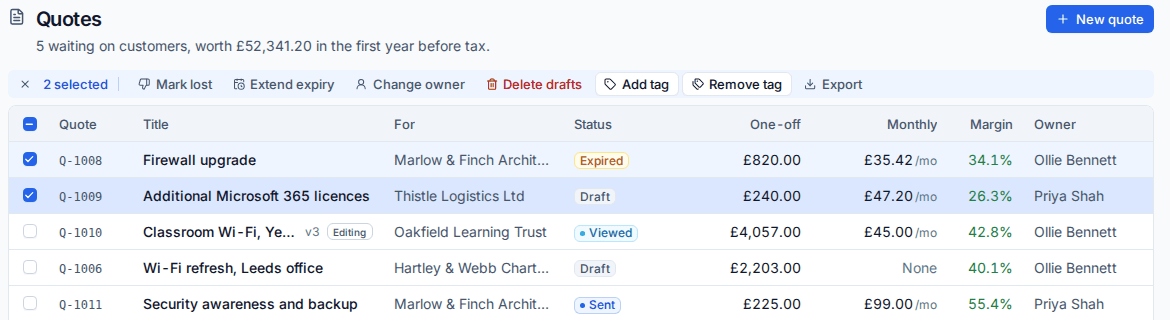
Each row is changed exactly as if you had changed it on its own, with the same rules, permissions and audit, and you see which rows were done, skipped or failed and why.
The printer button on every list prints the rows in view with the filters in words. Customers, devices and contacts have Print in their menu, a project has Print the task list, and a ticket has Print or download PDF.
Undo and the recycle bin
After you delete, resolve, merge, acknowledge or change things in bulk, the message at the bottom of the screen has Undo for a few seconds. Ctrl+Z (or Cmd+Z) does the same while it shows.
Deleted records go to the recycle bin, with everything that went with them (a customer's sites, a ticket's messages, their files).
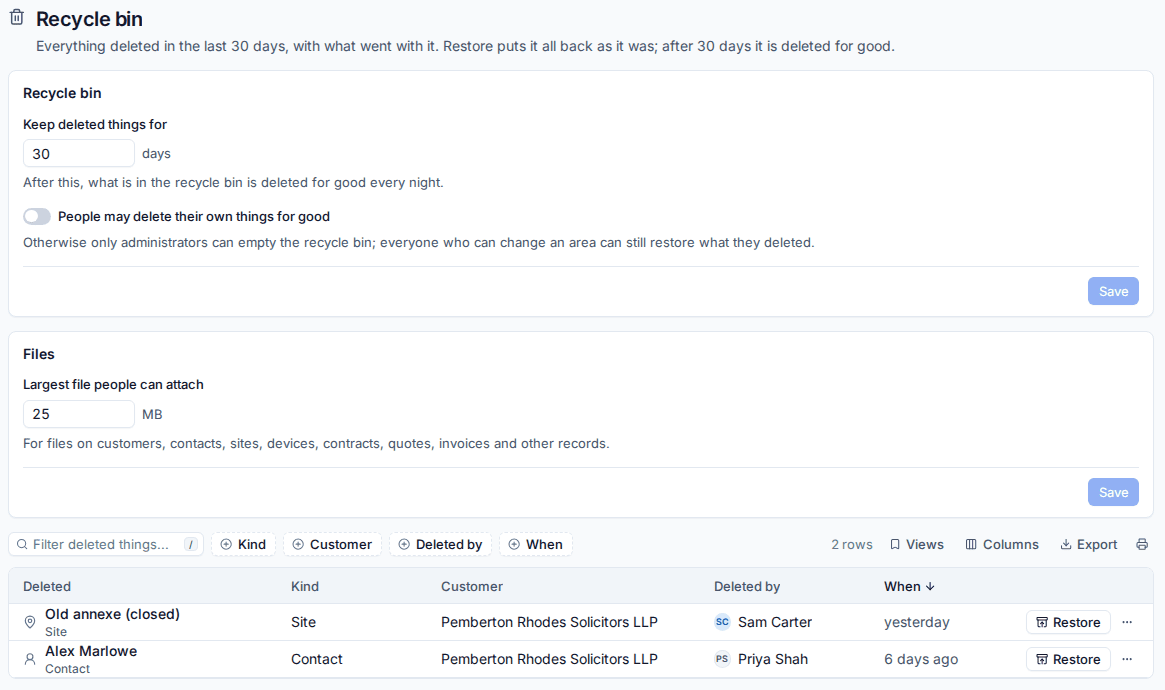
- Go to Settings > Recycle bin.
- Find what was deleted, filtered by Kind, Customer, Deleted by or When.
- Press Restore. It comes back as it was, with its links and files.
Things stay in the recycle bin for 30 days (Keep deleted things for), then they are deleted for good. Administrators restore everything; anyone who can change an area restores what they deleted themselves. Restoring is refused, with the reason, if something now clashes, such as a new customer with the same code.
Duplicate
Contracts, monitoring and patch policies, alert rules, canned responses, tickets, saved reports and Microsoft 365 starter and leaver templates have Duplicate in their menu. The copy opens for editing, named "(copy)".
Records
Follow
Follow at the top of a record tells you of its news: replies, notes, status, owner or assignee changes, and for a customer or device, new tickets and alerts. The count beside it is how many people follow. Several updates to one record collapse into one notification. You can follow what you create, are assigned or are mentioned in automatically, from Settings > Profile, and see everything you follow in Settings > Notifications > Following or the Following ticket view.
Mentions
Type @ in a ticket note, a comment, a task or internal chat and pick a person, or a whole team, to tell them. They get a notification with a link straight to it. Tenvara warns you before you send a public reply that mentions someone.
Comments, files and history
Records have a Notes, files and history card (or Comments, Files and History tabs).
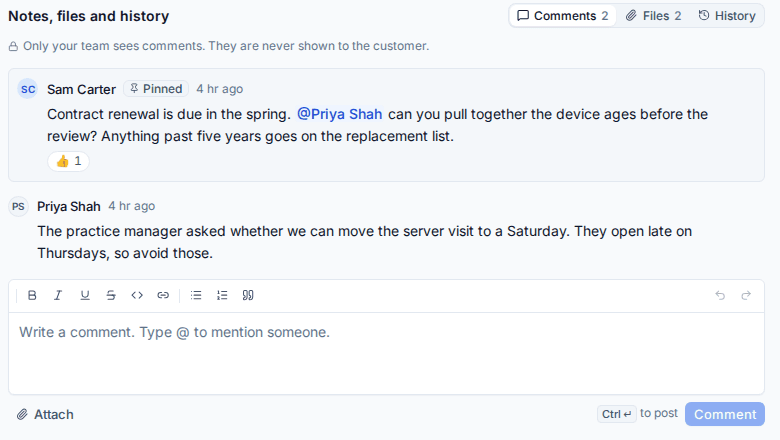
- Comments are for your team only and never shown to the customer. They take rich text, mentions and attachments; you can edit and delete your own, pin one to the top and react to others.
- Files holds attachments. Downloads of files on sensitive records (credentials, contracts, invoices) are recorded.
- History shows every change: which field, before and after, when, and who made it (a person, an automation rule, an API token, a sync or a portal contact). Where it is safe, you can set one field back to an earlier value. Secret values only ever show as "changed".
Clicking a file opens it in the file viewer without downloading it: images with zoom, PDFs, text and logs, CSV and JSON, audio and video, and emails. Anything it cannot show downloads.
A customer's or device's Activity tab is its timeline, newest first, with chips to filter it by kind.
Tags
Tags are one shared list for every kind of record. Add one from the record's header (Add a tag), filter any list by Tags, or tag many records at once with bulk actions. Administrators add, rename, recolour, merge and delete tags in Settings > Tags.
Tip: Compact rows, opening a row in a side panel or full page, and links in a new tab are in Settings > Profile under Working style.
Was this page helpful?
Thanks for the feedback.