Credit control and statements
Keep on top of what customers owe with credit limits, payment terms, credit control notes and promises to pay, statements and the aged debtors report.
Credit control in Tenvara lives where the money does. Each customer's billing panel shows what they owe against their credit limit, every call and promise made about it, and a statement you can download or email. Across all customers, the aged debtors report shows who owes what and for how long. Reminders, late fees and account on stop build on this; see Reminders, late fees and account on stop.
All of it happens inside Tenvara, whichever accounting package you use.
The customer's billing panel
Open the customer and go to Contracts and time. The Invoices section starts with four figures: Owed, Overdue, Drafts and Terms (with whether reminders are on and any rules, such as Purchase order required).
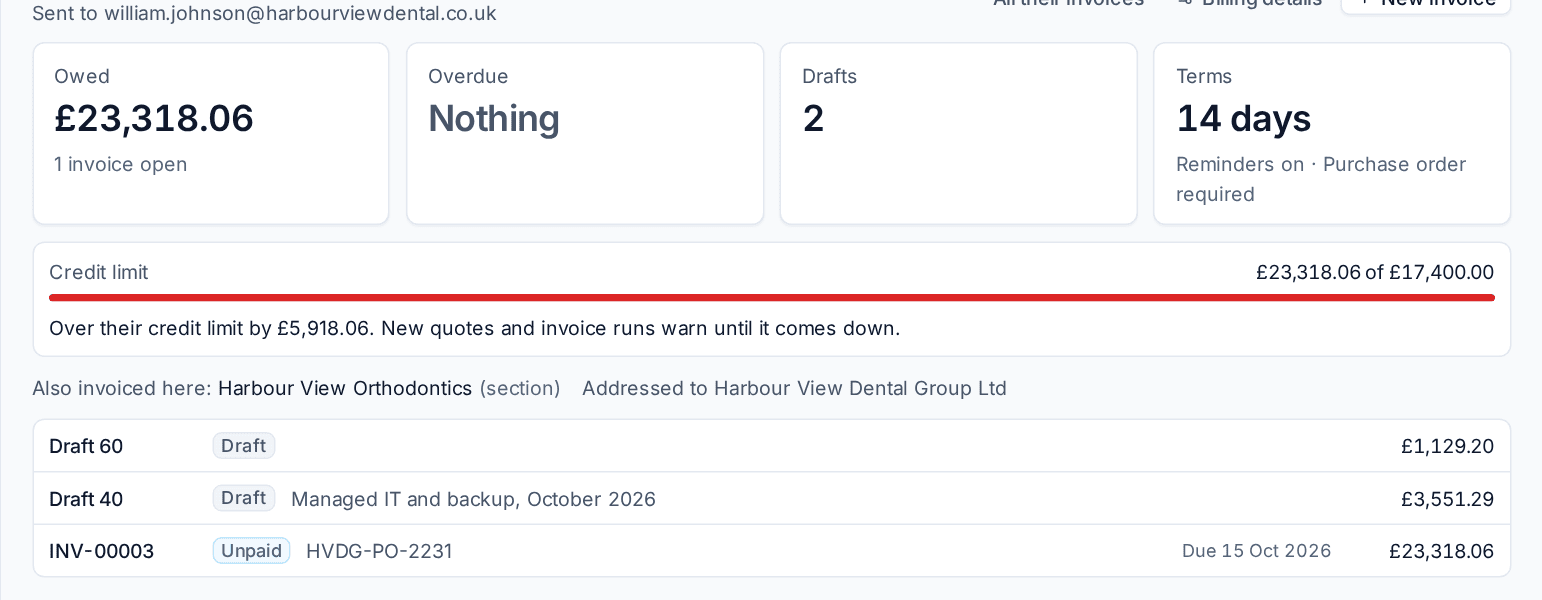
Below them come their open and recent invoices, then Payments and credit on account, Credit control and the Statement.
Payment terms
Terms decide each invoice's due date. Your standard terms are set in Settings > Billing > Invoices under Terms and invoice runs, and a customer can have their own on their Billing details. Under Due, choose:
- Days after the invoice date, for example 14 days;
- Days after the end of the invoice month, for example 30 days after the month the invoice is dated in;
- On a day of the following month, for example the 20th;
- On receipt.
An invoice keeps the terms it was made with, and a draft's terms can still be changed with Edit details.
Tip: In Emails and reminders, Send a copy of every invoice and reminder email to blind-copies your accounts mailbox, so it keeps a record of everything customers were sent.
Credit limits
A credit limit is the most a customer should owe you at once.
- Open the customer's Contracts and time tab and press Billing details in the Invoices section.
- Enter the Credit limit and its Currency. Empty means no limit.
- Press Save.
The billing panel then shows what they owe against the limit as a bar. Once they go over it, Tenvara warns in three places:
- the customer's billing panel ("Over their credit limit by £5,918.06");
- the quote builder, when accepting a quote would put them over;
- their draft invoices and so the invoice run review, as a warning to check before issuing.
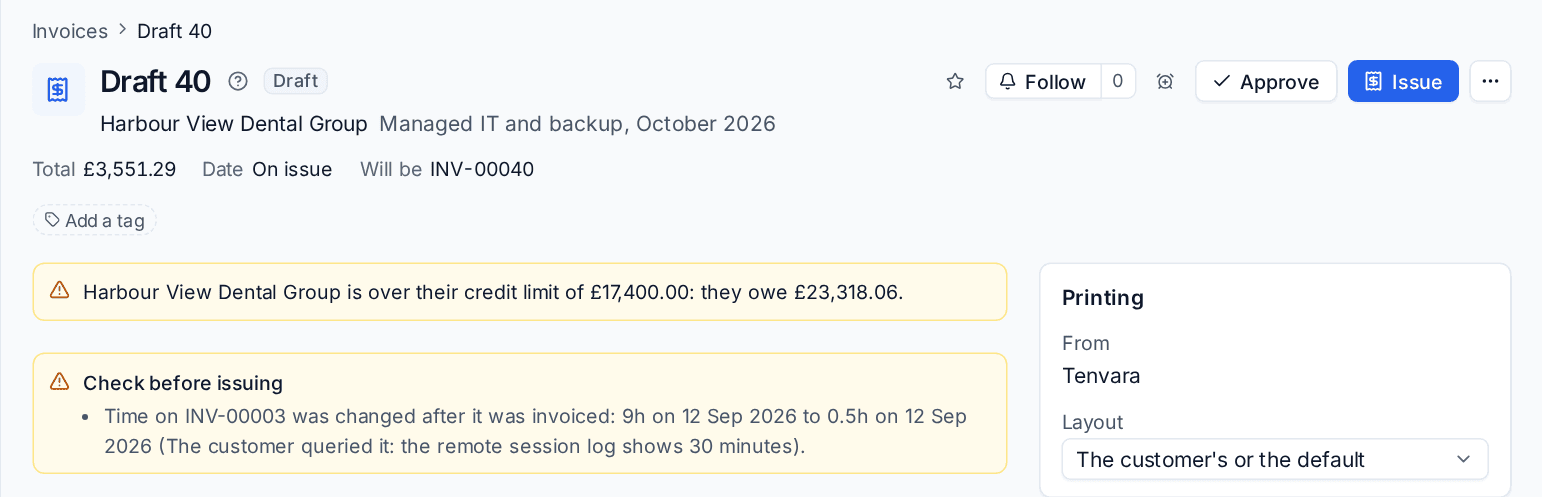
A credit limit warns; it never stops work by itself. To stop work for a customer who does not pay, put them on stop.
Credit control notes and promises to pay
Log every chase in the Credit control section of the billing panel, so anyone picking up the account sees what was said and promised.
- Press Add a note.
- Choose what it was: Call, Email, Promise to pay, Payment plan or Note.
- Write What was said.
- Tick the invoices it is About.
- For a promise to pay, enter the Amount promised and the date it is promised By.
- Optionally set Follow up on: you get a reminder that day.
- Press Save.
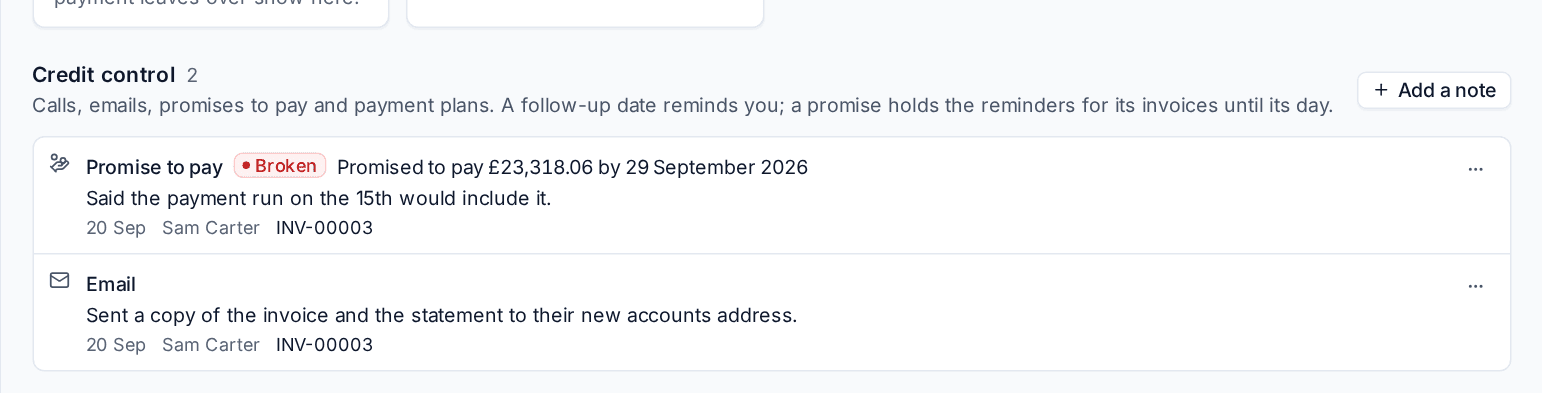
A promise shows on the invoices it covers ("Promised to pay £1,200.00 by 5 Oct"), in the invoice list and in aged debtors. While A promise to pay pauses reminders is on in Settings > Billing > Invoices > Credit control, reminders for those invoices wait until the promised day.
Each morning Tenvara settles promises whose day has passed. A promise is kept when its invoices were paid; otherwise it is marked Broken and whoever logged it is told.
Statements
The Statement section of the billing panel shows a customer's account on any day.
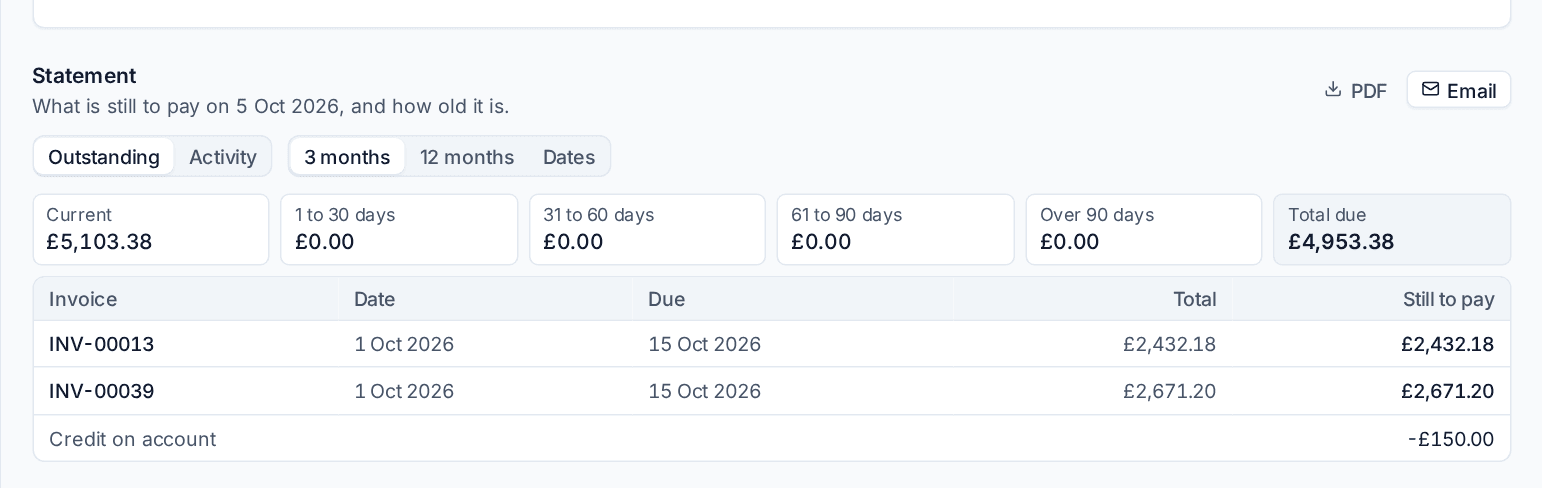
- Outstanding lists every invoice still to pay with its date, due date, total and what is still to pay.
- Activity lists everything in a period (invoices, payments and credits) with a running balance. Choose 3 months, 12 months or your own Dates.
Both show the ageing (Current, 1 to 30 days, 31 to 60 days, 61 to 90 days, Over 90 days), any credit on account and the Total due. Press PDF to download it, or Email to send it to the customer's billing recipients (or other addresses you type).
Statements for everyone
To send statements to many customers at once, go to Invoices, open Payments and choose Send statements.... Choose Who (Everyone with a balance or Only those with something overdue) and the Style, then press Send. Each customer gets their own statement as a PDF.
To send them every month without anyone remembering, go to Settings > Billing > Invoices > Statements:
- Set Email statements to Monthly.
- Choose the Day of the month.
- Choose Who gets one and the Statement style.
- Press Save.
The email wording is the statement template in your email templates. Customers also see their statement, with the same ageing, in the portal; see Billing in the portal.
Aged debtors
Reports > Aged debtors (under Finance) lists every customer with an open balance, split by how long it has been owed.
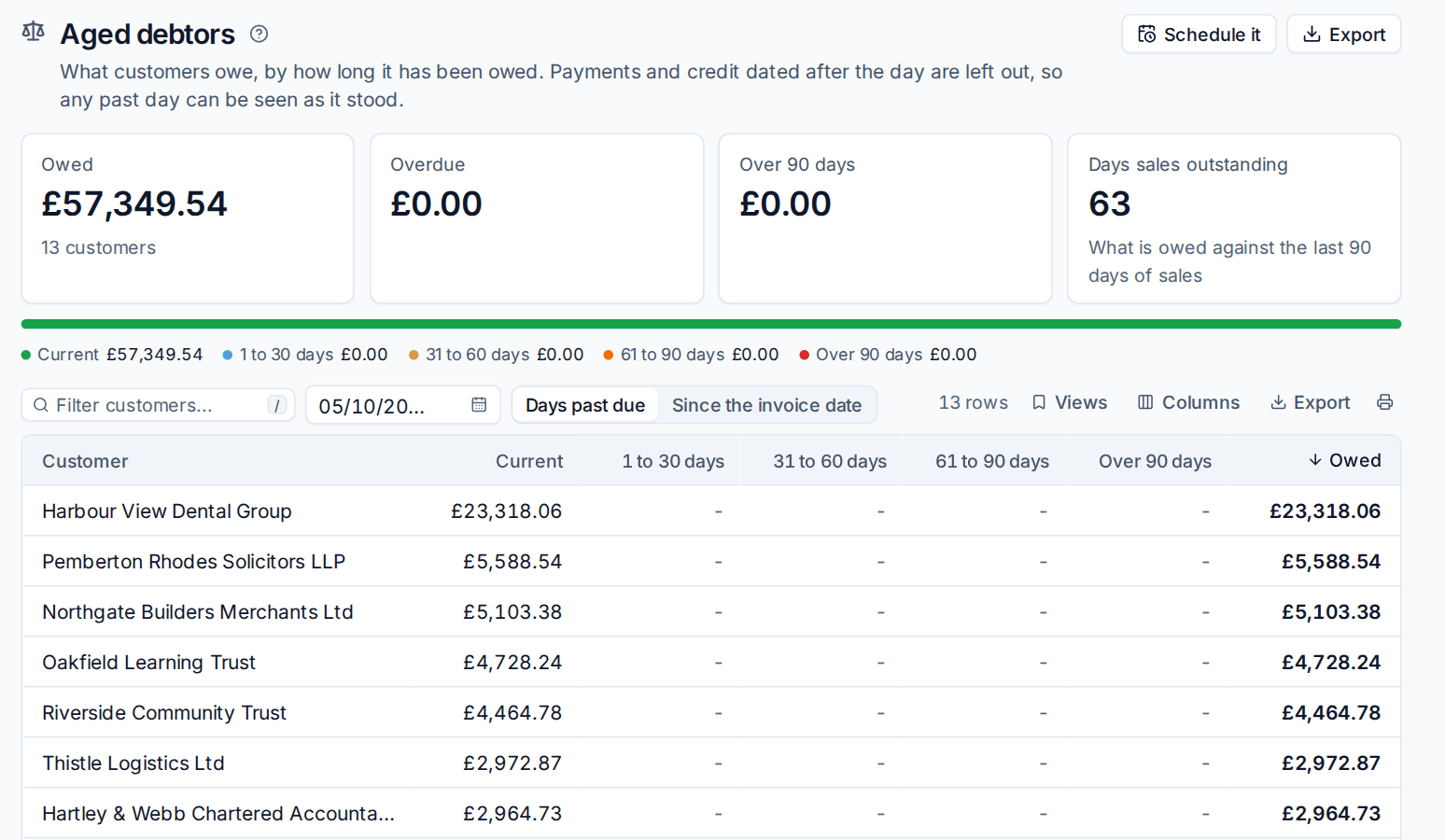
- The cards show what is Owed, Overdue, Over 90 days and the Days sales outstanding (what is owed against the last 90 days of sales).
- Pick any day with the date box. Payments and credit dated after it are left out, so you can see the ledger as it stood at a month or year end.
- Days past due ages by the due date; Since the invoice date ages by when the invoice was dated.
- Each row shows the customer's figures per bucket, their last payment, promises and credit on account. Open a customer to see their invoices.
- Export downloads a CSV or PDF, and Schedule it emails the report on a schedule through the report builder's Aged debtors template. See Saved and scheduled reports.
Amounts are shown in your base currency, with each currency's own figures where a customer is billed in more than one. The owner's Home can also show an Owed card.
Note: Seeing aged debtors and statements needs access to billing or finance in Roles and permissions.
Related
Was this page helpful?
Thanks for the feedback.