Company pages for managers
The company dashboard, devices with health and self-service fixes, licences, security, the board pack, People with starters and leavers, Documents and the co-managed IT view.
Managers and the primary contact get a My company group in the portal's side menu: a live view of their IT that answers "how are we doing?" without a call to you. "Managers" here means contacts who see every ticket for their company (see Portal permissions and people).
The company dashboard
Company shows the customer at a glance. Every figure is a link to its page with the filter already applied, so "22 need updates" opens Devices filtered to those devices.
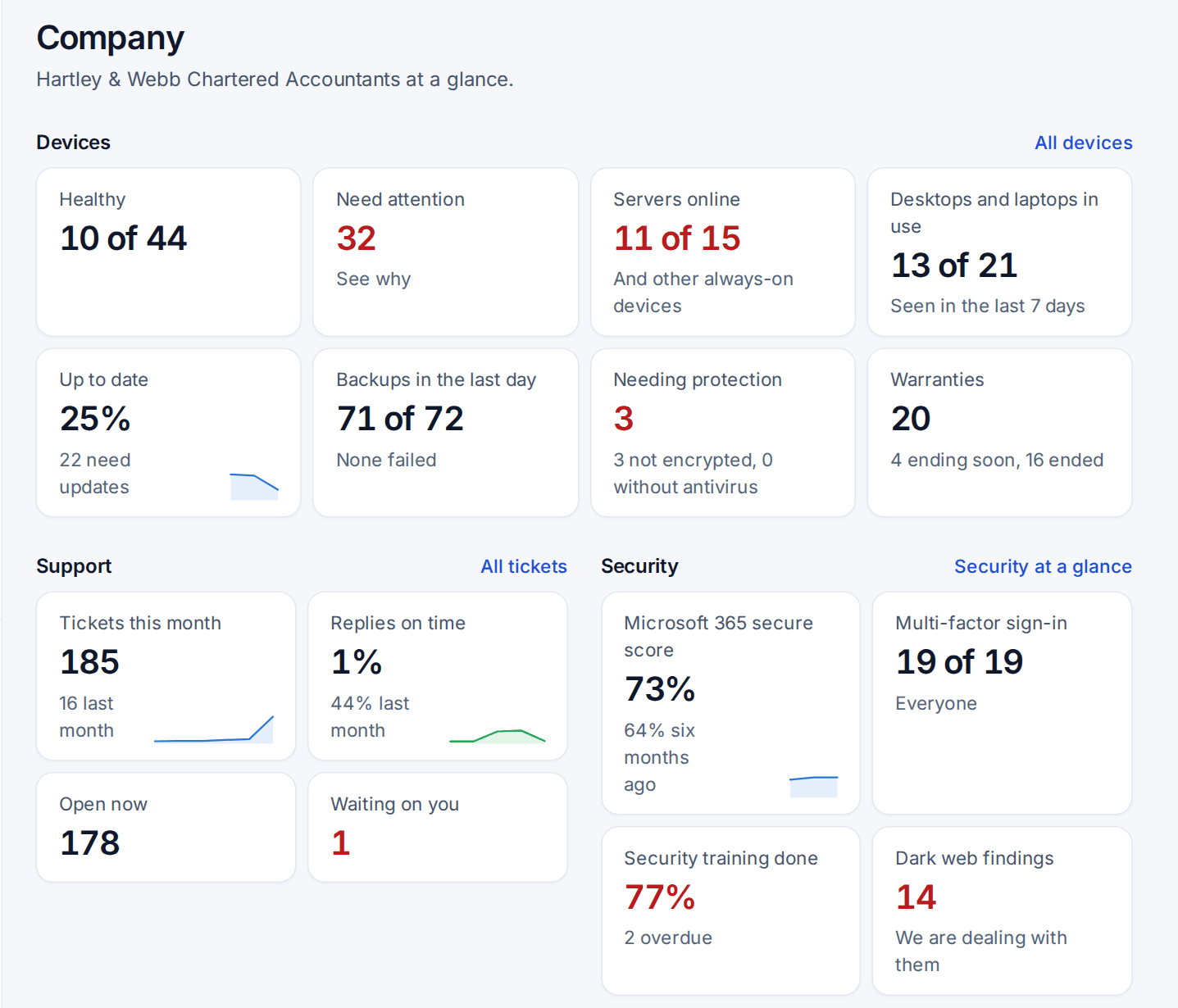
The blocks, each left out when there is no data for it:
- Devices: how many are healthy and how many need attention, servers and always-on devices online, desktops and laptops seen in the last 7 days, updates, backups in the last day, devices needing protection and warranties.
- Support: tickets this month and last, first replies on time, open now and waiting on them, with six-month trends.
- Licences and seats: Microsoft 365 seats bought and in use, with unused seats called out.
- Security: the Microsoft 365 secure score now and six months ago, multi-factor sign-in coverage, security training done and dark web findings with what you are doing about them.
- Projects in progress, Spend (only to people who see billing), Starters and leavers due in the next 30 days, People with access and the latest published report.
Laptops and desktops are switched off at night and taken home, so they never count as "offline". They count as in use when seen recently. Only servers and devices marked always on show online or offline.
The board pack
Download as PDF under Board pack turns the page into an A4 PDF in your branding with today's figures, trends and the full licence and project tables. It never shows more than the page does, and each download is recorded on the customer's activity. The latest published reports are listed beside it.
Devices
Devices lists the computers you look after, each with one verdict: Healthy, Needs attention (with the reasons, such as updates missing, not encrypted or warranty ended) or Not seen for a while. Summary chips at the top filter the list in one click.
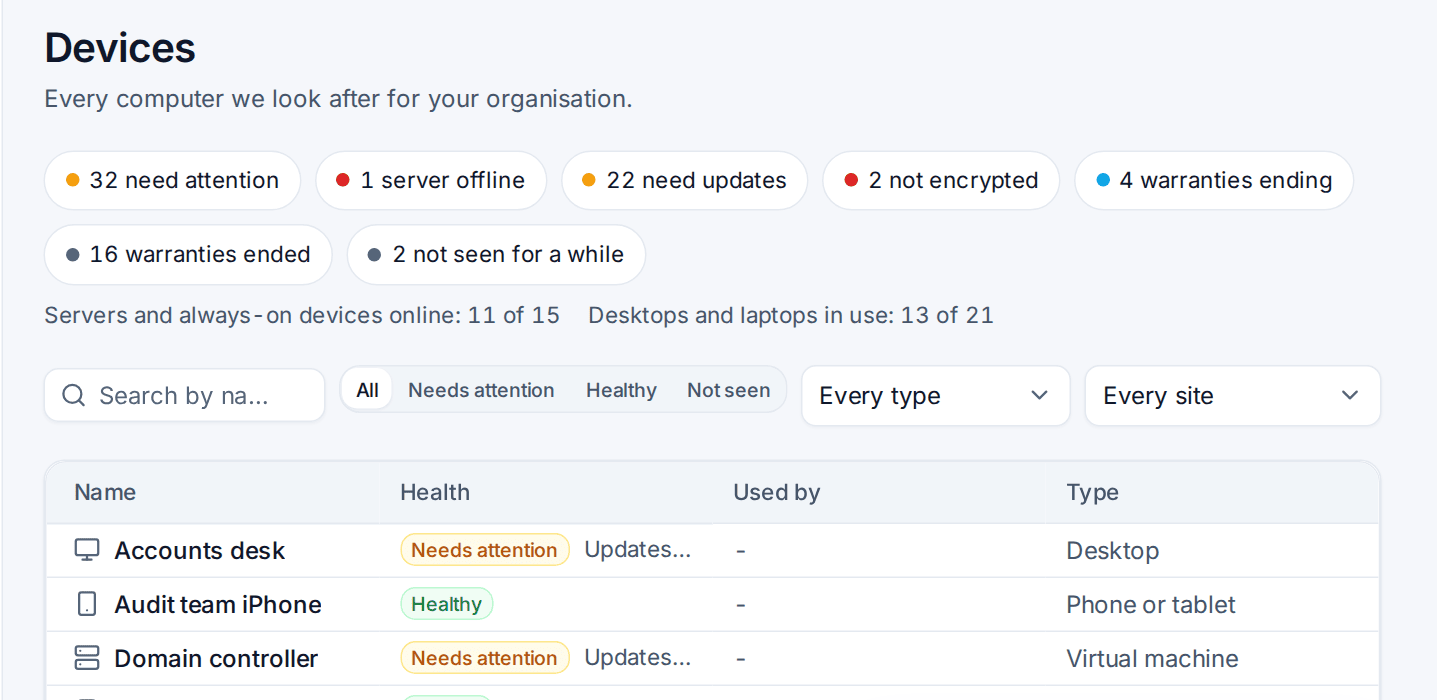
Managers see every device of their company, a site contact their site's, and everyone else the devices they use. Contacts only ever see the facts you choose in What a device shows, never credentials, IP addresses or scripts.
A device's page offers one-click help:
- Get help with this opens New ticket with the device chosen, and adds an internal note for your team with its recent health: last seen, updates, backup, encryption, antivirus, warranty, disk space and open alerts.
- Connect a technician raises a ticket asking you to connect.
- Ask for a replacement appears once the warranty has ended or is ending, and opens your first hardware catalogue item filled in.
- Self-service fixes: when you turn on Let people run self-service fixes, the page offers your published scripts marked End users may run (clear the Teams cache, restart the print queue) to the people who use the device. Each run asks them to confirm, shows the result and appears in What we did.
Licences and Security
Licences lists each paid Microsoft 365 subscription with seats bought, in use and unused, who holds each, and, when you turn on Show what each licence costs, what you bill per seat. Ask for a change opens your licence change catalogue item filled in. Security gives the figures behind the dashboard block with the actions they suggest, most important first. Both need the customer's Microsoft 365 tenant connected to Tenvara.
People, starters and leavers
Contacts allowed to manage people get People: their colleagues with portal access, roles, site and last sign-in.
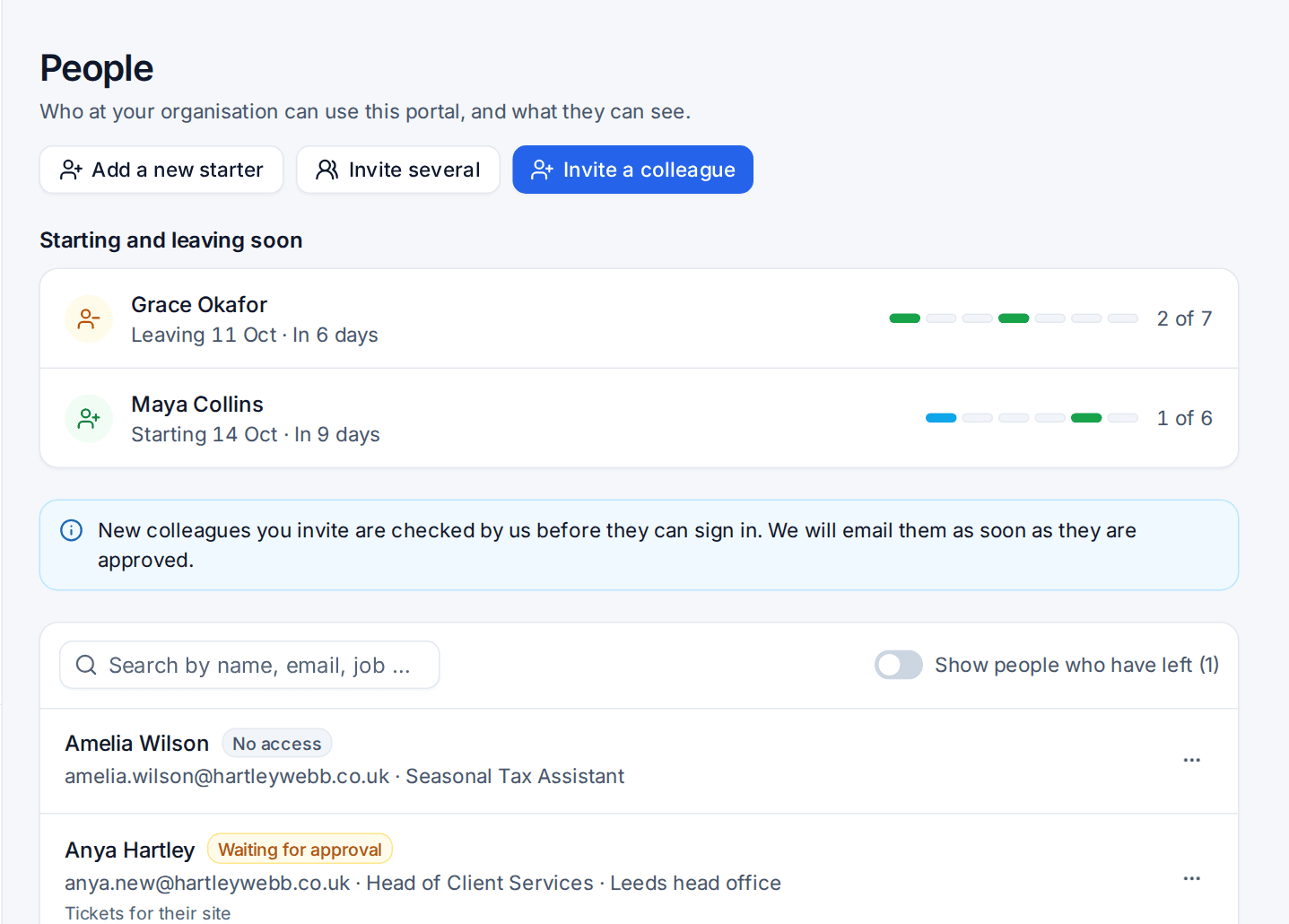
- Add a new starter and Mark as left open your New starter and Leaver catalogue items, so their approvals and Microsoft 365 steps apply.
- Starting and leaving soon shows each starter and leaver with their steps (approved, account made, licence, groups and mailboxes, computer ready, ready for day one; or access off, email and files handed over, licence, equipment back). A leaver's page says what happens on the last day and can book the equipment collection as a visit.
- Invite a colleague, or Invite several at once from the company's Microsoft 365 users who are not in the portal yet, or from a pasted list.
- A colleague's page shows their devices, Microsoft 365 account and licences, open tickets and requests. From there a manager can reset their Microsoft 365 password (a temporary one goes to the colleague's own mobile by text) or make them set up multi-factor sign-in again. By default these wait for approval by someone on your team who manages Microsoft 365.
Documents
Documents is one library of what you share with the customer: signed service agreements, published reports, business reviews, compliance and security incident reports, policies to accept, and files your team shares from the customer's Documentation tab with an audience of everyone, managers or chosen contacts. Contacts search it, filter by type, preview files and download them.
Co-managed IT
A contact with the Technical detail and alerts permission is treated as the customer's in-house IT. They see the technical device facts you allow (serial number, processor and memory, disk space, IP and MAC addresses, agent version and last restart, open alerts) and the company's open alerts on Company. If they also have a co-managed staff seat in Tenvara, the account menu offers Open the console.
Turning blocks and pages on and off
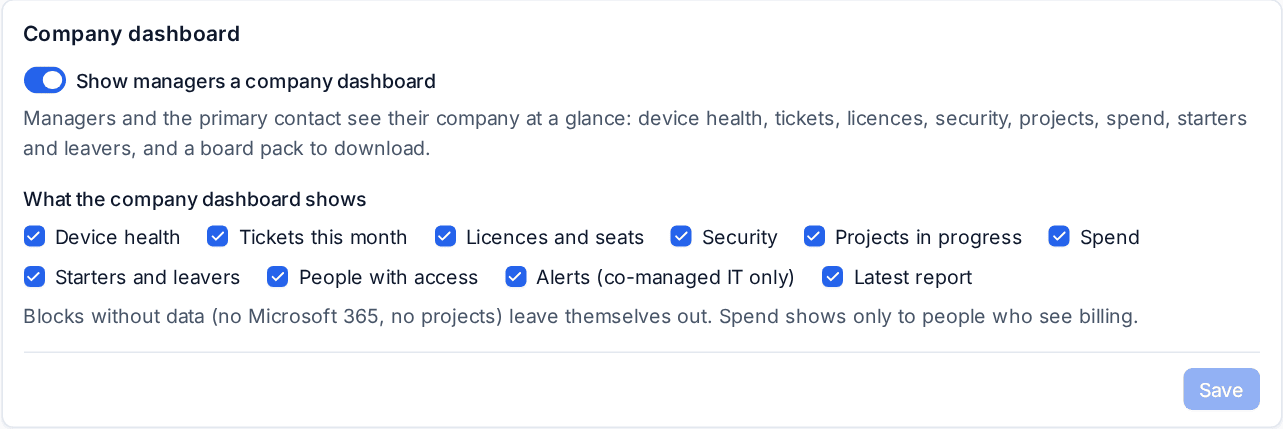
Settings > Customer portal > Home and navigation chooses what the company dashboard shows, and What customers see turns devices, fixes, the transparency log (What we did), services and agreements, documents and licence costs on or off. Each can differ per customer. See Setting up the portal.
Was this page helpful?
Thanks for the feedback.