Hybrid Active Directory
For customers who sync their own Active Directory to Microsoft 365, make password resets, unlocks, sign-in blocks, group, detail, starter and leaver changes on their domain controller through the agent, with previews, approvals and undo.
Many customers still run their own Active Directory and sync it to Microsoft 365 with Entra Connect. For those synced users Microsoft refuses the everyday changes (a password, a block, a group, a job title), because the account lives on-premises. Tenvara makes those changes where the account lives: on one of the customer's domain controllers, through the Tenvara agent, then asks Entra Connect to sync so Microsoft 365 shows the change within minutes.
Everything works the way it does for cloud users: a preview first, approval for anything risky, a record of what was there before, and undo.
What you need
- The tenant's Hybrid identity feature switched on (it builds on Control). See Choosing features and consent.
- The Tenvara agent on at least one of the customer's domain controllers, and ideally on their Entra Connect server.
- An administrator to switch it on for the tenant.
Cloud-only users in the same tenant are not affected: their changes still go straight to Microsoft 365.
Setting it up for a tenant
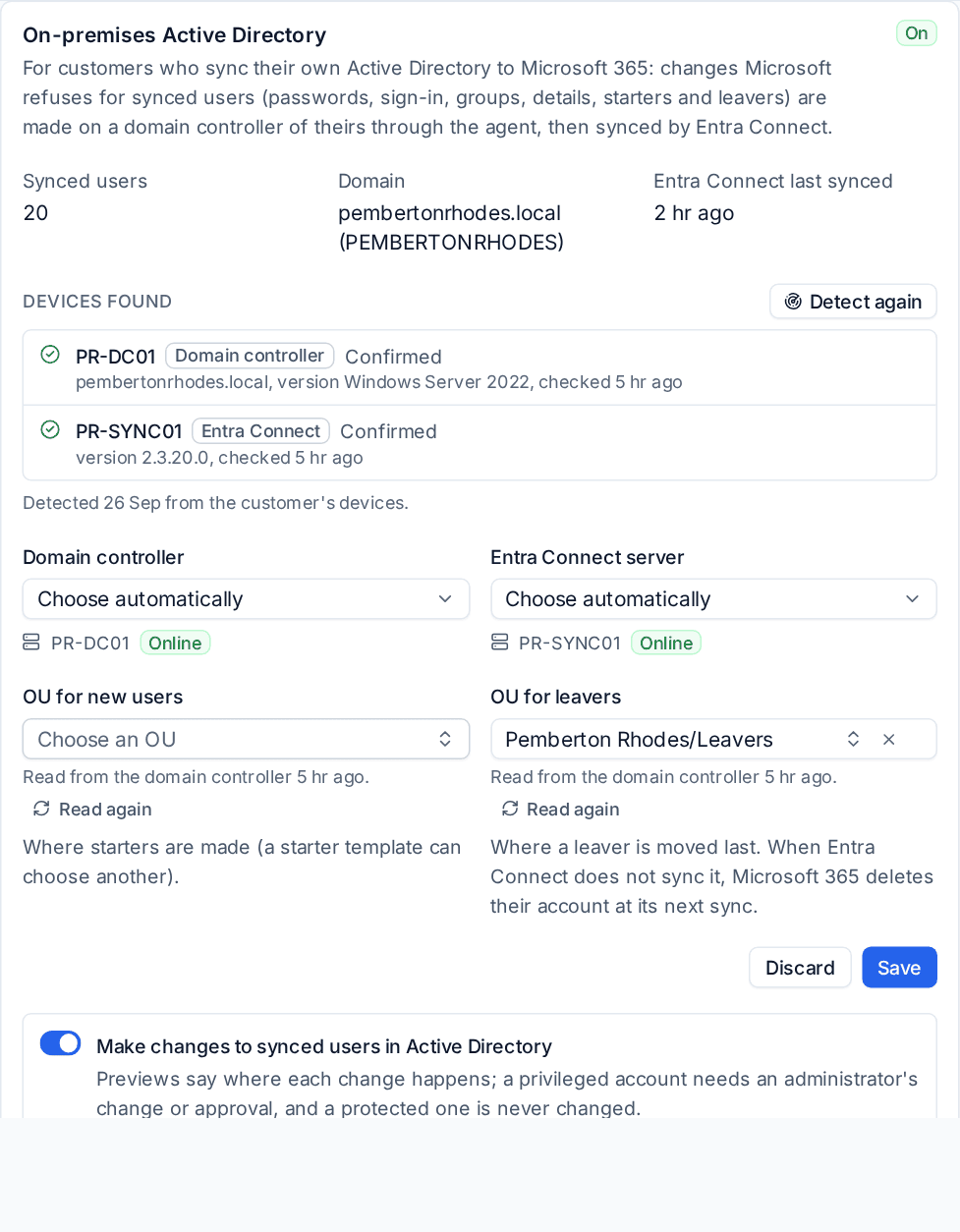
- Open the tenant and go to Settings (under More). Scroll to On-premises Active Directory. A tenant that does not sync from Active Directory just says there is nothing to set up.
- Press Detect. Tenvara asks the customer's devices that run the domain controller or Entra Connect services, through their agents, and lists what each said under Devices found: Confirmed, not supported, offline or did not answer.
- Choose the Domain controller and Entra Connect server, or leave them on Choose automatically. Each shows whether its agent is online. With no Entra Connect server chosen, changes wait for Entra Connect's own sync cycle.
- Choose the OU for new users (where starters are made) and the OU for leavers (where leavers are moved last), picked from the OUs the domain controller reports. Read again fetches the list again.
- Press Save.
- Switch on Make changes to synced users in Active Directory. Only an administrator can do this, and it needs a confirmed domain controller.
Below the card, each customer can have its own timings. Everyone else follows Settings > Microsoft 365 > Timings under On-premises Active Directory:
| Setting | Default | What it does |
|---|---|---|
| Wait for Microsoft 365 to show an on-premises change for | 40 minutes | After this, a change finishes as done in Active Directory, still to show in Microsoft 365 |
| Run a delta sync after each change | On | Asks Entra Connect to sync straight away rather than at its next 30 minute cycle |
| Give up on a domain controller that does not answer after | 10 minutes | A change sent to a controller that is off fails, rather than waiting for days |
Seeing synced users
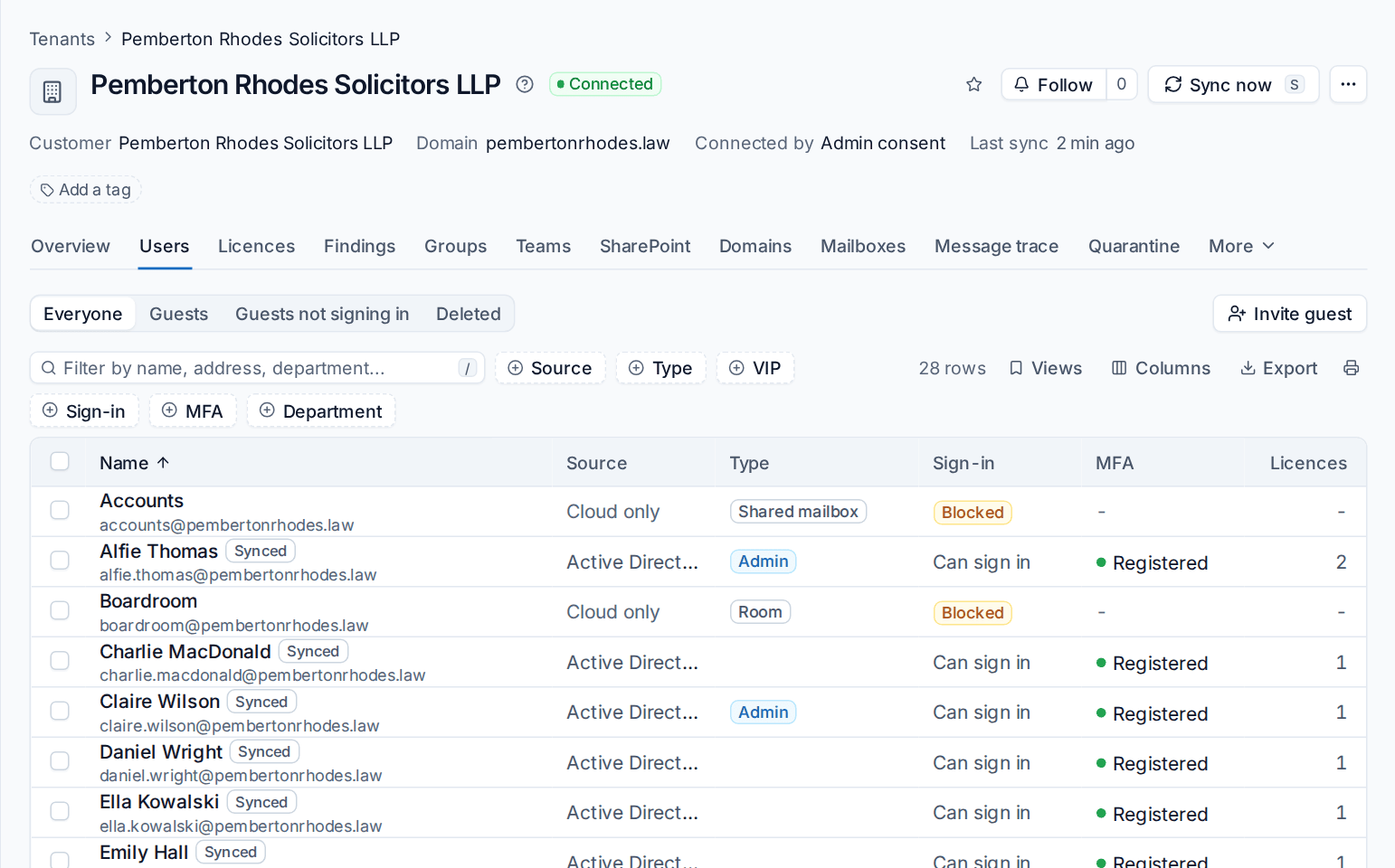
On the tenant's Users and Groups tabs, synced users and groups carry a Synced badge, and the Source column (Active Directory or Cloud only) filters them.
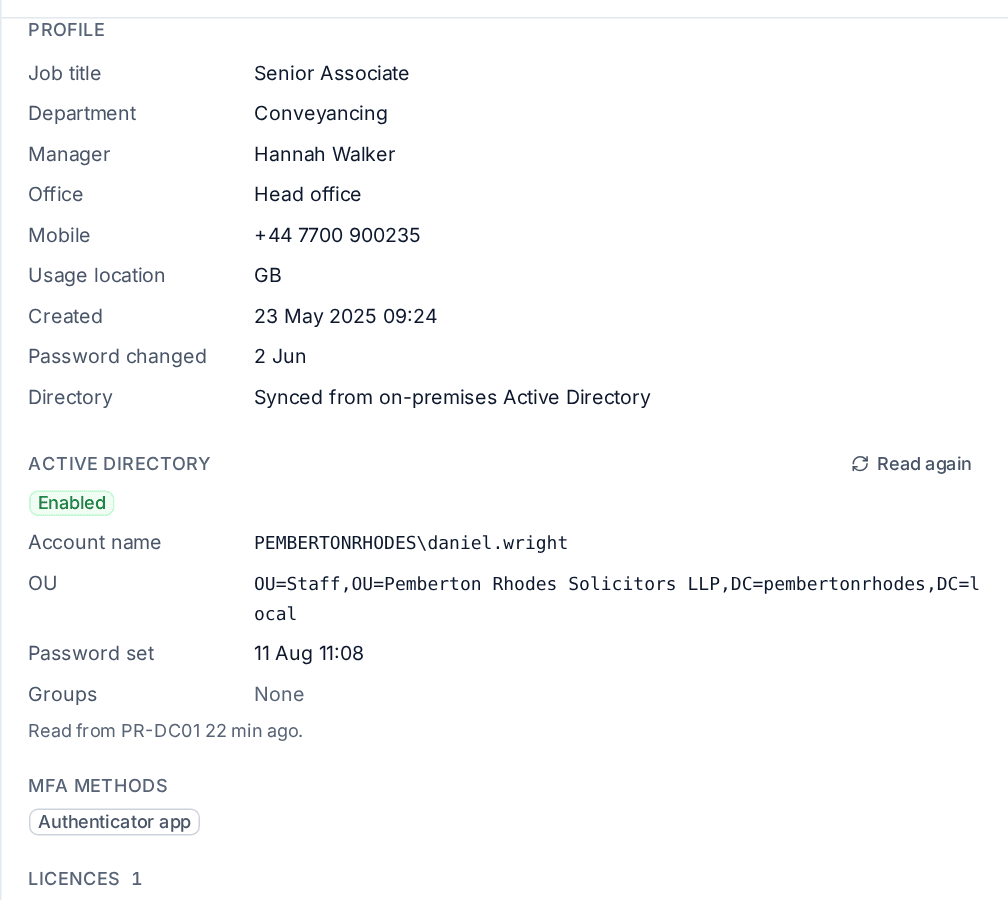
Open a synced user and the panel has an Active Directory section, read from the domain controller: whether the account is enabled or locked out, its account name and OU, when the password was set and its groups. Read again reads it fresh.
What you can change
The Actions menu keeps its usual actions for synced users, and the previews say where each change happens:
| Change | Where it is made |
|---|---|
| Reset password | In Active Directory, and the account is unlocked if it is locked out. You can ask for a new password at next sign-in |
| Unlock account | In Active Directory (synced users only) |
| Block sign-in and allow sign-in | Disabled or enabled in Active Directory. After a block reaches Microsoft 365, their Microsoft 365 sessions are revoked so they cannot sign straight back in |
| Add to group, Remove from group, Remove from all groups | Groups synced from Active Directory are changed there; cloud groups are changed in Microsoft 365, even for a synced user |
| Edit details | Name, job title, department, office, company, phones, address and employee ID in Active Directory; usage location and hire date in Microsoft 365 |
| Set manager | In Active Directory (the manager must be synced too) |
| Move to another OU | In Active Directory |
What Active Directory owns is left out of the menu for synced users: Change sign-in name, Delete user and adding email addresses. Country and extension attributes are refused with a note saying where to change them.
The preview
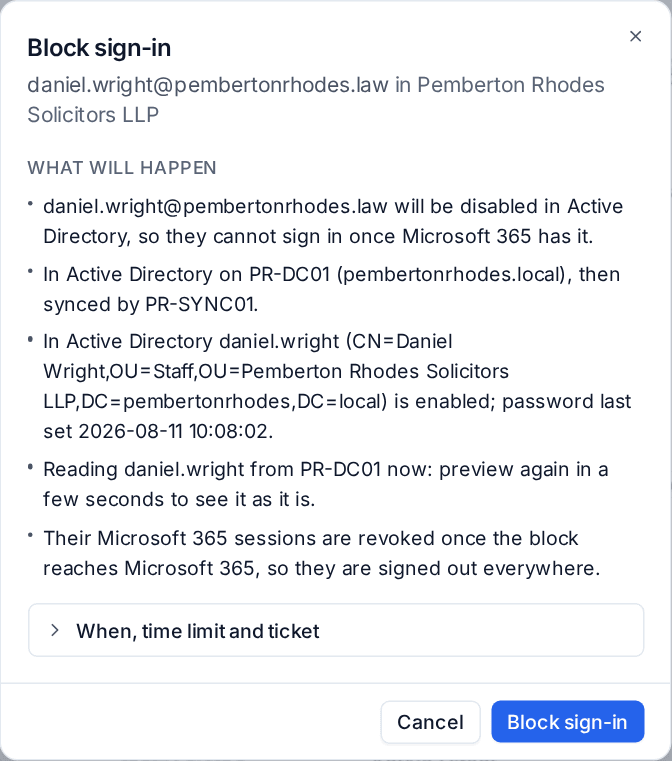
The preview reads the account from the domain controller first, so it shows the account as Active Directory has it and names where the change will be made, for example "In Active Directory on PR-DC01, then synced by PR-SYNC01."
While it runs
A change waits while the domain controller makes it ("Changing it in Active Directory..."), then while Entra Connect syncs ("Changed in Active Directory. Waiting for Microsoft 365 to sync..."). It finishes when Microsoft 365 shows the change, or, past the wait you set, as done in Active Directory and still to show in Microsoft 365. If the domain controller is offline the change fails straight away and says so; nothing is queued for later.
When you change several synced users in one bulk change, each is made on the controller and one delta sync covers the whole run. A new password is shown to you once as soon as it is set, or sent the way you chose.
Safety
- Built-in accounts are never changed. The built-in Administrator, krbtgt and other built-in accounts are refused.
- Privileged accounts need an administrator. A change to an account in an administrators' group, or to membership of a privileged group such as Domain Admins, is high risk: a technician asks an administrator through Approvals.
- Passwords never travel in the clear. A new password is sealed so only that domain controller's agent can open it, and is never written to a log or the change log.
Undo and the change log
Changes made in Active Directory carry an Active Directory badge in Microsoft 365 > Changes, with the domain controller, the account before and after, and whether Microsoft 365 has caught up. Undo goes back the same way: a block is unblocked, groups and details are put back to what Active Directory had, and each undo waits for its own sync. Password resets and unlocks cannot be undone, as in the cloud.
Starters and leavers
For a tenant synced from Active Directory, starters are made there and leavers are disabled there first. See Starters and leavers for the hybrid steps.
Was this page helpful?
Thanks for the feedback.