Choosing features and consent
Pick which Microsoft 365 features Tenvara uses for each tenant, consent only to what they need, turn features on or off later, and consent again when new permissions arrive.
Tenvara's Microsoft 365 work is split into features: backup, audit, changes, email security and so on. When you connect a customer's tenant you choose which of them to use, and the consent the customer's administrator gives covers what those features need and nothing more. Each tenant's Features tab turns any of them on later, asking only for the extra permissions, or off again cleanly.
The features
| Feature | What it gives you |
|---|---|
| Backup | Mailboxes, OneDrive, SharePoint, Teams, Planner and Entra ID backed up and restored |
| Audit and config drift | Security checks and the score, findings, configuration snapshots and baselines, service health and SaaS discovery |
| Control | Changes to users, groups, mailboxes and licences, starters and leavers, Teams, SharePoint and Intune devices |
| Email security | DMARC, SPF, DKIM and MTA-STS for the tenant's domains, with reports, senders and the DMARC rollout |
| Licence and billing sync | Licence counts and low seats, reconciliation with what you bill, and Microsoft 365 users as billable units |
| Security monitoring | Sign-in and audit logs to the SIEM, Defender alerts, risk detections and account threats |
| Coverage reports | Scheduled posture, compliance, threat and MFA reports, and the tenant's part of customer reports. Builds on Audit and config drift |
| Hybrid identity | Changes to users synced from on-premises Active Directory, made on a domain controller through the agent. Builds on Control. See Hybrid Active Directory |
| AI readiness | Whether the customer is ready to use AI safely. See AI readiness |
Whatever you choose, Tenvara always reads the tenant's users, groups, licences and domains, because the tenant page, the customer's contacts and every feature need them.
Note: Some features need something from Microsoft as well as consent. Security monitoring needs the unified audit log switched on, and some checks need Entra ID P1 or P2. Optional licences are listed with the feature but never stop it working.
Choosing features when you connect
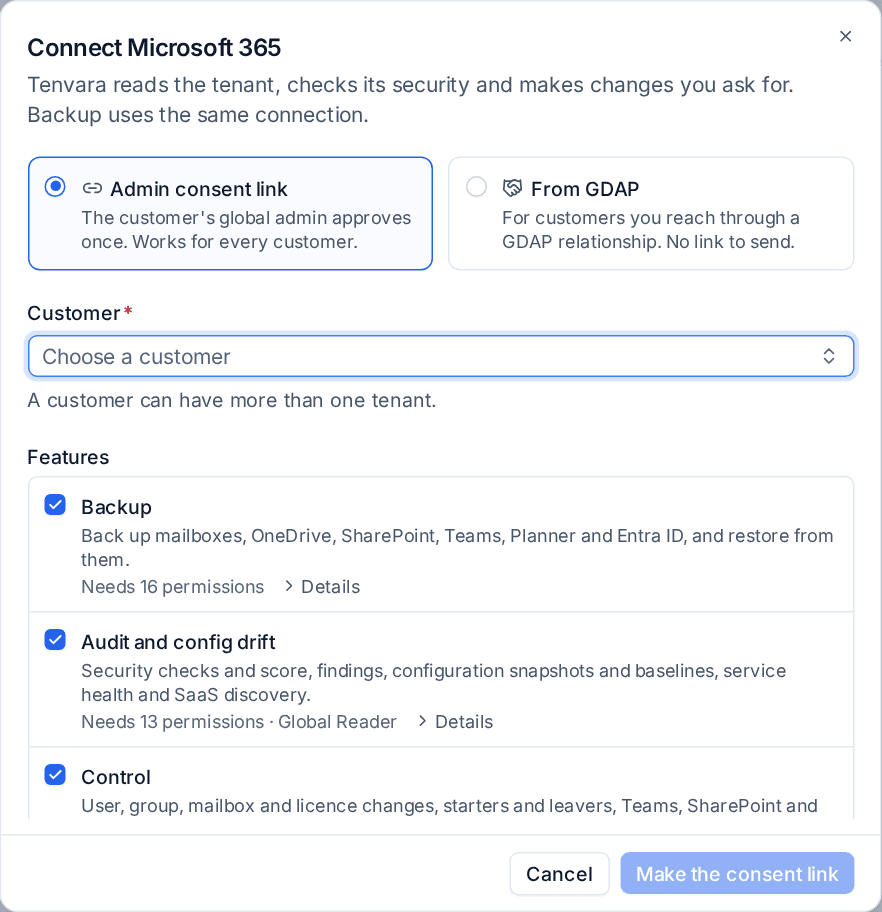
- Go to Microsoft 365 > Tenants and press Connect a tenant.
- Choose Admin consent link or From GDAP, and the Customer.
- Under Features, tick what you want for this tenant. Your defaults are ticked already. Ticking a feature also ticks what it builds on.
- Press Details on any feature to see the permissions it asks for (by API), the directory roles Tenvara will hold, the licences it uses and what runs. Where you bill the feature through a contract or catalogue item, its cost for this customer is shown too.
- The line under the list says how many permissions the consent will ask for.
- Press Make the consent link (or Connect for a GDAP customer). See Connecting a tenant for the rest.
The administrator who signs in through the link must be a Global Administrator or Privileged Role Administrator of the customer's tenant. They are asked to approve exactly the permissions the chosen features need, and Tenvara then gives its own app only the directory roles those features need (for example Global Reader for Audit and config drift, Exchange Administrator for Control and Email security).
Your defaults
Settings > Microsoft 365 > Features sets which features are ticked when a tenant is connected. Every feature except Hybrid identity is ticked to start with. A customer can have its own defaults, and changing them never changes a tenant that is already connected.
The Features tab
Open a tenant and choose Features (under More on smaller screens). Each feature shows whether it is On, Off or Needs something, when it was turned on and by whom, and its Details.
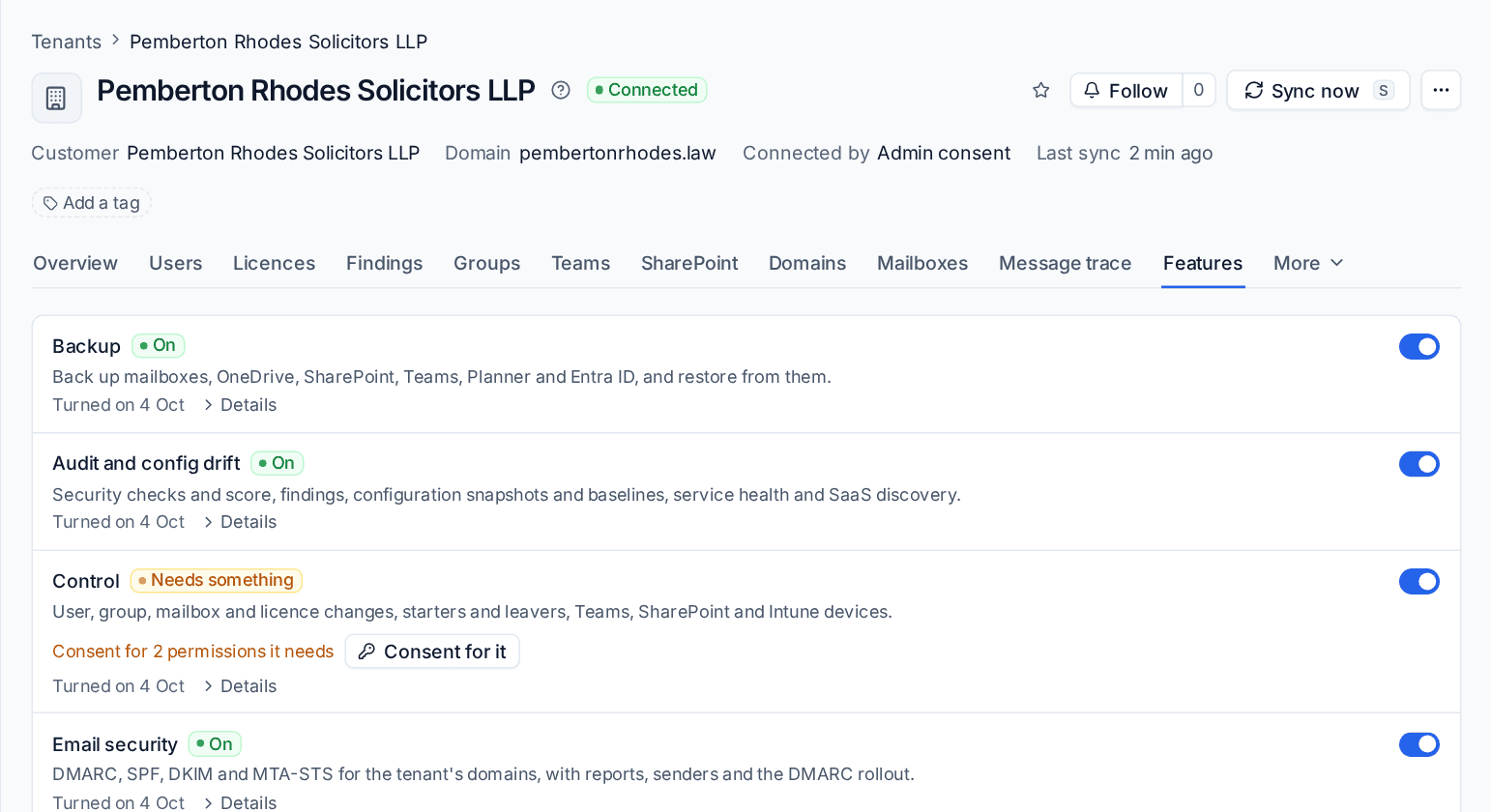
Needs something says what is missing:
| What it says | What to do |
|---|---|
| Consent for N permissions it needs | Press Consent for it. A customer administrator signs in and approves just those permissions |
| The app does not hold a directory role | Press Try again now. Straight after consent Microsoft can take a few minutes to apply it, and the tab says it is waiting |
| A licence it cannot work without | The customer needs that licence or setting from Microsoft, such as the unified audit log |
| A feature it builds on is off | Turn that feature on first |
| Set-up | Hybrid identity needs directory sync and a domain controller chosen |
Turning a feature on later
- Switch the feature on.
- If the tenant has not granted the permissions it needs, the feature shows Consent for it. The link asks only for what is missing, not everything again.
- Once the consent is in, the feature's areas are read straight away.
Turning a feature off
Switch it off and confirm. Off means off: its reads, checks, alerts and jobs stop, and any alert it had open is closed as "turned off", never as fixed. What it already gathered is kept.
| Turned off | What stops | What is kept |
|---|---|---|
| Backup | New backups, and a running backup is cancelled | Every recovery point stays browsable and restorable |
| Audit and config drift | Checks and the score, baselines, SaaS discovery | Findings, snapshots and score history |
| Control | Changes from Tenvara, starters and leavers (scheduled ones fail with the reason) | The change log and every undo record |
| Email security | Checks of the tenant's domains | Reports, senders and history |
| Licence and billing sync | Licence alerts, reconciliation and billable unit counts | Invoices and count history |
| Security monitoring | Log collection, Defender alerts, account threats | Events already in the SIEM |
| Coverage reports | Scheduled reports leave the tenant out | Reports already made |
| Hybrid identity | Changes to synced users are refused | The on-premises settings |
The tenant page hides a feature's tabs while it is off. Turning it on again reads its areas straight away.
Note: Turning a feature off stops Tenvara using its permissions, but does not remove them from the customer's tenant (an app cannot remove its own permissions). If the customer wants them gone, remove them in Entra under Enterprise applications; turning the feature on again then asks for them again.
When new permissions arrive
When an update to Tenvara needs a permission a tenant has not granted yet, the tenant page shows New permissions with the features affected, and the tenant list, customer page and overview show Consent again beside Connected. A feature that needs the missing permission says so in one line with the same button.
- Open the tenant and press Consent again (or Copy the consent link to send it to the customer's administrator).
- The administrator signs in and approves. Microsoft sends them back to the tenant page.
- Press Check again if the callout has not cleared.
A tenant is only asked for permissions that a feature it uses needs.
Your app registration
Settings > Microsoft 365 > Connection compares what Tenvara needs with what your app registration lists under Permissions. Consent can only grant what the registration lists, so when the card says permissions are missing, add them to the registration first: Copy the list gives each missing permission and redirect URI, and Open it in Entra opens the registration's API permissions. Then each customer tenant that needs them consents again.
Was this page helpful?
Thanks for the feedback.