Snooze, reminders, merge and split
Snooze tickets until they matter, set reminders on any record, chase and close waiting tickets automatically, handle replies to old tickets, split, link and unmerge tickets, escalate with a reason and read the service desk metrics.
Tools for getting tickets that cannot move today out of the way, bringing follow-ups back to you, closing quiet tickets by themselves, and untangling tickets raised or merged in the wrong shape.
Snooze a ticket
Snooze takes a ticket out of the open lists until a time you choose, such as a delivery due on Thursday.
- On the ticket, choose Snooze... in More actions, or press
z. It is also on the bulk bar and in Cmd+K. - Pick Later today, Tomorrow, Monday or In a week, or Or choose a day and time. Times are in your own time zone.
- Optionally change the Status meanwhile, for example Waiting on customer until Friday, or Keep the status it has.
- Press Snooze.
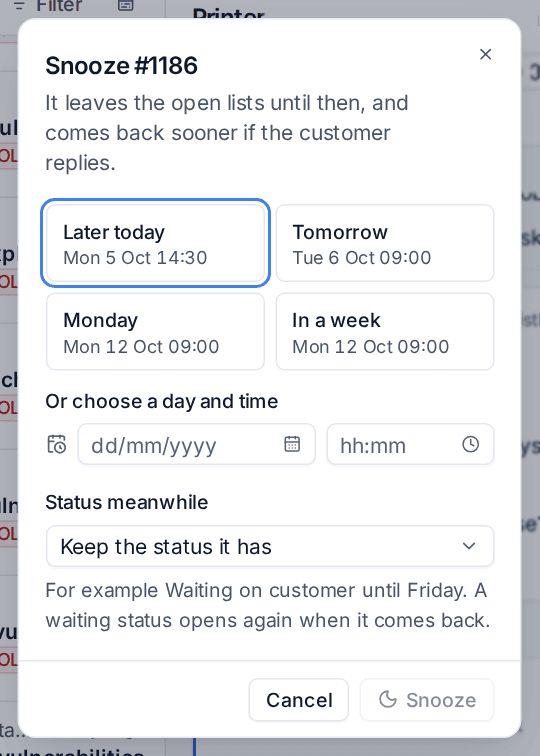
A snoozed ticket leaves My open tickets, All open, Unassigned, the team views and the queue counts, and waits in the Snoozed view. The header shows Snoozed until, with a click to Wake it now. When the time comes it is back: a waiting status opens again, and the assignee and whoever snoozed it are told "#1234 is back". A reply from the customer wakes it early.
Reminders on any record
A reminder brings something back to you without changing it. Unlike snooze, the ticket stays in the lists and its status is untouched.
- Choose Remind me in a ticket's More actions (or
Shift+z). Most other records, such as customers, quotes and devices, have Remind me beside Follow. - Pick when, as for snooze.
- Add a Note, such as "Check the toner arrived".
- Turn on For someone else to set it for a colleague. They are told.
- Press Set reminder.
At the time you get a notification (the Reminders event in your notification settings, see Notifications). The ticket's details panel lists its reminders, and My reminders in the tickets sidebar lists all of yours with Open, Due now and Done.
Chasing and closing automatically
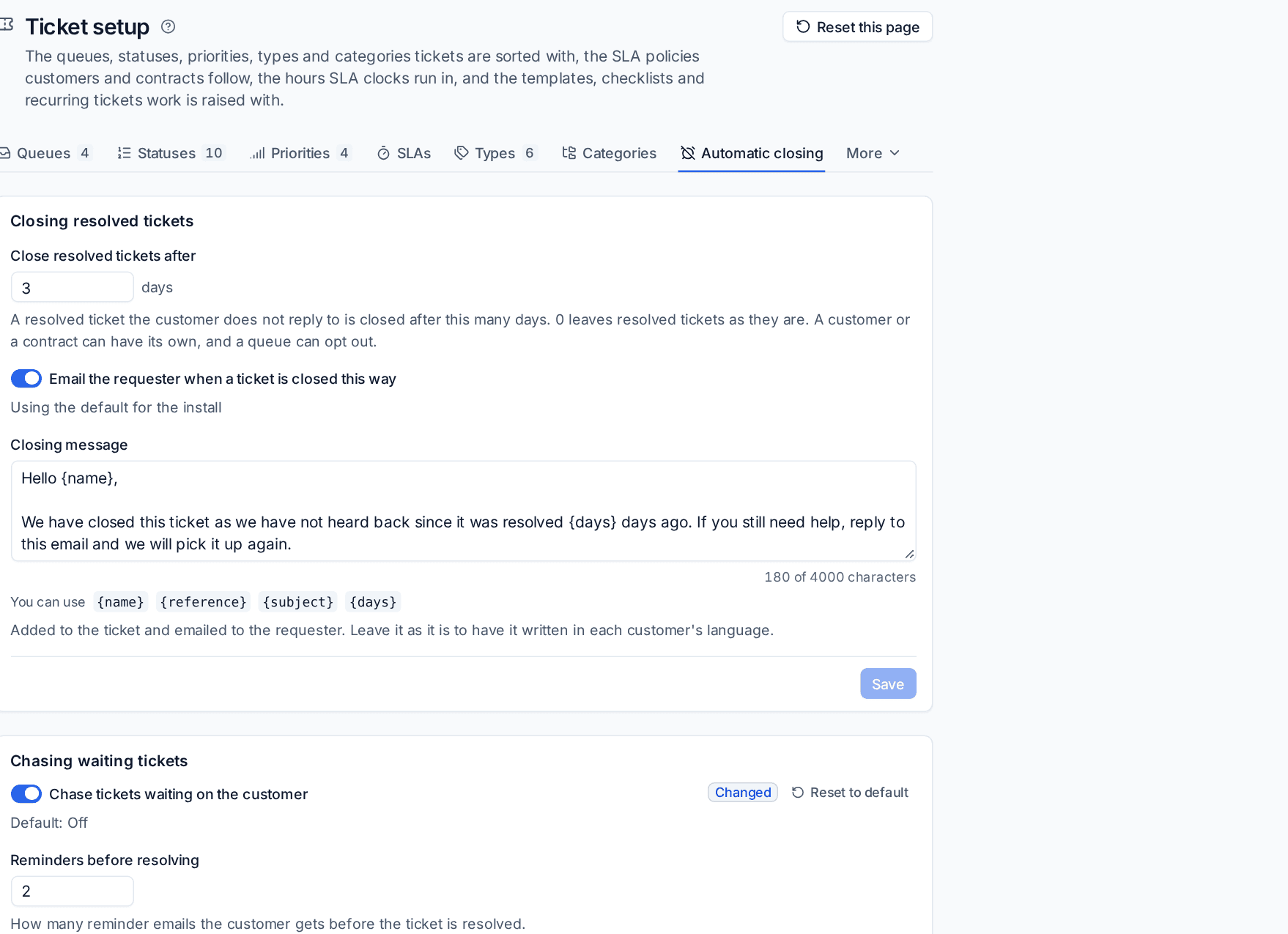
Settings > Ticket setup > Automatic closing keeps waiting and resolved tickets from lingering.
Closing resolved tickets
Close resolved tickets after a number of days (3 by default) closes a resolved ticket the customer has not replied to. Choose whether to Email the requester when a ticket is closed this way, and the Closing message. 0 leaves resolved tickets as they are.
Chasing waiting tickets
Turn on Chase tickets waiting on the customer to send polite reminders when a ticket sits in a status that waits on them. Chasing is off until you turn it on, because it emails your customers.
- Reminders before resolving: how many reminder emails go before the ticket is resolved.
- Between reminders: business hours in the customer's calendar after the last message before each reminder, and after the last reminder before resolving. 18 is two working days of nine hours, so a reminder due at the weekend waits for Monday.
- Reminder wording and Closing note, with placeholders such as
{name}and{reference}, and Copy in the ticket's Cc.
Each reminder is written on the ticket. A reply from the customer stops the chasing; snoozed and merged tickets are never chased.
The ticket header shows what will happen: Resolves automatically on a date for a waiting ticket, with how many reminders have gone, or Closes automatically on a date for a resolved one.
Under Exceptions, a queue can opt out of both (Projects, for example), and a waiting status can chase in its own way, with its own count, interval and wording. A customer can have its own choice on its Settings tab.
Replies to old tickets
A "thanks!" to a ticket closed months ago should not reopen it. Settings > Ticket setup > Rules > Reopen window (14 days by default) decides: a reply by email or in the portal to a ticket resolved or closed longer ago than this opens a new ticket instead. The new ticket keeps the old one's customer, queue and Cc, shows Follows on from #1234 at the top, and the two are linked. In the portal, the customer sees Raise a new ticket about this instead of a reply box. A customer can have its own window, and 0 means every reply to a resolved or closed ticket opens a new one.
Split a ticket
When a customer adds an unrelated problem to an existing ticket, split it out:
- On the message, open its menu and choose Split into a new ticket (also in More actions).
- Edit the Subject of the new ticket.
- Tick the Messages to take.
- Choose Move them (with their files) or Copy them.
- Press Split.
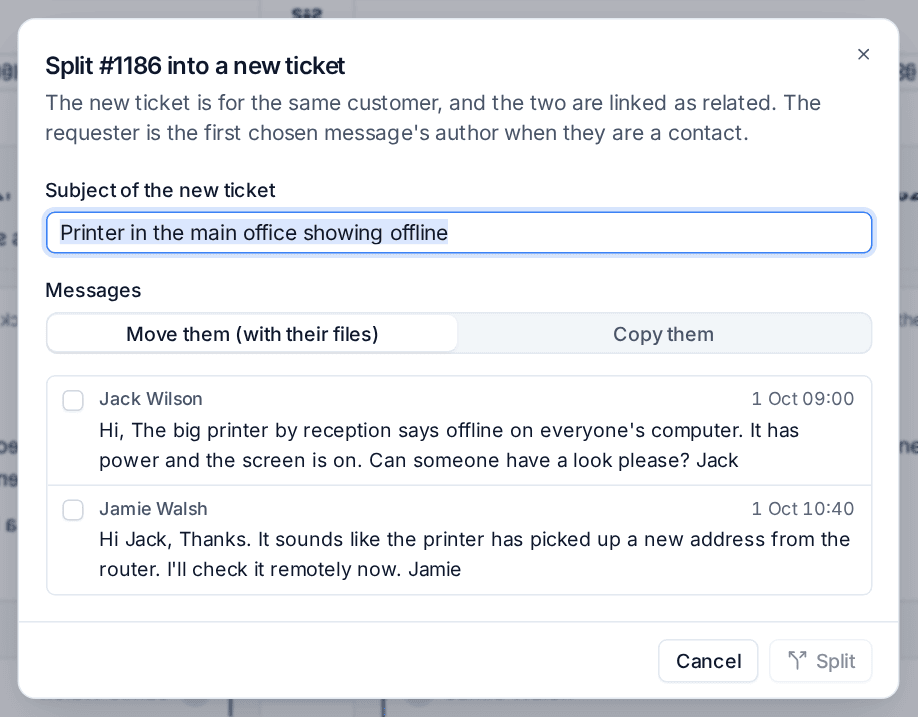
The new ticket is for the same customer, with the first chosen message's author as the requester when they are a contact. Replies to the moved emails thread to the new ticket, and the two tickets are linked.
Undo a merge
Merged the wrong tickets? The merged ticket offers Undo merge for 30 days (set under Merging and splitting in Settings > Ticket setup > Workflow). It moves the messages, attachments, time, devices and alert links back, and reopens the ticket.
Linked tickets
Link a related ticket (Shift+l) joins two tickets that are about the same problem without making one the parent. Choose how they are related: Related to, Caused by or A duplicate of. A duplicate is usually better merged, so the dialog offers Merge instead. Both tickets list each other under Linked tickets in the details panel, with status and assignee.
Escalate a ticket
Escalating hands a ticket on with a reason, so nothing is lost and you can see later why tickets move.
- Choose Escalate... in More actions, or press
Shift+e. It is on the bulk bar too. - Choose To a queue or To a person. The person picker shows the queue's members first, with Show everyone for the rest.
- Choose a Reason. The list is set under Escalation in Settings > Ticket setup > Workflow; Other with your own words is always there.
- Write a Handover note: what you tried and what you think it is. It is posted as an internal note.
- Optionally Raise the priority.
- Press Escalate.
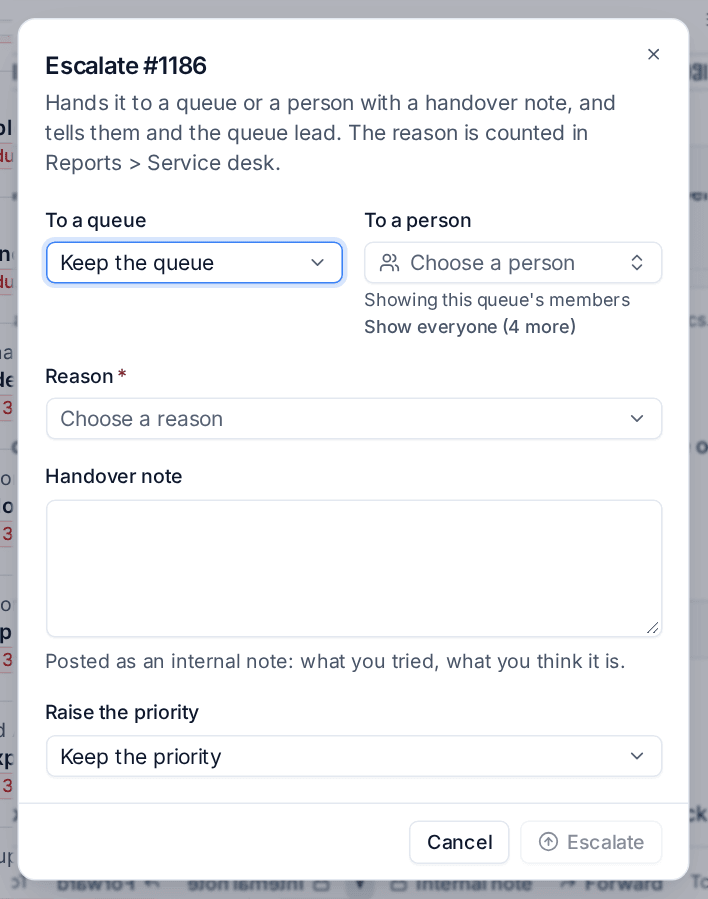
The target and the queue lead are told, the ticket shows Escalated in its header and row, and it appears in the Escalated view. SLA escalations (see SLA policies and escalations) mark tickets the same way.
Service desk metrics
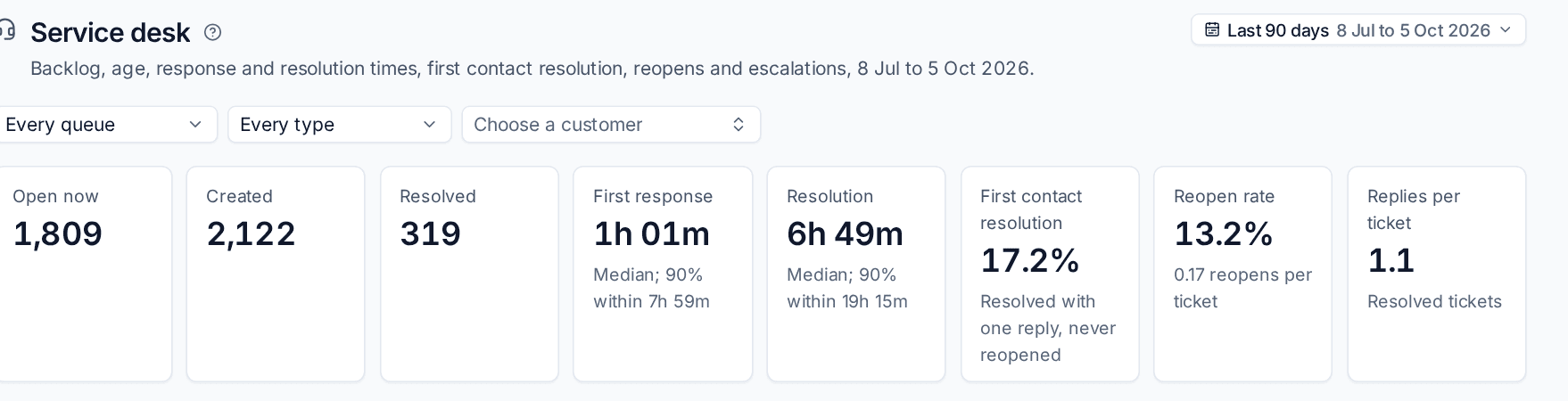
Reports > Service desk is the team lead's view of the inbox, for a period, a queue, a type and a customer:
- open now, created and resolved, and the backlog at the end of each day,
- first response and resolution times, as a median and the time 90% are within, in business hours,
- first contact resolution (resolved with one reply and never reopened), reopen rate and replies per ticket,
- the age of open tickets by queue and by technician, and the oldest open tickets,
- per technician: open now, touched today and resolved this week,
- escalations by reason and by technician, for first line coaching.
Was this page helpful?
Thanks for the feedback.