Proposal pricing, signing and tracking
Packages and quantity choices the customer changes on the page, the customer's web page with comments and forwarding, signing with emailed codes and an audit certificate anyone can verify, and engagement signals, reminders and the Proposals list.
This guide follows a proposal from the pricing the customer plays with, through the page they read and the signatures they give, to what you see of their interest along the way. To build one, see Building a proposal.
Pricing the customer can change
The pricing blocks show the quote's sections and lines, and let the customer make the choices you allow. Totals update as they choose, worked out exactly as the contract and invoices will be.
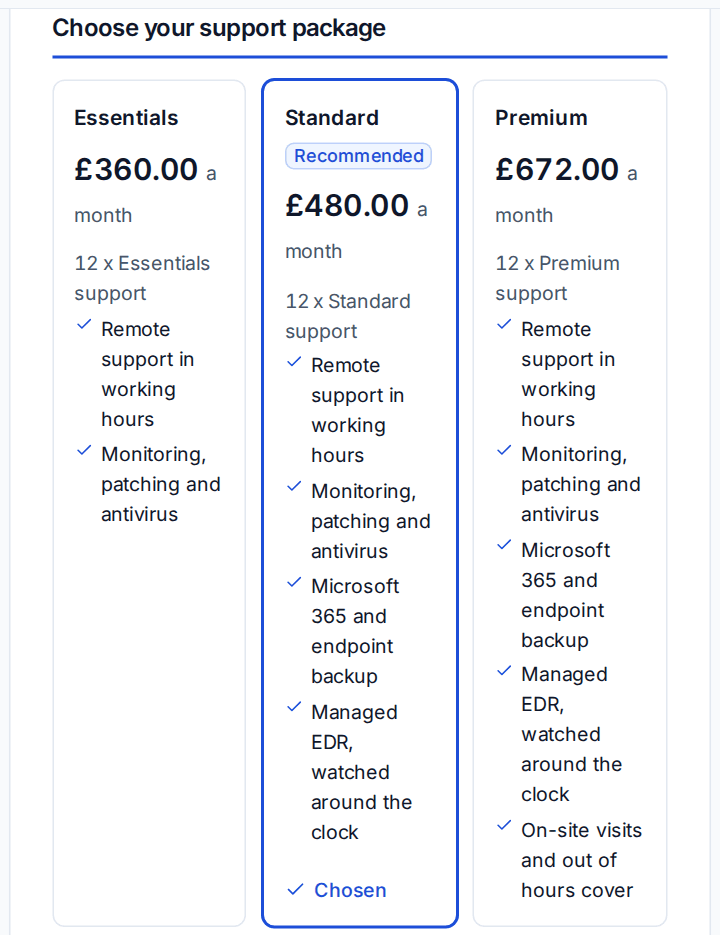
- Packages show a "customer picks one" section as cards, one per option, with its price and the features it includes, then a comparison table. Mark one Recommended. Choosing a card picks every line of that option.
- Quantity choice puts a slider or stepper on a line, between the least and most you allow, such as "How many laptops?" between 4 and 20.
- Optional extras are lines the customer ticks if they want them.
- Summary shows the one-off, monthly and first year totals. The first year is exact: the one-off total plus twelve monthly, four quarterly and one annual charge.
Lines can follow another line's quantity. In the quote builder, open a line's details and set Quantity follows and How many for each: a dock and a set-up for each laptop, two monitors per person, or every package's per-user line following one "Users" slider. When the customer moves the slider, the following lines move with it. See Building a quote.
The customer's page
The customer opens the proposal from the link in their email. It is a web page on your portal domain in your branding, with no sign-in: the link is the permission, and it stops working when the proposal expires. Signed-in contacts see the same page from the portal's quotes and approvals.
- A section menu beside the page (a Sections bar at the bottom on a phone) and a reading progress bar.
- Review and accept is always in reach with the live totals.
- Their choices of packages, quantities and extras are saved to their link as they go, so they can come back later, and a colleague opening it sees the same picks.
- Ask beside any priced line, and Comment or ask under any block, start a conversation that shows under that block. You are told, and reply from the quote's Questions tab. A change request starts the next version in one click.
- Send to a colleague gives a colleague (one of the customer's contacts, or an address at their email domain) their own link.
- When you send a new version, the page opens on what changed since the version they saw: the totals before and after, and the lines and sections added, removed or changed.
- Download PDF gives the same page as a PDF with their choices.
Once accepted, the page thanks them, says what happens next and, if you chose a booking page in Settings > Proposals > After acceptance, offers Book your kick-off. Booking it starts the project on that day.
Signing
The Accept and sign block says who signs: each place has a role (such as "Finance director") and optionally a name, job title and email, and they sign In order or in Any order. A block naming nobody has one open place, for whoever has the link.
- Sending the proposal invites the signer whose turn it is, each with their own link. In order, the next is invited when the one before signs.
- Each signer gives their name and job title and asks for a six-digit code, which is emailed to their address. Codes expire after 10 minutes and stop after five wrong tries.
- They sign by drawing, typing or uploading a picture of their signature, and tick that they agree to the terms, have the authority to sign for their organisation and agree to sign electronically.
The first signature fixes the choices and any purchase order number; later signers sign the same choices. Anyone whose turn it is can decline with a reason (which declines the proposal) or Send to someone else to sign. Viewers and forwarded colleagues can read, choose and comment, but never sign.
When the last person signs, the proposal is accepted and Tenvara makes, once:
- the signed PDF: the proposal as signed, the service agreement if it was signed with it, and the audit certificate;
- the audit certificate: who signed, how their email was confirmed, when, what exactly they signed (the version, the choices and a fingerprint of the page) and the event log. Your copy includes IP addresses; the customer's does not.
Every signer is emailed the signed PDF. Staff download the files from the proposal's signing card. Anyone can check a signed PDF at /portal/verify on your portal: the file is checked in their browser, never uploaded, and a match names the proposal, the company and who signed when. Any change to the file fails the check.
Note: These are simple electronic signatures with strong evidence, the usual standard for proposals and service agreements under UK law. Use paper, or Record acceptance, for deeds or anything that needs a witness. Your terms and agreement wording are yours to have reviewed.
The service agreement in the same go
Tick Sign the service agreement with this proposal and choose the contract, or leave it to the contract the proposal starts. The customer's page shows the agreement's schedule and terms beside Accept and sign, the signed PDF includes them, and the contract is marked signed with no second signing round.
Tracking engagement
Sales > Proposals lists every proposal with its engagement. The figures above it show the Open pipeline, New MRR in play, the Win rate and the Median time to sign.
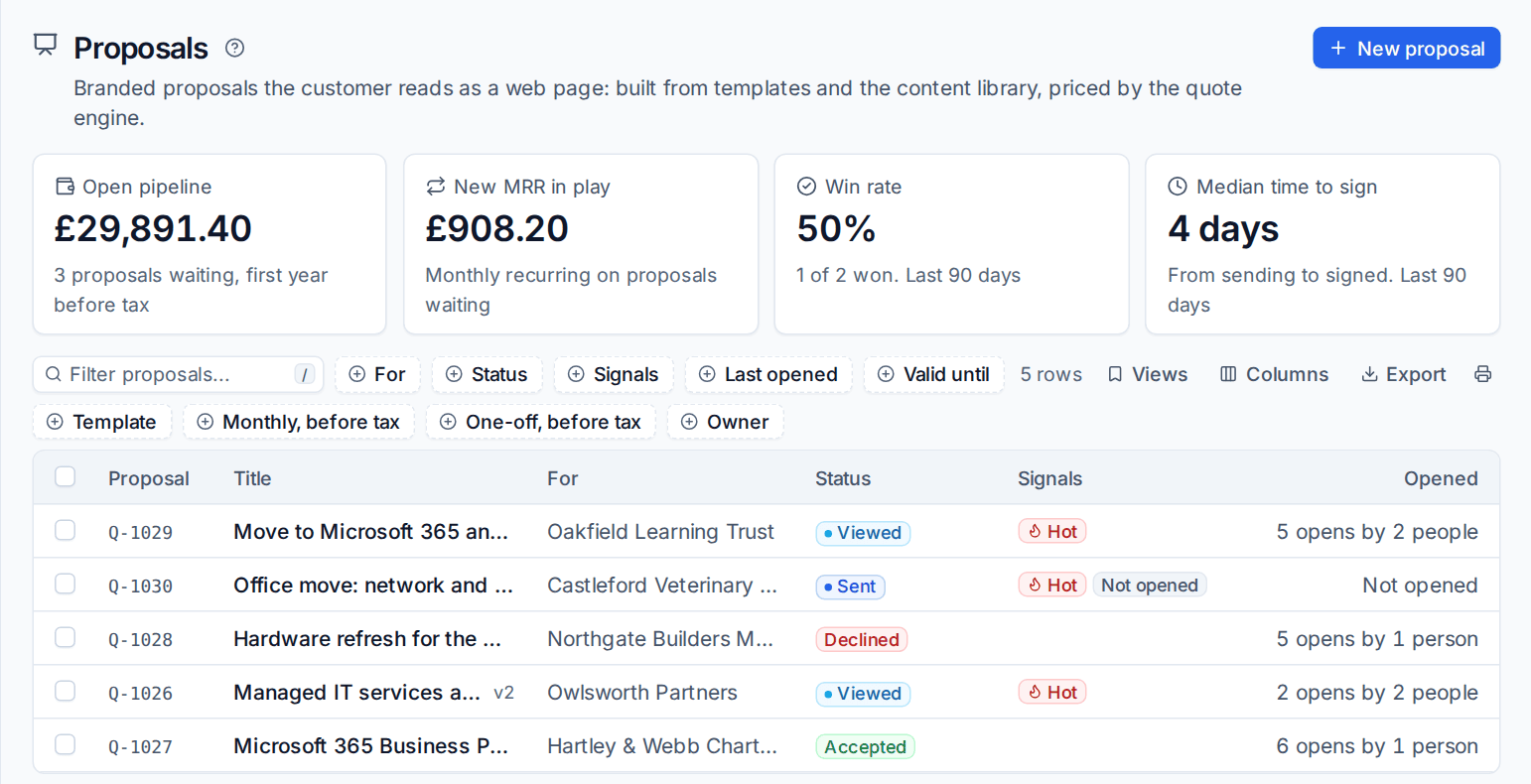
- Signals: Hot when it was opened several times in a day, forwarded to a colleague or read for a long time on the pricing in the last week; going cold when the customer has done nothing for a number of days since it was sent.
- Views: Hot this week, Not opened, Expiring in 7 days, Awaiting approval, Won and All. Extend expiry moves the valid until date of the selected proposals.
Click the opens on a proposal for its engagement panel: who opened it (by link, with their device), reading time, time per section with pricing marked, signers, questions and what happened when.
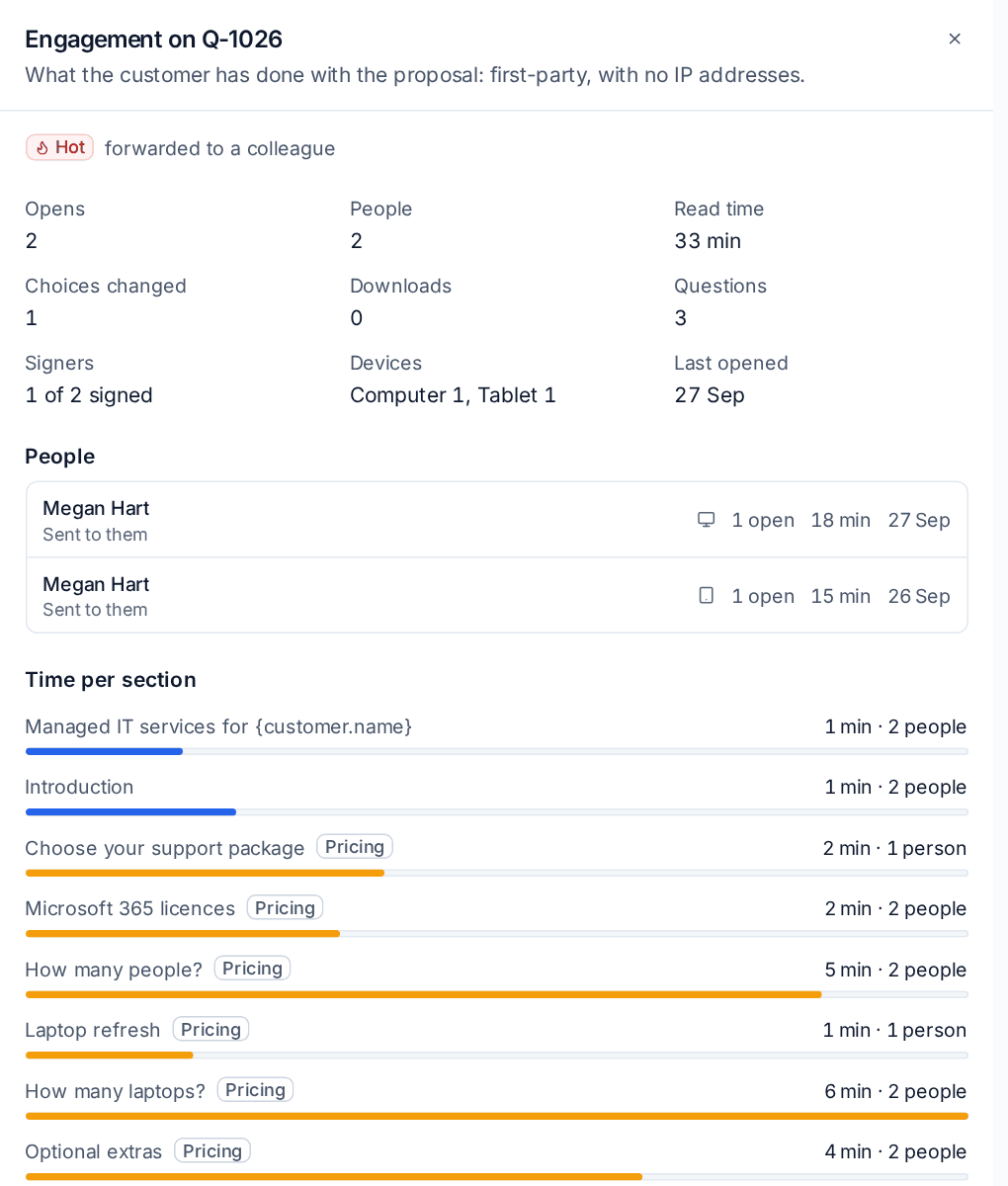
Tracking is first party and keeps no IP addresses. Opens, devices, choices and downloads are counted. Reading time, in total and per section, is only counted once you turn on Track reading time in Settings > Proposals. A line at the foot of every proposal says what is counted and links to your privacy notice.
The owner sees their own proposals' engagement; seeing everyone's needs the action for it in Roles and permissions. Owners are told when a proposal is opened, opened again after a quiet spell, forwarded, signed by one signer or everyone, declined, turns hot or goes cold; each person chooses which in their notification settings.
Reminders
Besides the usual quote reminders (see Quote follow-up, alternatives and prices), a proposal that was opened but not signed sends "Ready to sign?" a few days after the customer last opened it, and when one signer has signed and another has not, the next signer gets their invitation again after a couple of days. Stop reminders on the proposal stops them.
Reports
The report builder has Proposals and Proposal sections read data, with ready-made reports showing which templates win, read time won against lost, and which sections win. See The report builder.
Related: Acceptance and what happens next, Quote approval.
Was this page helpful?
Thanks for the feedback.