Application-aware and SQL Server backups
How Windows volume images are made application-consistent for SQL Server, how SQL Server logs are truncated after a backup, the log warning, restoring a database's files, and running scripts before and after a backup.
A plain snapshot of a running database server is crash-consistent: the database comes back as if the power had gone. It will usually start, but it has to recover first. Tenvara takes every Windows volume image as an application-aware backup instead, so SQL Server knows a backup is happening, makes its databases consistent on disk, and records the backup in its own history.
What happens during an image backup
For every Windows volume image, the backup helper:
- Asks Windows which applications have data on the volume. If a SQL Server database has its log on another volume, that volume is included in the same snapshot.
- Tells SQL Server a full backup is starting, so it brings each database to a consistent state for the snapshot.
- Reads the image from the snapshot as usual.
- Once the image is safely in your backup storage, tells SQL Server the backup succeeded. SQL Server records a full backup of each database, so the customer's own differential backups are based on it.
The job log says what happened, for example "C:: application-aware snapshot with SqlServerWriter (3)" and "C:: SQL Server SQLEXPRESS (3 databases) application-consistent". If Windows cannot take an application-aware snapshot, the log says so and a plain snapshot is taken instead, so the backup still runs.
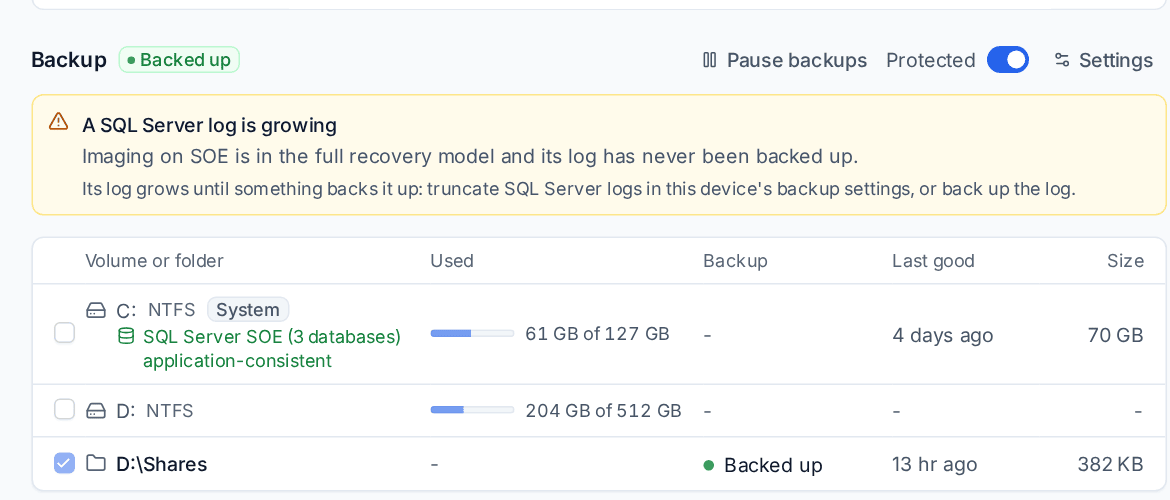
The device's Backup section shows it on the volume: "SQL Server SOE (3 databases) application-consistent", with the databases on hover. The job panel shows the same for each unit.
SQL Server logs
A database in the full (or bulk-logged) recovery model keeps every change in its log until the log is backed up. A volume snapshot alone never truncates it, so on a server nobody looks after, the log grows until the disk is full.
After a good application-consistent image, Tenvara backs up the log of each such database to nowhere, which lets SQL Server reuse the space. This runs as the helper's account (SYSTEM), which needs a SQL Server login with the right to back up.
- Turn this on or off for everyone in Settings > Backup > Defaults > SQL Server: Truncate SQL Server logs after an application-consistent image (on by default).
- On one device, open Settings in its Backup section and choose under Applications > SQL Server logs: As Settings, Truncate them, or Keep them. Choose Keep them when the customer's own SQL Server maintenance plan backs the logs up, so you do not break their chain of log backups.
The log warning
Each image also reads when each database's log was last backed up. If a database is in the full recovery model and its log has had no backup for longer than Warn about a log nothing truncates after (7 days by default), the device's Backup section shows "A SQL Server log is growing", with the database, the instance and what to do. It is a warning on the device, not an alert: it is a slow problem you fix once.
Restoring a SQL Server database
You can restore one database's data and log files from an application-consistent image, and attach them as a new database beside the live one. The live database is not touched.
- On the device's Backup section, hover a recovery point of the volume and press Restore a SQL Server database.
- Choose the Database. Each shows its instance, recovery model, size and number of files.
- Enter Restore to this folder on the device, for example
C:\Restore\Practice-2026-09-29. - Press Restore the files.
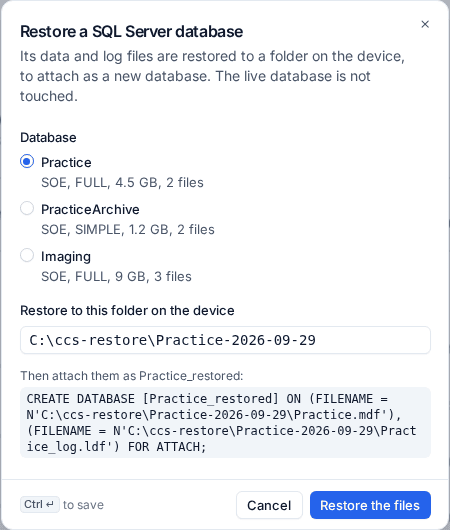
The restore goes through the usual approval rules and malware scan. When it finishes, Attach the restored database gives the statement to run on the instance, ready to copy, for example:
CREATE DATABASE [Practice_restored] ON
  (FILENAME = N'C:\Restore\Practice-2026-09-29\SQL\Practice.mdf'),
  (FILENAME = N'C:\Restore\Practice-2026-09-29\SQL\Practice_log.ldf')
FOR ATTACH;
The job log has the same statement. If some of the database's files are on another volume, the dialog says which, so you restore them from that volume's backup into the same folder first.
Scripts before and after a backup
For applications that need more than a snapshot (stop a line-of-business service, dump a MySQL or Sage database into a folder that is backed up), run a script from your script library around the backup.
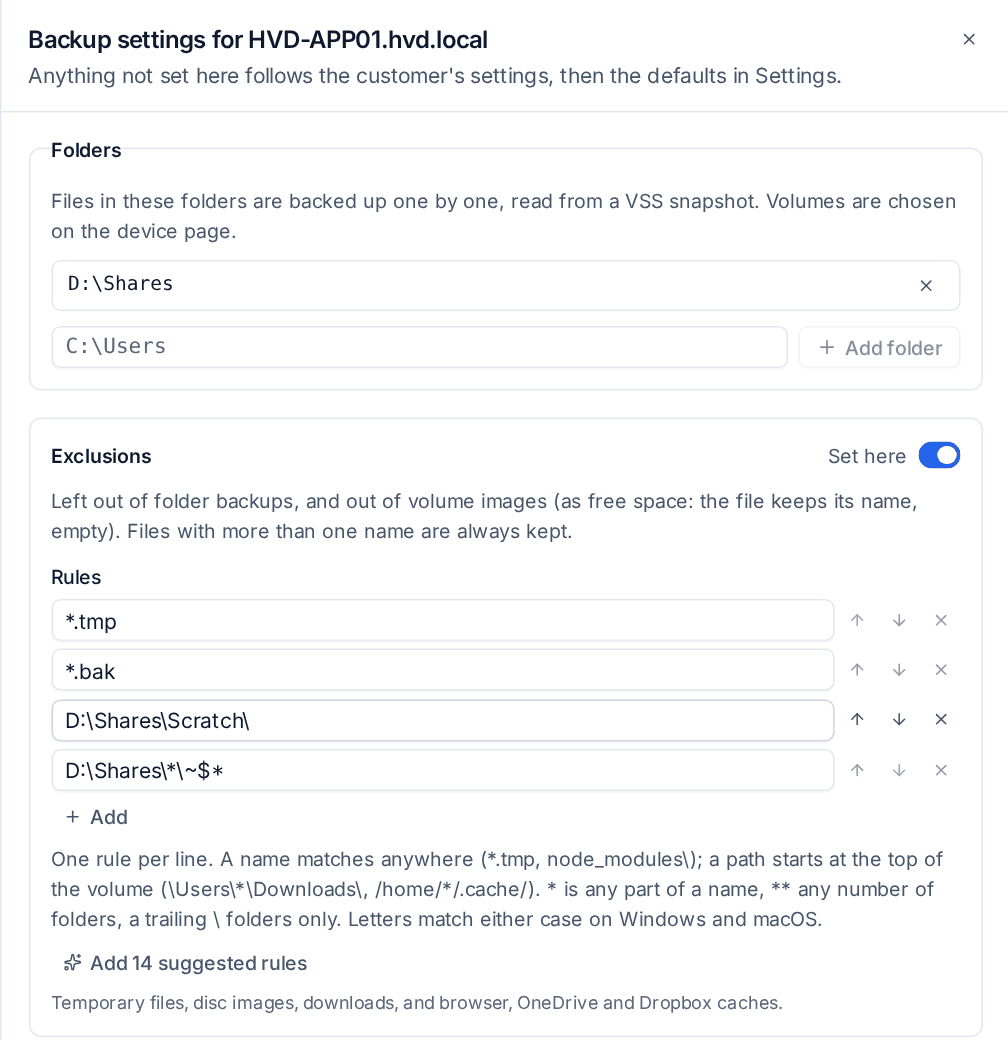
- Open Settings in the device's Backup section, or the customer's backup policy for all its devices.
- Under Scripts, turn on Set here.
- Under Before the backup, choose a published Script, its parameters and a Time limit, and If it fails: Skip the backup or Carry on.
- Under After the backup, choose a script to run once the backup has finished, whatever its result, for example to start the service again.
- Save.
The scripts run through the Scripts module as the person who set them, and their rights to run scripts are checked each time. Scripts that need a second person's approval cannot be used, because nobody is there to approve them at night. The job shows "Running the script before it" while it waits, and the job panel and log show each script's output and exit code. If the script before fails with Skip the backup, the job fails with the reason and the script after still runs.
Related
Was this page helpful?
Thanks for the feedback.