The setup helper
The Setup hub: your readiness score, the plan by phase, the recommended next step, who is on what, exporting the plan and how the rail changes after go-live.
Tenvara does a lot, and setting all of it up from the Settings pages alone means knowing what to do first, what each setting should be for a business like yours, and whether it worked. The setup helper does that the way a good implementation consultant would. A short discovery interview builds a plan of sections in the right order for your business. Each section asks a few questions, looks at your real data, recommends settings with reasons, shows exactly what will change, applies it, proves it with live checks and tells your team what changes day to day. After go-live the same checks keep running, so the helper becomes a health view.
Open it from Set up in the rail. Until you go live the rail item reads Set up; afterwards the same item reads Health and opens the health view.
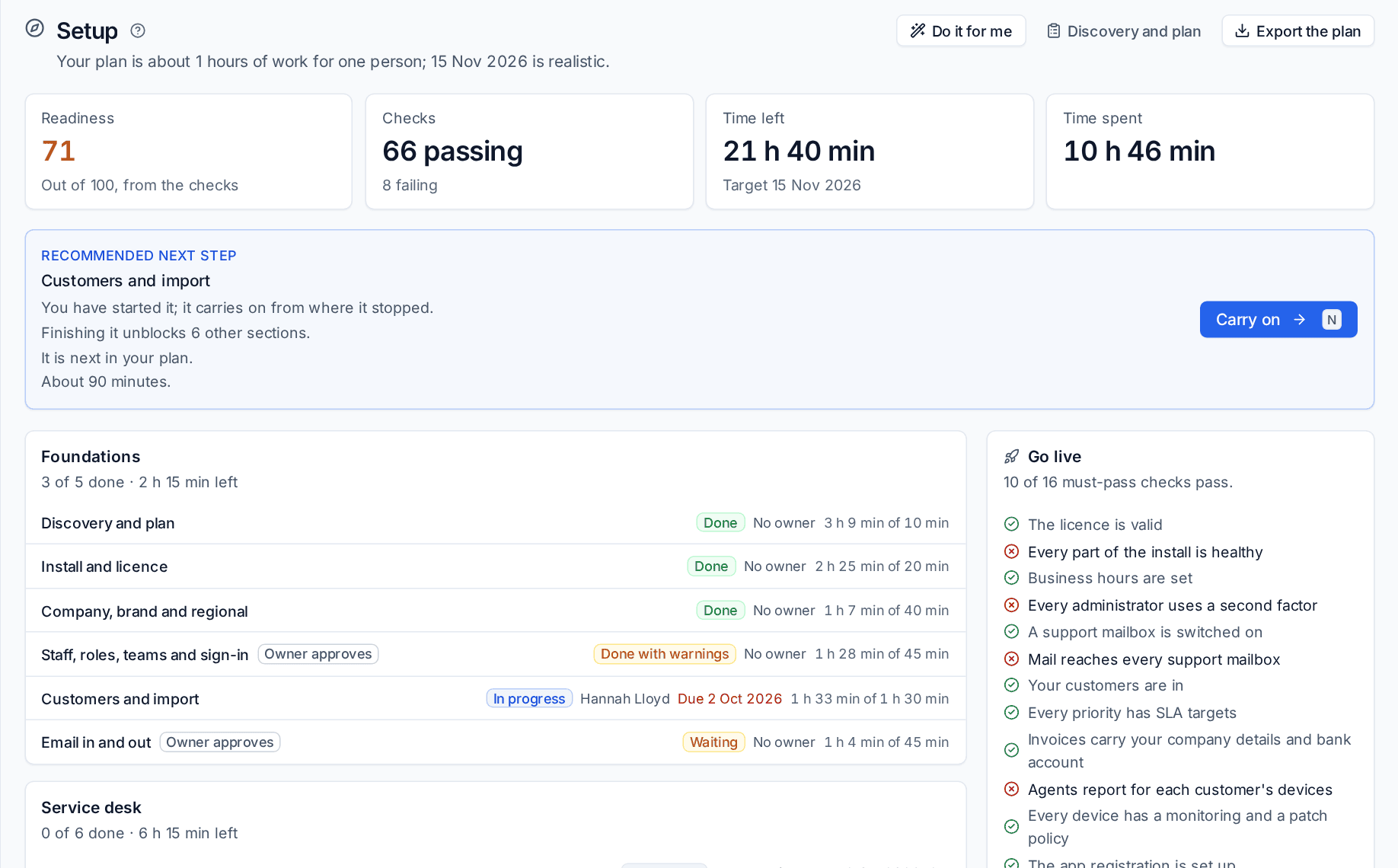
The hub at a glance
Across the top:
| Tile | What it shows |
|---|---|
| Readiness | A score out of 100, from the checks. See below |
| Checks | How many checks pass and how many fail |
| Time left | The estimate for the sections still to do, and your target date |
| Time spent | Time people have spent in the sections so far |
The line under the title says how much work the plan is and whether your target date is realistic, for example "Your plan is about 22 hours of work across 10 people; 15 Nov 2026 is realistic."
The recommended next step
Recommended next step picks one section and says why: it is overdue for you, it is given to you, you have already started it, finishing it unblocks other sections, or it is simply next in your plan. Press Carry on (or N) to open it. It never suggests a section that is blocked or one you are not allowed to work on.
The plan by phase
Below it, every section is listed in plan order inside its phase: Foundations, Service desk, Devices and monitoring, Commercial, Security and Go live. Each row shows:
- the section's state: Not started, In progress, Waiting, Done, Done with warnings, Not needed or Blocked (with what it is waiting for);
- Owner approves on sections where changes are risky enough that the owner signs them off when someone uses Do it for me;
- Updated when a section you finished has new steps after an upgrade;
- the owner, the due date (red when overdue), and time spent against the estimate.
Sections you do not need, for example billing for an internal IT team, are listed apart with the reason.
Press J and K to move through the sections and Enter to open one.
Readiness
The readiness score is worked out from the checks of the sections that count for you. Each check has a weight: a passing check earns all of it, a warning half, and a failing check or one never run nothing.
Raise your readiness on the right lists the checks worth most points that are failing or not run yet, with how many points each would add, so you always know what moves the score most.
Who does what
Most people do not need to do every section. On the hub and in each section:
- Assign a section, or a single step, to someone with a due date. They get a notification and an email, a reminder on the due day and another when it is overdue.
- Comment on a section for handovers, with
@mentions. - Send a step by link to someone without a login, such as a customer's IT contact or your DNS provider. See Working through a section.
Who can do what:
| Permission | What it allows |
|---|---|
| Setup view | See the hub and progress |
| Work on setup | Answer, apply and finish the sections and steps given to them |
| Setup manage | Work on every section, assign, mark sections not needed, finish a section with failing checks (with a reason), build the plan and go live |
Applying a change still needs the permission that change needs, as on the Settings page it comes from. When someone without it presses Apply, the change waits until someone who has it applies it.
Exporting the plan
Press Export the plan and choose:
- PDF: the plan with every section, its state, owner and estimate, with your branding. Useful for a kick-off meeting or the board.
- CSV: the same as rows, for a spreadsheet or a project tool.
Do it for me
Do it for me on the hub takes any number of open sections and sets them up with the answers it already knows and its own picks for the rest. It shows the combined preview first and says which sections need the owner's approval. Low-risk sections are applied at once; sections marked Owner approves wait for the owner's approval through the approvals engine, and are applied as the approver when they say yes. It then lists what was applied, what waits and what was skipped and why. Everything it applies can be undone for 7 days.
In this section
- Discovery and your plan
- Working through a section
- Go-live and Health
- The practice customer and plan export
Moving from another PSA? The Customers and import section takes CSV exports from HaloPSA, ConnectWise Manage, Autotask and Syncro. See Importing from other PSAs.
Was this page helpful?
Thanks for the feedback.