Quote follow-up, alternatives and prices
Remind customers about quotes automatically, answer their questions, record acceptances, losses and withdrawals, start quotes from templates, offer alternatives, attach datasheets to the PDF, keep internal notes, and manage customer-specific prices and price changes.
Most quotes are won or lost in the follow-up. This guide covers the tools that keep a sent quote moving, and the ones that make the next quote quicker and better priced. They work the same for plain quotes and for proposals.
Reminders
Tenvara can chase unanswered quotes for you. Set it up once in Settings > Proposals > Reminders:
- Remind customers about quotes: on or off.
- Follow up after sending: the days after sending, while the customer has not opened it (3 and 7 by default).
- "Ready to sign?" after it was opened: the days after they first opened it without accepting.
- Before it expires: the days before the valid until date.
- Send reminders from: the time of day they go out.
- Tell the owner when a quote has not been opened after a number of days, and Tell the owner before a quote expires, in the bell.
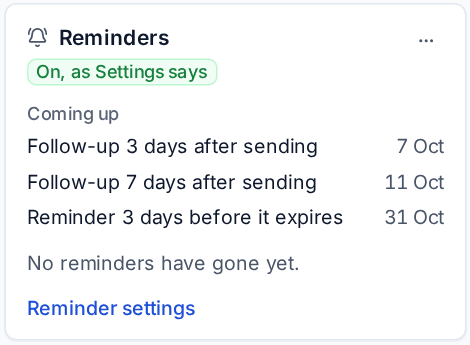
Each setting can be different per customer. On a sent quote, the History tab's Reminders card shows what is Coming up and what has gone, with its delivery status. Turn off for this quote or Stop reminders there stops them. Acceptance, a decline, a new version or expiry stop them too.
The Sales sidebar has Expiring in 7 days and Not opened views, with counts, so nothing slips.
Questions and colleagues
Beside Accept and Decline, the customer can ask a question or request a change (about the whole quote or one line), and send the quote to a colleague to approve. The colleague is one of the customer's contacts or an address at their email domain, and gets their own link; the page shows who it is waiting for.
You are told in the bell and by email. Reply from the quote's Questions tab: the reply is emailed with the link. A change request has Start v2 from this, which starts the next version in one click. Both can be switched off in Settings > Proposals > Questions and colleagues, for everyone or per customer.
Outcomes you record
Not every answer comes through the link. On a sent or viewed quote, the ... menu has:
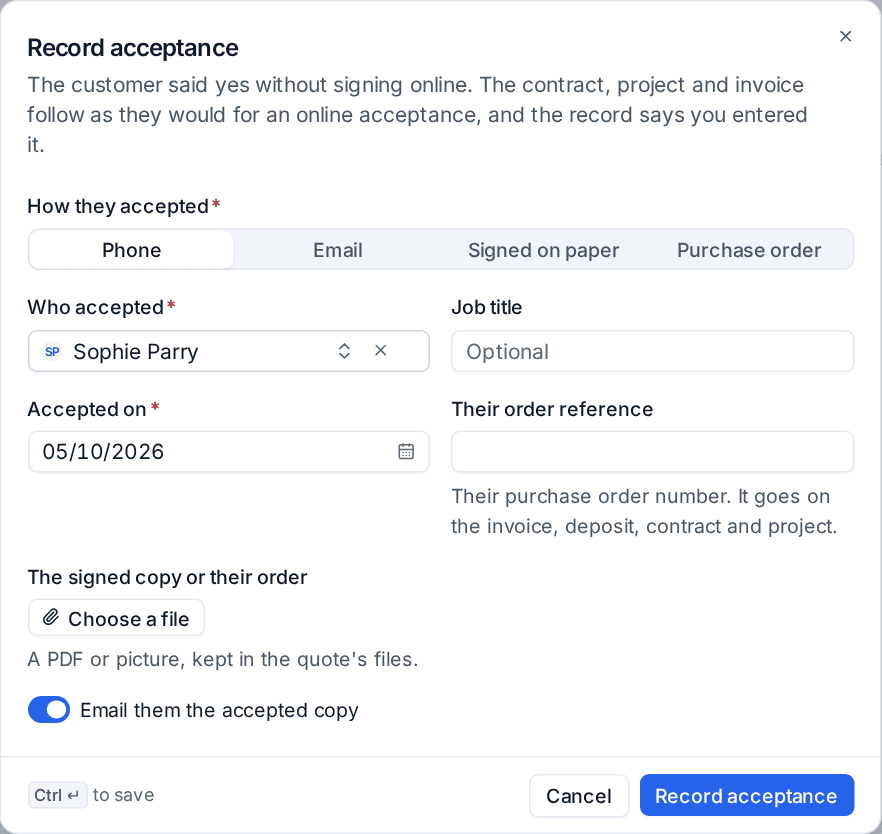
- Record acceptance: the customer said yes by phone, email, on paper or with a purchase order. Choose How they accepted and Who accepted, the date, Their order reference and optionally attach the signed copy or their order. The contract, project and invoice follow exactly as for an online acceptance, and the record says you entered it.
- Mark lost: choose Why it was lost from the list in Settings > Sales and, optionally, Who they went with. Select several quotes in the list to mark them lost at once.
- Withdraw: take it back. Its links stop working and the portal no longer shows it.
The report builder's quote data has the decision date, lost reason and competitor, so win and loss by reason, owner and month is one report. See The report builder.
Purchase order numbers
When a customer accepts online, they can give their purchase order number; customers set to Purchase order required are asked for one. The number goes on the invoice, deposit, contract and project. See Contracts and invoicing.
Quote templates
Build a quote you send often once (a new starter kit, managed IT for 20 users, an office move), then choose Save as a quote template from its ... menu. It keeps the sections, lines, optional items and wording, with a category.
New quote then offers to start from a template. Lines take today's catalogue prices, and any line whose price has changed since the template was saved is marked so you can check it. Settings > Proposals > Quote templates lists, edits and archives them.
Alternatives: the customer picks one
To offer good, better and best, mark a section Customer picks one in the quote builder and give its lines an Option name, such as Good or Better. Lines with the same option name are one option. The builder shows each option's one-off, monthly and margin (staff only); the customer chooses one with the totals following their choice, and only the chosen option's lines reach the contract, project and invoice. On a proposal, a Packages block shows the same section as cards.
Files, pictures and the PDF
- Catalogue items can carry a picture and a datasheet. With Pictures beside lines on in the proposal template, pictures appear beside the lines.
- A quote can carry files: datasheets in one click, a statement of work, a diagram. The customer downloads them from the link and the portal.
- Tick Add to the end of the PDF on a PDF file to join it to the quote's PDF, in the order listed.
Internal notes
The Comments under a quote are for your team only, with @mentions, and never shown to the customer. Use them for the background a colleague needs when they pick the deal up.
Customer prices and price changes
Their own prices
A customer's Billing tab has Their own prices: a fixed price or a percentage off for any catalogue item, optionally until a date, for the customer or for one of its contracts. Press Add a price for this customer. The quote builder's catalogue picker then offers their price and marks the line, and contract lines added from the catalogue use it too. A contract's own price beats the customer's, which beats the list price.
Changing prices in bulk
On Sales > Catalogue, select items and press Change prices: up or down by a percentage or an amount, rounded to whole pounds or .99, on cost, price or both, now or from a date. Check the preview, then confirm. Changes waiting for their date can be cancelled. New quotes use the new prices; what customers already pay on contracts changes only through a price uplift.
Every change to an item's cost or price, by hand, in bulk, by import or from a distributor feed, is kept on the item's Price history and in the activity log.
Related: Sending a quote and versions, The catalogue.
Was this page helpful?
Thanks for the feedback.